Conclusion
Google Keep is a lean, dependable note-taking tool that excels at being completely frictionless and simple. It serves as a fast capture system for quick thoughts, to-do lists, and reminders without any initial setup or learning curve, making it especially convenient for anyone already tied into Google’s ecosystem. However, its zero-dollar price tag comes with clear functional trade-offs. The lack of desktop voice memos, no document scanning or OCR, absent rich-text editing, and an ad-driven privacy profile mean it cannot replace comprehensive workspace tools for power users. For everyday personal notes it gets out of your way, but users needing deep organizational hierarchies or advanced workflow capabilities should look elsewhere.
Pros:
- Clean, uncluttered UI with an intuitive masonry grid layout
- 100% free with no paywalls or premium tiers
- Instant cross-device syncing backed by Google infrastructure
- Direct one-click export into Google
- Fast checklist and reminder setup with customizable card visuals
Cons:
- No voice memo or audio recording functionality on the desktop web app
- Content is processed within Google’s broader ad and data ecosystem, making it unsuitable for sensitive data
- Lacks rich text formatting, AI assistants, and document scanning
- Organization is limited to basic labels without notebook or folder hierarchies
- Desktop handwriting and drawing canvas can be glitchy or slow to load
Table of Content:
- First Impressions and User Experience
- Core Features
- Performance, Reliability and Everyday Usability
- Pricing, Plans and Limitations
- Privacy, Data Handling and Trust
- Google Keep vs Evernote
- Final Verdict
There is a certain type of productivity app that tries to do everything and ends up doing most of it poorly. Google Keep is the opposite of that. It is a lean, focused note-taking tool that has clearly made its peace with being simple, and that kind of restraint is really refreshing. After spending time with Evernote, which is loaded with features and priced accordingly, coming back to something this uncomplicated felt like putting down a heavy bag.
That said, simple does not mean perfect. There are gaps in Google Keep that became obvious pretty quickly, and for someone who relies on note-taking as a serious part of their workflow, those gaps might matter more than the price tag does.
Google Keep suits people who want a fast, frictionless place to capture notes, to-do lists, reminders, and images without any setup friction at all. It also suits anyone who lives inside the Google ecosystem already, since the integrations with Google Docs and the broader account infrastructure make it genuinely useful in a way that feels effortless. Where it does not suit as well is anyone who needs voice memos, rich media note-taking, deep organizational structure, or anything remotely close to what Evernote offers in terms of functionality depth.
First Impressions and User Experience
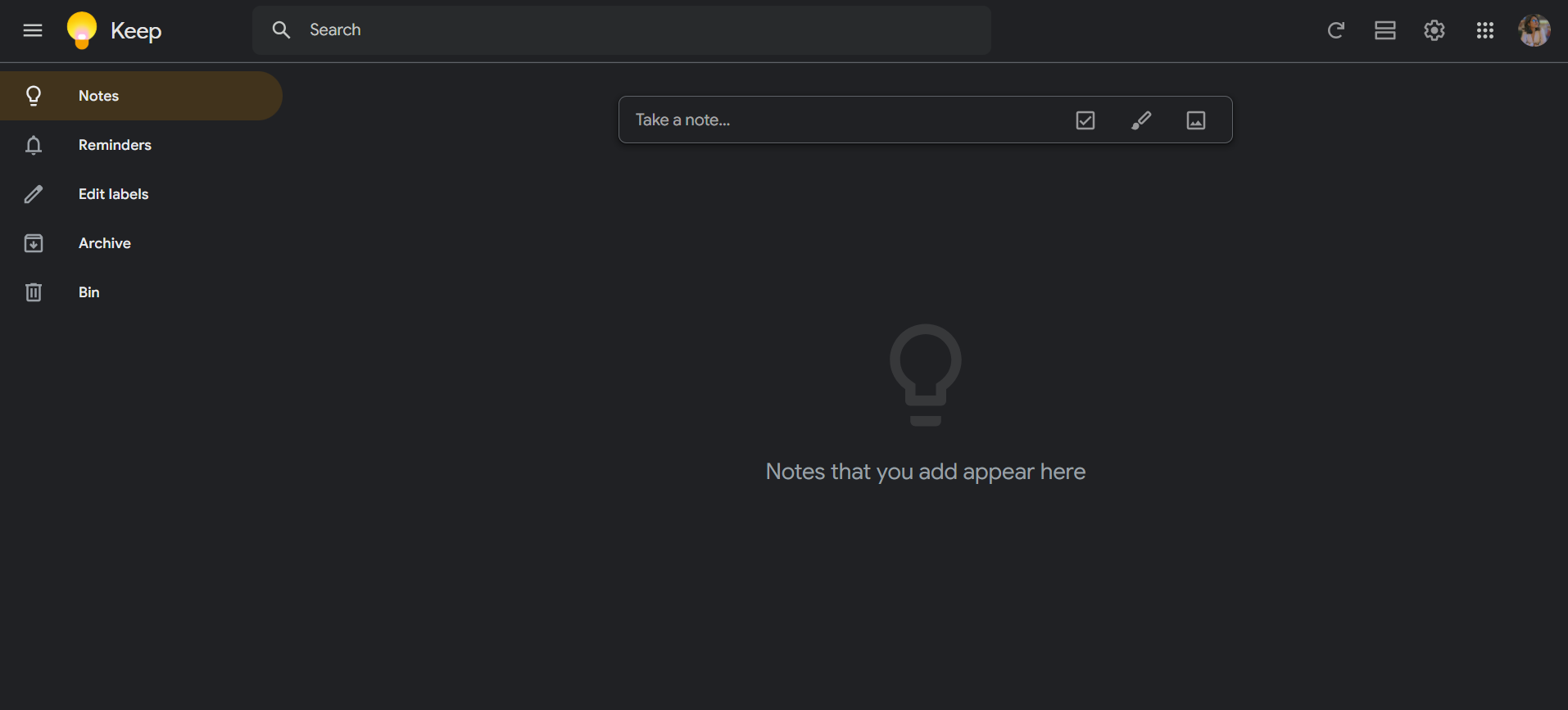
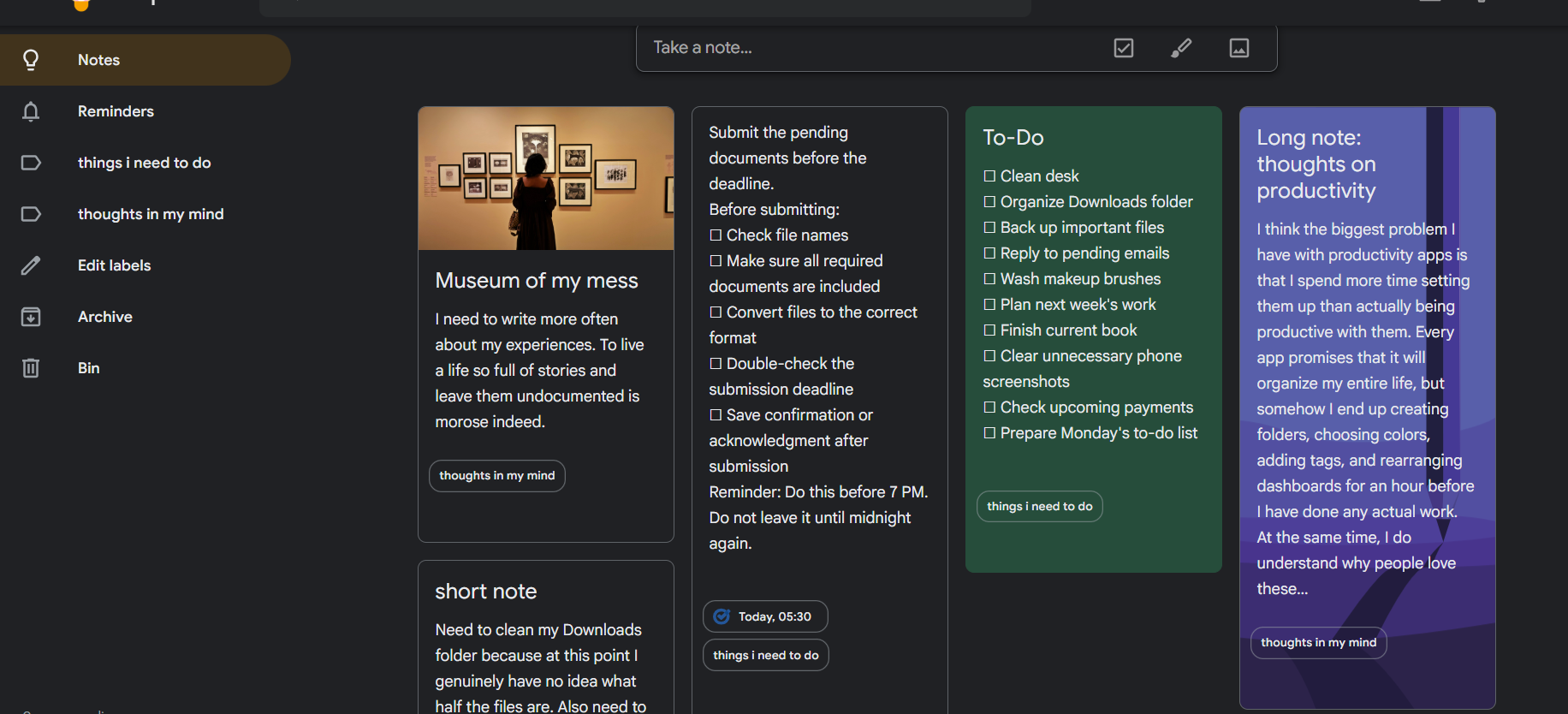
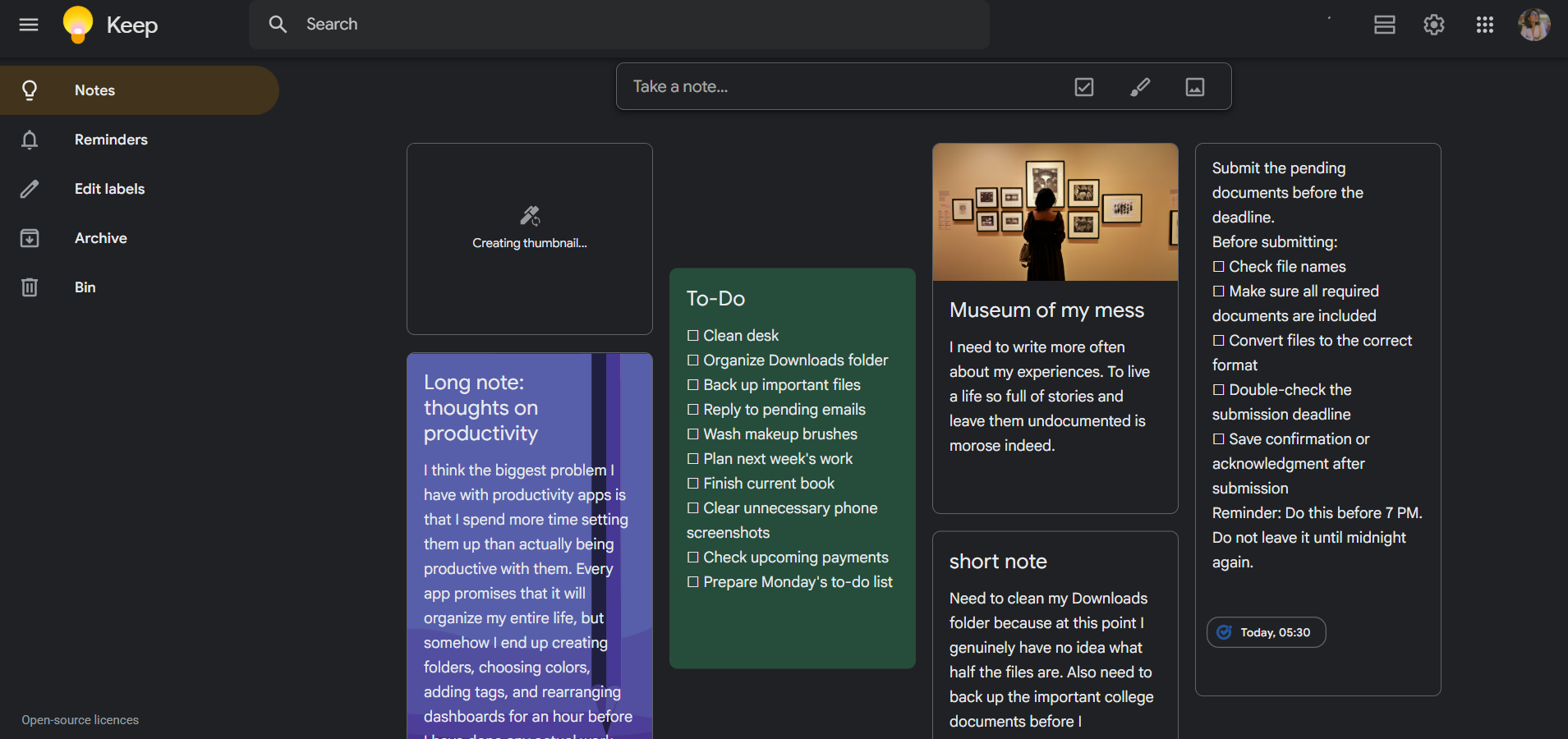
The first screen after logging in is dark, clean, and immediately understandable. There is no onboarding wizard, no “let’s get you set up” screen, no tour. There is just a blank canvas with a “Take a note” bar at the top, and the sidebar on the left showing Notes, Reminders, Edit labels, Archive, and Bin. That is the whole navigation structure. I genuinely appreciated that.
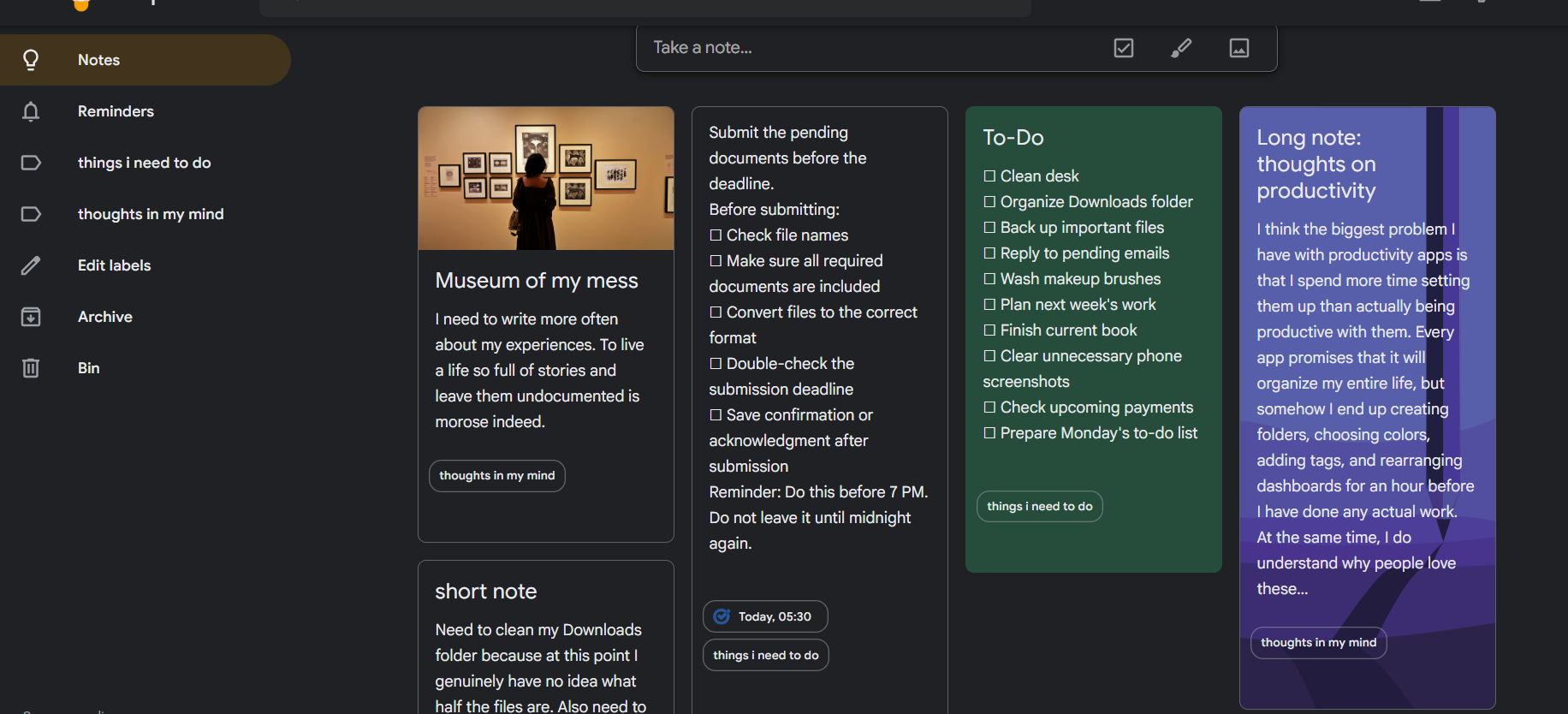
The dark theme is well done. The note cards sit in a masonry grid layout against a near-black background, and adding custom background colors or themed images to individual cards gives the workspace a nice bit of visual personality without making it feel cluttered. I tested a few of the background image options, illustrated landscape scenes in dark purples and blues, and they looked good against the dark interface. It is a small touch but it actually made the note-taking experience feel slightly less sterile.
The overall UI is the kind of thing that feels immediately intuitive. There is no learning curve worth mentioning. Within about five minutes of opening the app, everything made sense without needing to look anything up. For something like Evernote, I spent a non-trivial amount of time figuring out where things lived. Google Keep does not seem to have that problem at all.
Core Features
Google Keep covers the basics and does them well, with a few notable absences.
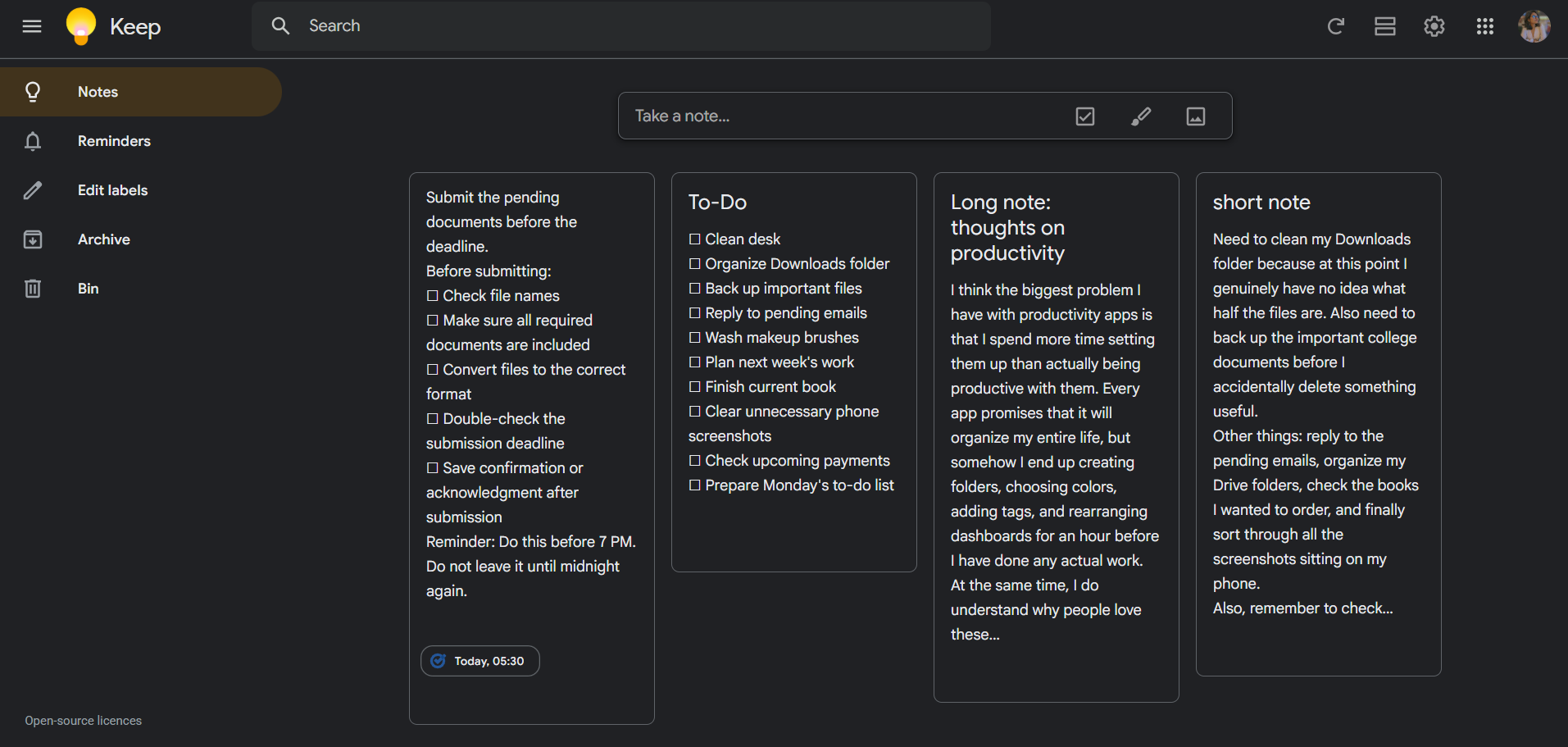
- Text notes and to-do lists. Creating a note is as fast as clicking the input bar and typing. Lists with checkboxes are supported natively, and the interface for toggling between a plain text note and a checklist is simple. I created a few different note types during testing, a long-form text note, a checklist, and a short note with a reminder, and all of them worked exactly as expected with no friction.
- Image notes. Uploading an image as a note or attaching one to an existing note worked well. The image renders as the note thumbnail in the grid view, which is a useful visual cue when scanning through a large number of notes.
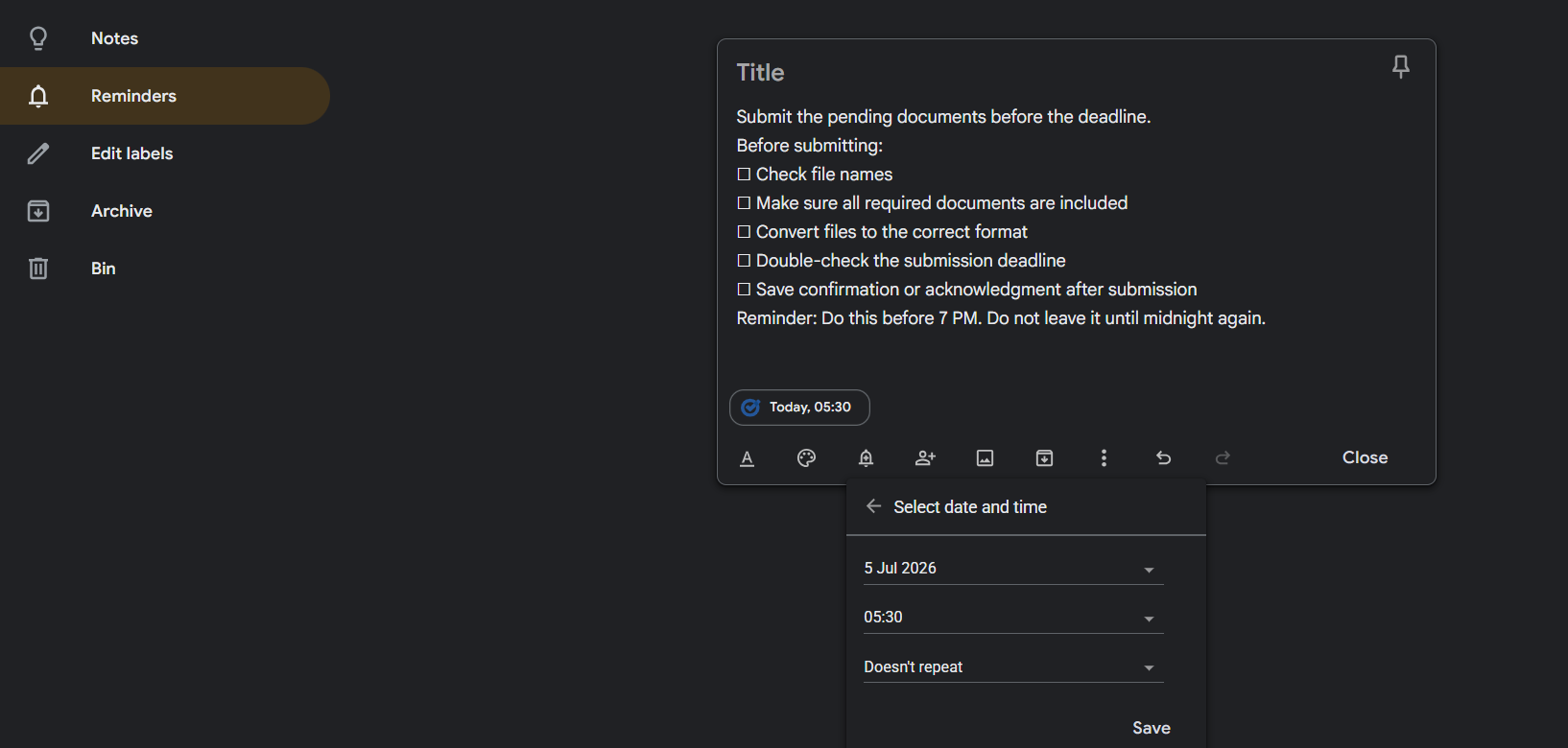
- Reminders. The reminder system is clean and practical. Inside any note, tapping the bell icon opens a date and time picker with a repeat option. I set a reminder on a to-do list note and it worked without any issues. For deadline tracking and task management, this is genuinely useful.
- Labels. Notes can be assigned to custom labels, which function like categories or folders. The sidebar updates with label names once created, so navigating to specific note groups is easy. The organization system is not as powerful as Evernote’s notebooks, but for most everyday use it is more than adequate.
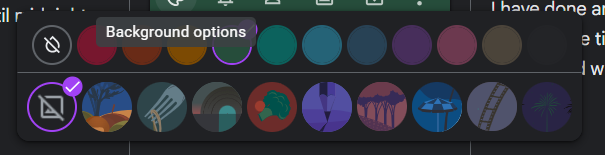
- Background colors and images. Each note can have a solid color or an illustrated background image applied to it. The color palette has about eight options and the image themes are abstract illustrated landscapes. In the dark UI this works nicely, the colored note cards add visual variety without being distracting.
- Collaborators. There is an option to add a collaborator to a note by entering their Google account email. I did not test this actively but the option is there and integrates with Google account contacts seamlessly, which is the expected behavior for anything Google-adjacent.
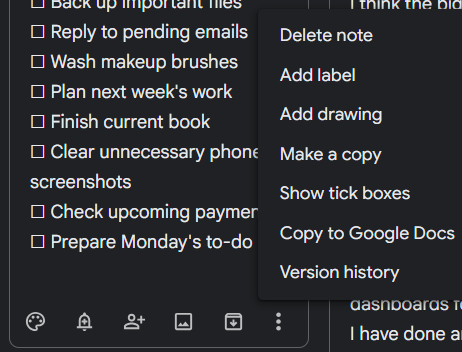
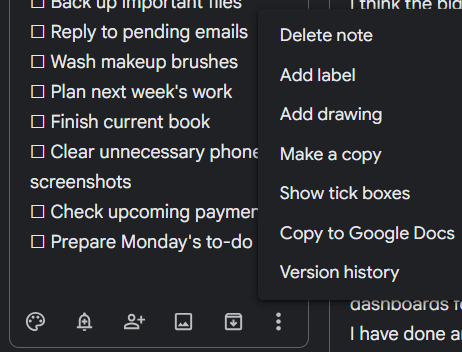
- Copy to Google Docs. This is one of the more useful integrations. From the three-dot menu inside any note, there is a “Copy to Google Docs” option that sends the note content directly into a new Google Doc. For someone who drafts quick ideas in Keep before expanding them into documents, that connection is practical and immediate.
- Handwriting and drawing. There is an “Add drawing” option in the note menu. When I tested this on my PC, it did not load properly. The thumbnail kept buffering and the canvas never became usable. It is possible this feature works better on mobile or on a touchscreen, but on a desktop browser it was a dead end for me. Worth noting for anyone who plans to use Keep specifically for handwritten notes on desktop, because it may not work.
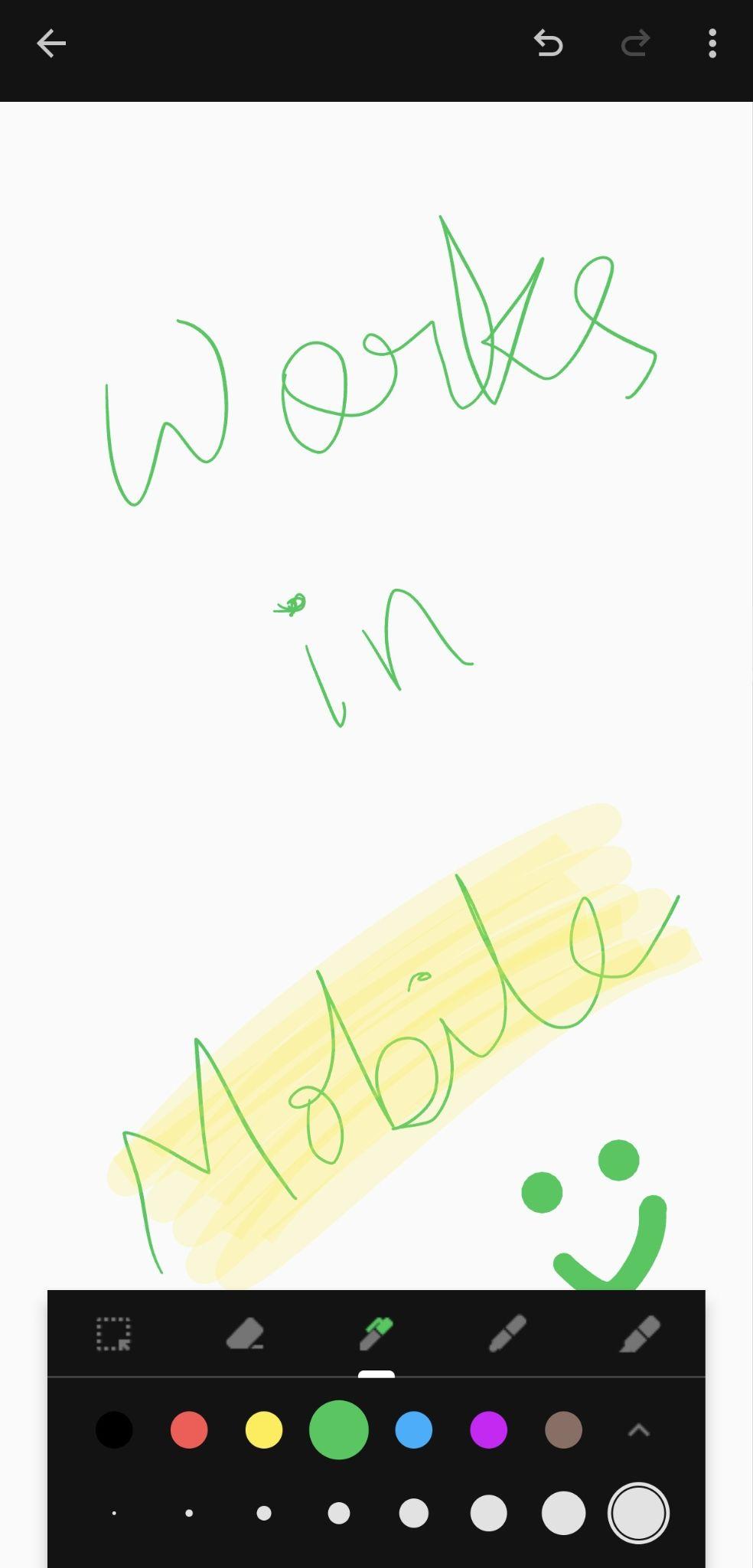
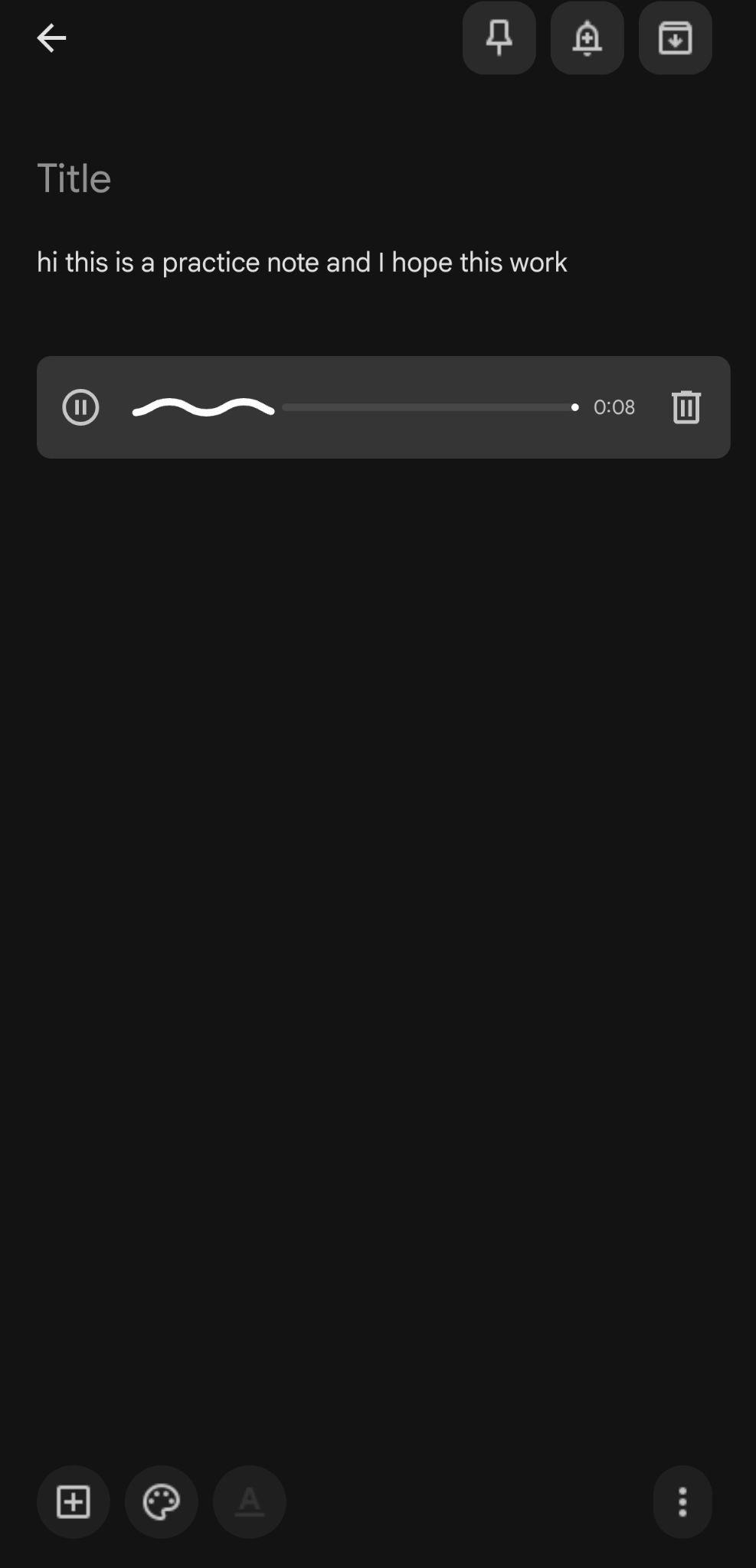
- Voice memos. This is the most significant missing feature for me, coming from Evernote. Evernote allows voice recordings to be attached to notes and, in some tiers, transcribes them. Google Keep has no voice memo function on the web version. On mobile there is audio note support where it both transcribes the audio and saves it as a voice memo inside the note, but on desktop it simply is not there. For anyone who relies on voice-to-text note capturing as part of their workflow, this is a real gap.
Performance, Reliability and Everyday Usability
Google Keep is fast. Pages load quickly, notes save instantly, and there is no noticeable lag between any action and its result. The background sync works well assuming it is enabled, which means notes created on one device show up on another without any manual step required.
The app stayed stable throughout my entire testing period. No crashes, no failed saves, no layout issues. This is what being backed by Google infrastructure actually looks like in practice.
Usability across a longer session is also genuinely pleasant. The masonry grid does a good job of giving a visual overview of all open notes at once without feeling overwhelming. Pinning important notes to the top of the dashboard works as expected and keeps priority items in view.
The one persistent frustration was the handwriting feature not loading on desktop. For most people this probably does not matter. For someone who specifically wanted that capability, it would be a dealbreaker.
In terms of everyday usability, Google Keep earns high marks for everything it actually does. The question is always about what it does not do, and the answer is… well, quite a bit compared to more feature-heavy competitors. Whether that matters depends entirely on what someone needs from a note-taking tool.
Pricing, Plans and Limitations
Google Keep is free. Completely and unconditionally free for anyone with a Google account. There are no paid tiers, no credit card prompts, no premium features behind a paywall. It is part of the Google Workspace suite, which means it is available alongside Gmail, Drive, Docs, and everything else that comes with a standard Google account.
The trade-off for that price is a hard ceiling on what the app does. There is no AI assistant, no voice transcription on desktop, no rich text editing, no attachment previews beyond images, no document scanning with OCR, and no structured notebook hierarchy. For light personal note-taking, none of that is a problem, but for anyone who needs a more capable workflow tool, the free price starts to feel less like a gift and more like a constraint.
Evernote’s paid plans start at around $14.99 per month, which is a significant jump. For many users who do not need what Evernote specifically offers, Google Keep is a completely viable and rational alternative at zero cost. But the feature gap between the two is real and wide, and pretending otherwise would not be fair or right.
Privacy, Data Handling and Trust
This is where Google Keep gets complicated, and it is worth being direct about it.
Google collects information across its services to provide and improve them, and retains different data for different periods depending on what it is and how it is used. For Keep specifically, this means notes are stored on Google’s servers and subject to the broader Google privacy policy rather than any Keep-specific policy.
Google’s automated systems analyze content to provide personally relevant features, including customized search results, tailored advertising, and spam and malware detection. What this means practically is that the content of notes is processed by Google’s systems.
Google scans notes to build an advertising profile, and what is written in Keep, including shopping lists and personal reminders, becomes part of Google’s advertising and AI training systems.
Google’s stated policy is to never sell personal information to anyone and not to share information that personally identifies users with advertisers without consent. That is a meaningful commitment, but it does not mean the content is not analyzed internally for ad targeting and product improvement purposes.
Users can delete their content whenever they like, and Google provides controls to access, review, export, and manage personal data through account settings. The ability to export and delete data is genuinely accessible and straightforward.
To my understanding, what it means is that Google Keep is not a private notes app. If someone is keeping sensitive work material, personal health information, or anything they would not want processed by an advertising platform, Keep is not the right tool. For everyday personal note-taking where that level of sensitivity is not a concern, the privacy situation is acceptable, just not ideal. It is a trade-off that comes with using any free Google product, and people should go in knowing that.
Google Keep vs Evernote
Feature | Google Keep | Evernote |
|---|---|---|
Pricing | Free | From $14.99/month |
Note types | Text, lists, images, drawings | Text, audio, attachments, documents |
Voice memos | Mobile only, no desktop | Yes, with transcription |
Organization | Labels | Notebooks, tags, stacks |
AI features | None | Limited, tier-dependent |
Google Docs integration | Yes, native | No |
Web clipper | No | Yes |
Rich text editing | Basic | Full |
Privacy | Google ad ecosystem | More contained |
Learning curve | Negligible | Moderate |
For raw functionality and depth, Evernote wins without much contest. For simplicity, cost, and everyday speed, Google Keep wins just as clearly. These two tools are not really competing for the same person. Someone who needs Evernote will know it pretty quickly. Someone who just wants a reliable place to dump notes, lists, and reminders without paying for anything will find Google Keep more than enough.
My personal preference between the two comes down to what the work demands. For quick captures and lightweight task tracking, Keep is honestly better because it gets out of the way. For anything involving research notes, document attachments, or complex organization, Evernote is the one worth paying for.
Final Verdict
Google Keep is a good app. But not a remarkable one or a transformative one. Just a genuinely good one that does exactly what it promises and does not try to be more than that. The interface is clean, the dark theme is pleasant, the reminder system works, the Google Docs integration is practical, and the fact that it costs nothing removes the main reason someone would hesitate to try it.
A few gaps are there and they are real though. No voice memos on desktop, no rich text, no AI features, no document scanning, and no deep organizational structure. And the privacy picture is exactly what anyone would expect from a free Google product, which is to say not particularly reassuring for sensitive content.
For a personal productivity tool used for everyday note-keeping, to-do lists, and quick reminders, Google Keep earns its place easily. As a replacement for something like Evernote for power users, it falls well short. Pick whichever one reflects what the actual need is, and there is a clear answer. For me, if i’m not paying, this is the one i would reach for without hesitation.
Overall Score: 6.7/10.
Frequently Asked Questions:
Yes, in this Google Keep review, we can confirm the app is 100% free with no paywalls or hidden subscription fees. You get full access to all its features without needing to upgrade to a premium plan.
While Evernote offers rich-text formatting and complex hierarchies for $14.99 a month, Google Keep is much faster and simpler. Keep is perfect for quick, lightweight note-taking, whereas Evernote is better for heavy document management.
Unfortunately, voice memo recording and transcription are limited to the mobile app, and handwriting features often fail in desktop browsers. For those specific tasks, you will find the mobile version of Google Keep much more capable.
Because your data is processed across Google’s cloud and advertising systems, it is not recommended for highly confidential or sensitive data. You should stick to using Keep for casual tasks, grocery lists, and general reminders.
Google Keep features a clean, simple dark UI that makes capturing ideas or checklists incredibly fast. It is designed for speed, allowing you to jot down thoughts instantly without navigating through cluttered menus.
Abonneer je op onze nieuwsbrief en ben als eerste op de hoogte van tijd- en geldbesparende AI-tools!
Comments