Conclusion
Joplin is a dependable, open-source note-taking app that prioritizes user privacy and technical flexibility above all else. With native Markdown code blocks, highly customizable editor toolbars, granular sorting, and a local-first data architecture, it delivers exceptional value for developers and privacy-focused users at zero cost. However, its media handling feels basic—lacking inline audio transcription and genuine OCR scanning—and it offers no native calendar or meeting integrations. While it lacks flashy smart features, it remains a reliable, transparent choice for distraction-free, private note-taking.
Pros:
- Local-first, open-source architecture that stores data on-device without ad-tracking or hidden telemetry
- Highly customizable mobile editor toolbar with support for headers, math syntax, and native code blocks
- Deep sorting and filtering options for organizing notebooks, checklists, and completed to-dos
- Completely free core app with flexible self-hosted sync options (OneDrive, Nextcloud, WebDAV) alongside Joplin Cloud
Cons:
- Audio recordings are saved as raw file links without inline playback widgets or speech-to-text transcription
- Notebook scanning function captures static images without OCR or text-extraction capabilities
- Completely lacks built-in calendar scheduling or meeting event integrations
- Overall feature set feels utilitarian and lacks modern AI or automated smart-workflow tools
Table of Contents
- First Impressions and User Experience
- Core Features
- Performance, Reliability and Everyday Usability
- Pricing, Plans and Limitations
- Privacy, Data Handling and Trust
- Joplin vs Google Keep
- Final Verdict
I went into Joplin without much expectation, mostly because open source note apps have a reputation of being either genuinely clever or just okay-functional and nothing more. After spending real time in it, I landed somewhere closer to the second camp. Joplin does the job of a note-taking app competently, but I kept waiting for it to show me something I hadn’t already seen in a dozen other tools, and that moment never really came.
I think Joplin suits someone who wants a free, no-nonsense place to dump notes, code snippets, checklists, and voice recordings without worrying about a company mining that data for ads. It also suits anyone who cares about markdown, code blocks, and a bit of technical flexibility in how a note is structured. Where it does not suit as well is anyone hoping for smart features, meeting or calendar integration, or handwriting that actually gets read and converted into text. I kept expecting some of that and kept not finding it.
First Impressions and User Experience
Opening Joplin for the first time felt immediately familiar in a slightly generic way. There is a welcome notebook with a few starter notes explaining import and export, sync, tips, and the privacy policy, which is a nice touch for anyone who has never touched the app before. The dark theme is on by default in my setup and it looks clean, though I would not say it looks distinct, it is basically the same dark grey and blue palette every note app has settled on at this point.
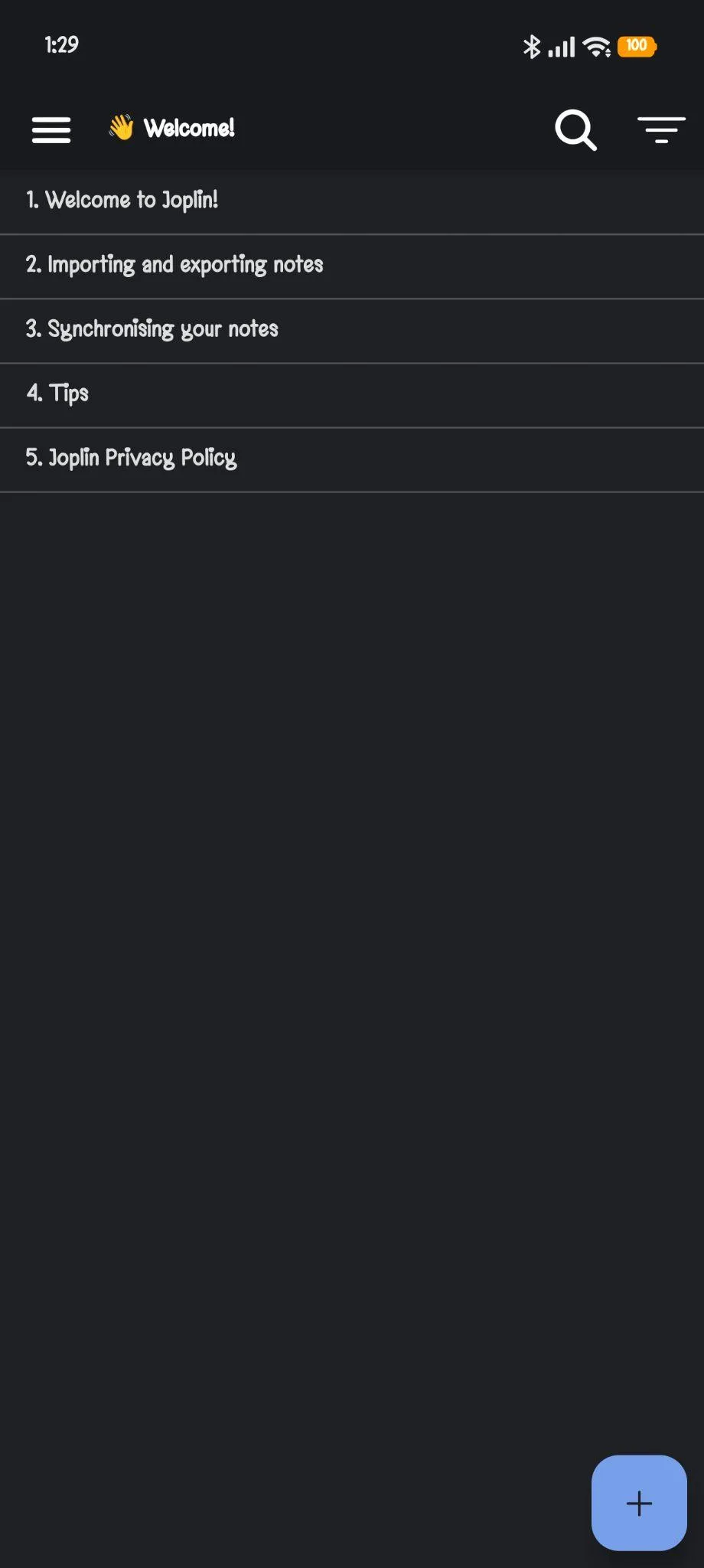
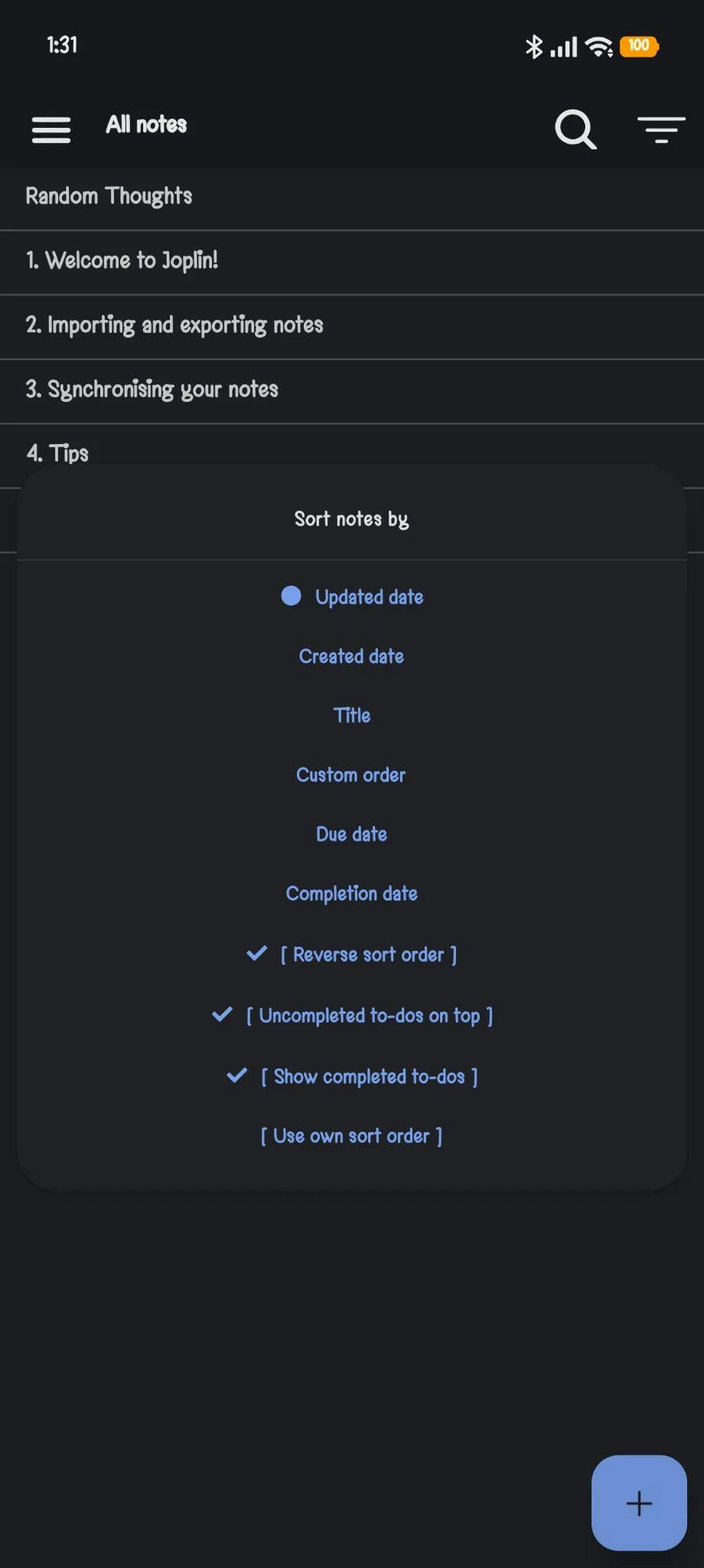
Navigation is straightforward. There is a hamburger menu on the left for notebooks, a search icon, and a sort or filter icon up top. Sorting options are actually more generous than I expected, I can sort by updated date, created date, title, custom order, due date, or completion date, and there are toggles for reverse sort order, showing uncompleted to-dos on top, and showing completed to-dos at all. For someone who likes fiddling with how a list is arranged, this is a genuinely nice bit of control, more than what I got out of Google Keep honestly.
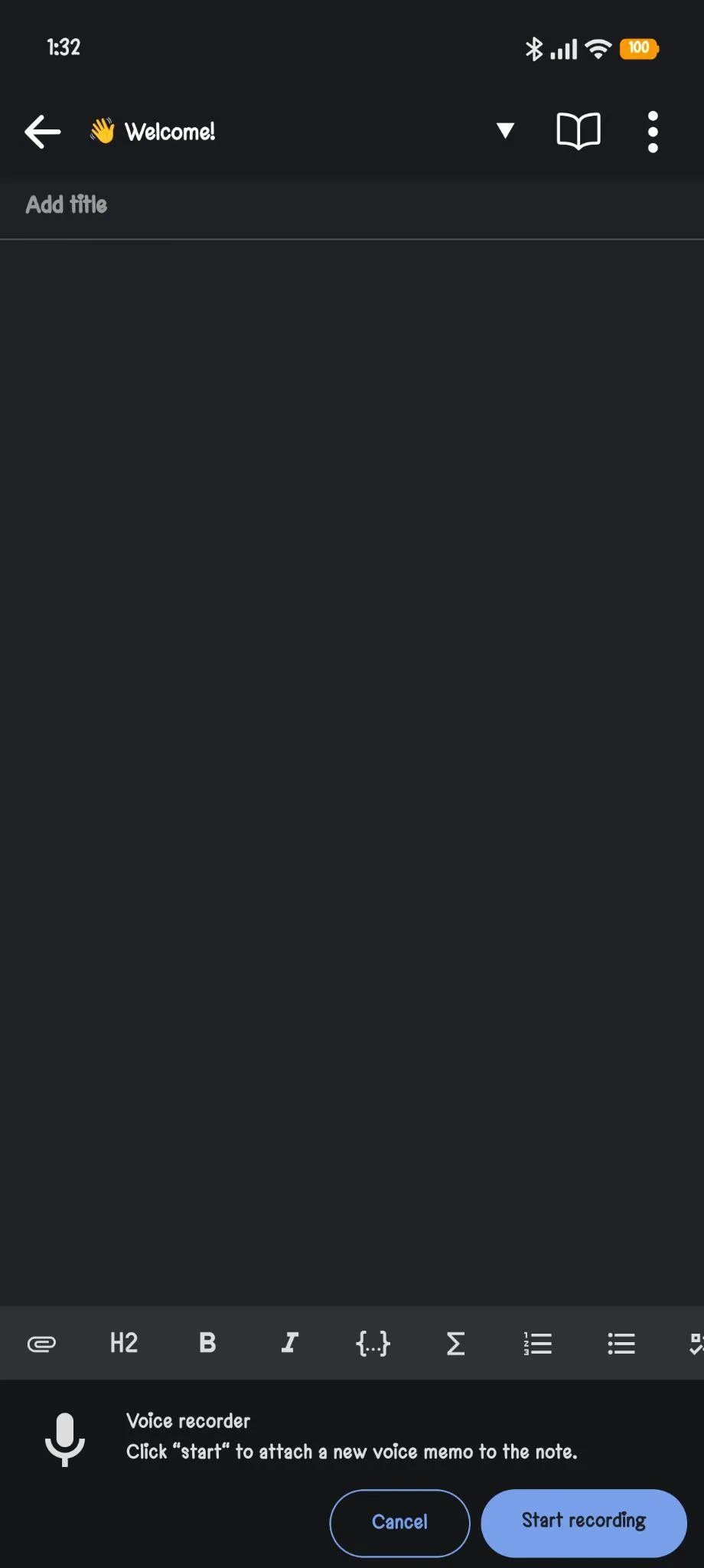
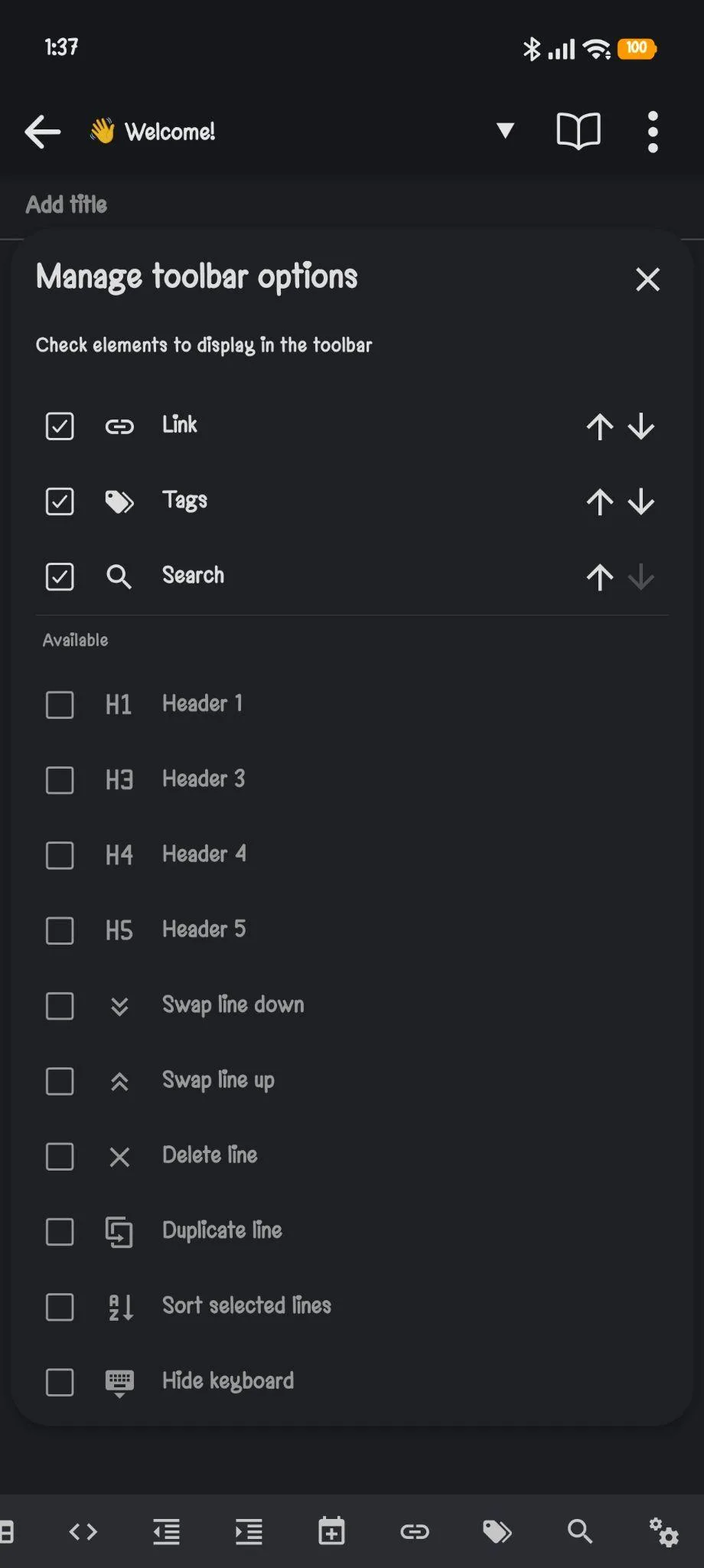
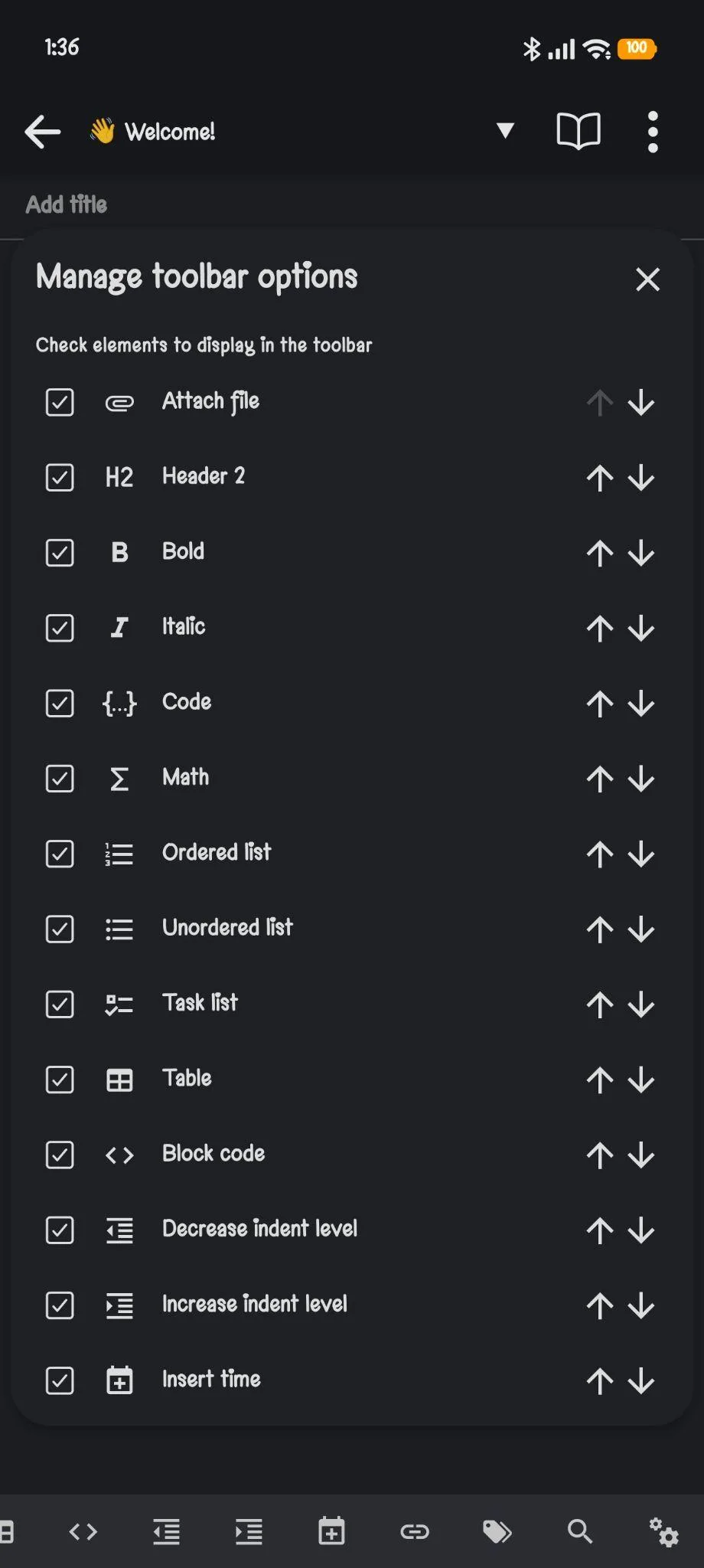
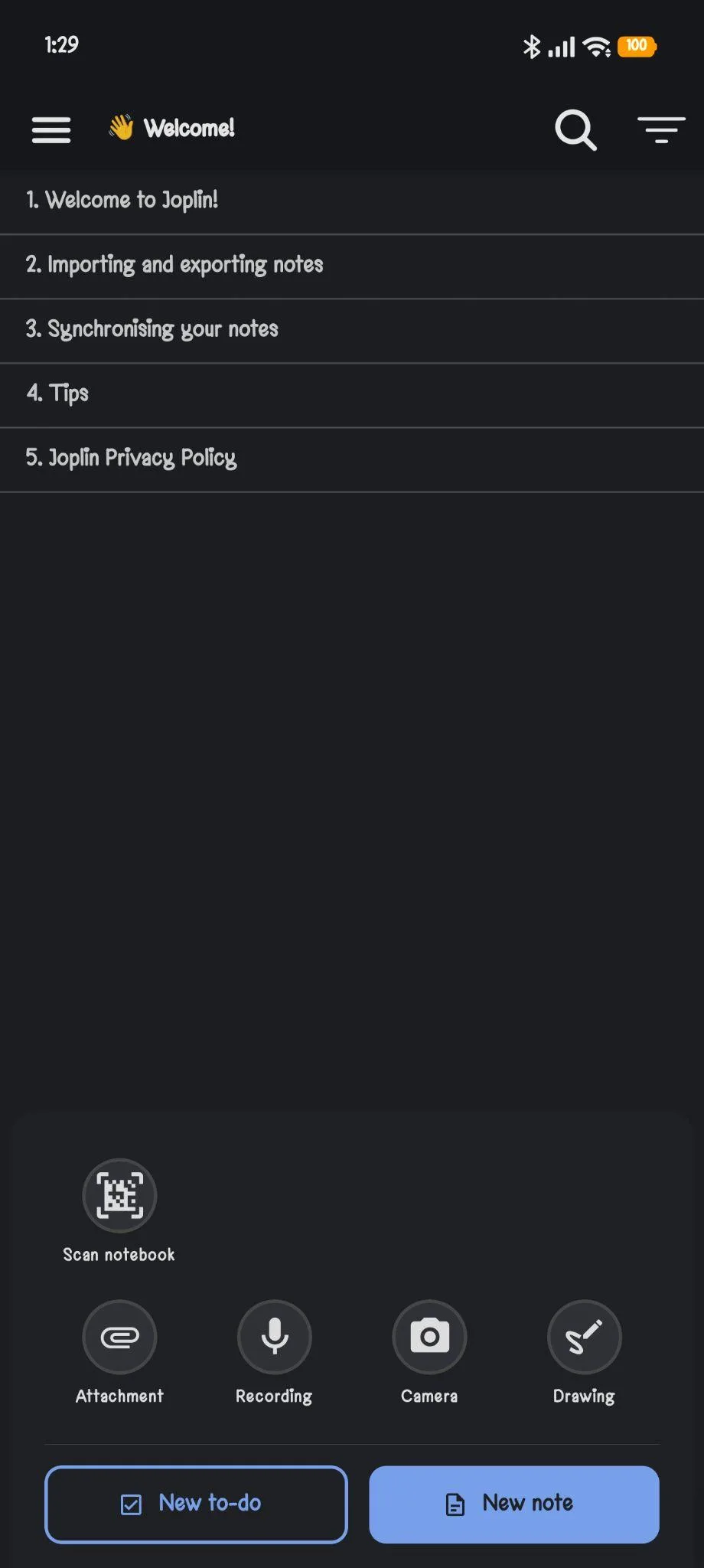
Creating a new note or to-do is one tap away from the bottom right plus button, and from there I get options to scan a notebook, attach a file, record audio, or draw. On mobile the whole thing felt responsive, nothing lagged when I was switching between notes or typing quickly. The toolbar inside a note is fully customizable too, I went into the manage toolbar options screen and could toggle things like header levels, bold, italic, code, math, lists, tables, indent controls, and even utility things like duplicate line or sort selected lines. That is a level of editor customization I was not expecting from what is otherwise a pretty plain looking app.
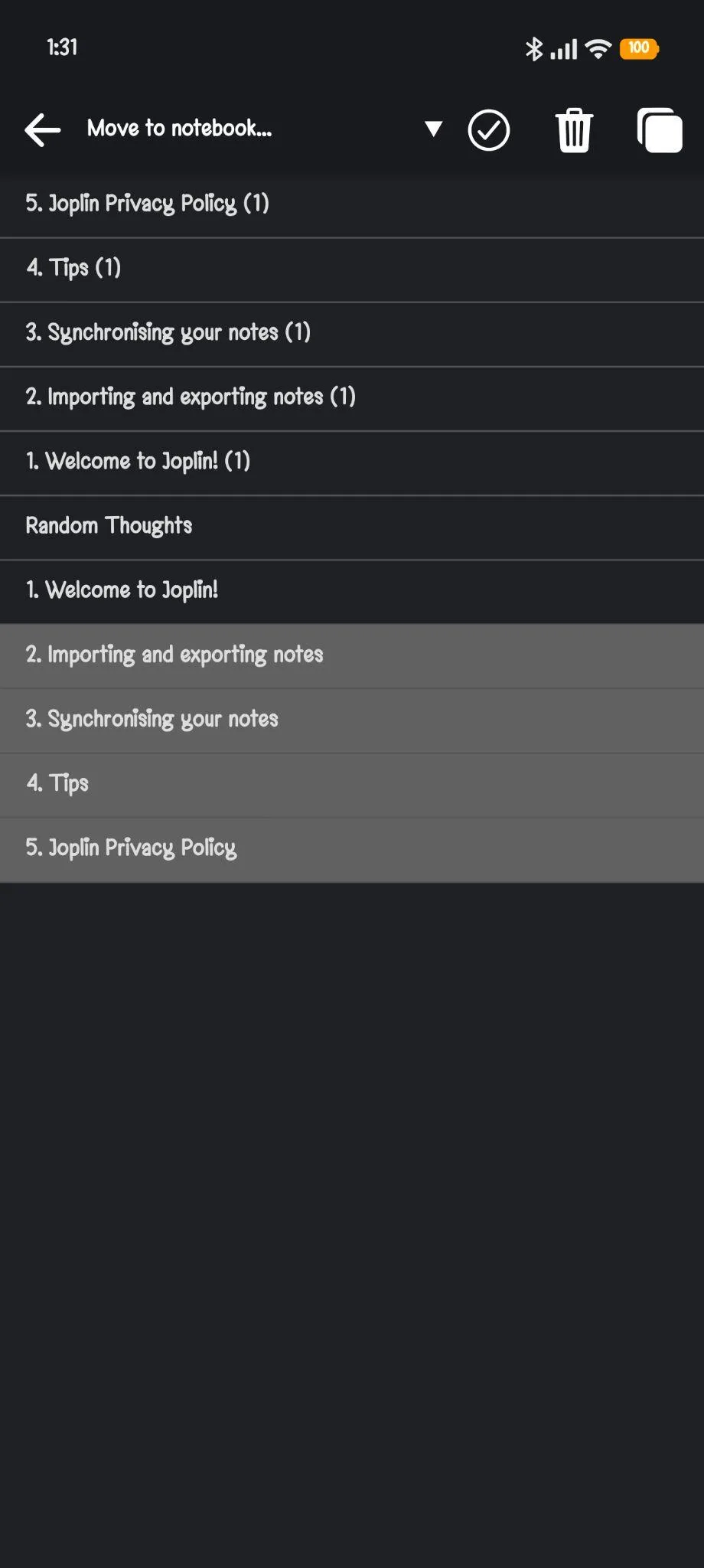
There’s also the option of choosing multiple notes to copy, move to a notebook or delete, which is a small but useful function to have.
Core Features
This is where my actual opinions start to form, because Joplin covers a lot of ground but very little of it feels special once I actually used it.
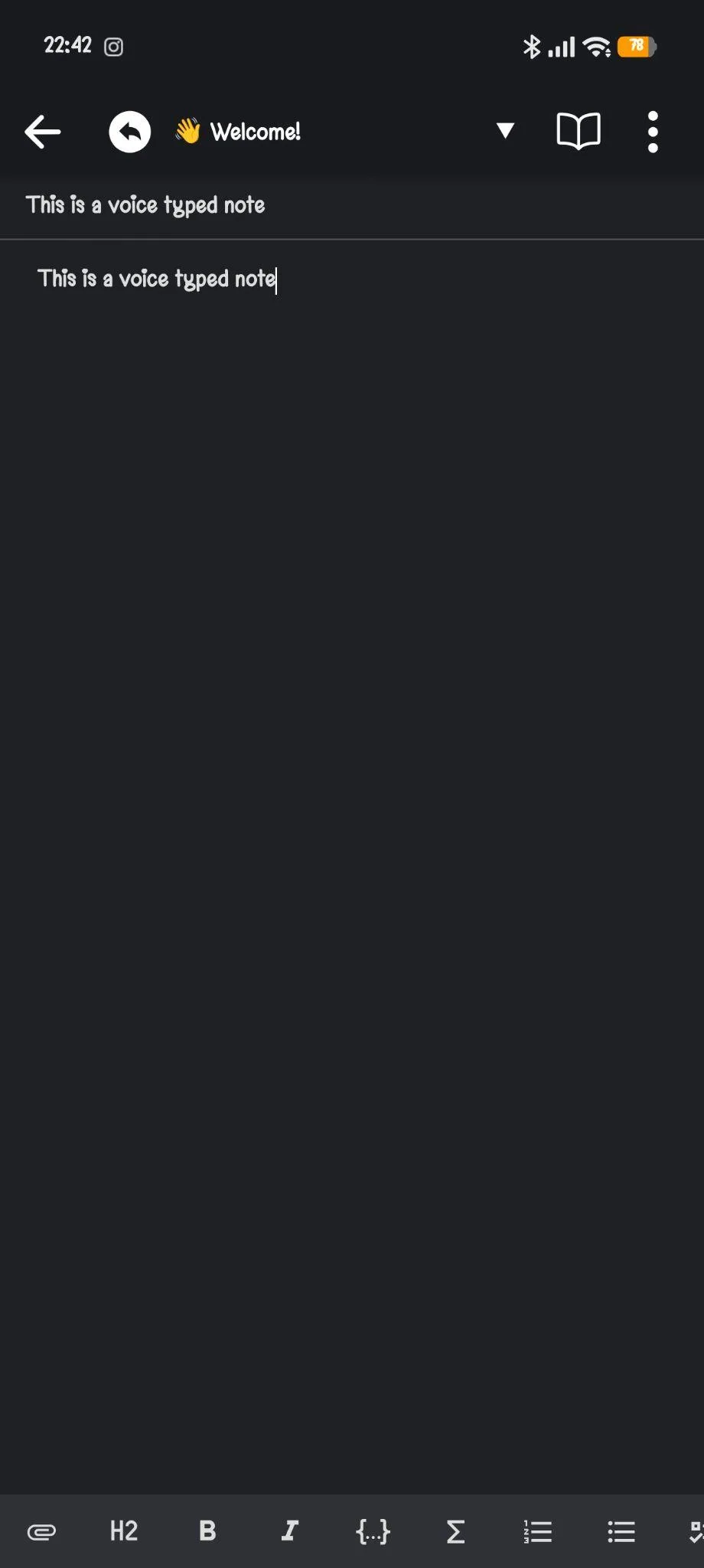
- Voice typing. This worked well enough. I could dictate into a note and it converted speech to text without much delay. Nothing revolutionary here since most keyboards do this now anyway, but it is nice that it is built in.
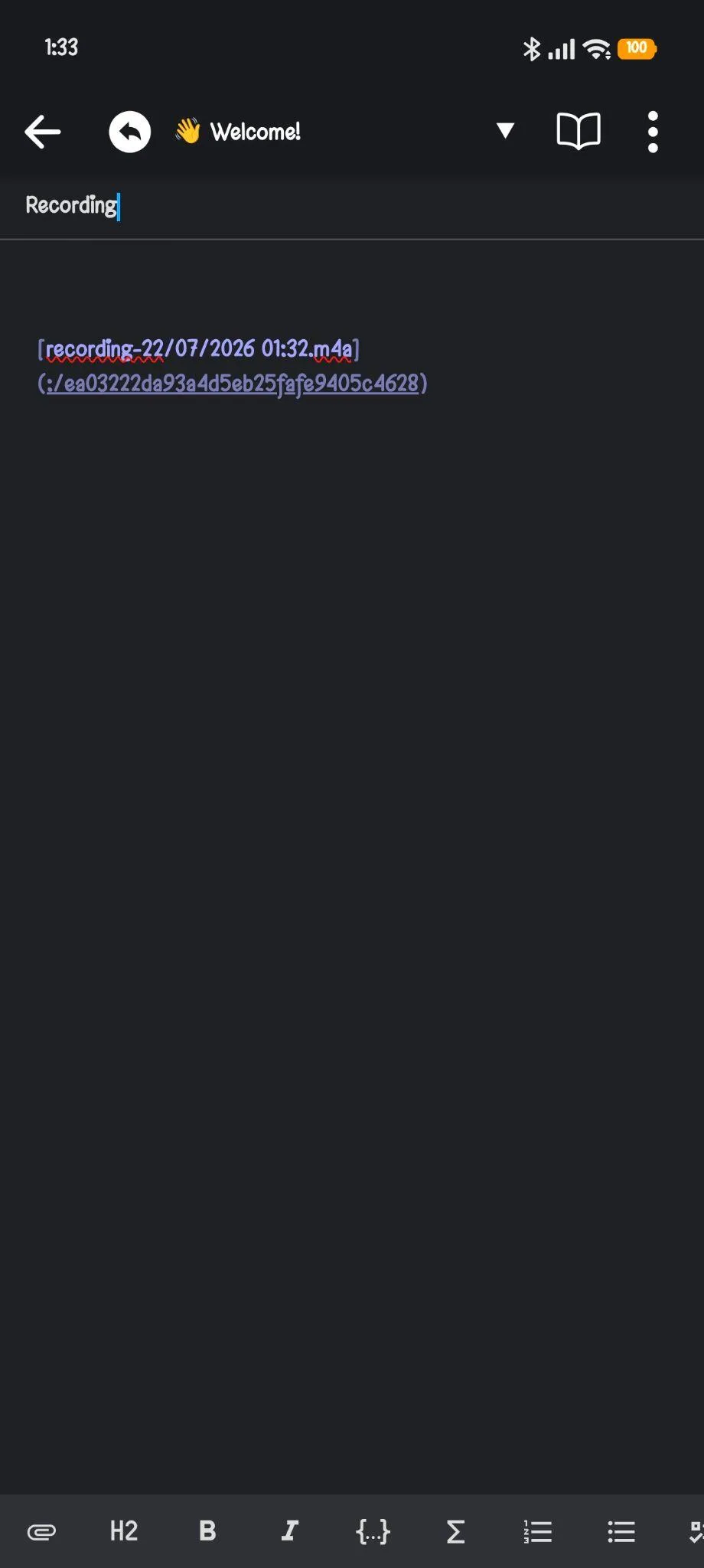
- Audio recording. This one disappointed me a bit. When I record inside a note, Joplin does not create an inline voice memo like I would expect, it just drops in a markdown link to an m4a file with a timestamp in the filename. Clicking it plays the recording, so functionally it works, but there is no transcription and no waveform player sitting in the note itself, it is just a link sitting there like any other attachment. Coming from tools that treat voice memos as a first class note type, this felt like an afterthought.
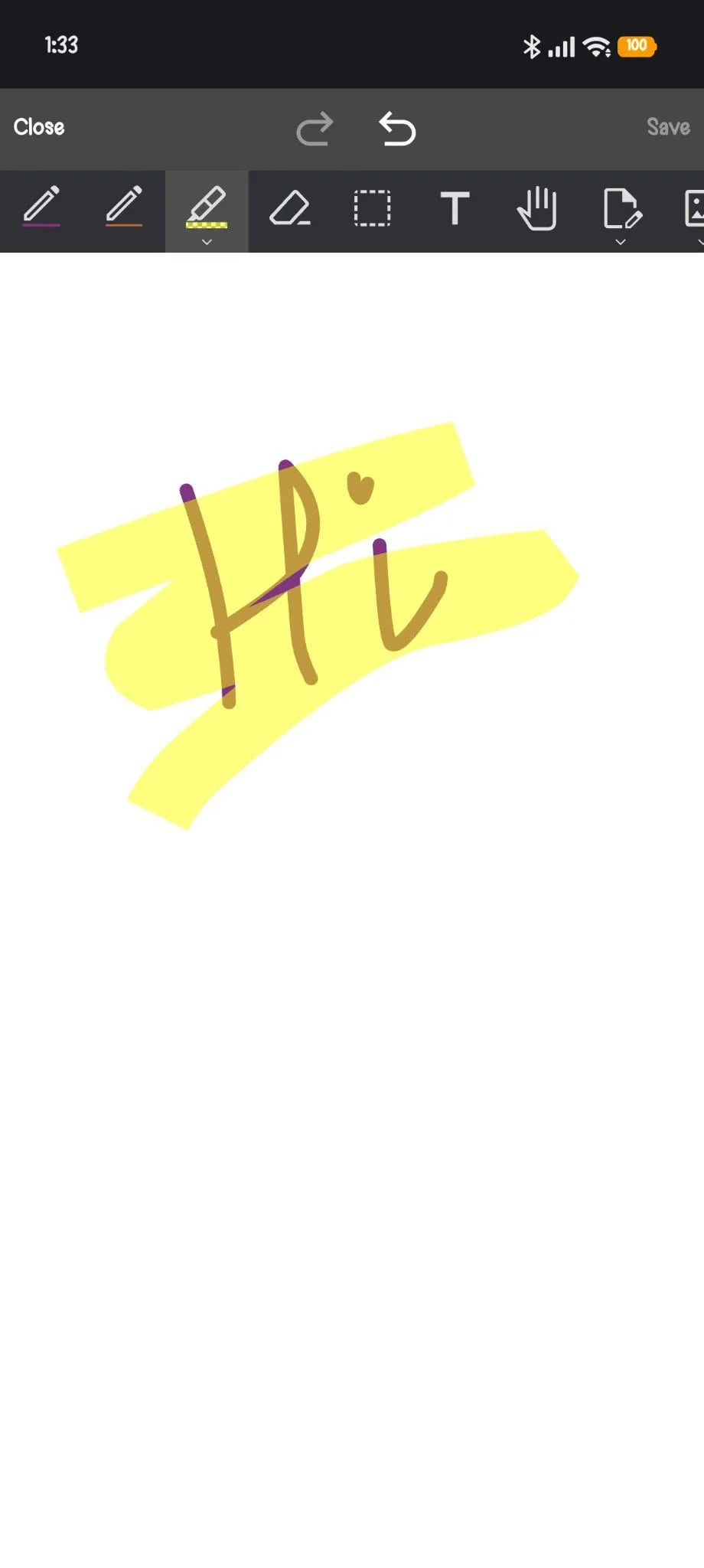
- Drawing. I tested this by scribbling “Hi” with a highlighter tool and it saved fine as an embedded image. The drawing tool itself has a reasonable set of options, pens, highlighter, eraser, selection tool, text tool. It did what it was supposed to without any hiccups, so no complaints here, it just is not anything beyond what I’d expect a basic drawing tool to do.
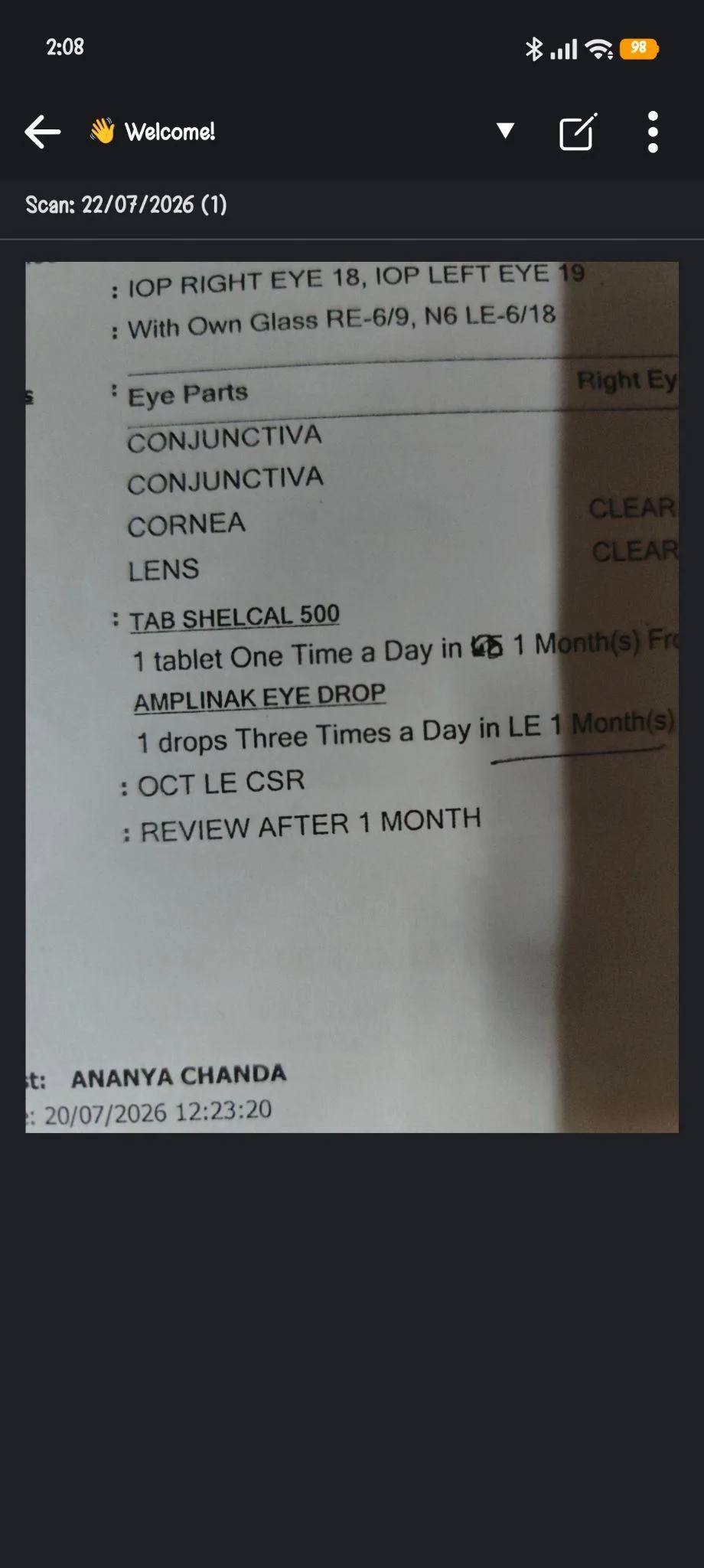
- Scan notebook. This is one of the features I actually liked, mostly because I did not expect it to be there at all. I could point the camera at a physical page and it captures it as an image attached to the note. That said, and this matters, it is not doing any OCR or smart text recognition the way something like Google Lens does. It’s not reading the handwriting or letting me search or copy text out of the scanned page, it is purely a camera capture that gets embedded as an image, same as if I had just attached a photo. So the label “scan” made me expect more intelligence than what is actually happening under the hood.
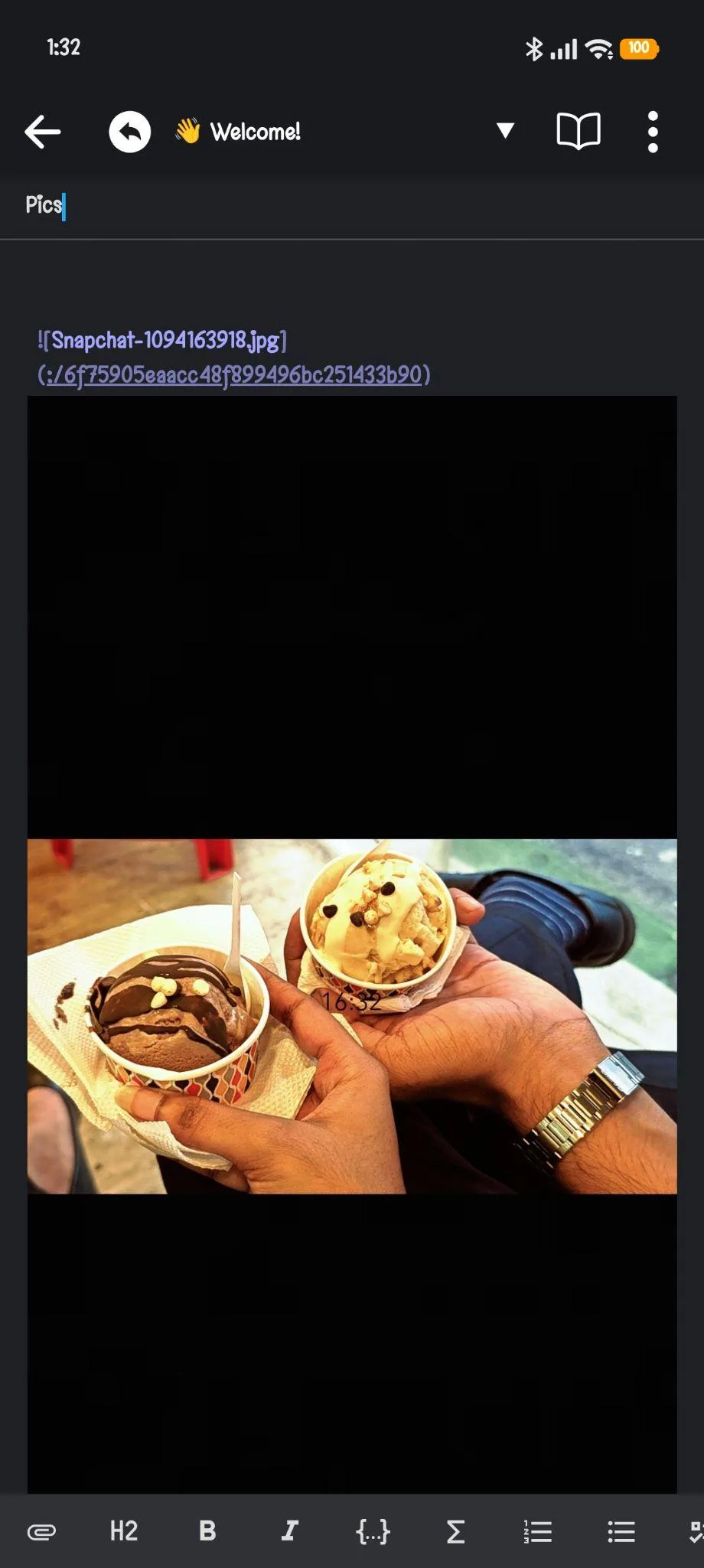
- Attachments. This feature is very similar to scan notebook. I could either attach an image from my files or use the camera icon to click an image and attach it to the note.
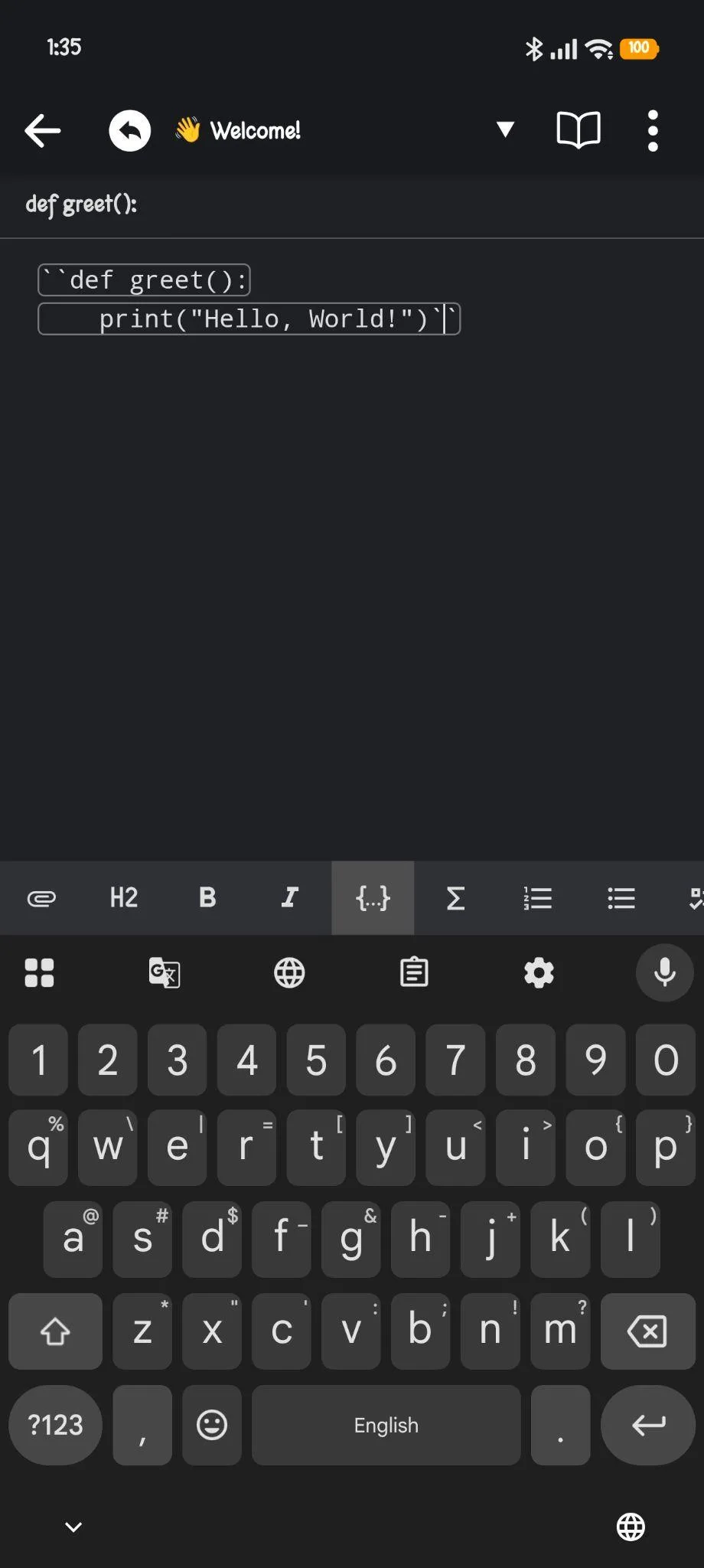
- Code blocks. As someone who codes mostly in python, I actually appreciated this section. I could drop in a code block, format it properly, and it rendered cleanly with monospace font and a bordered box. Nothing fancy, no syntax highlighting that I noticed, but it does the basic job of keeping code readable inside a note.
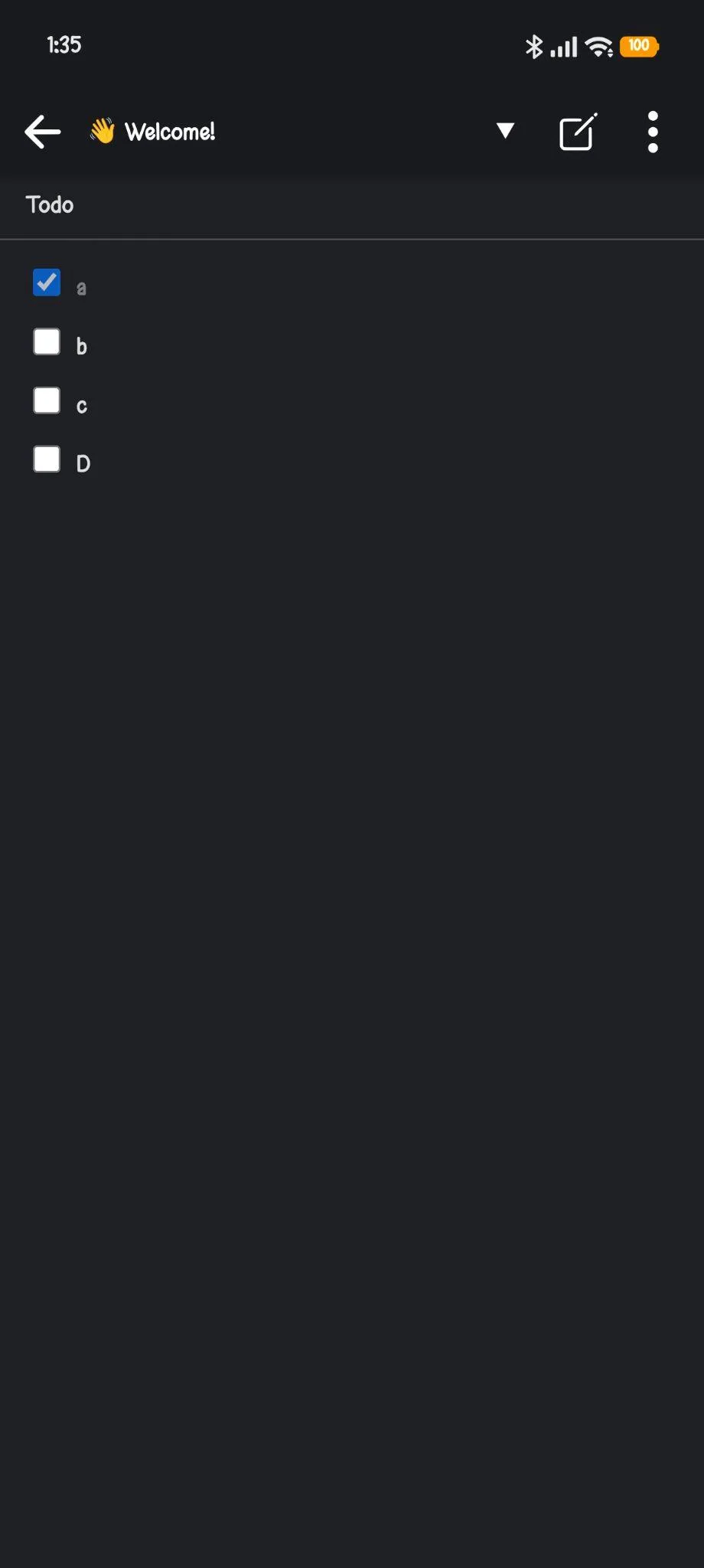
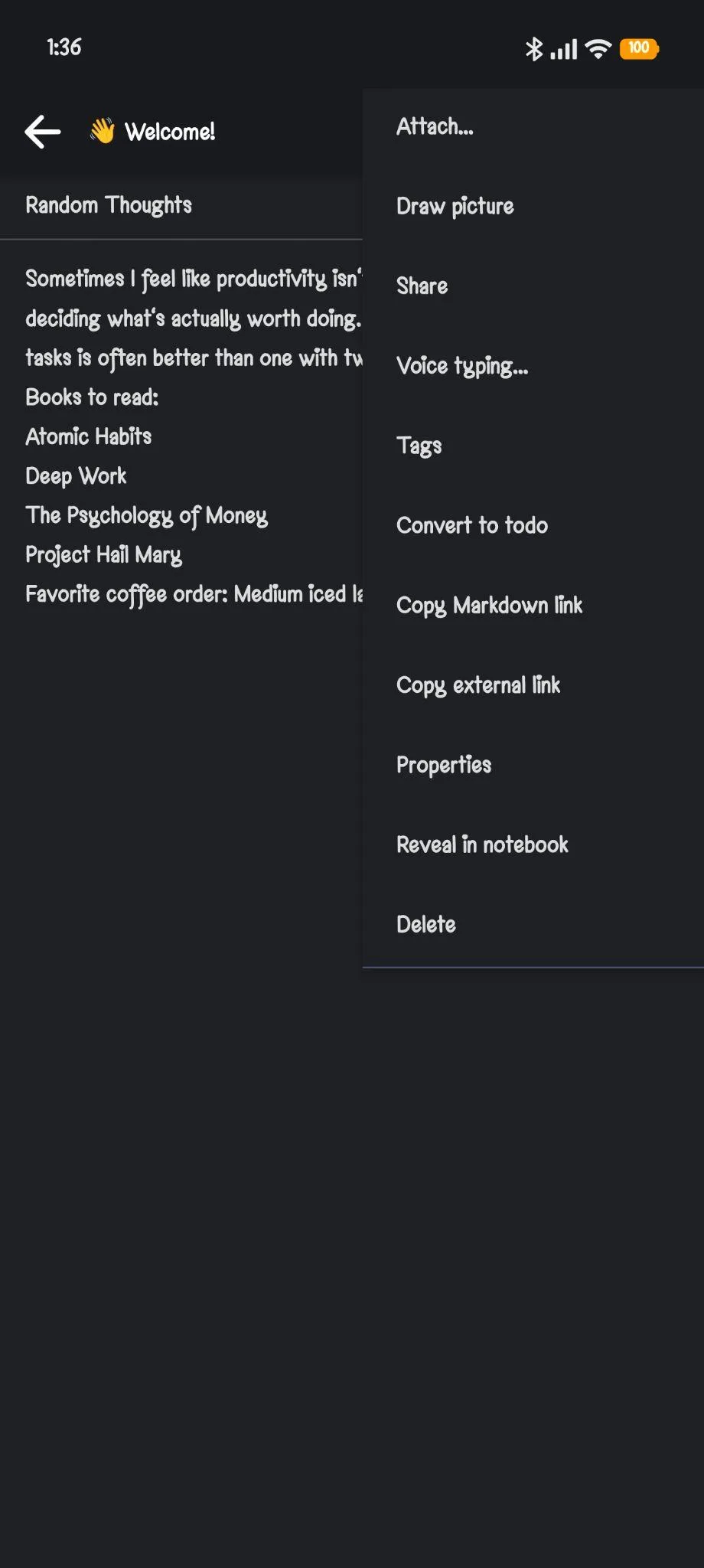
- To-do lists and checklists. Converting a regular note into a to-do is a single tap from the note options menu, and checking off items works exactly the way it should, checked items grey out and strike through. Combined with the sort options I mentioned earlier, this is honestly one of the stronger parts of the app.
- Tags. Notes can be tagged and organized that way alongside notebooks, which gives a second layer of organization beyond just folders. It’s useful but again, not something I haven’t seen in other apps already.
What I did not find anywhere, and I went looking, was any kind of calendar or meeting integration. No linking a note to an event, no reminder tied to a specific meeting, nothing like that. For someone whose workflow depends on connecting notes to scheduled things, that is a real functional gap.
Performance, Reliability and Everyday Usability
Joplin stayed stable through my whole testing period, I did not run into crashes or lost notes or anything alarming like that. Sync, when I tested it, happened in the background without me having to babysit it, which is the bare minimum I expect but it is nice that it actually delivered on that minimum.
The editor itself felt snappy even with longer notes open, typing lag was never an issue, and switching between notebooks was instant. Where the app started to feel a bit clunky was in how it treats certain media. The audio recording being reduced to a plain link rather than something more integrated is the kind of thing that becomes mildly annoying the more I use it, because I have to actually tap through to a separate player instead of seeing it inline. Same complaint with the toolbar customization screen, it is a genuinely useful feature but it is buried a bit deep in the menus for something I would want to configure early and forget about.
Overall usability across a longer session was fine, nothing broke my flow, but nothing about it made me want to keep coming back either, it just sorta sat there doing its job.
Pricing, Plans and Limitations
The core Joplin app is free, and I did not run into any paywalled features during my actual testing, no premium note types, no locked toolbar options, nothing gated behind a subscription screen while I was using it. That part genuinely surprised me a little given how generous the feature set already is.
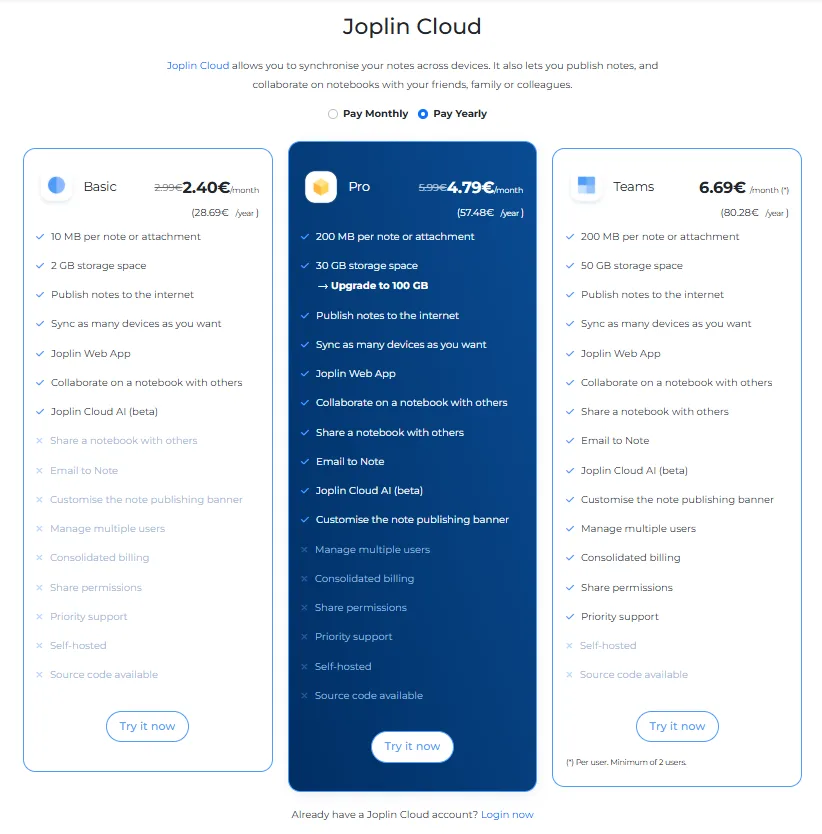
Where paying comes in is Joplin Cloud, which is the official sync and hosting service if someone doesn’t want to sync through something like OneDrive or Nextcloud on their own. According to Joplin’s plans page, Basic starts around 2.40 euros a month, Pro is about 4.79 euros a month with more storage and features like the web clipper and notebook sharing, and Teams runs about 6.69 euros a month for collaboration features. None of that is required to use the app day to day, it is purely for people who want managed sync and sharing without setting up their own server. For a solo user just wanting a private note dump, the free tier and self-hosted sync options cover basically everything.
Privacy, Data Handling and Trust
This is genuinely one of Joplin’s strongest points and I want to be fair about that even though the rest of the review has been fairly lukewarm.
According to Joplin’s own privacy policy, the desktop and mobile apps do not send any data to any service without explicit authorization, and anything saved, notes, images, attachments, stays on the device unless sync is turned on. That is a meaningfully different starting position compared to something like Google Keep, where everything lives on Google’s servers by default and gets run through the same systems that power ad targeting.
Joplin does connect to a handful of third party services for specific features, and the policy is upfront about listing them out. Auto update checks connect to Joplin’s own servers, geo-location tagging pings an external IP lookup service, the spellchecker dictionary downloads from a Google-hosted redirector, plugin listings come from GitHub, and voice typing or OCR both download language model files from external repositories when those features are turned on. Nearly all of these can be disabled individually in settings, which is exactly the kind of granular control that inspires trust. Crash reporting through Sentry is opt in rather than default, and handwriting recognition specifically requires sending images to Joplin’s own server or cloud, which is also opt in.
For the Cloud sync service specifically, the policy states that GDPR protections apply, personal data is not shared with third parties, and payment details are processed through Stripe rather than being stored by Joplin directly. Account data gets used only to authenticate and enable sync, plus occasional service emails.
Basically, if privacy is a big priority, Joplin earns real trust here. It’s not perfect, there are still some default connections happening in the background, but the philosophy is clearly local-first and consent-driven rather than data-collection-first, and that’s worth acknowledging even if the rest of the app didn’t wow me.
Joplin vs Google Keep
Feature | Joplin | Google Keep |
|---|---|---|
Pricing | Free, optional paid cloud sync | Free |
Voice memos | Link to recording, no inline playback or transcription | Mobile only, with transcription |
Scanning | Camera capture, no text recognition | No scanning feature |
Drawing | Full drawing tool with pen, highlighter, eraser | Add drawing option, unreliable on desktop |
Organization | Notebooks, tags, custom sort options | Labels only |
Code support | Native code blocks | None |
Calendar or meeting link | None | None |
Privacy | Local-first, minimal default data sharing | Tied to Google’s ad ecosystem |
Both apps are free at their core and both are missing any kind of calendar or meeting integration, so neither wins on that front. Where they really split is in what each one optimizes for. Google Keep optimizes for speed and simplicity within the Google ecosystem, Joplin optimizes for control, privacy, and a slightly more technical feature set like code blocks and toolbar customization. Between the two, if privacy is the priority, Joplin is the clear pick. If someone just wants the fastest possible note capture with zero setup and doesn’t mind Google having access to that content, Keep still wins on pure frictionlessness.
Final Verdict
Joplin is a solid, dependable, privacy-respecting note app that does not do anything wrong exactly, but also never made me feel like I found something special. The sorting options, tagging, code blocks, and toolbar customization are genuinely good touches for anyone who wants more structure than the average note app offers. The privacy story is strong and backed up by an actual detailed policy rather than vague promises.
But the function gaps are real too. The voice recording feature feels like a checkbox rather than a real feature, the scan option oversells what it actually does, and there’s no meeting or calendar integration anywhere in the app, which for a lot of modern workflows is a noticeable miss. It’s free, it’s private, and it’s reliable, but it did not give me a reason to feel excited about using it over something simpler like Keep or something more powerful like Evernote.
For someone who values privacy and wants a solid markdown and code-friendly note app without paying anything, Joplin earns a genuine recommendation. For someone hoping for smart features or slicker media handling, it’s going to feel like it’s missing pieces.
Overall Score: 5.9/10.
Frequently Asked Questions:
Yes, the core Joplin application is 100% free and open-source without feature paywalls or subscription gates. Paying is only necessary if you choose to subscribe to the managed Joplin Cloud service for hosting and collaboration instead of setting up free self-hosted sync via services like OneDrive or Nextcloud.
Joplin operates on a local-first model, meaning your notes, images, and attachments remain stored exclusively on your device unless you manually turn on synchronization. The app does not mine user data for advertising, and external network calls (such as crash reporting or spellchecker downloads) can be individually disabled in settings.
No, Joplin treats voice memos simply as attached audio file links without inline waveform players or automated transcription. Similarly, its document-scanning feature merely attaches a static photo rather than reading or converting physical handwriting into editable text.
Yes, Joplin allows deep editor toolbar personalization, enabling you to toggle and reorder buttons for code blocks, math formatting, specific heading levels, list types, line duplication, and custom sorting.
Subscribe to our email newsletter to get the latest posts delivered right to your email.
Comments