Conclusion
Microsoft OneNote is a capable, structured note-taking tool that excels when used as a lightweight document editor. It serves as an organized workspace for meeting records, audio capture, freehand drawing, and long-form drafts, making it particularly practical for anyone already invested in the Microsoft ecosystem. However, its robust desktop-style design comes with distinct drawbacks. The lack of a web dark mode, missing native reminders, absent audio transcription, and a heavier, multi-tiered ribbon interface mean it cannot match the frictionless speed of lightweight capture tools. For users wanting structured, document-style notebooks, it provides immense free utility, but anyone looking for fast, minimal capture and reminder-linked task tracking should look elsewhere.
Pros:
- Generous free tier with no functional paywalls or time limits on core note-taking tools
- Deep, Word-style text formatting with styles, tables, quotation blocks, and code formatting
- Multi-tiered organization structure using notebooks, sections, and pages
- Reliable drawing canvas and built-in audio recording capabilities
- Useful native utilities including real-time voice dictation and the Immersive Reader tool
- Seamless cross-device cloud synchronization powered by OneDrive
Cons:
- Web version lacks a dark mode, leaving only a bright light-grey interface
- No native reminders or calendar-linked task scheduling
- Audio recordings lack automatic speech-to-text transcription
- Microsoft Copilot and AI capabilities are locked behind a paid Microsoft 365 subscription
- Cluttered, ribbon-style interface creates higher cognitive overhead for rapid, spontaneous notes
- Collaboration workflow requires sending full notebook share invites rather than lightweight in-note sharing
Table of Contents
- First Impressions and User Experience
- Core Features
- Performance, Reliability and Everyday Usability
- Pricing, Plans and Limitations
- Privacy, Data Handling and Trust
- OneNote vs Google Keep vs Evernote
- Final Verdict
There is this kind of confusion that can be felt from using a tool that cannot quite decide what it actually is, and Microsoft OneNote sat in that uncomfortable middle ground for me throughout my entire testing period. It is clearly a note-taking app, the name says as much, but the experience of using it felt more like opening a stripped-down version of Word than anything resembling Google Keep or Evernote. That is of course not automatically a bad thing. But it does mean that anyone coming in with a specific expectation of what a note-taking app should feel like might need a moment to recalibrate.
OneNote suits people who are already embedded in the Microsoft ecosystem and want a free note-taking tool that integrates naturally with Word, Excel, and the rest of the Office suite when subscribed. It also works well for anyone who needs rich formatting, structured notebooks, audio recording, and drawing in a single place. Where it does not suit someone well is anyone who wants a simple, fast capture tool with minimal overhead, or someone who needs reminders and calendar-linked task management as core features.
First Impressions and User Experience
The homepage after logging in with a Microsoft account is clean but immediately feels like a Microsoft product in every recognizable way. The branding, a notebook list, and a sidebar showing recent and all notebooks. The layout is familiar if any time has been spent in the Office suite, and not immediately intuitive if not.
The first thing i noticed, and just could not stop noticing, is that there is no dark mode in the web version. For anyone who spends long stretches working in front of a screen, that is a noticeable absence. The interface is light grey and white, which is fine but not pleasant for extended use the way a dark theme tends to be. It is a small thing on paper but it added up during testing more than expected.
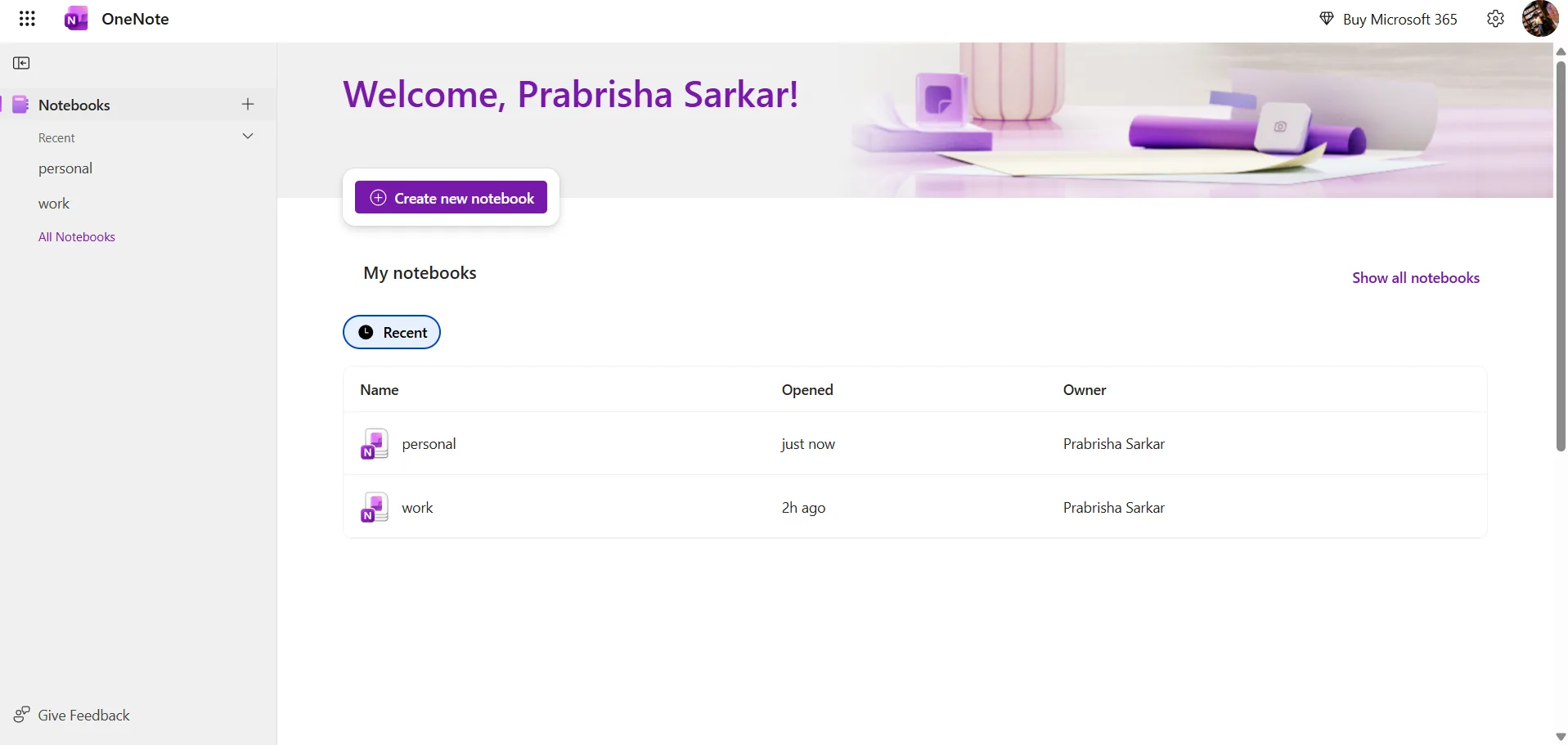
Once inside a notebook, the interface shifts into a ribbon-style toolbar layout with tabs for Home, Insert, Draw, View, and Help. This is exactly what Microsoft Word looks like, and that is sort of besides the point and yet reiterating my first impression of OneNote being in a middle ground. Sections and pages can be created inside each notebook, which gives the organization structure more depth than Google Keep’s label system. I created two separate notebooks, one for personal notes and one for work. The hierarchy makes sense once you’re inside it.
The learning curve is low for anyone who has ever used Word. For someone coming fresh with no Microsoft Office experience, there might be a few minutes of adjustment, but nothing serious.
Core Features
OneNote covers more ground than it initially appears to, and most of what it does works well.
- Notebooks, sections, and pages. The three-tier structure of notebook, section, and page is the backbone of OneNote’s organization. It is more granular than labels in Google Keep and slightly more rigid than Evernote’s tagging system. Creating new notebooks and sections was fast, and navigating between pages was smooth throughout testing.
- Text formatting and styles. The Home tab has the full font toolbar, heading styles, tags, bullet lists, numbered lists, indentation controls, and alignment options. There are also paragraph styles, quotation blocks, and code formatting available. This level of text styling is closer to what a word processor offers than what most note-taking apps include. Whether that is a plus point or a problem depends entirely on what the tool is being used for. For drafting structured documents or meeting notes with formatting, it is useful. For quick, frictionless note capture, it feels like an overkill.

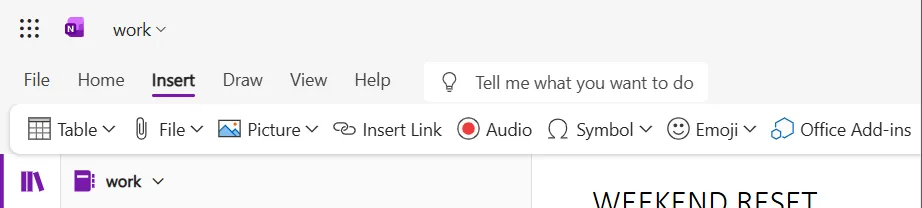
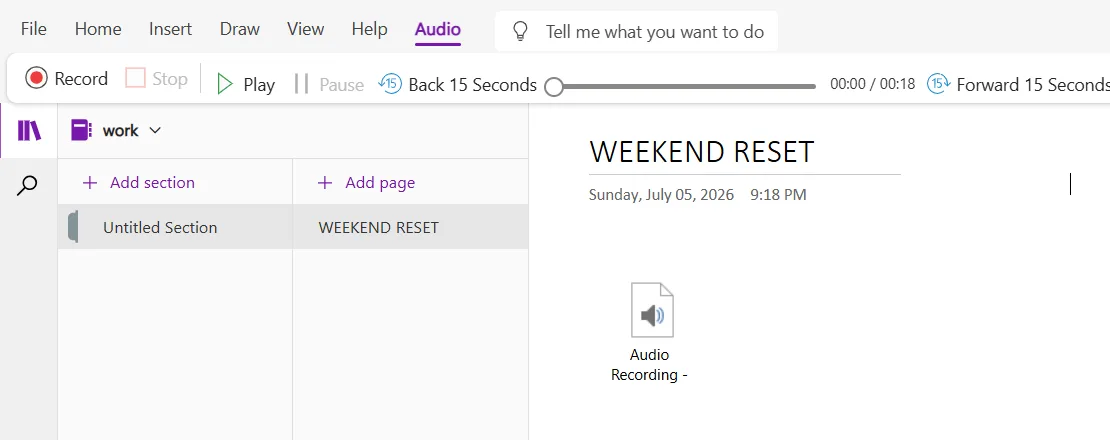
- Insert tab. This is where OneNote distinguishes itself from simpler tools. Tables, files, images, links, symbols, emojis, audio recordings, and Office Add-ins can all be inserted directly into a page. I tested the audio recording function and it worked as expected, recording the voice and embedding the audio file directly into the note with playback controls. There is no transcription of that recorded audio, which felt like a missed opportunity, but the recording itself functions cleanly.
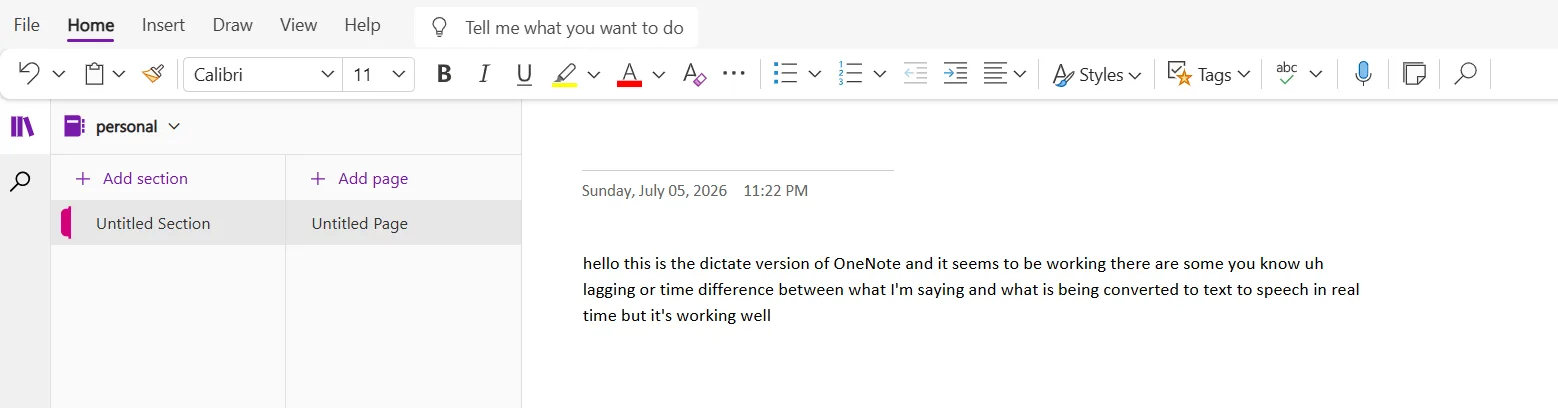
- Dictate. Separate from audio recording, the dictate function converts spoken words to text in real time. I tested this and the transcription happened live as I spoke, with a small but noticeable lag between speech and text appearing on screen. It is not perfect, there are occasional errors and it does not handle filler words or pauses gracefully, but it works well enough to be genuinely useful for capturing thoughts quickly without typing. The dictated text in the picture below from testing shows a fairly accurate conversion of a spoken sentence, lag and all.
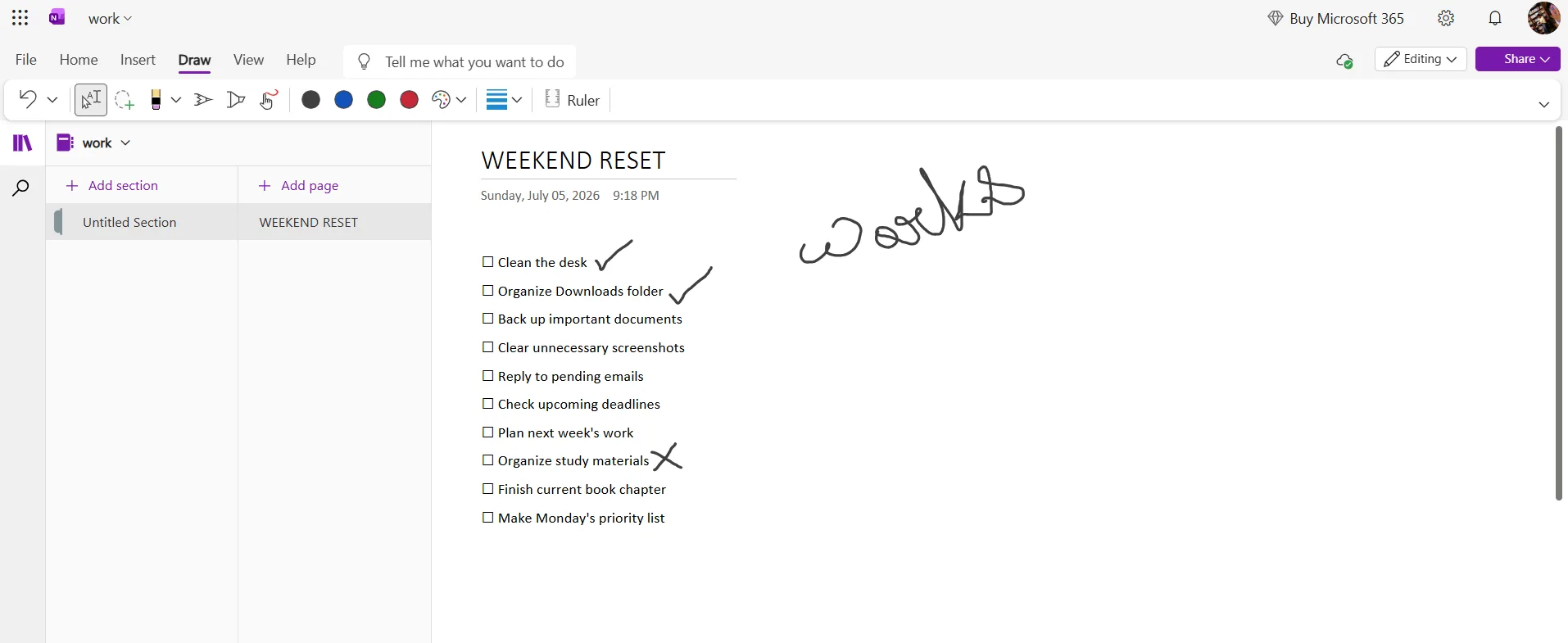
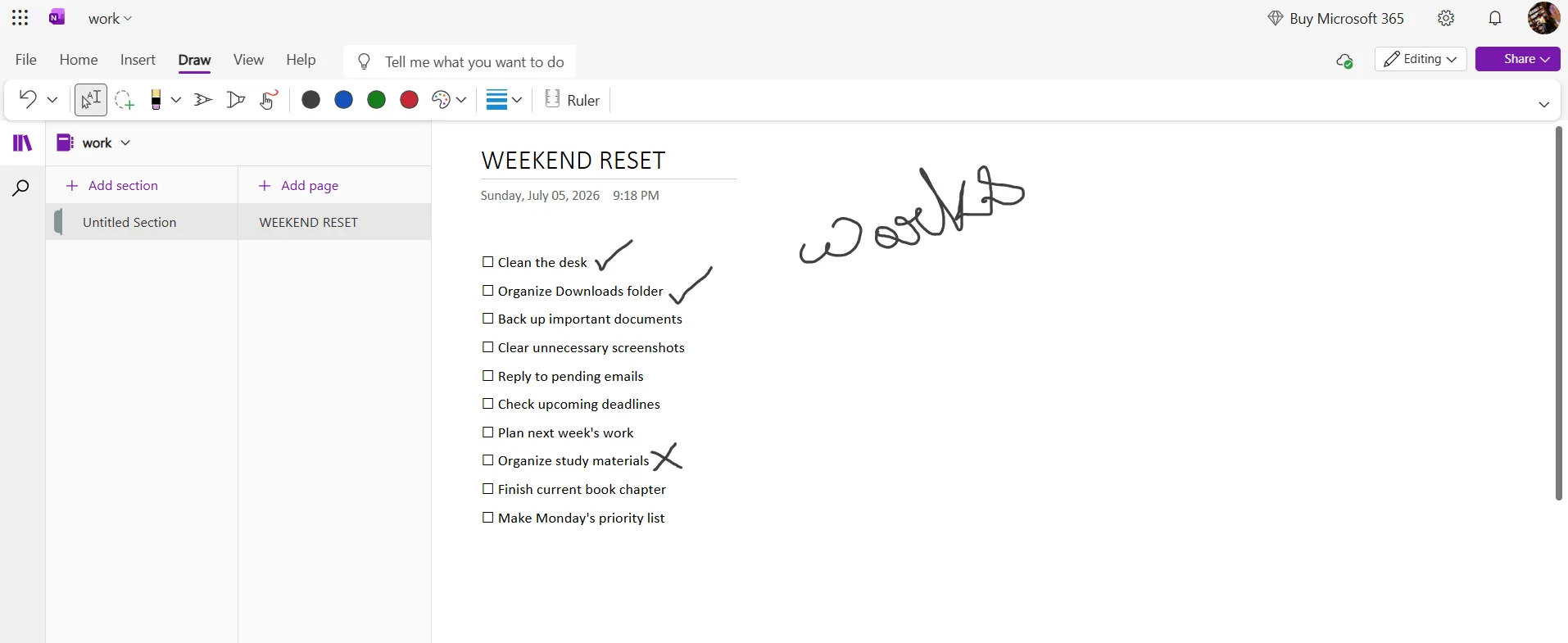
- Drawing. The Draw tab offers pen tools, color selection, a ruler, and the ability to draw directly on any page. I tested this and it functioned properly, which was a contrast to the Google Keep drawing tool that refused to load on my desktop browser. Drawing checkmarks and annotations over a typed checklist worked without any issues.
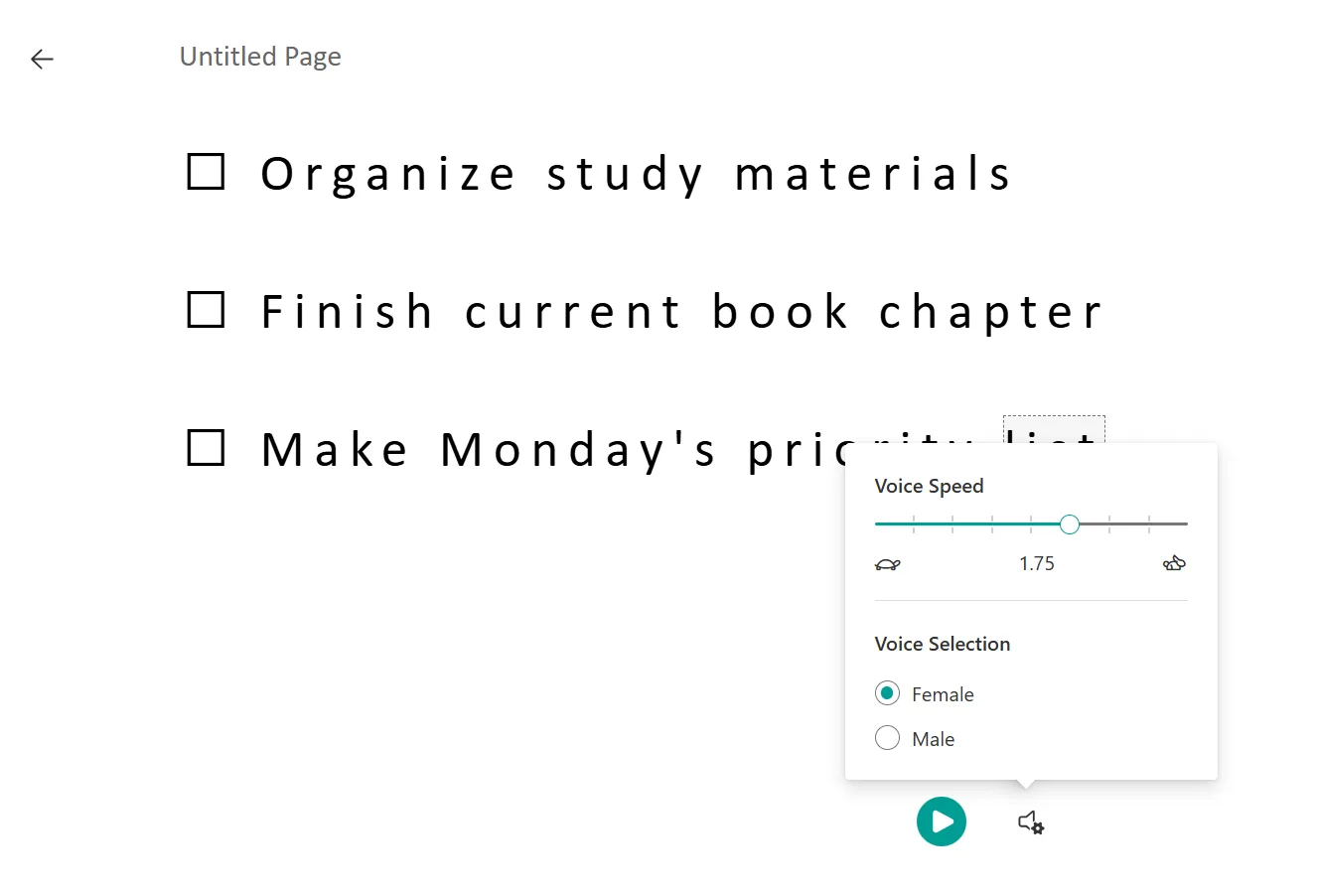
- Immersive Reader. Under the View tab, there is an Immersive Reader option that reads the content of the current page aloud. The voice is generic and synthetic, no attempt at naturalness, but the feature includes controls for reading speed and voice gender selection between male and female. It is a useful accessibility feature and I can see it being practical for someone who needs to listen back to notes while doing something else. It would not replace a proper text to speech tool but for occasional use inside a notes app, it does its job.
- Page color and rule lines. Under View, page backgrounds can be changed to different colors and rule lines can be added in several styles, college ruled, narrow ruled, and similar. These are minor customization options but they do make the note-taking surface feel a bit more intentional than a plain white page.

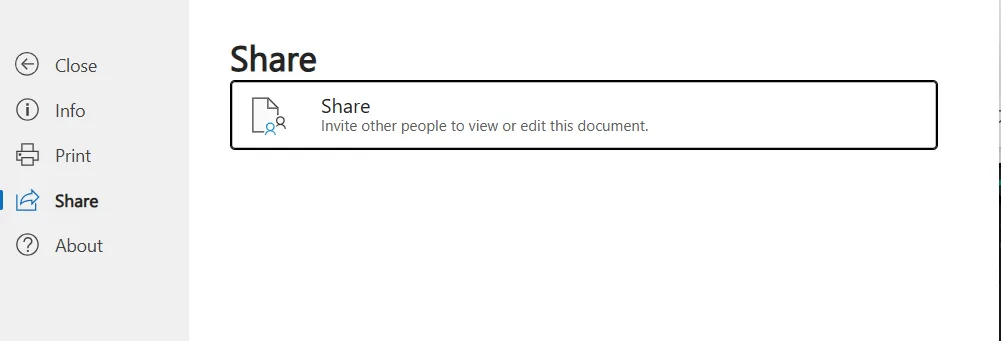
- Sharing and collaboration. Instead of adding a collaborator from inside a note the way Google Keep does, OneNote uses a Share function that invites other Microsoft account holders to view or edit the notebook. The share screen is clean, just a single option to invite people, and it works via link or email. For team use this is functional, though less immediate than Google Keep’s in-note collaborator addition.
- No reminders. This was a real miss for me. There is no native reminder or calendar integration in the free web version of OneNote. No option to attach a date and time alert to a note or checklist item. For anyone who relies on reminders as part of their note workflow, that is a significant gap compared to Google Keep, which handles reminders cleanly.
- Copilot and Microsoft 365 features. OneNote has Copilot integration, Microsoft’s AI assistant, but it is locked behind a Microsoft 365 subscription. The free version of OneNote does not include any AI features. The same subscription also unlocks additional cloud storage, the full Office suite, and a maths assistant for educational use. Without it, OneNote is a capable note-taking tool but without any of the AI capabilities that are increasingly standard in competing apps.
Performance, Reliability and Everyday Usability
OneNote performed well throughout testing. Pages loaded quickly, notes saved without any issues, and the drawing and audio recording features worked without lag or errors. The dictate function had a small delay in transcription but nothing that disrupted the experience.
The interface is stable and the cross-device sync, tied to OneDrive, worked as expected. Notes created in the web version were accessible from another device without any manual step required.
The bigger usability question is about the tool’s identity. OneNote feels like it is built for structured, longer-form note-taking rather than rapid capture. Opening a page, typing a note, and closing it takes more clicks and more cognitive overhead than doing the same thing in Google Keep. The ribbon toolbar is always visible, the section and page structure always has to be navigated, and the whole experience feels heavier than what the word “note” implies. For someone who uses OneNote as a lightweight Word alternative for structured notes and meeting documentation, that weightage is appropriate. For someone who just wants to jot something down fast, it is not the right tool.
Pricing, Plans and Limitations
OneNote is free for anyone with a Microsoft account, with no time limit, no upload cap on the basic tier, and no paywall on core functionality. That is a meaningful statement. Unlike Google Keep which is free by nature of being a Google product, OneNote’s free plan actually includes quite a lot without restriction.
The paid upgrade path runs through Microsoft 365, which starts at around $6.99 per month for personal use (billed annually) and $9.99 per month for the family plan covering up to six people. Microsoft 365 Personal and Family subscriptions include the full Office desktop suite, 1TB of OneDrive storage, and Copilot integration inside OneNote and other Office apps.
For anyone who only needs OneNote and nothing else, the free version is genuinely usable. For anyone who also wants Word, Excel, PowerPoint, and the desktop apps, the Microsoft 365 subscription makes more sense as a bundle than as an individual note-taking upgrade.
Privacy, Data Handling and Trust
Microsoft classifies personal data it collects from Office and OneNote users into two categories: Required and Optional. Required data is what is necessary to keep the product secure, up to date, and functioning. Optional data is additional diagnostic and usage information that helps Microsoft improve the product but is not essential to its operation, and users can choose whether to share it.
OneNote collects data through user interactions and product usage, including notes, images, and audio recordings. This data is used to enhance the experience but may also be used for advertising and business operations. OneNote data may be shared with Microsoft affiliates and vendors, as well as with third parties when required by law.
Microsoft collects data through interactions with its products and gives users controls via the Microsoft privacy dashboard to access, review, export, and manage their personal data. Users can delete note content at any time, and closing a Microsoft account results in deletion of associated data following Microsoft’s retention schedule.
Microsoft grounds its privacy commitments in data governance practices and uses encryption and other security measures to protect user data. The platform is GDPR compliant and adheres to EU-US data privacy frameworks.
The honest read on OneNote’s privacy is that it sits somewhere between Google Keep and something like Smallpdf in terms of confidence. Microsoft is a large company with a well-documented privacy policy, strong compliance credentials, and clear user controls. At the same time, note content including audio recordings is collected and may feed into product improvement and advertising systems. For sensitive work notes, that is worth knowing. For general personal use, the privacy picture is acceptable and comparable to what most Microsoft product users already accept across the ecosystem.
OneNote vs Google Keep vs Evernote
Comparing OneNote directly to Evernote felt slightly forced during testing because the two tools are aimed at fairly different use cases.
Feature | OneNote | Google Keep | Evernote |
|---|---|---|---|
Pricing | Free (Microsoft 365 for AI and extras) | Free | From $14.99/month |
Dark mode | No (web version) | Yes | Yes |
Reminders | No | Yes | Yes |
Audio recording | Yes (no transcription) | No (desktop) | Yes |
Drawing | Yes, functional | Limited on desktop | Yes |
Text formatting depth | High, Word-like | Basic | Moderate |
Notebook hierarchy | Notebooks, sections, pages | Labels only | Notebooks, tags |
Collaboration | Share link or email | Add collaborator in-note | Yes |
Best for | Structured notes, document-style writing | Quick capture, reminders | Power users, research |
OneNote sits much closer to Google Keep in spirit than it does to Evernote, even though it offers more than Keep in terms of formatting depth. If forced to put it simply: for reminder-linked task management, Google Keep wins. For rich formatting, audio, and document-style notes, OneNote wins. For heavy research workflows and deep organization, Evernote is the one thats worth it. If Evernote were compared directly to OneNote, Evernote would edge ahead on depth and AI features, though at a significantly higher cost and with a much steeper learning curve.
Final Verdict
OneNote is a genuinely capable tool that i came away from feeling slightly conflicted about. The features are solid, the performance is reliable, and the free plan is as unrestricted as any free note-taking app i’ve used. The audio recording and dictation features are legitimately useful, especially for anyone who thinks faster than they type. The drawing works, the organization structure makes sense, and the formatting depth is there for anyone who needs it.
What it is not though, is a simple, fast notes app. It is heavier, more document-oriented, and more structured than what most people probably picture when they think of taking a note. The absence of dark mode on the web is annoying. The lack of reminders in the free version is a real functional gap. And the AI features being locked behind a subscription means the free version has no intelligence layer at all, which puts it behind tools that offer at least something for free users.
Still, for the right person, specifically someone already in the Microsoft world who wants a free, structured note-taking tool with audio and drawing capabilities, OneNote makes a lot of sense. Its just not the note-taking app i would reach for first.
Overall Score: 6.8/10
Frequently Asked Questions:
Yes, OneNote is free for anyone with a Microsoft account, offering full access to core features like rich text formatting, drawing, and audio recording without upload caps or time limits. Advanced capabilities—such as Microsoft Copilot AI integration, extended cloud storage, and desktop Office apps—require a paid Microsoft 365 subscription.
No, the web version currently does not include a dark mode option. Users are limited to the default light grey and white interface, which can cause eye strain during extended work sessions.
While OneNote allows you to record and embed audio directly into notes, it does not automatically transcribe those recordings. However, it does include a separate real-time dictation tool that converts speech into text live as you speak.
No, the free web version lacks native reminder alerts and calendar-linked task scheduling. Users needing time- or date-sensitive notifications for their to-do lists may need to rely on alternative tools like Google Keep.
Yes, OneNote is free for anyone with a Microsoft account, offering full access to core features like rich text formatting, drawing, and audio recording without upload caps or time limits. Advanced capabilities—such as Microsoft Copilot AI integration, extended cloud storage, and desktop Office apps—require a paid Microsoft 365 subscription.
No, the web version currently does not include a dark mode option. Users are limited to the default light grey and white interface, which can cause eye strain during extended work sessions.
While OneNote allows you to record and embed audio directly into notes, it does not automatically transcribe those recordings. However, it does include a separate real-time dictation tool that converts speech into text live as you speak.
No, the free web version lacks native reminder alerts and calendar-linked task scheduling. Users needing time- or date-sensitive notifications for their to-do lists may need to rely on alternative tools like Google Keep.
Subscribe to our email newsletter to get the latest posts delivered right to your email.
Comments