Conclusion
AutoPPT prioritizes raw speed and multi-format inputs, converting audio files, website URLs, documents, and brief prompts into structured slide decks in just a couple of minutes. Its robust manual toolkit and instant outline previews provide a workable starting canvas. However, restrictive prompt character limits, repetitive template styling, overlapping text elements, and the total absence of an in-editor AI editing agent undermine its value, especially given its steep $19.99/month price tag.
Pros:
- Very fast generation speed with pre-generation outline review and editing
- Supports diverse inputs including audio recordings, web URLs, and uploaded documents
- Capable manual slide editor featuring shapes, lines, tables, and logo management
- Allows swapping presentation templates post-generation
Cons:
- Initial prompt input is severely capped at 5 to 100 characters
- Recurring layout bugs where generated text blocks overlap images and headings
- Zero AI assistance inside the editor for refining, rewriting, or reorganizing slides
- File downloads (PPTX/PDF) are entirely paywalled on the free tier
Table of Contents
- First Impressions & User Experience
- Core Features
- Performance, Reliability & Everyday Usability
- Pricing Breakdown & Limitations
- Privacy & Data Handling
- Comparison With PPT.AI
- Final Verdict
AutoPPT was the fifth stop in this series, and by the time I got to it, I had already seen what tools like Gamma and Tome were capable of. So I went in with a slightly different set of expectations. What I found with AutoPPT was that it really leans into speed and simplicity. I could put in a short prompt, make a few basic choices, and get a presentation without much getting in the way.
For me, that makes AutoPPT a pretty good option if all I want is a decent-looking deck quickly and I’m not too bothered about having a lot of customization or an AI assistant doing more of the work after the presentation is generated. Where I felt it fell short was in the design itself. I didn’t really see the kind of adaptation to the topic that I’d seen in some of the other tools. The presentation would change based on what I gave it, sure, but the overall design approach still felt fairly fixed to me. So if I’m looking for something that actually thinks about the subject and builds the visual side around it, AutoPPT wasn’t quite there based on what I experienced.
First Impressions & User Experience
The setup was pretty painless for me. Everything I needed was laid out in the sidebar, so I didn’t really have to dig around or figure out where things were. The one thing I noticed straight away was the lack of dark mode. I’m pretty used to working in dark interfaces now, so having only the light theme felt a little dated, especially after using some of the other tools in this series.
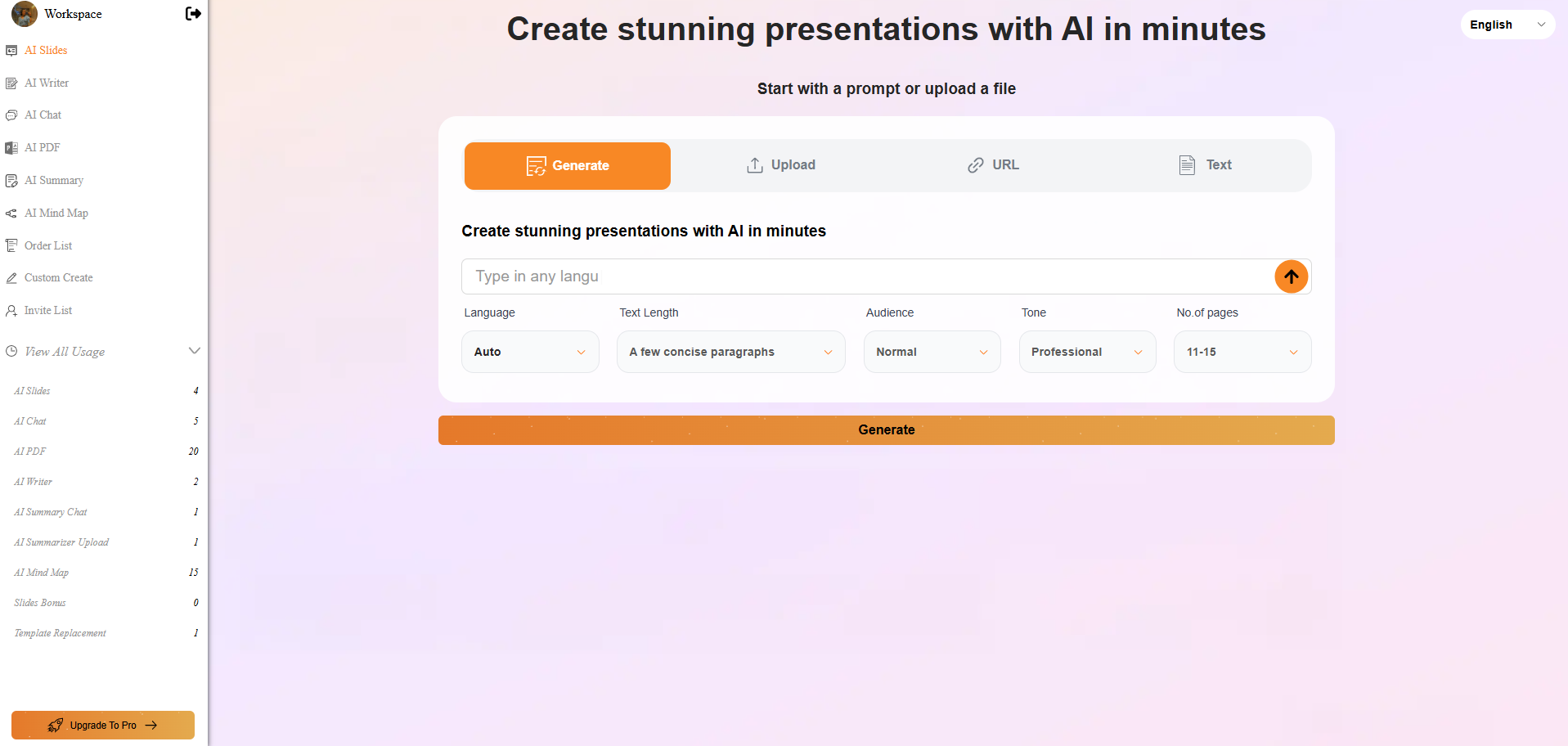
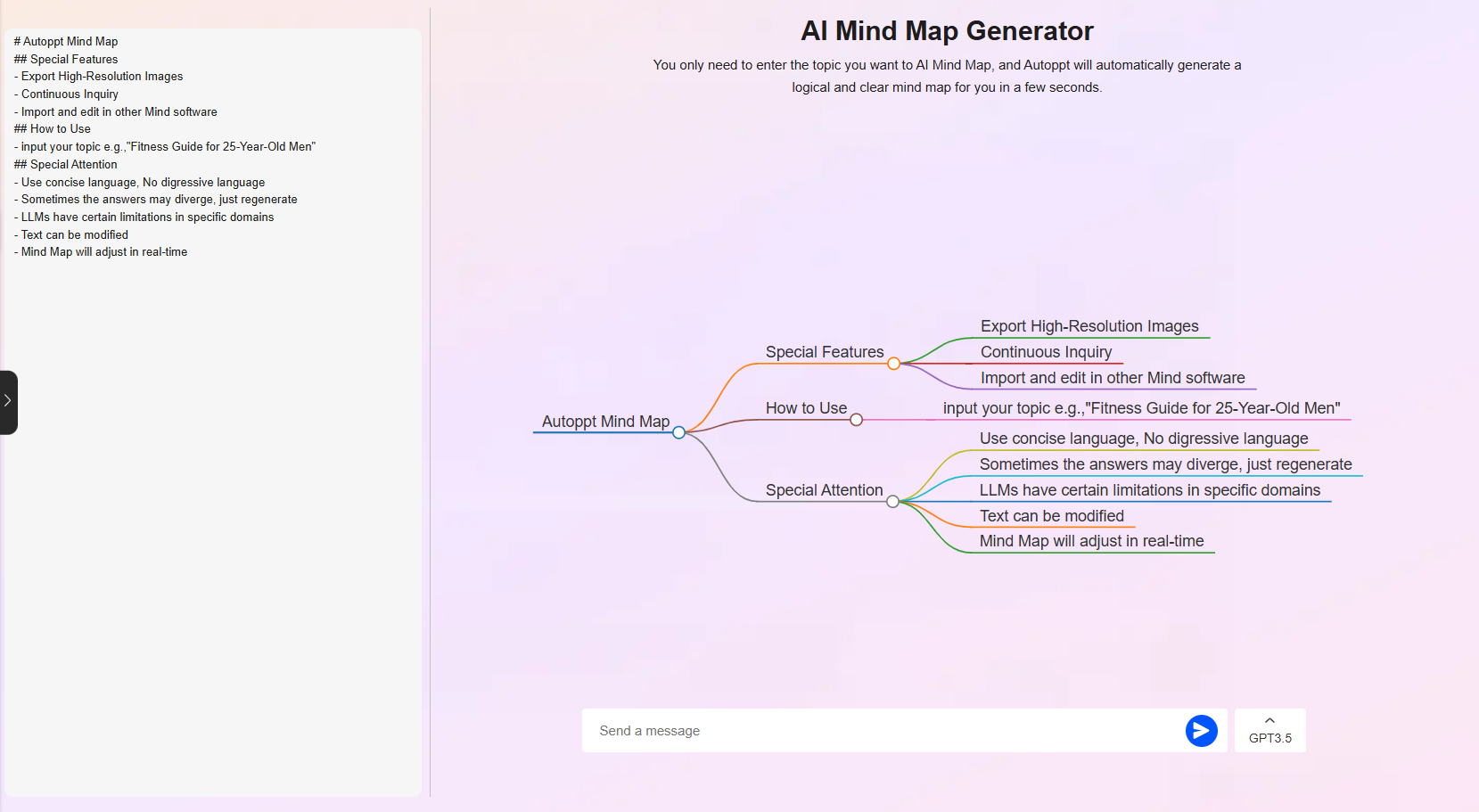
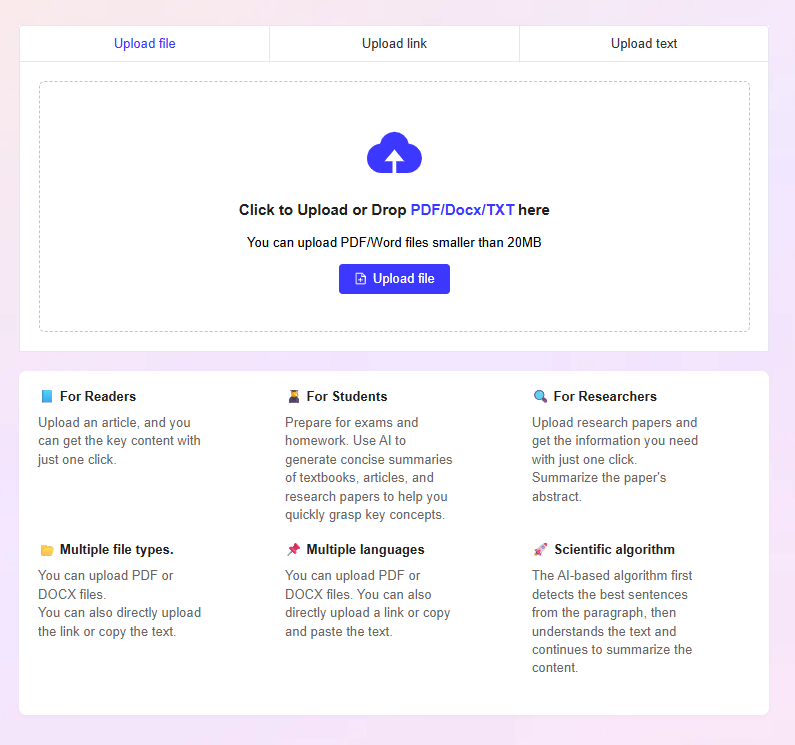
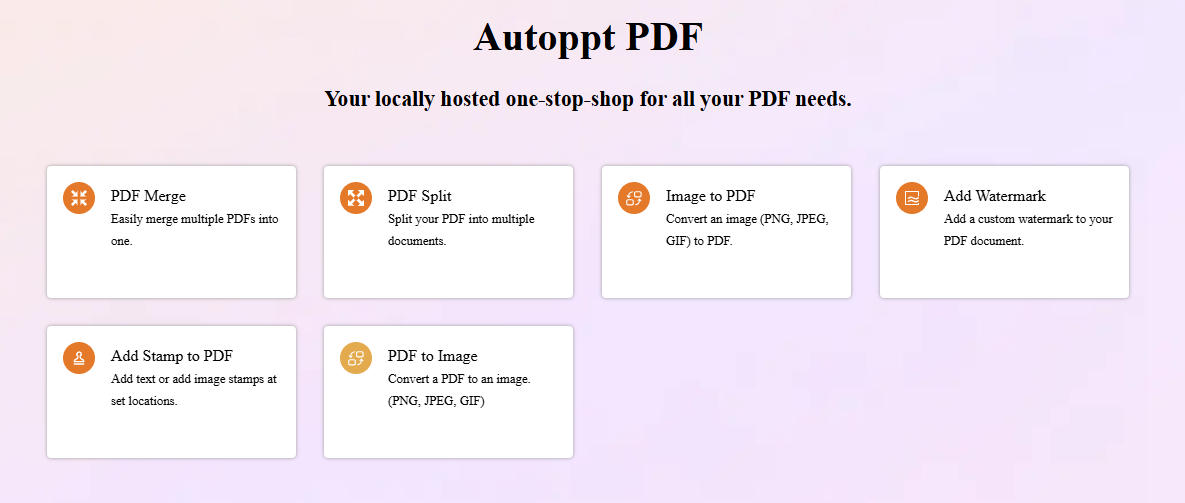
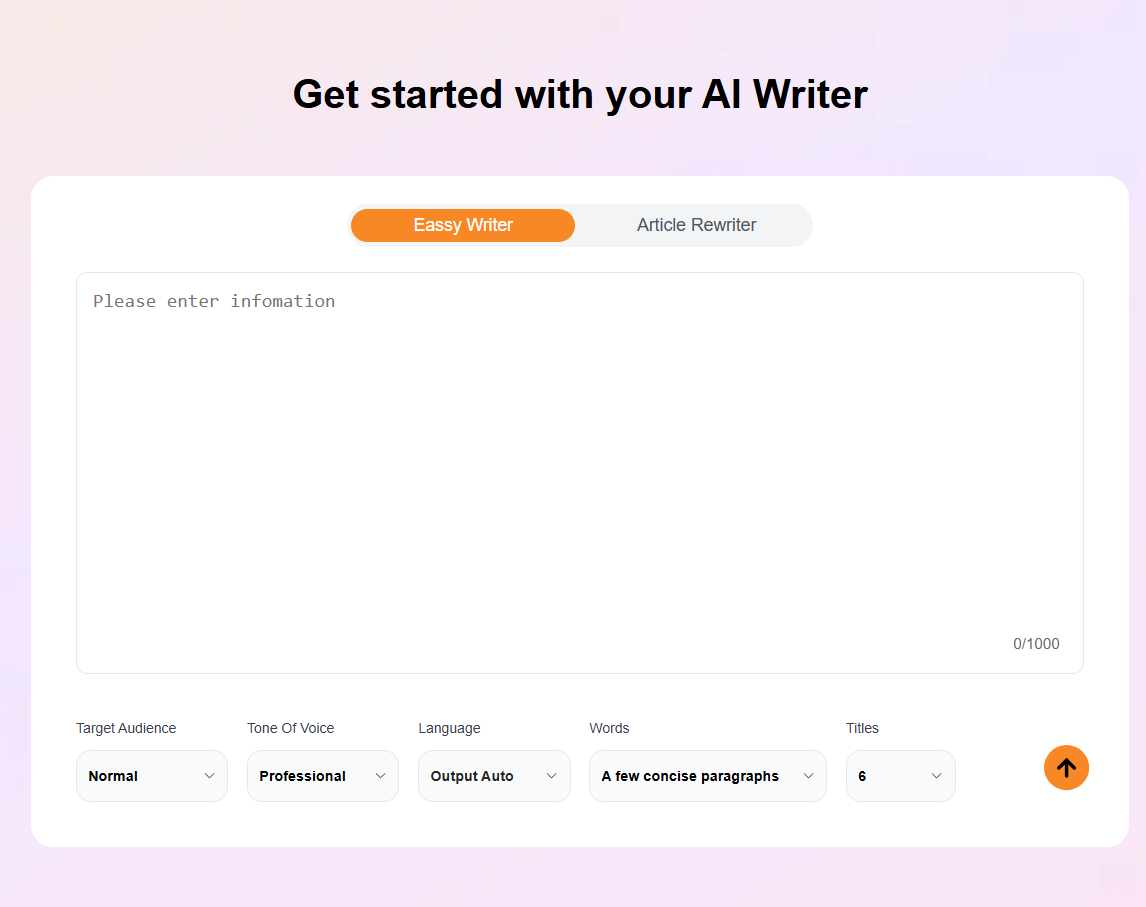
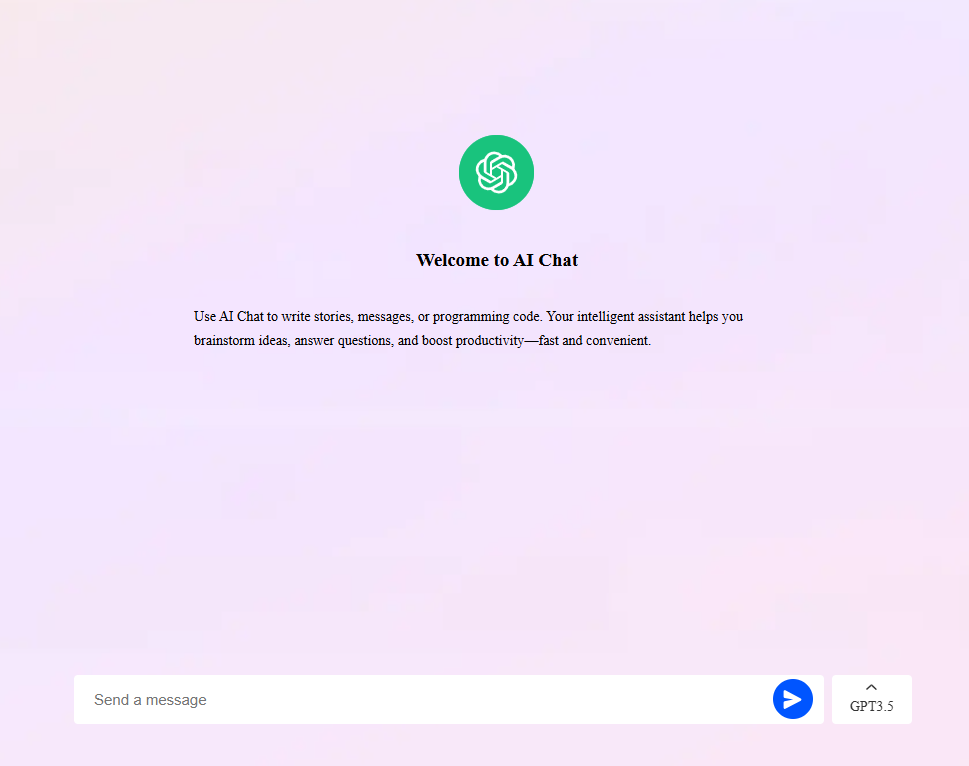
There were also quite a few other things sitting in the sidebar like AI Writer, AI Chat, AI PDF, AI Summary and AI Mind Map, along with some basic PDF tools for things like merging and splitting files. I had a look through them, but I didn’t actually use any of them for this test. I wanted to keep the testing focused on the AI Slides side of AutoPPT rather than turn this into a review of everything the platform offers.
Core Features
Prompt limitations. The prompt was the first thing that caught me off guard. The box only allowed roughly 5 to 100 characters, which felt really restrictive to me. With the other tools I’d tested in this series, I could usually write out a proper paragraph, explain the context, give the AI some direction and be a lot more specific about what I wanted. Here, I had to keep it short. That meant I couldn’t really add much nuance to the instruction itself and had to rely more on the settings around it to shape the presentation.
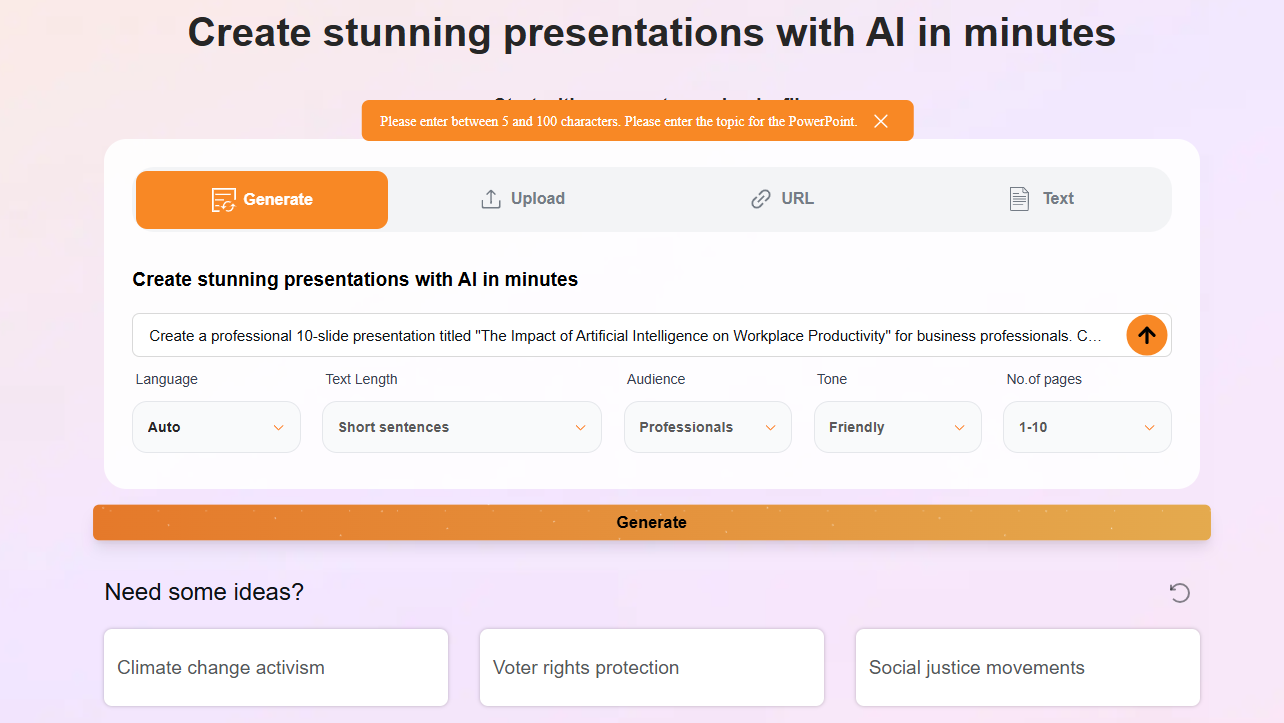
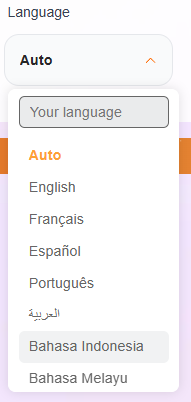
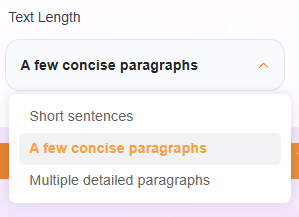
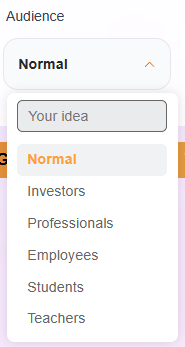
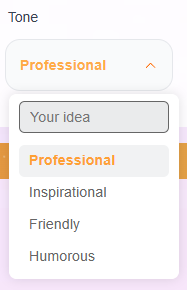
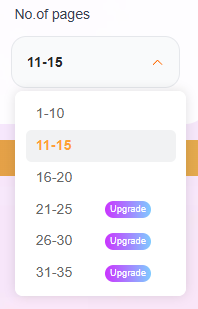
Pre generation controls. Even with that short prompt, I still had a decent amount to configure. I could choose the language, audience, text length, tone and number of pages. For the audience, I had options like normal, investors, professionals, employees, students and teachers. The tone could be professional, inspirational, friendly or humorous, and I could also control how much text I wanted on the slides. There were several page-count options too, although some of the longer ones were locked behind the paid plan. So I did have a reasonable amount of control going in, but a lot of that control felt necessary because the prompt itself couldn’t really tell AutoPPT very much.
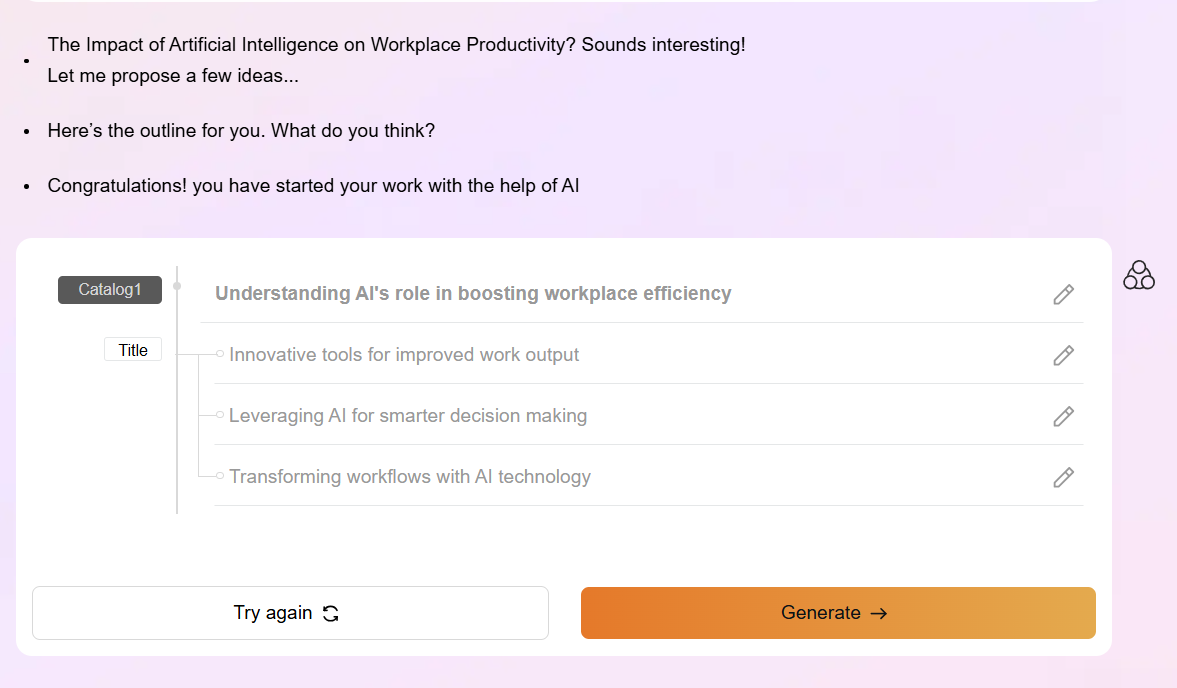
Outline and templates. AutoPPT built an outline before generating the actual slides, which I liked. By this point I’d seen that workflow in a few other tools, and I still find it useful because I get to see what the AI thinks the presentation should look like before it actually builds the deck. If the structure looks wrong, I can catch that early instead of waiting for the whole thing to be generated.
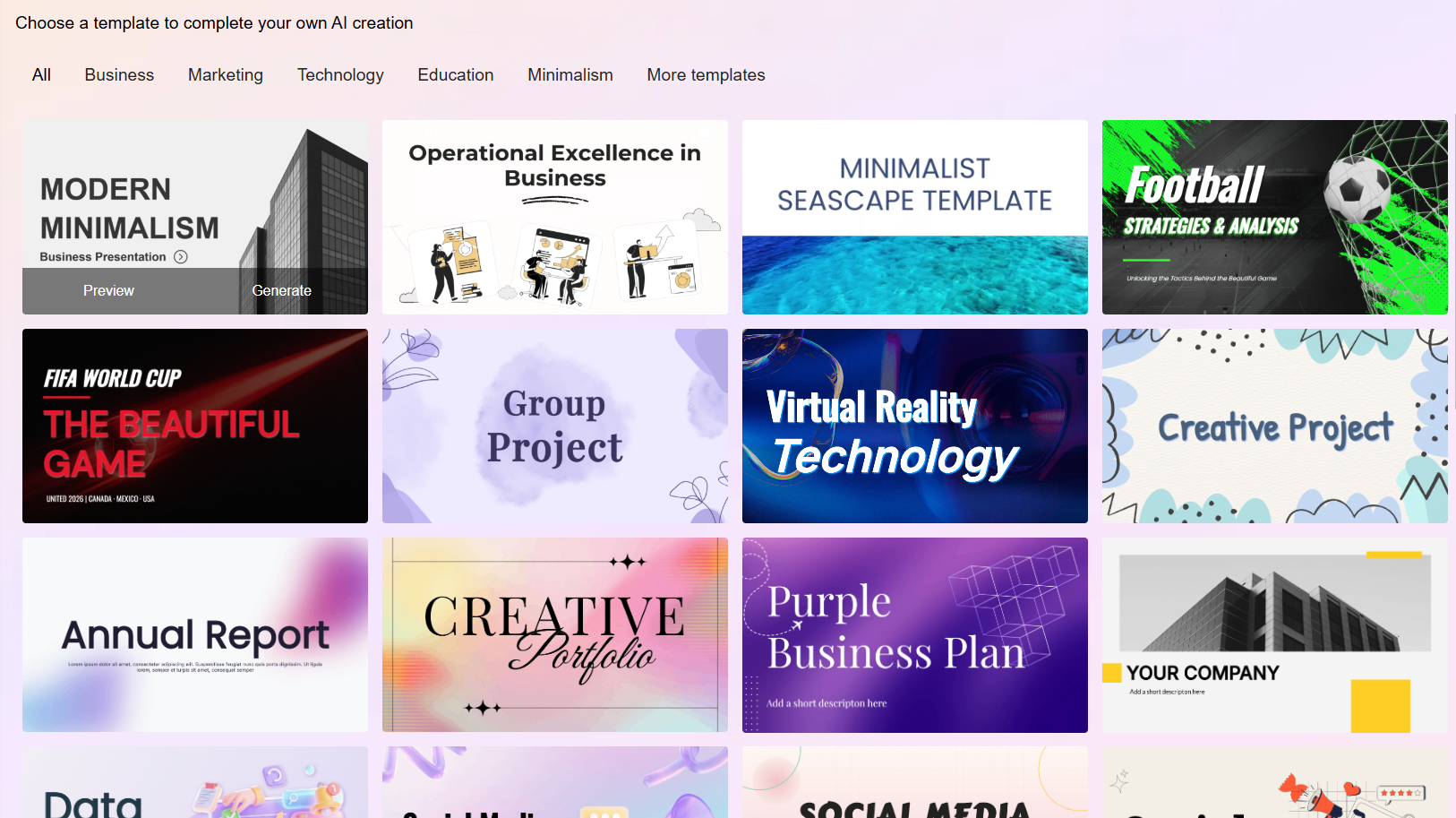
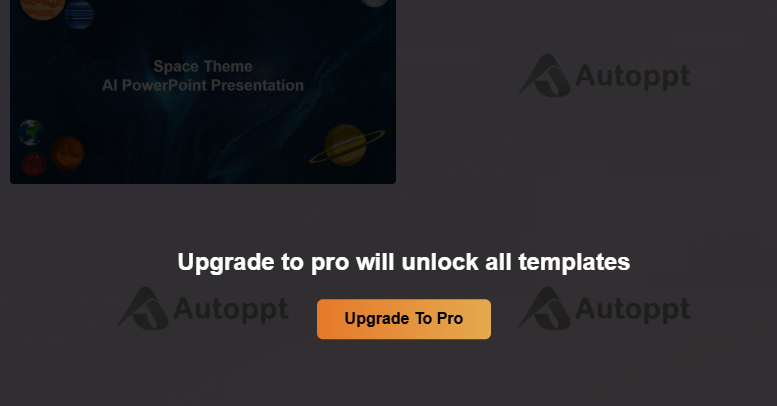
The template stage was where I was less impressed. There were quite a few categories to choose from, business, marketing, technology, education, minimalist and a few others, so I can’t say there wasn’t enough to browse through. The problem for me was that a lot of the templates started to look very similar after a while. There were plenty of Pro-only options as well, but even the templates I could use without upgrading didn’t really give me that feeling of, okay, this one actually stands out. I expected a bit more variety in the visual direction, and I just wasn’t getting it.
Output quality. This is where the generic feeling really set in. The deck followed my chosen template closely, which is fine in principle, but it felt like my content was being poured into an existing mold rather than the AI actually thinking about how to visually represent the topic. Nothing about the design choices felt tailored to what I’d actually asked for.
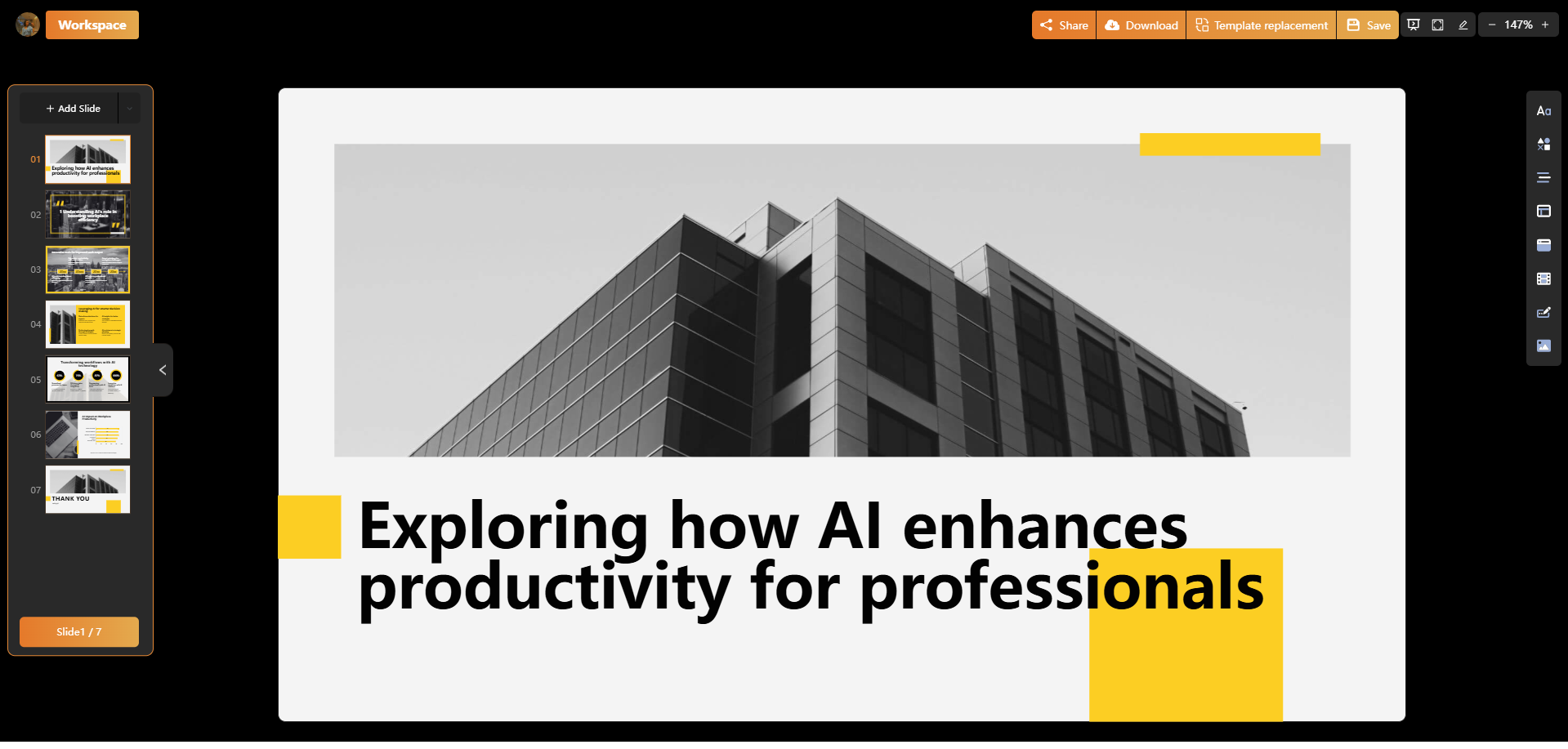
Content overlap issues. This is where things got genuinely frustrating. More than once, text overlapped with other elements on a slide, sitting on top of images or other text blocks instead of staying in its own space. This happened across more than one of the input methods I tested, not just the main prompt flow. It’s a pretty basic layout mistake, and I don’t think an AI presentation tool should be shipping decks with that kind of problem still in them.
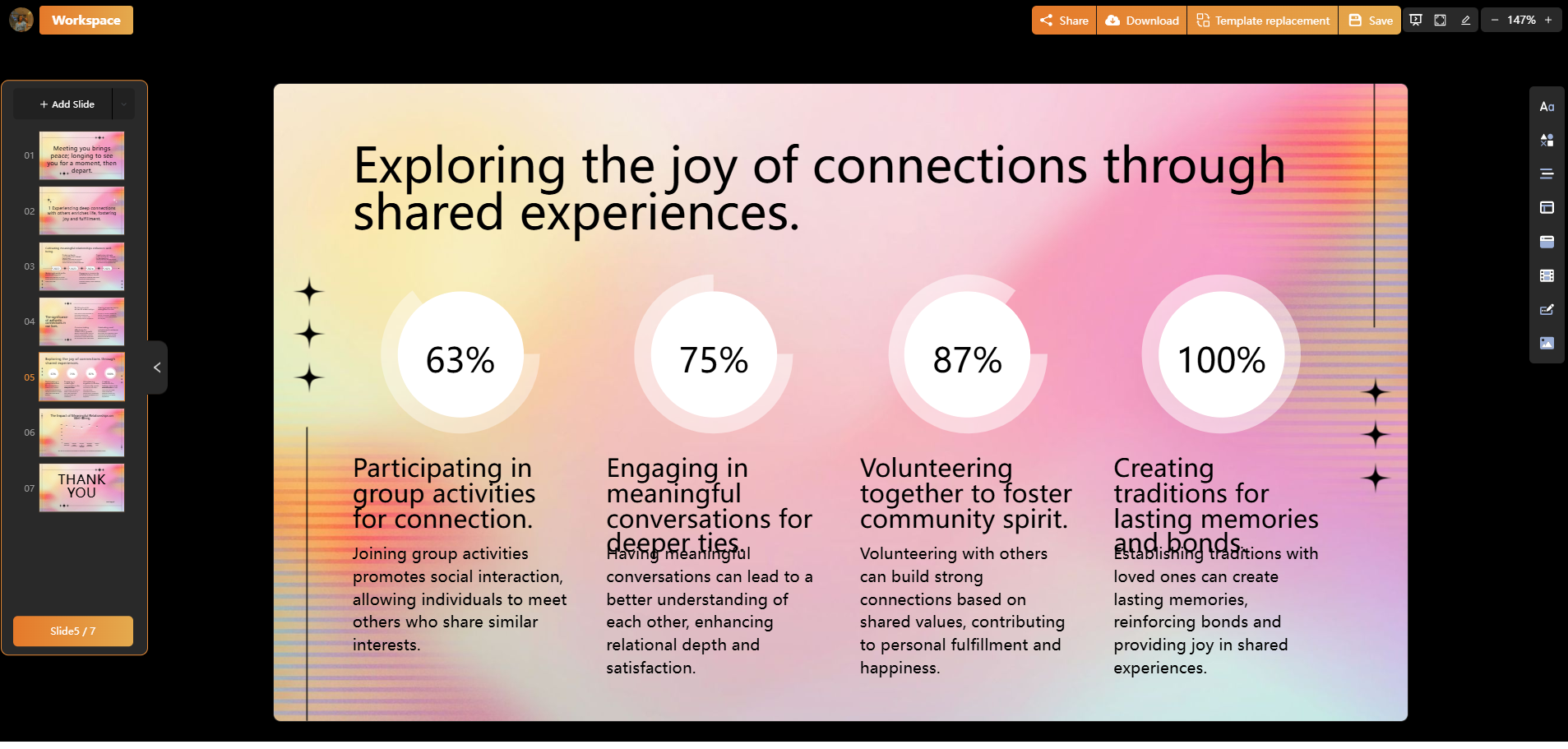
Template swapping after generation. This was actually one of the more clever features I ran into.I could swap the entire template even after the presentation had already been generated, while keeping the content I’d already created. I liked that because if I decided I didn’t like the design halfway through, I didn’t have to start the whole generation process again just to try a different look.
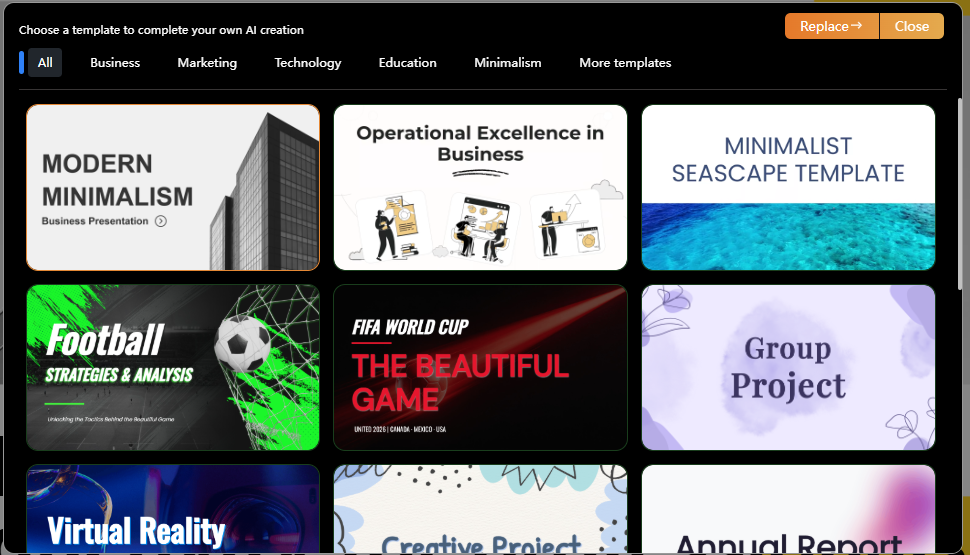
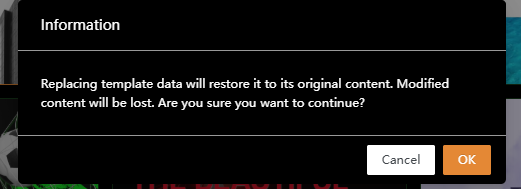
There was a pretty important catch, though. If I’d already gone in and manually changed things, switching the template would wipe those edits and bring the content back to the template’s original version. So I found the feature useful, but only really if I used it early. Once I’d spent time cleaning up slides myself, I definitely wouldn’t want to swap the template and lose all that work.
No AI Agent. This was probably the single biggest gap compared to Gamma, Presenti and even the inconsistent one in Tome. There’s simply nothing inside the editor I could talk to and ask for changes. If I wanted something shortened, rewritten, or restructured, I had to do it by hand, every time. That’s a very prominent limitation once the initial generation isn’t already close to perfect, and in my testing it usually wasn’t.
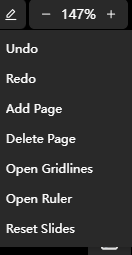
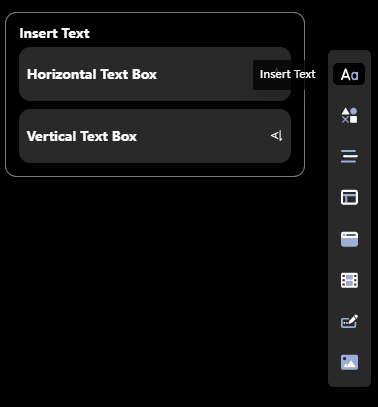
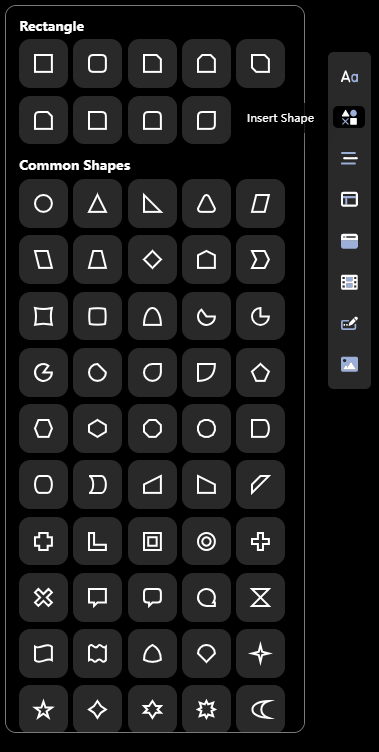
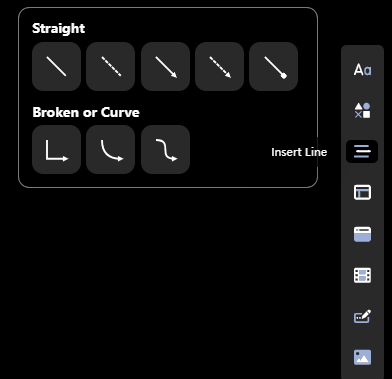
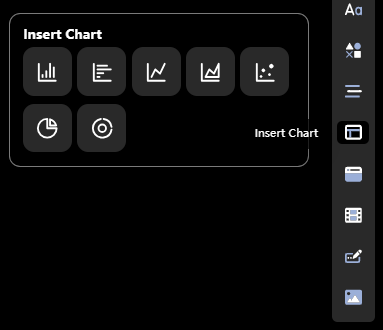
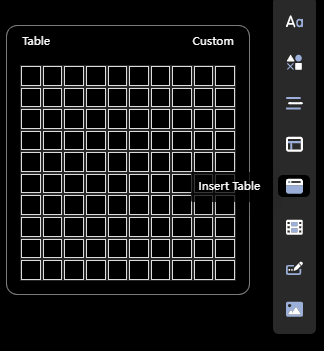
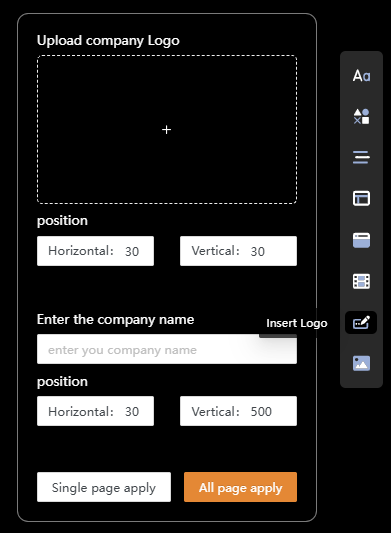
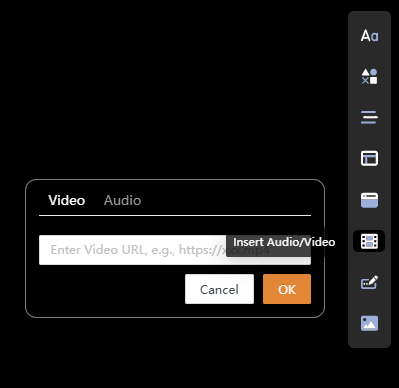
Manual editor. To AutoPPT’s credit, this part was solid. Text boxes, shapes, lines, charts, tables, images, logo upload, audio and video through URL, plus gridlines and rulers that made it feel like an actual presentation tool rather than a viewer bolted onto an AI output. If something was wrong, I could fix it myself, which mattered a lot given there was no AI to lean on instead.
URL to PPT. The URL workflow felt pretty similar to the main generation process. Instead of giving AutoPPT a prompt, I gave it a webpage and it pulled the information from there, built an outline, let me choose a template and then generated the deck. I liked the basic idea because it saved me from having to copy the content into a prompt myself.
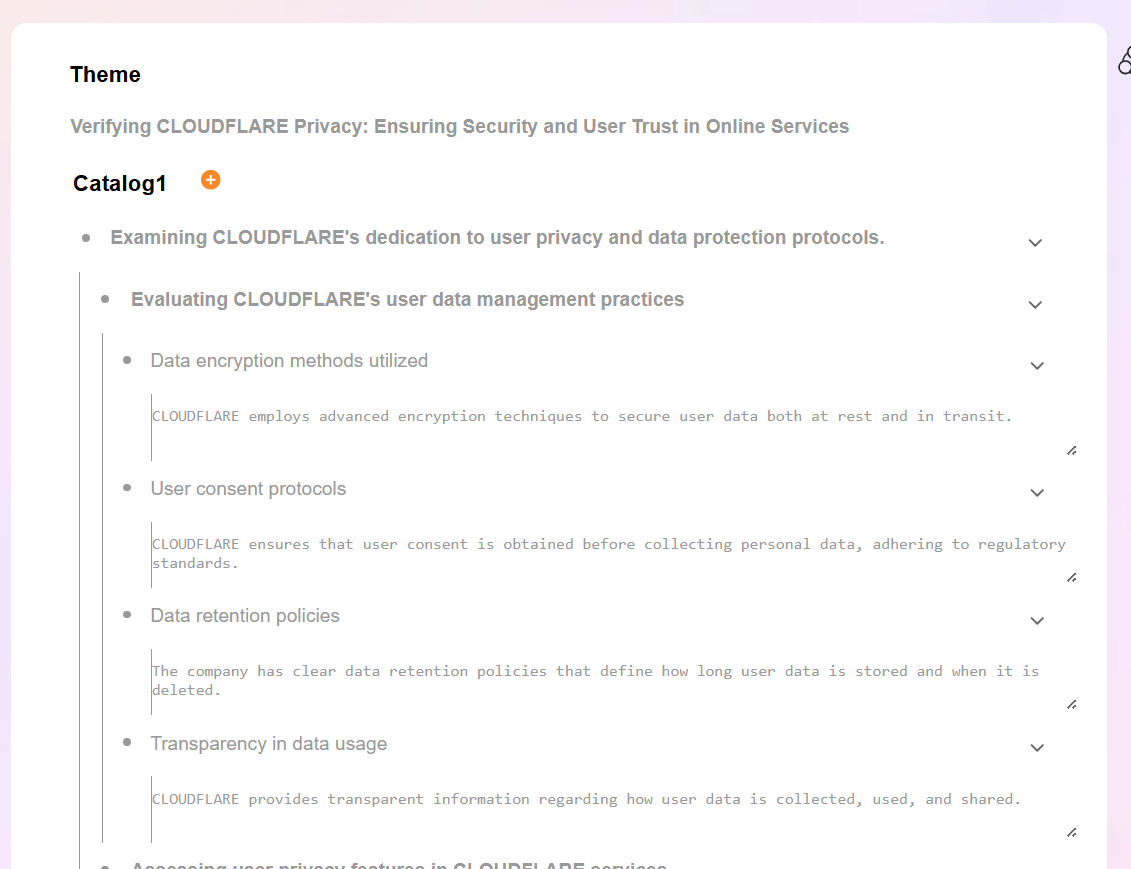
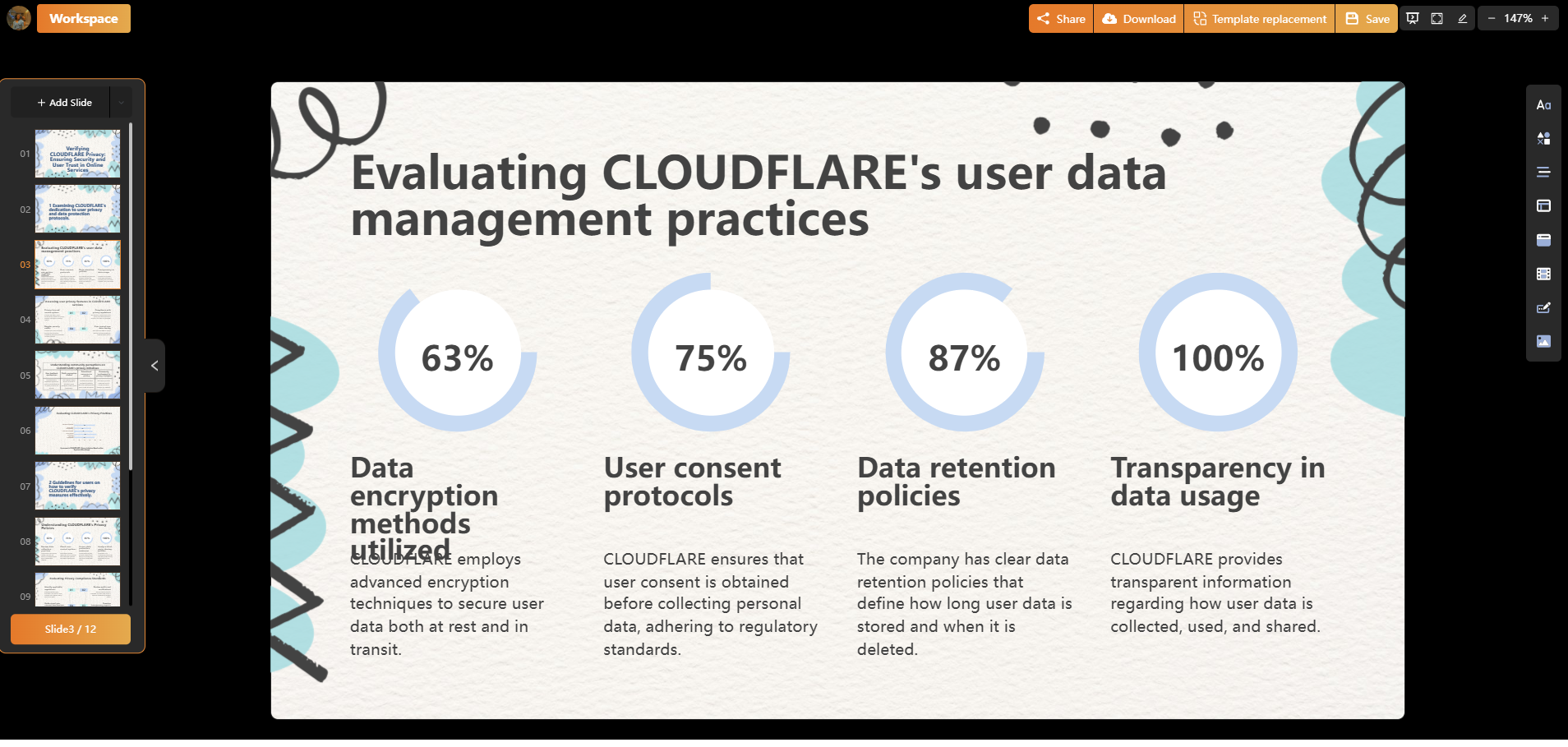
The same problems I’d noticed earlier showed up here too, though. The templates still felt fairly generic to me, and I ran into the occasional issue where text or other elements overlapped on the slide. So while the workflow itself worked without much trouble, the final presentation still had the same design limitations I was seeing elsewhere in AutoPPT.
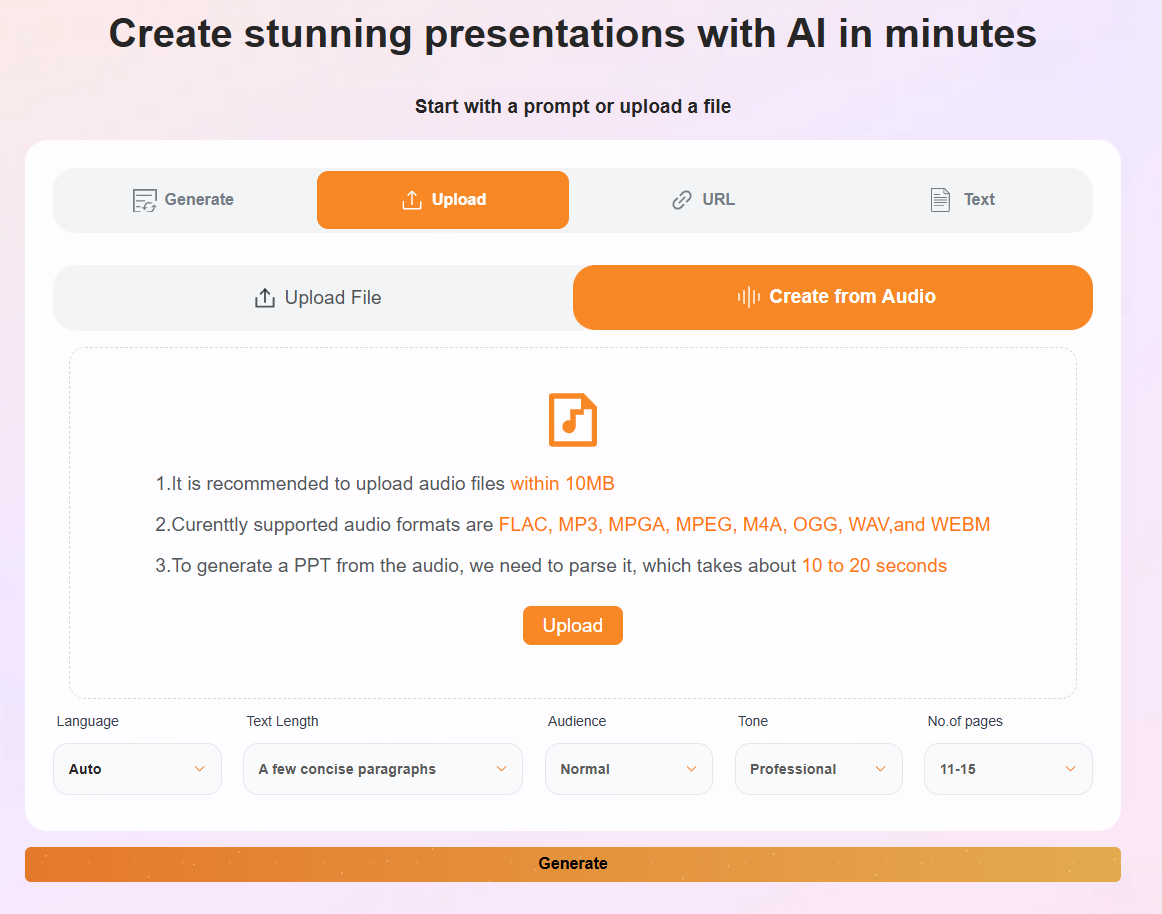
Upload and Create from Audio. I tested the audio option with a recording about connection and shared experiences, and honestly, it did a decent job of picking up the main idea and turning it into slide content that made sense. I still would’ve wanted to clean it up afterwards, but it wasn’t far off.
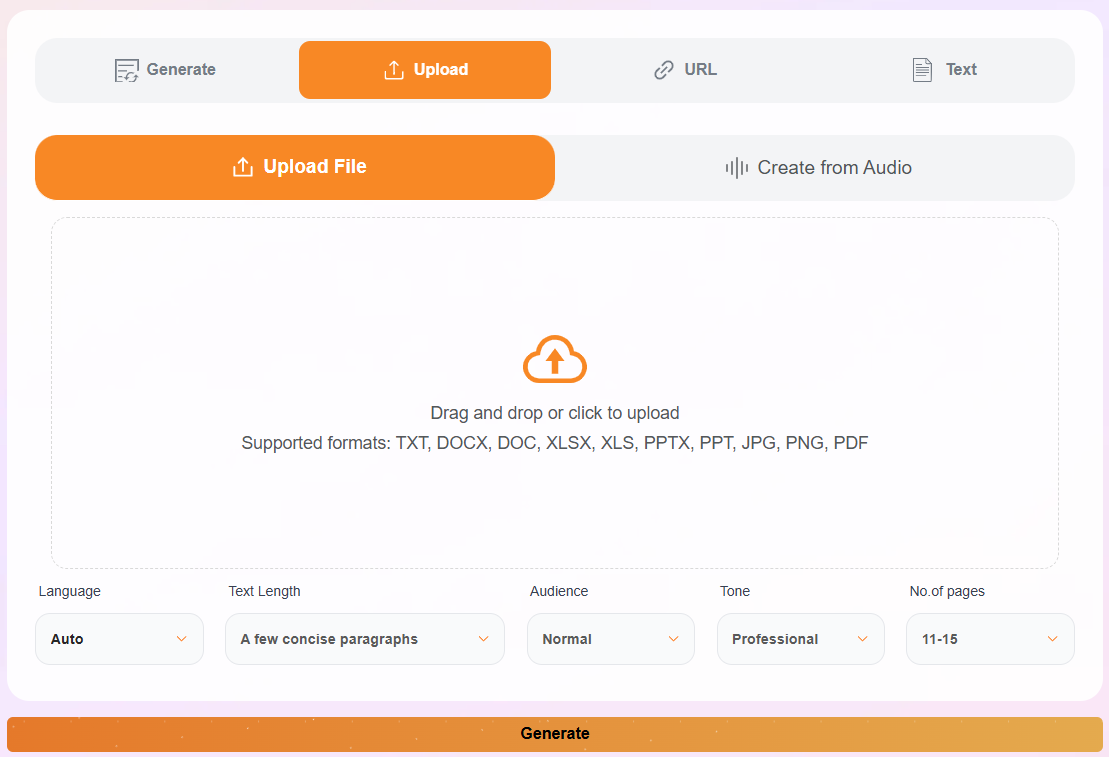
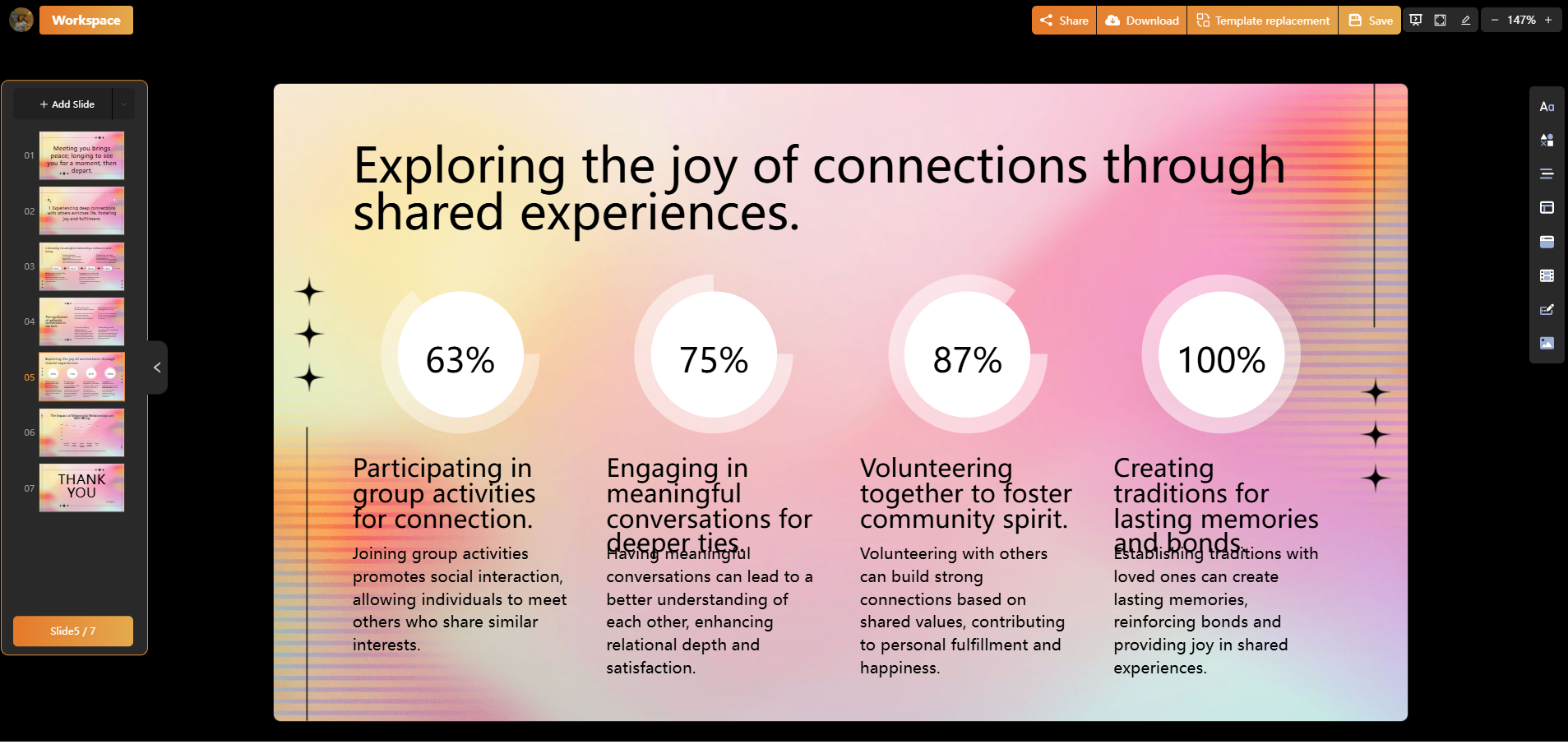
The visuals were the weaker part again. Even with completely different source material, the presentation still looked like the same AutoPPT template I’d been seeing elsewhere. I wanted it to feel more connected to what I’d actually said, but it felt like the content was just being dropped into a familiar design.
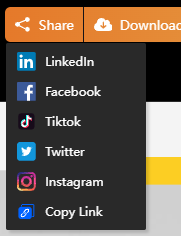
Export. Clicking Download didn’t download anything, it routed me straight to the pricing page instead. Sharing was available, a link plus direct sharing to LinkedIn, Facebook, TikTok, Twitter and Instagram, but actually walking away with a usable PPTX file on the free tier just wasn’t an option.
Performance, Reliability & Everyday Usability
Speed was honestly one of the things I liked about AutoPPT. The whole thing felt pretty responsive while I was using it, and I didn’t run into any crashes or weird lag in the editor. So from a technical point of view, I didn’t really have much to complain about.
The problems were more with the slides it was actually producing, especially the text overlapping with other elements. That happened often enough for me to notice it as a pattern rather than just a one-off mistake. Nothing ever actually broke on me, but when I kept seeing those layout issues, I did start feeling like I had to check every slide properly before I could trust the deck.
Pricing Breakdown & Limitations
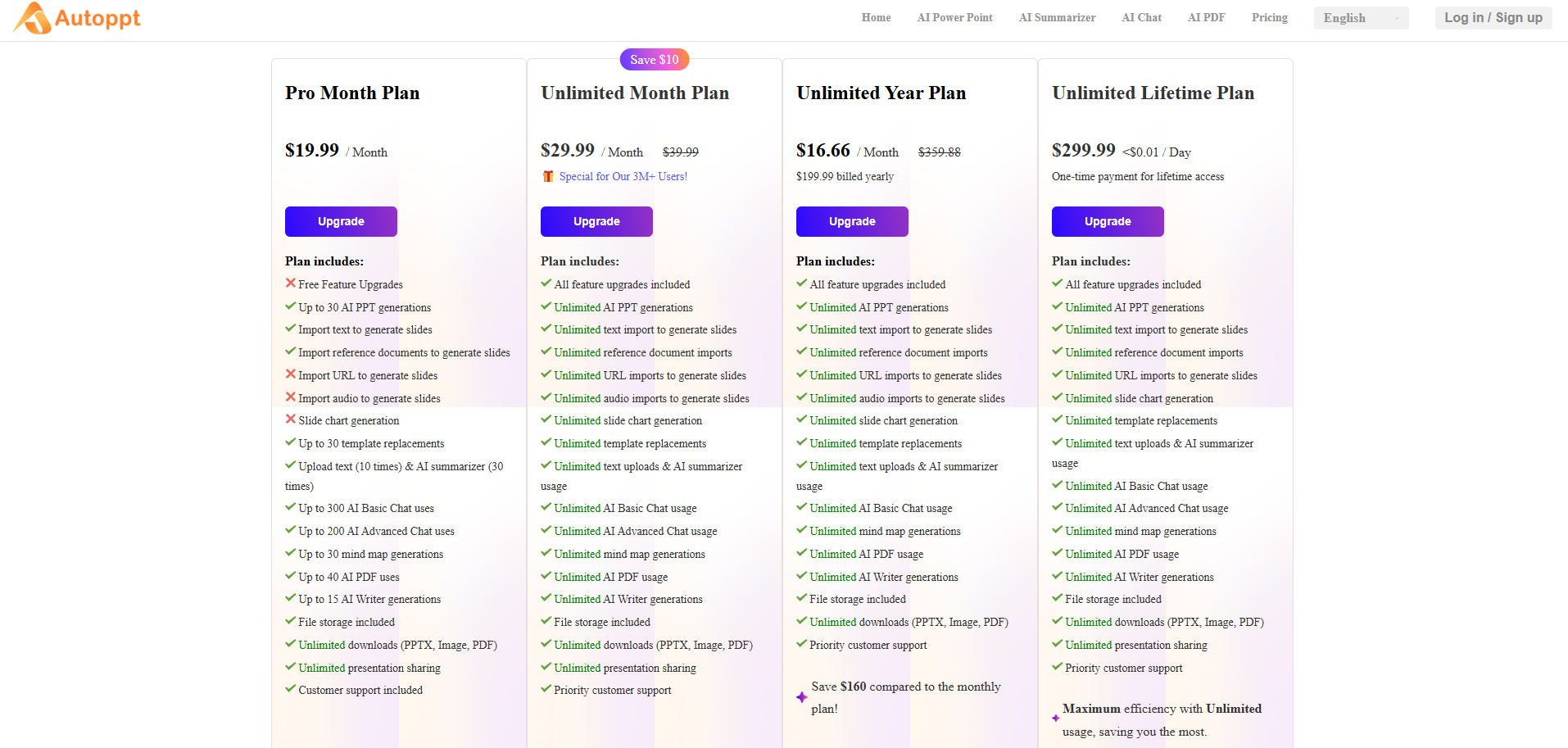
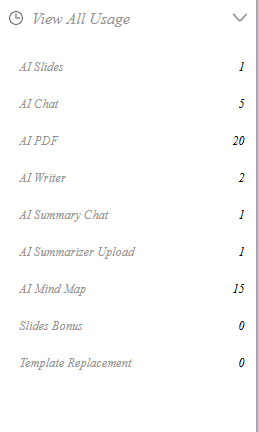
The usage panel showed AI Slides consuming one credit per use, though I honestly couldn’t tell whether that meant one credit per presentation or per slide, so I’d take that number with a grain of salt. Pricing itself felt steep given what I experienced, Pro at $19.99 a month, an unlimited yearly plan working out to roughly $16.66 a month, and a lifetime unlimited option at $299.99. At that price point, especially the monthly Pro tier, I expected a stronger overall result than what I actually got. Generic templates and occasional overlap issues don’t really match a nearly twenty dollar a month price tag in my opinion.
Privacy & Data Handling
Checking their actual privacy notice, AutoPPT is registered under Chinese law with offices in Hong Kong and Shenzhen. The practical points worth knowing, account creation collects an email and password, or profile basics if signing in through Google, Apple or Facebook. Paid subscriptions add billing details, though full card numbers go straight to their payment processor and AutoPPT only retains the first and last four digits. Security measures listed include encryption and access controls, though they’re upfront that no method of transmission is ever fully guaranteed secure, which is honestly standard boilerplate at this point. Data gets retained only as long as necessary for the stated purpose, then deleted or anonymized, and standard access, correction and deletion rights are available under whichever privacy law applies to where someone’s located. I didn’t see anything explicit about using uploaded content for AI training either way, so if that specifically matters for a project, it’s worth reaching out to them directly before uploading anything sensitive.
Comparison With PPT.AI
Given how my testing shook out, AutoPPT lines up more naturally against PPT.AI than against the stronger AI native tools in this series, so here’s how those two actually compare.
Category | PPT.AI | AutoPPT |
|---|---|---|
AI presentation quality | Fast but rough, noticeable layout mistakes like a broken title | Generic and template bound, occasional text overlap issues |
Design quality | Decent templates, generation itself lacked polish | Templates felt repetitive across different topics |
Visual assets | Good manual chart and shape library | Reasonable manual shape and chart tools, nothing automatic |
Template variety | Large library, strong filtering options | Present but limited variety, some locked behind Pro |
AI assistance | Limited to generating new individual pages | None inside the editor at all |
Export options | PPTX and PDF locked behind paid plan | Download blocked entirely on free, routes to pricing page |
Pricing | $6.90 to $13.90 a month | $16.66 to $19.99 a month, plus a $299.99 lifetime option |
Between the two, PPT.AI actually comes out slightly ahead for me, mainly on pricing and on having at least some limited AI assistance for adding new content. AutoPPT’s manual editor and its clever template swap feature are genuine strengths, but the complete absence of any AI editing layer, combined with pricing that runs noticeably higher, makes it a harder sell.
Final Verdict
My overall experience with AutoPPT landed in a fairly practical but definitely unexciting place. I liked how easy it was to pick up, the pre generation controls gave me a reasonable amount of influence over the output despite that tiny prompt box, and the generation speed was genuinely one of the good ones I’ve tested. The manual editor held up well too, proper text tools, shapes, charts, tables, logo upload, the works, and the template swap feature is a smart idea even with its content wiping catch.
But the AI side of things just didn’t impress me the way I wanted it to. The presentations kept having that same templated feel, even when I was giving it completely different topics, content overlap issues that shouldn’t be showing up in a finished deck, and no AI Agent whatsoever to help me fix any of it without doing the work by hand. Add a download wall on the free tier and pricing that runs higher than what I got with PPT.AI, and the overall value proposition weakens further.
I’d score AutoPPT in a similar territory to PPT.AI, maybe a touch below it once pricing gets factored in. It does the basic job competently and quickly, but it doesn’t feel like a genuinely AI driven presentation platform so much as a template tool with an AI shaped front door. For someone who just wants a fast, usable first draft and plans on doing the polish themselves, it’ll get the job done. For anyone hoping the AI does more of that work, I’d point them elsewhere in this series first.
Overall Score: 4.8/10.
Frequently Asked Questions:
Yes, AutoPPT includes a “Create from Audio” feature that parses uploaded audio files (like MP3, WAV, or M4A) and transforms the spoken concepts into structured presentation slides.
AutoPPT restricts prompt input to roughly 5–100 characters, forcing users to rely heavily on dropdown settings (audience, tone, length) rather than detailed descriptive instructions.
Yes. While you can swap the visual template after slides are generated, doing so restores the original template content and permanently wipes any manual customizations you made.
No. Clicking download redirects you to the subscription page, leaving public web links and social sharing as the only free export options.
Abonneer je op onze nieuwsbrief en ben als eerste op de hoogte van tijd- en geldbesparende AI-tools!
Comments