Conclusion
Evernote remains a highly capable and feature-rich note-taking tool, particularly excelling in its robust note editor, accurate audio transcription, and seamless integration of tasks and calendar. The AI assistant is a standout feature, providing consistently accurate and relevant responses. However, the pricing structure is a significant drawback, with the free plan being too limited and the jump to the Advanced plan being quite steep. Despite this, for users who need a comprehensive tool for notes, tasks, and document management, Evernote justifies its cost.
Pros
- Robust note editor with extensive formatting options
- Accurate audio transcription feature
- Seamless integration of tasks and calendar
- Effective AI assistant for note summarization and content generation
- Intuitive and comfortable dark mode UI
Cons
- Steep pricing structure, especially the jump to the Advanced plan
- Free plan is too limited for serious use
- Learning curve for understanding the organizational system
Table of Contents
- First Impressions & User Experience
- Core Features & Real Usage Testing
- Performance, Reliability & Everyday Usability
- Pricing, Free Plan & Limitations
- Privacy, Data Handling & Account Control
- Final Verdict & Overall Score
Evernote has been around long enough that most people in the productivity space have either used it at some point, loved it, abandoned it, or are still quietly using it without sharing. It has that kind of reputation. So when I sat down to test it thoroughly, the question wasn’t really “is this a genuine product” but more “has it kept pace, and is it still worth paying for in 2026.” The answer is nuanced, but largely yes.
Evernote is a note-taking and personal knowledge management application. Its main premise is that all types of contenttext, images, audio, files, web clips, tasks, calendar events—can be stored in one central location and easily retrieved when needed. In my view, it suits best writers, students, researchers, or anyone juggling scattered information across various areas of life. It also appeals to those tired of using multiple apps just to jot down notes and manage deadlines. However, it probably isn’t ideal for those seeking a very simple tool or for users who want to rely on the free plan for serious work. The free tier is quite limited, which I will discuss further.
First Impressions & User Experience
The onboarding process is straightforward. It features a “Complete your setup” screen that introduces three core ideas: boost productivity, stay organized, and accomplish more. While not revolutionary, it avoids feeling overwhelming—important given Evernote’s extensive feature set. First impressions are important, and this initial setup was adequate. Not particularly exciting, but functional.

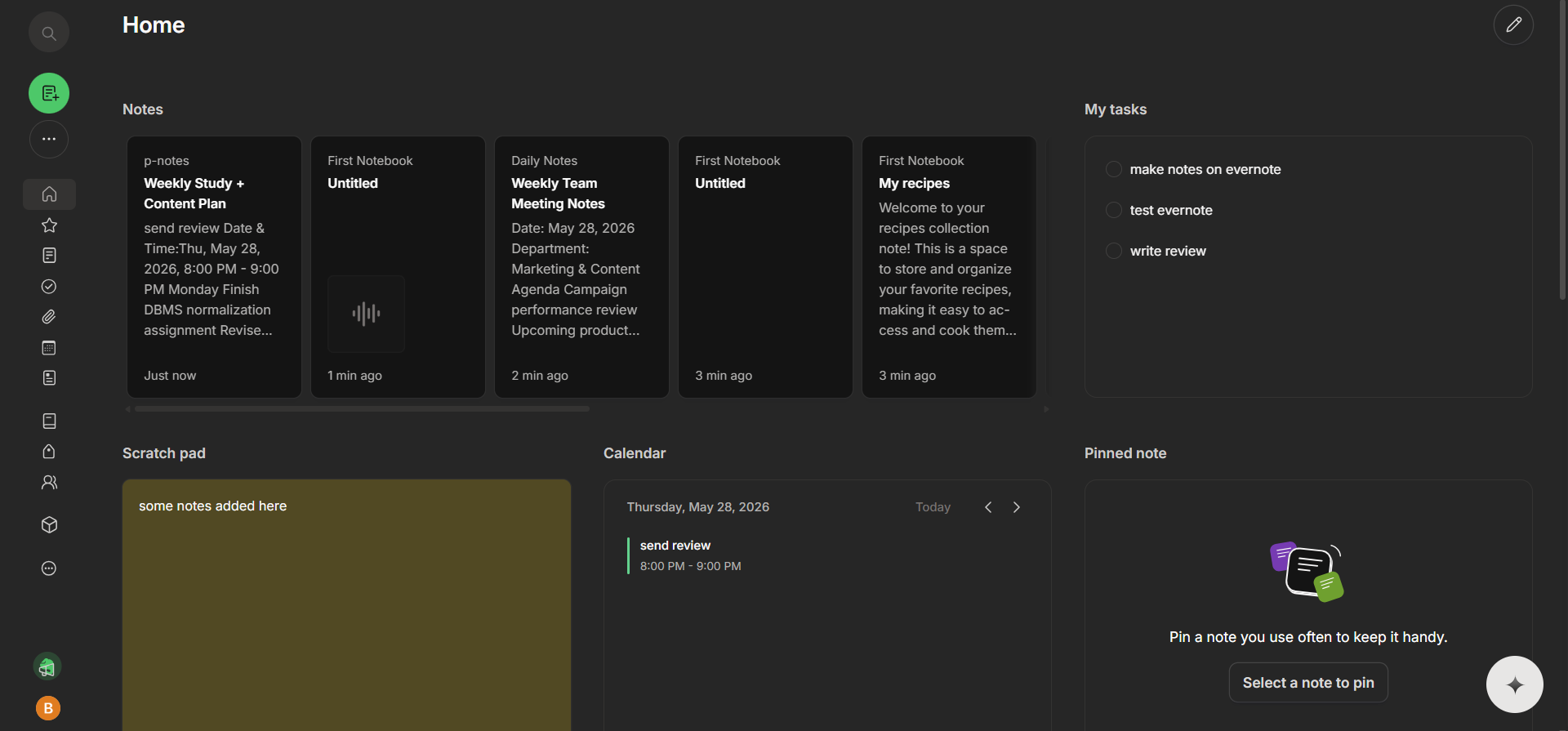
The sidebar layout felt intuitive to me fairly quickly. Items like Home, Notes, Tasks, Calendar, Files, Templates, Notebooks, and Tags are clearly labeled and easy to access. The Home dashboard itself is among the better-designed I’ve seen in productivity apps. It displays recent notes in a card format, includes a scratch pad for quick notes, a small calendar widget, a tasks panel, and a pinned note section. This layout makes the app immediately usable, without requiring extensive setup. Navigation was straightforward from the start.
- The left sidebar is compact yet spacious enough, and navigation felt logical even for a first-time user like myself.
- The dark mode UI is genuinely comfortable to work in, both visually and functionally. As someone who prefers dark mode, I found it especially pleasing.
- There is a learning curve, mainly in understanding Evernote’s unique organizational system—how notebooks, stacks, and tags relate—but it didn’t take long for it to become clear.
- I tested the desktop version, so I cannot comment extensively on cross-device performance.

My initial confusion was mainly about Evernote’s organizational structure. It has its own logic, which can seem opaque until it clicks. Once understood, navigation became instinctive.
Core Features & Real Usage Testing
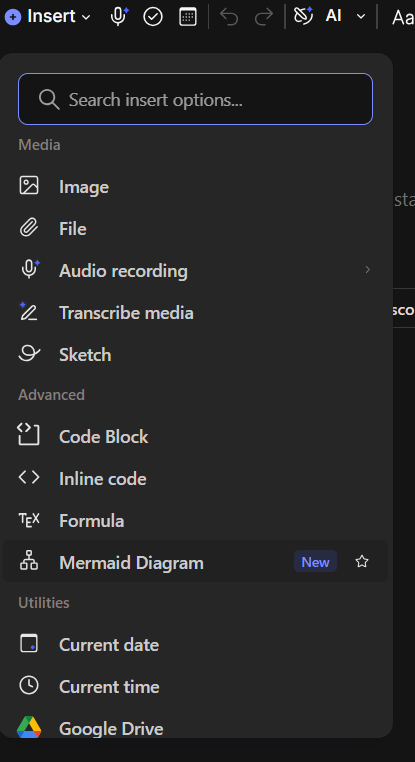
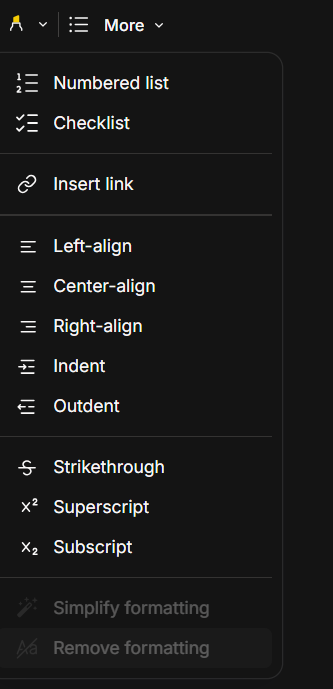
The note editor is where Evernote truly distinguishes itself. The toolbar includes all standard options: bold, italic, underline, text color, font choices, size adjustments, and a “More” dropdown with strikethrough, superscript, subscript, alignment, and formatting options. None felt overdone. The Insert menu, accessed via a “+” button, was a significant focus during testing, as it offers a wide range of features.
During testing, I explored several features directly from the Insert panel:
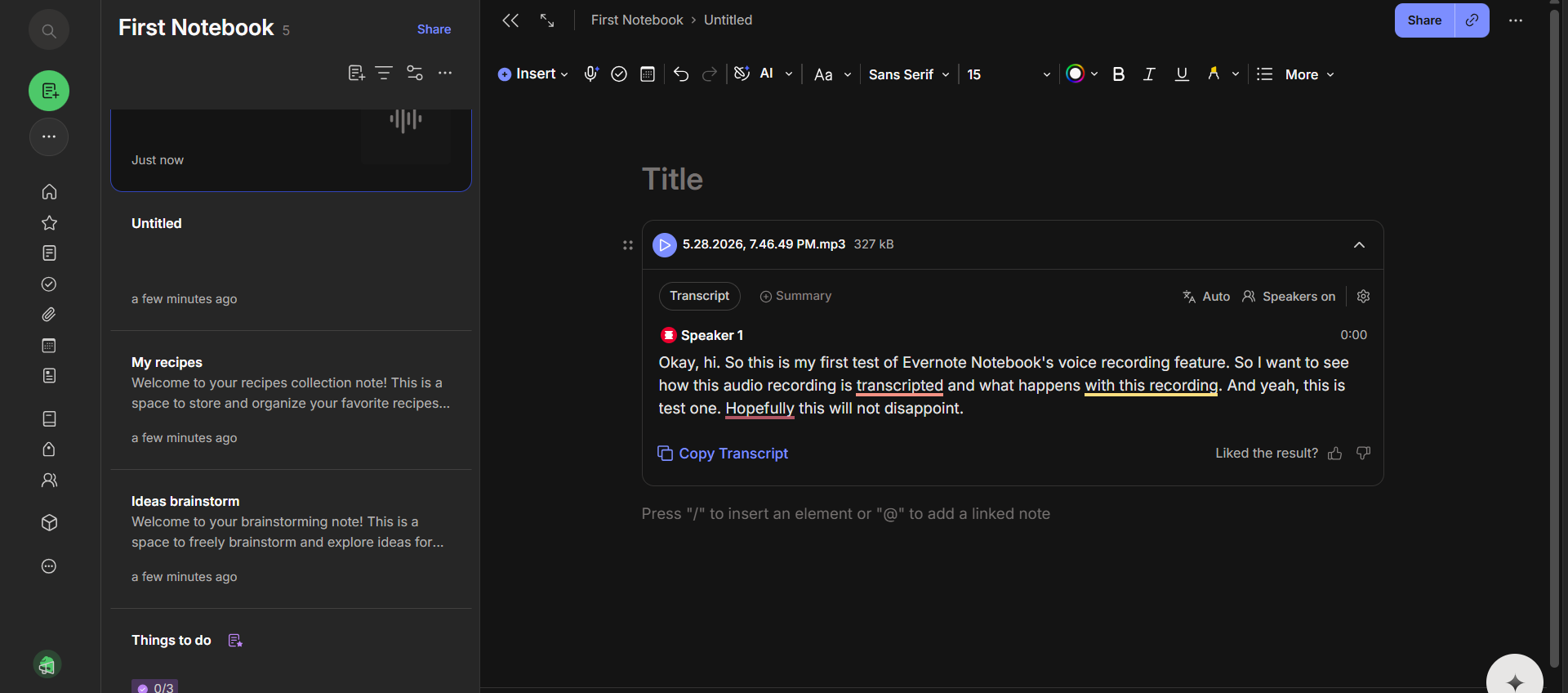
- Audio recording with transcription: Easily the highlight of my testing session. I recorded a short voice memo and the transcript came back accurate, speaker-labeled, and actually readable. There’s a “Copy Transcript” button that makes it easy to pull the text into another note. I was not expecting this to be as good as it was and it pleasantly surprised me. It felt like one of it’s most useful features especially since narration takes lesser time that typing and the transcript was accurate enough to be a genuinely useful feature of Evernote.
- Mermaid Diagram: Marked as a new feature. Lets users generate flowcharts and sequence diagrams straight from text input. For anyone who documents workflows or processes in their notes, this is a big deal and not something many note apps offer natively.


- Callout and Toggle blocks: Also new. Callouts display highlighted boxes for tips or warnings, and toggles create collapsible sections to hide and reveal content. Both push Evernote closer to Notion-style block editing, which is a direction that makes sense for a tool at this level.
- Google Drive integration: Available straight from the Insert panel. Saved time compared to manually copying Drive links into notes. Especially with my Calendar. I integrated Calendar with Evernote and added reminders inside my calendars linking it to notes wherever necessary or applicable. It felt like a very useful feature albeit not a unique one.
- Tables, code blocks, inline code, formula support: All present. This makes Evernote genuinely usable for developers or anyone doing technical documentation inside their notes, not just general prose note-takers.
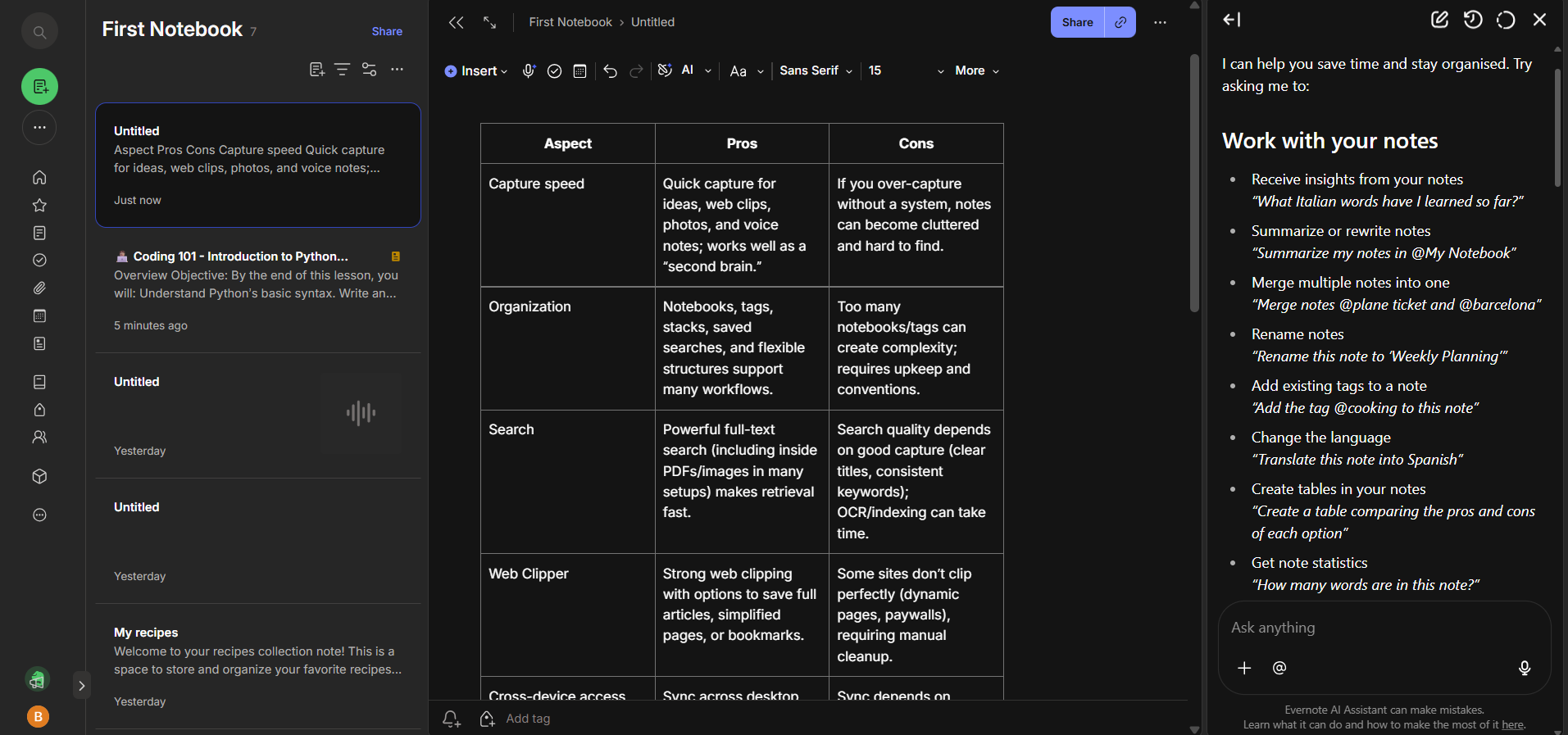
The AI assistant panel is positioned on the right side of the editor. I used it to summarize notes, rewrite sections, generate comparison tables, and ask questions. Its responses were consistently accurate and relevant. The options to “Insert below” or “Create new note” for AI-generated content made it easy to act on results without extra steps.

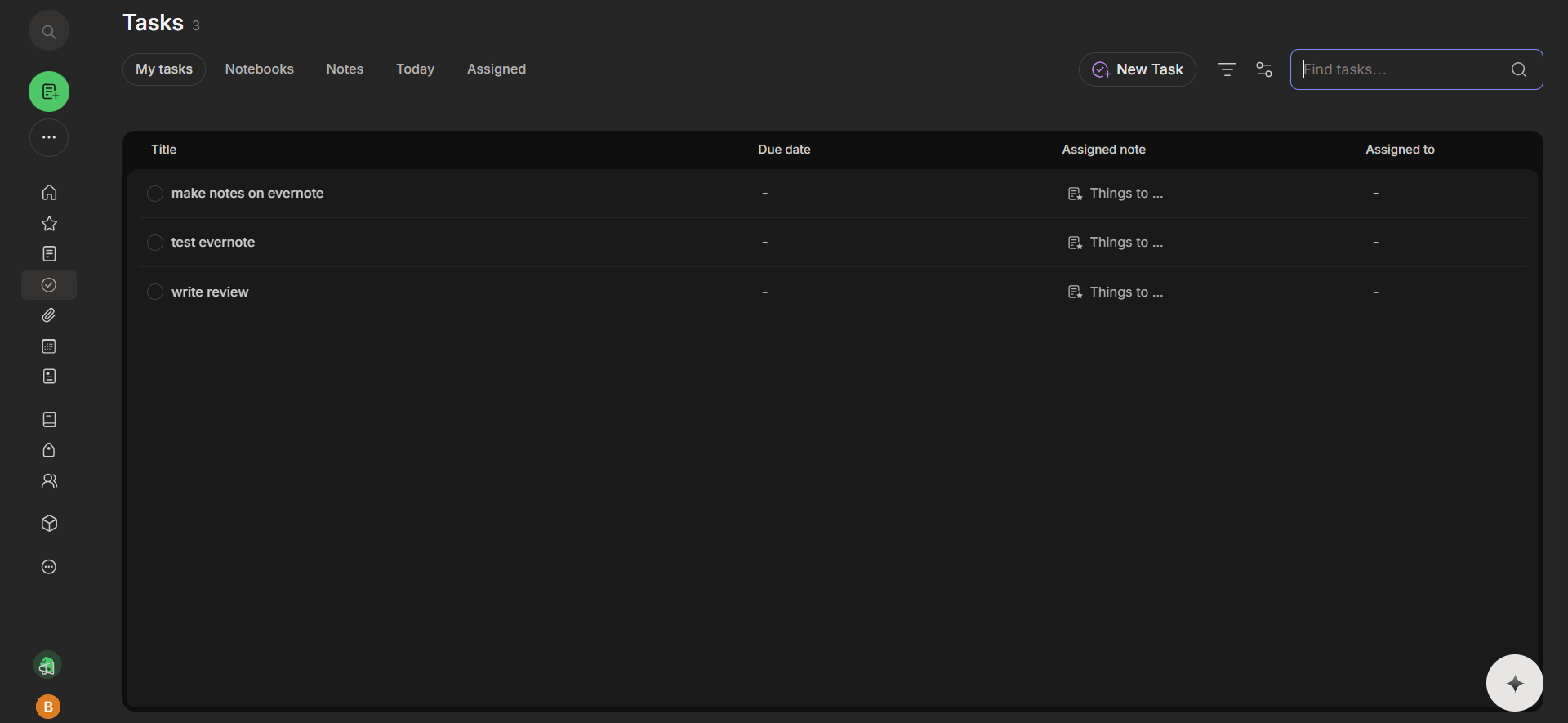
The Tasks section is simple and effective. Tasks are linked directly to notes, displaying title, due date, associated note, and assigned person in a clear layout. Calendar integration was also smooth—creating events, linking notes, recording audio within linked notes, and finding related notes all functioned well. Having tasks and calendar integrated natively reduces the need to switch between different apps, which is a significant advantage.


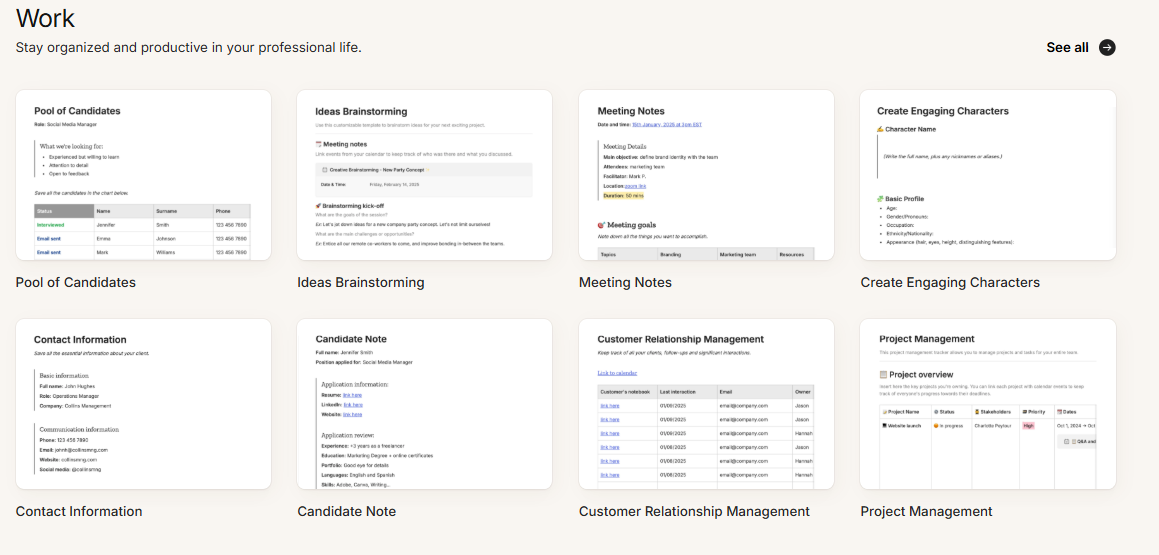
The templates library is categorized into School, Life, and Work, with practical options in each—such as Cornell Notes, Project Plans, Meeting Notes, Workout Trackers, CRM templates, and Reading Lists. The templates are well-designed and ready to use, not just placeholders. However, loading the templates section was noticeably slower than other parts of the app, though not enough to be truly bothersome.


Performance, Reliability & Everyday Usability
Overall, testing was smooth. The app did not crash or freeze, and performance was generally responsive, aside from the slower template loading. The AI assistant responded quickly and accurately. The transcription feature worked flawlessly on the first attempt, and throughout extended use, nothing malfunctioned or behaved unexpectedly.
- General responsiveness was good throughout
- No crashes, no sync issues, no weird UI glitches noticed
- AI assistant was quick and produced useful output consistently
- Transcription accuracy was genuinely impressive, speaker labeling worked correctly
- Organizational system became easier and more intuitive the longer the session went
- Templates loaded slower than expected, the only real performance complaint from the session
Evernote tends to become more intuitive the longer you use it. As sessions extend, the overall experience feels more natural, which often indicates solid underlying design—even if the initial learning curve requires some patience.
Pricing, Free Plan & Limitations
This section gives me mixed feelings. The free plan limits users to 50 notes, 1 notebook, 1 device, 1 GB of uploads per month, and a 200 MB max note size. It does include access to Tasks, Calendar, and Web Clipper—more than many free plans. However, 50 notes and a single notebook are insufficient for professional or daily use. It feels more like a prolonged trial than a true free tier.
The current pricing in USD is:
- Free: $0 – 50 notes, 1 notebook, 1 device, 1 GB uploads/month, 200 MB max note size
- Starter: $8.25/month billed annually ($100/year) – 1,000 notes, 20 notebooks, 1,000 attachments, 3 devices, AI features included
- Advanced: $20.83/month billed annually ($250/year) – unlimited notes, notebooks, attachments, and devices, AI features included
- Enterprise: Custom pricing

The Starter plan at $100 a year is palatable for light use. The issue is that 1,000 notes sounds like a lot until someone has been using Evernote regularly for a year or two, at which point it stops sounding like a lot. Power users will realistically need the Advanced plan, and $250 a year is a significant jump. Evernote has increased its prices several times recently, which has upset some long-time users. I get it—its improvements justify higher costs, but at $250 annually, it faces stiff competition from other tools offering similar features at lower prices. An advantage is that AI features are included in both the Starter and Advanced plans, so that functionality isn’t exclusive to the most expensive tier.
Privacy, Data Handling & Account Control
Evernote’s privacy policy is managed by Bending Spoons S.p.A., the Italian company that owns the app. The data controller is based in Milan, and the policy complies with GDPR. Here’s a summary of key points from their privacy policy:
- What’s collected: Account details like email and billing info, usage activity, device data, IP address, location if opted in, calendar data if opted in, audio and video content, contacts, and photos used within the app.
- How it’s used: To run and personalize the service, improve features through automated analysis, send promotional emails based on preferences, and provide customer support. Automated systems handle most content analysis, meaning human review doesn’t happen under normal circumstances.
- Third-party sharing: Data may be shared with service providers in limited contexts. Evernote states it does not sell personal data.
- AI training: Evernote explicitly states it will not use AI input or output to train its models unless the user directs it to. This applies to third parties as well. The content stored in the account stays out of training pipelines. That’s one of the cleaner commitments in this space.
- Account deletion and export: Both available through account settings.
- Data storage: Stored in the United States regardless of where the user is located.
Overall, I find the trust level acceptable. The AI training policy is transparent, GDPR compliance adds a layer of accountability, and there’s no indication that data is being monetized in a concerning manner. However, storing data under an Italian company while physically located in the US introduces cross-border considerations that may matter more to some users depending on their location and data sensitivity.
Final Verdict & Overall Score
Evernote is, without doubt, a highly capable tool. Its note editor offers more depth than most competitors provide. The AI assistant performs reliably and doesn’t seem like an afterthought. The audio transcription is accurate, and having Tasks and Calendar integrated natively reduces friction. Overall, performance was consistently solid, and the dark UI contributed to a comfortable working environment over extended periods.
The main drawback, however, is the pricing. The free plan essentially functions as a long trial. The leap from Starter to Advanced plans is substantial. A newcomer to note-taking who begins with the Starter plan might find themselves needing the Advanced tier within a year or two, making it a considerable financial investment for a tool that initially seems simple.
However, for users who prioritize productivity and need a comprehensive tool for notes, tasks, calendar, AI, audio transcription, and document management—all in one app—Evernote remains one of the most complete options today. It justifies its price for the right user. For casual or budget-conscious users, though, it’s a tougher sell. The feature set is impressive, but the cost is the limiting factor.
Overall score: 7.5 out of 10
Frequently Asked Questions
Evernote remains a highly capable tool with a robust feature set, making it worth the cost for serious users. However, the pricing structure, particularly the jump to the Advanced plan, may be a deterrent for casual users. It’s ideal for those who need a comprehensive tool for notes, tasks, calendar, AI, and document management.
Evernote offers a wide range of features including a powerful note editor, audio recording with transcription, Mermaid Diagram for flowcharts, Google Drive integration, AI assistant, tasks and calendar integration, and a variety of templates. These features make it suitable for writers, students, researchers, and professionals.
Evernote’s free plan is quite limited, offering only 50 notes, 1 notebook, 1 device, and 1 GB of uploads per month. The Starter plan at $8.25/month provides more notes and notebooks, while the Advanced plan at $20.83/month offers unlimited notes, notebooks, attachments, and devices. The free plan is more of a prolonged trial than a true free tier.
Evernote’s privacy policy is managed by Bending Spoons S.p.A., complying with GDPR. They collect account details, usage activity, device data, and more, but do not sell personal data. Evernote also states it will not use AI input or output to train its models unless directed by the user. Data is stored in the United States.
Evernote has a straightforward onboarding process and an intuitive sidebar layout. However, there is a learning curve to understanding its organizational system of notebooks, stacks, and tags. Once understood, navigation becomes instinctive. The dark mode UI is also comfortable to work in, both visually and functionally.
The free plan limits users to 50 notes, 1 notebook, 1 device, 1 GB of uploads per month, and a 200 MB max note size. While it includes access to Tasks, Calendar, and Web Clipper, these limitations make it insufficient for professional or daily use, serving more as a prolonged trial.
Evernote’s AI assistant is positioned on the right side of the editor and can be used to summarize notes, rewrite sections, generate comparison tables, and answer questions. During testing, its responses were consistently accurate and relevant, making it a useful feature for enhancing productivity.
Abonneer je op onze nieuwsbrief en ben als eerste op de hoogte van tijd- en geldbesparende AI-tools!
Comments