Conclusion
SlidesGPT offers a frictionless, minimalist presentation experience with no apparent cap on how many slide decks you can generate and share for free. It provides decent content slides, automatic speaker notes, and an AI editor that reliably follows compound instructions like expanding slide counts and adding imagery. However, the free plan strictly locks down all file downloads (PPTX, PDF, Google Slides) behind a paid tier, title slides feel visually bare, and its PDF-to-PPT feature repeatedly fails during upload. For online sharing it is a convenient tool, but offline use requires a subscription.
Pros:
- Unlimited presentation generation and web sharing without running into credit limits on the free plan
- AI editor reliably executes multi-step commands such as adjusting slide counts and inserting visuals
- Ability to upload an existing PowerPoint file to match corporate master templates and styles
- Automatically generates basic speaker notes on every slide without extra steps or credit costs
Cons:
- All file exports (PowerPoint, PDF, Google Slides) are locked behind a paid Pro subscription
- PDF-to-presentation upload workflow repeatedly threw errors and failed during testing
- Opening title and table of contents slides are visually sparse and cannot be edited via the AI tool
- Lacks a centralized deck-wide conversational agent, requiring revisions to be handled slide by slide
Table of Contents
- First Impressions & User Experience
- Core Features
- Performance, Reliability & Everyday Usability
- Pricing Breakdown & Limitations
- Privacy & Data Handling
- Comparison With Gamma, Presentations.AI, Pitch, and ImagineArt
- Final Verdic
SlidesGPT came right after ImagineArt in my testing and to be fair, after that experience, my expectations were pretty low going into it. SlidesGPT keeps things really simple. There’s basically one box where I type what I want, and then it makes the presentation. I actually liked that because there wasn’t much to figure out or mess around with before getting started. It felt pretty straightforward, and I could get from the prompt to the actual presentation without having to work through a bunch of settings first.
I think it’s a good option for someone who just wants to make presentations quickly and doesn’t want to worry about running out of credits, especially since I couldn’t find any obvious credit limit on the free plan. The catch is that I can’t actually download the finished presentation for free. That part is locked behind a paid plan, which is a pretty big limitation if I need an actual file rather than just something I can view online.
First Impressions & User Experience
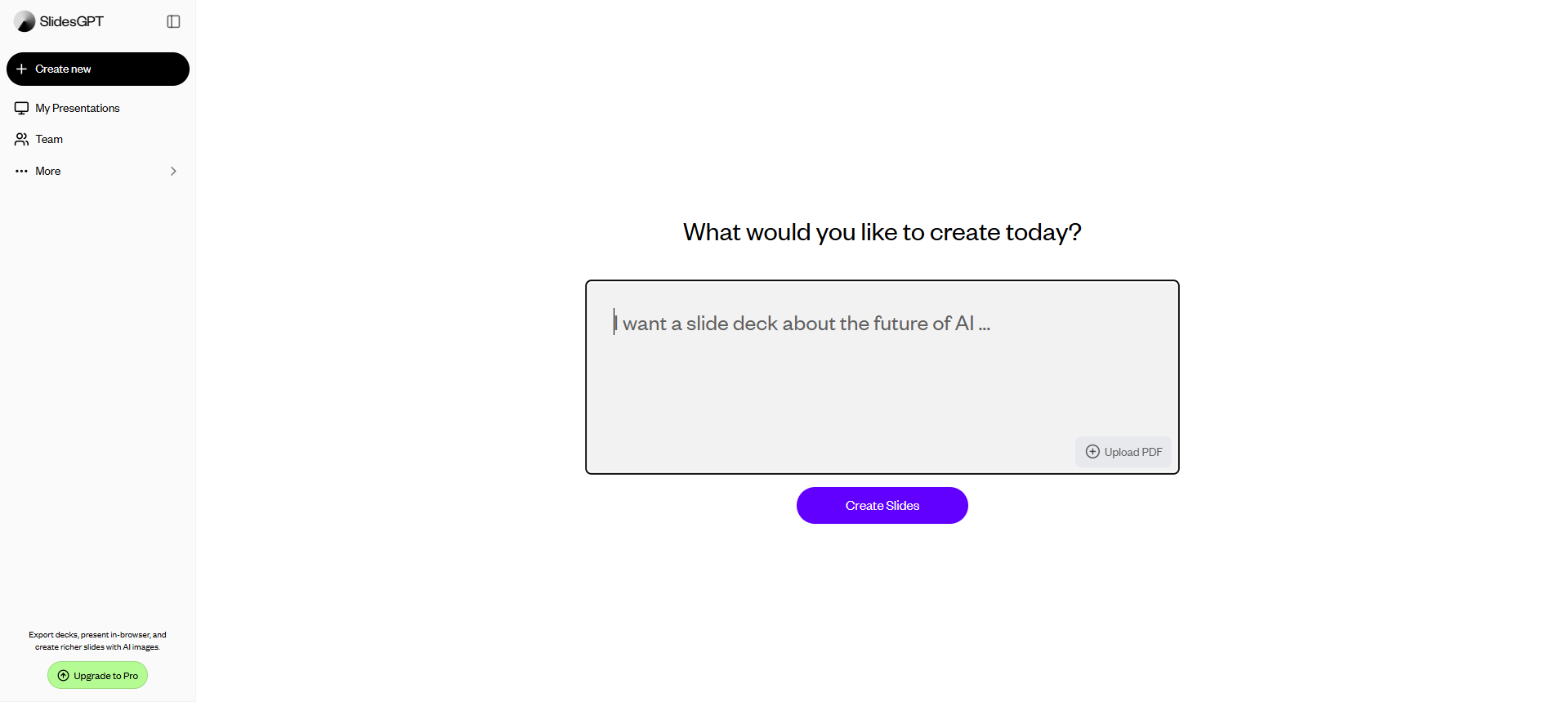
Genuinely one of the easiest interfaces I’ve dealt with in this whole series. There really wasn’t much to figure out. I had one prompt box where I could either type what I wanted or upload a PDF, and that was basically it. No digging through settings or trying to work out where everything was, I could just put in what I wanted and get started. It was simple in a way that I actually appreciated, especially after using some of the more complicated tools in this series.
Core Features
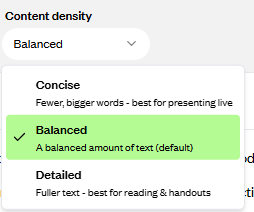
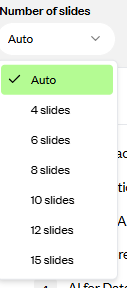
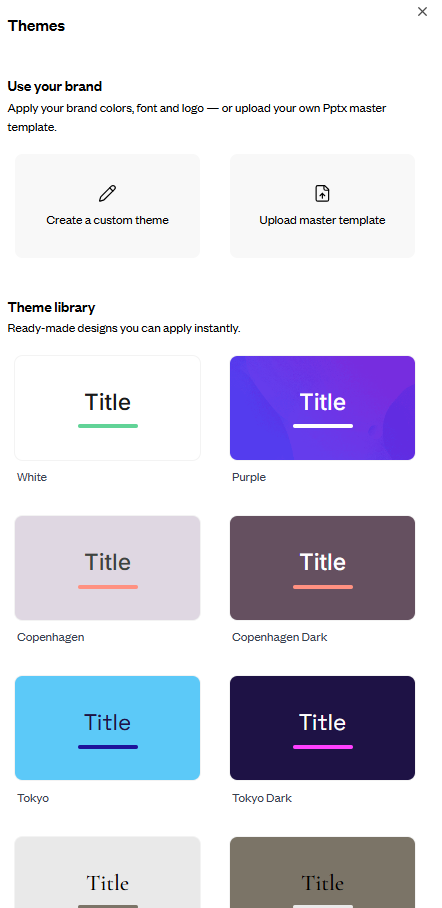
Pre-generation controls. I could choose anywhere from 4 to 15 slides, which is a somewhat useful range, and there was also a setting for how much content I wanted on each slide ranging from concised to balanced to detailed. After that, SlidesGPT gave me an outline to look over before it actually built the presentation. I then got to pick the look of the deck from its own themes, or I could bring in my own branding. I could either customise a theme myself or upload an existing PowerPoint and have SlidesGPT match that style. I thought that was a nice touch, especially if I wanted the presentation to actually look like it belonged to an existing brand without having to build everything from scratch.
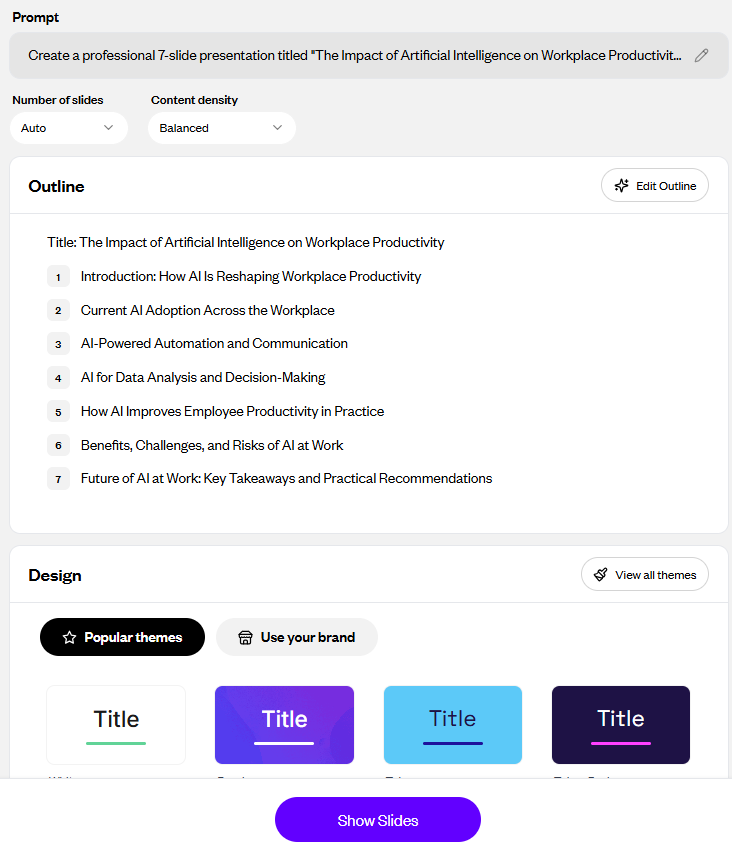
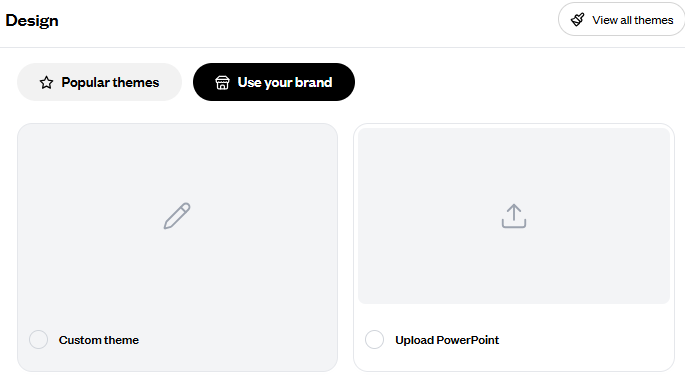
The theme and template selection was pretty limited though. There wasn’t a huge library to browse through, and I wouldn’t really call the template options a major part of SlidesGPT. The range was fine if I just wanted something simple to start with, but compared with some of the other tools I’d tested, there wasn’t a whole lot of choice.
Generation speed and overall quality. It took about two minutes, which felt pretty normal compared with most of the other tools I’ve tested, so I had no problem with the wait. The deck itself was actually pretty decent once I got past the first couple of slides. The title slide and the table of contents were a little bare for my liking, there just wasn’t much going on visually, but things got noticeably better once the actual content started.
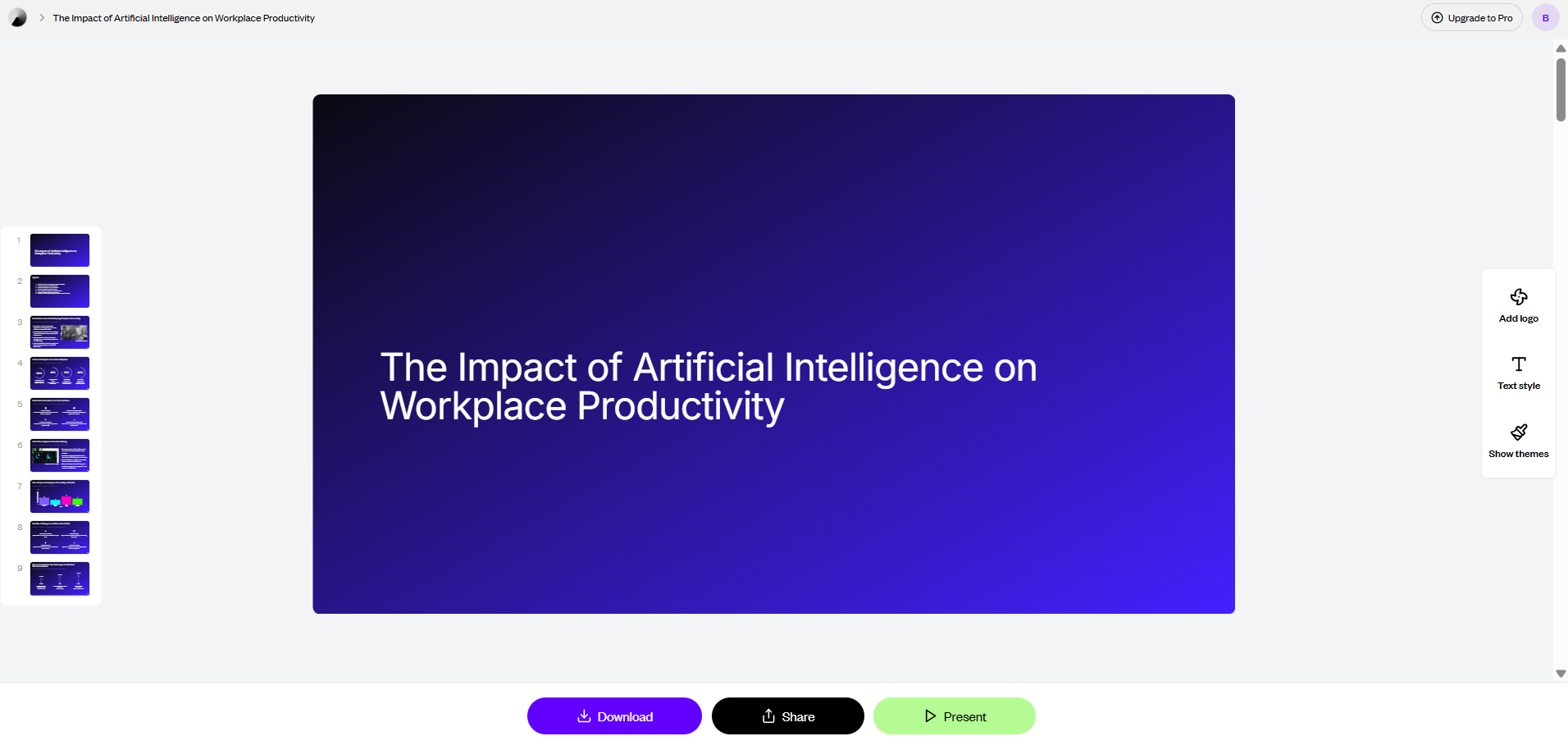
The content slides had some genuinely decent visuals, and the writing had enough detail that it didn’t feel like I was just getting the same few points repeated in different ways. It wasn’t the prettiest deck I’ve seen in this series, and I wouldn’t put it anywhere near the top, but it was perfectly usable and definitely felt like a step up from what ImagineArt gave me with a similar prompt.
Manual editing. The editing side was pretty easy to get around, and I had most of the things I’d actually want for a quick cleanup. I could change the overall deck style, switch fonts, adjust the colours for headings, body text and accents, change the whole theme, or pick a different layout for an individual slide. It’s definitely not a super detailed editor, and I couldn’t go in and tweak every tiny element the way I could in something like Pitch, but I didn’t really feel like I was missing anything major for this test.
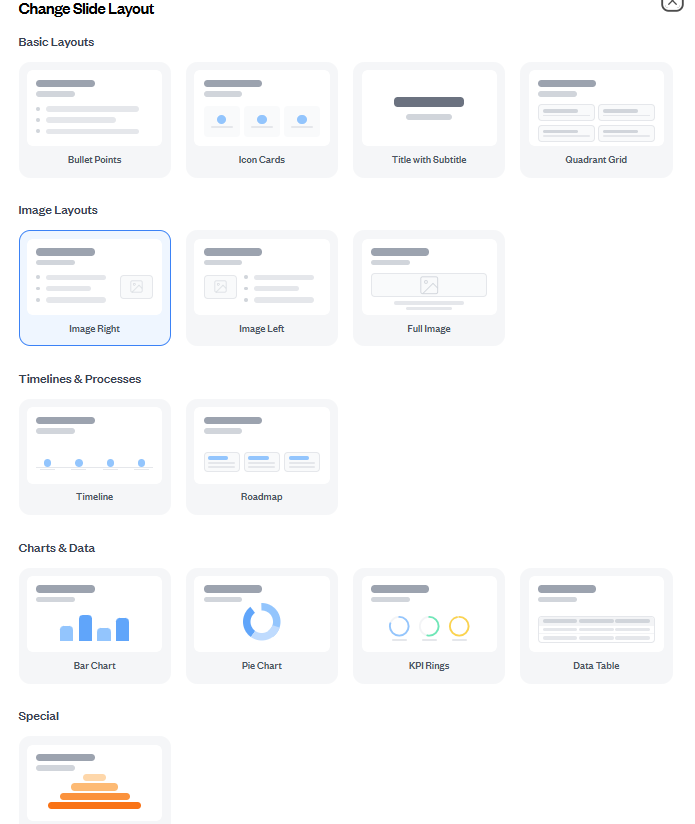
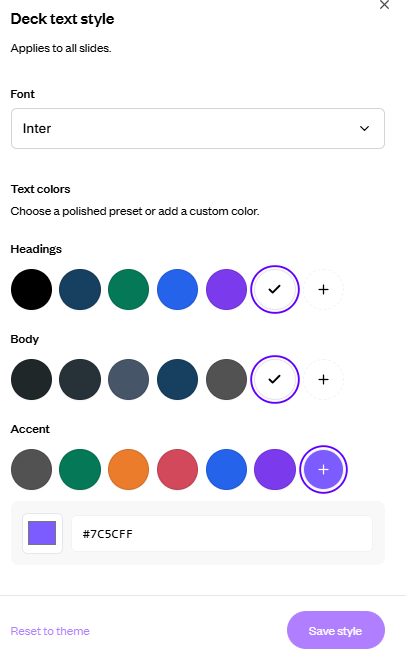
It felt more like, if the generated deck was mostly fine and I just wanted to change the look or fix a slide here and there, I could do that pretty quickly. I wasn’t spending ages trying to find basic editing options, which was cool.
Speaker notes, included automatically. Every slide already had speaker notes attached, which I really liked. I didn’t have to ask for them or do anything extra to get them. They were pretty basic though, usually just a sentence or so per slide, so I wouldn’t exactly rely on them as proper talking points. Compared with the much more detailed notes I got from Gamma, these were definitely on the lighter side. Still, I’d rather have a short note there by default than have nothing at all, especially when it wasn’t costing me any extra credits.

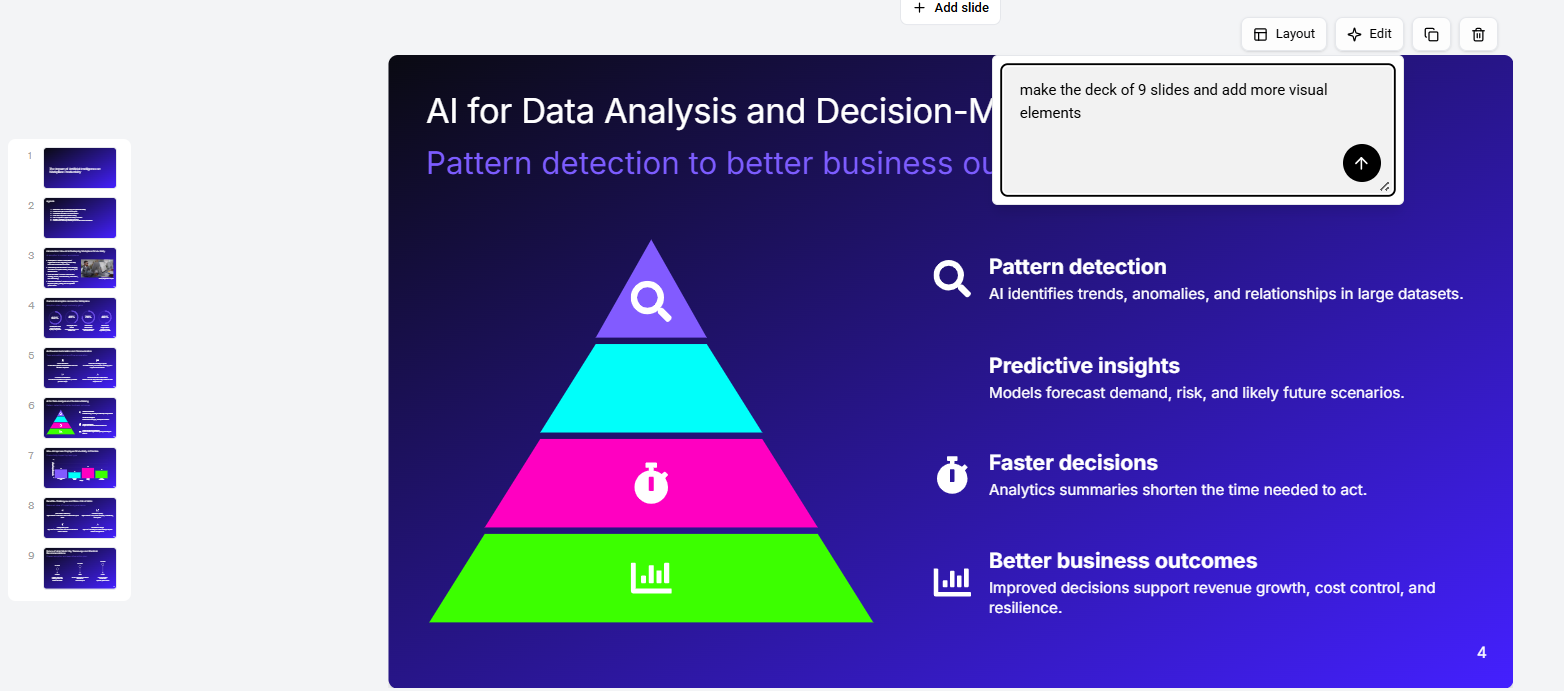
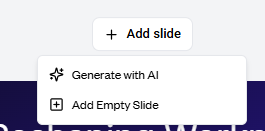
The AI editor and images. SlidesGPT actually impressed me here a bit. I asked it to take the deck from seven slides to nine and add more visual elements, and it managed to do both without me having to go back and repeat anything. I then asked for some relevant images specifically, and it added those too. So while the editing setup isn’t particularly advanced, it was nice to see it actually follow through when I gave it a couple of things to do at once. The main limitation is that there isn’t really one big editor or AI agent where I can tell it to change the whole deck in one go. Everything is handled slide by slide. And for getting a new slide it could either be made with AI or by adding a blank slide and putting it together myself. I also couldn’t edit the first two slides, the title slide and the contents slide, which was a bit odd.
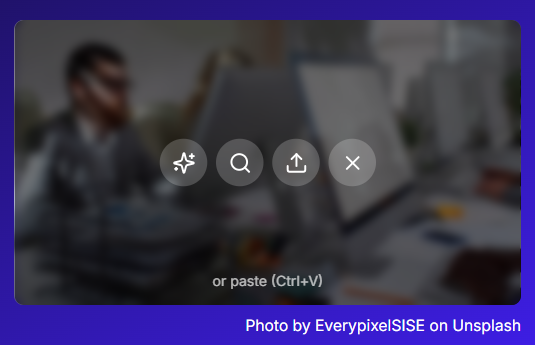
For images, though, I had a few options. I could have one generated, search for something from the web directly inside SlidesGPT, or just upload my own. That part was simple enough and gave me plenty of flexibility without making things unnecessarily complicated.
PDF upload, the one real snag. I also tried using a PDF as the source for a presentation, and this just didn’t work for me at all. I tried it five separate times, and every single attempt ended with the same “something went wrong, please try again” message. It could have been some weird issue with my particular session or the file I was using, so I don’t want to claim the PDF feature is completely broken based on my test alone. But five failed attempts is still five failed attempts, and I couldn’t get it to work even once.
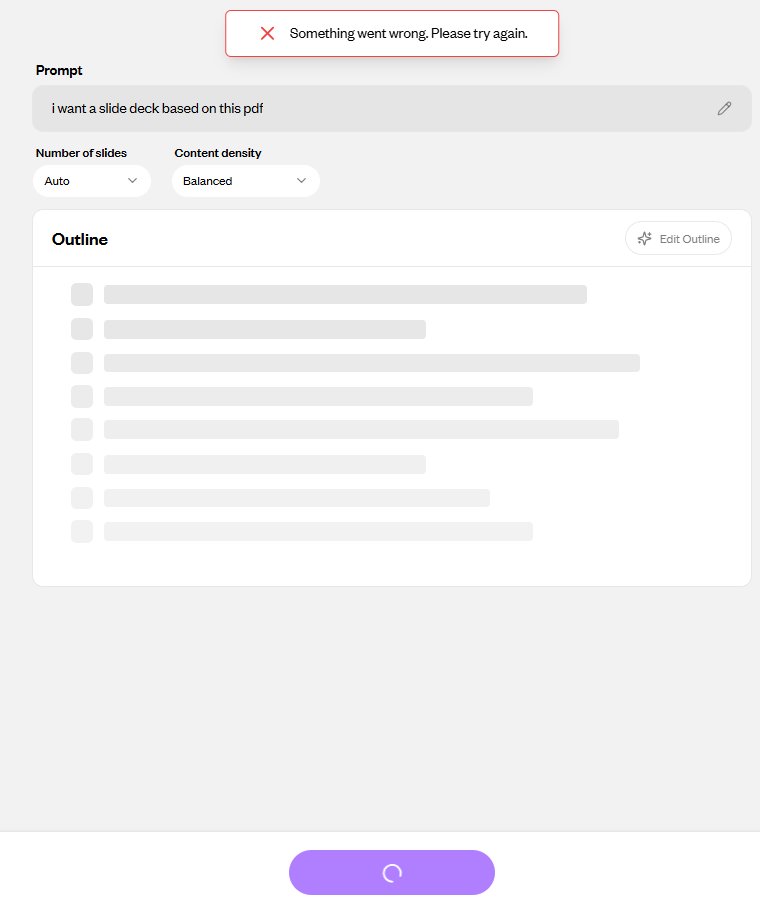
What’s interesting is that the normal prompt-based generation had no such problem. That worked consistently whenever I tried it, so the issue seemed pretty specifically tied to the PDF workflow. For my testing, that meant I couldn’t really judge how well SlidesGPT handles turning existing source material into a presentation, because I never managed to get past the upload stage.
Export limitation. This was probably the most obvious restriction I ran into with the free plan. I could share the presentation through a link without any problem, but the second I actually wanted to download the thing, I hit the subscription wall. That applied whether I wanted the PowerPoint, PDF, or Google Slides version, so there wasn’t really a free way to take the finished deck and use it somewhere else.
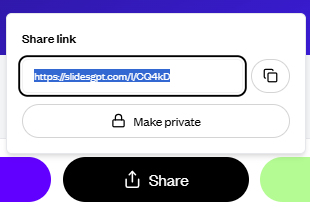
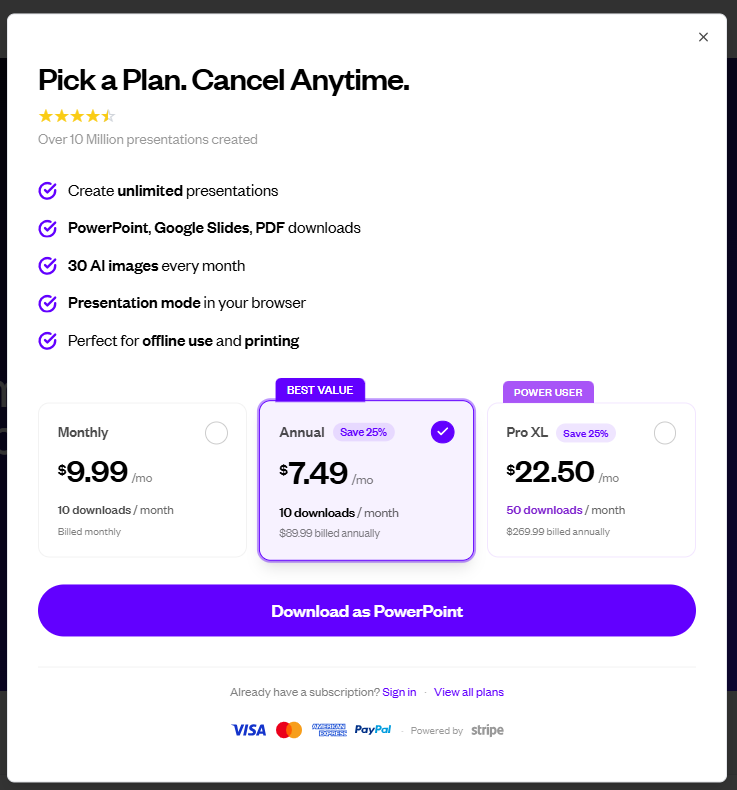
I found that pretty frustrating because being able to view something online isn’t quite the same as being able to actually use the presentation. If I’m making a deck that I want to send around, edit somewhere else, or present offline, I need the actual file. So while the free sharing option is useful, the download restriction is still a pretty significant limitation.
The real standout, no obvious cap on generation. This was probably the thing that stood out to me most with SlidesGPT. I couldn’t find any credit counter or some hidden limit telling me I only had a certain number of presentations left. From what I could see, I could keep generating and sharing presentations on the free plan without running into the kind of credit wall I’ve hit with a lot of the other tools in this series.
The catch is pretty clear, though. I can make as many presentations as I want, but I can’t actually download them without paying. So the free plan isn’t really giving me the whole thing, it’s basically letting me generate and view or share the decks while keeping the actual files behind the subscription. Still, that’s a pretty interesting trade-off compared with most of the other tools I’ve tested. Here, it’s the export that’s restricted, not how many presentations I can generate.
Performance, Reliability & Everyday Usability
Outside of that whole PDF upload mess, everything else was pretty stable. The normal prompt-based generation worked every time I tried it, and the editor stayed consistent when I gave it multiple requests one after another. I also didn’t run into any weird slide breakage, overlapping elements, or other layout problems on the presentations that actually generated properly. So aside from the PDF issue, I didn’t really have much to complain about from a reliability point of view.
Pricing Breakdown & Limitations
The Free Starter plan gives unlimited presentation creation, viewing and sharing, but no downloads. Pro costs $7.49 a month when billed annually and adds PowerPoint, PDF and Google Slides exports, plus 10 downloads and 30 AI-generated images a month. Pro XL is $22.50 a month and raises the download limit to 80, with more image generation too.
- Free Starter: $0, unlimited creation and sharing
- Pro: $7.49/month billed annually, 10 downloads/month
- Pro XL: $22.50/month billed annually, 80 downloads/month
- Team: around $10/seat/month
- API: free tier with up to 100 presentations/month, then usage-based pricing
- Custom ChatGPT App: $19.99/user/month
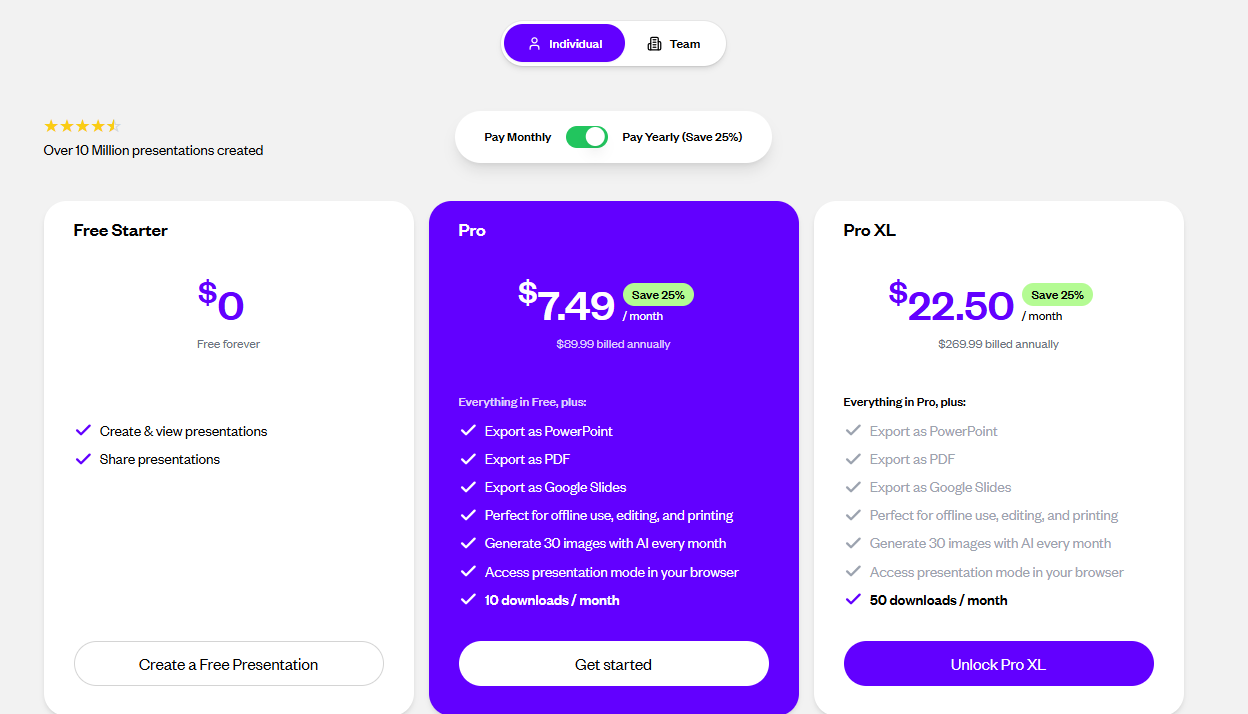
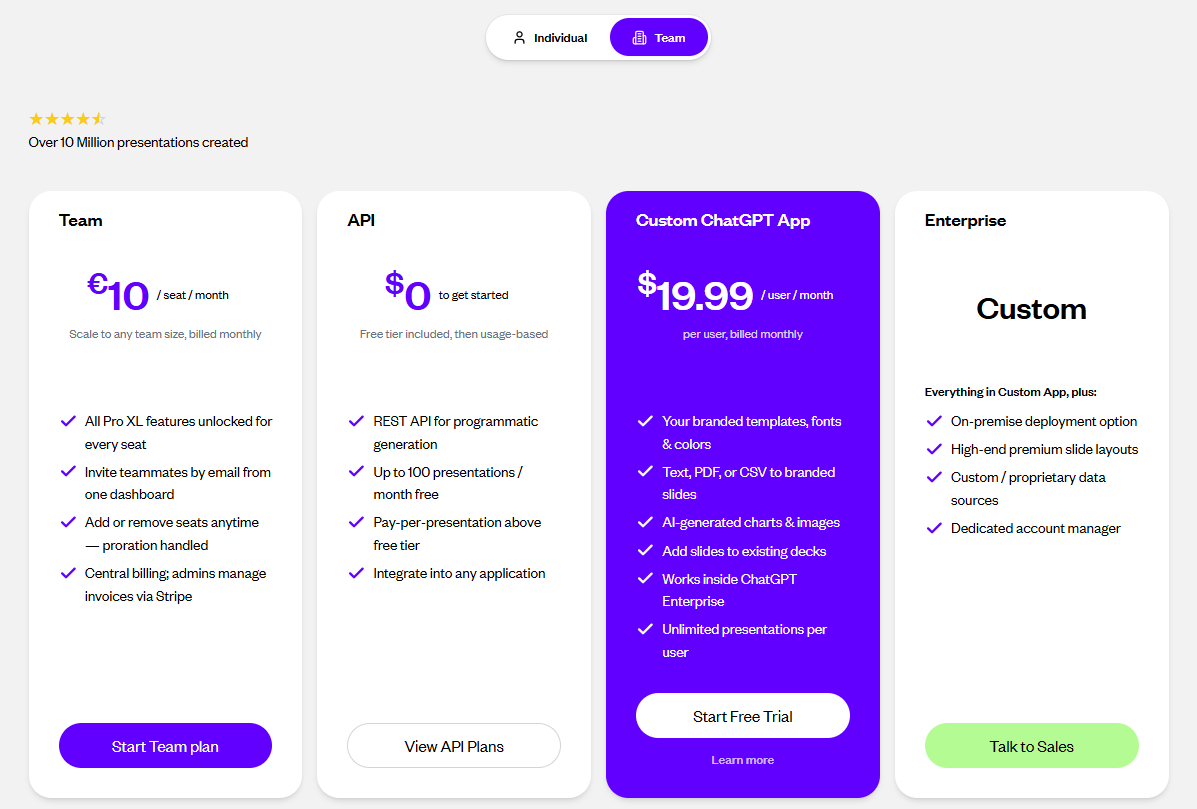
For me, the pricing is actually pretty reasonable. Unlimited free generation is something I haven’t seen often in this series, and paying under $8 a month to unlock actual downloads doesn’t feel excessive if I’m going to use SlidesGPT regularly.
Privacy & Data Handling
SlidesGPT’s privacy policy comes across as pretty solid overall. They say personal data is handled and stored through vetted, DPA-compliant vendors, and they specifically say their practices go beyond the basic requirements of GDPR rather than just meeting the minimum. They also support data access and other rights requests for users covered by GDPR.
I couldn’t find clear details on how long data is kept or whether there’s a specific option to opt out of AI training, though. So if I was planning to put anything particularly sensitive into my prompts, I’d probably want to check those points with them directly. Still, compared with some of the policies I’ve come across in this series, this one felt like it actually took privacy seriously rather than treating it as an afterthought.
Comparison With Gamma, Presentations.AI, Pitch, and ImagineArt
Category | Gamma | Presentations.AI | Pitch | ImagineArt | SlidesGPT |
|---|---|---|---|---|---|
AI presentation quality | Polished, consistent | Strong, diagrams tied to content | Strong, especially from source material | Thin, minimal visuals | Decent past the first two slides |
Design quality | Clean, professional | Polished, corporate | Professional, brand oriented | Sparse | Average, workable |
AI assistance | Reliably executes instructions | Predefined but effective | Reliably executed multi part asks | Obedient but underwhelming results | Executed slide count and image requests correctly |
Speaker notes | Comprehensive on request | Excellent, ready to use | Not AI generated at all | NA | Automatic but thin, one line per slide |
Free plan | Genuinely usable | Two generations then out | 100 credits, real testing room | One generation plus one edit round | Unlimited generation, no download |
Pricing | $8 to $20 a month | $20 to $100 a month | $10 to $20 a month | $9 to $175+ a month | $7.49 to $22.50 a month |
Gamma and Pitch still come out ahead for me when it comes to the overall polish of the presentations and how much freedom I get with exports. But SlidesGPT has one big thing going for it that I haven’t really seen elsewhere in this series: I can keep generating presentations on the free plan without constantly worrying about credits running out. It also did noticeably better than ImagineArt with the same kind of prompt. The content had more depth, the visuals had more variety, and the editor actually made the deck better when I asked it to change things, rather than just making the requested changes and leaving me with the same basic result.
Final Verdict
Coming out of this one, my overall impression of SlidesGPT is pretty positive. It’s definitely not the fanciest tool I’ve tested in this series, but I found it reliable and easy to use for what it actually does. The unlimited generation is probably the biggest thing going for it. I could keep making presentations without worrying about running out of credits, which was honestly refreshing after testing tools where I could burn through the entire allowance in one sitting. The editor also did a good job with the requests I gave it, the speaker notes being there automatically was a nice bonus even if they were pretty basic, and I liked the option of being able to match the look of an existing PowerPoint.
The download restriction is still a pretty big downside, though. Making unlimited decks is great, but if I actually want the PowerPoint, PDF, or Google Slides file, I have to pay for it. The PDF upload also failed every time I tried it, which definitely wasn’t ideal, even if I can’t say for sure whether that was a one-off issue with my session. And while the presentations looked decent once they got into the main content, the visual quality overall still wasn’t on the same level as the strongest tools I’ve tested.
Overall Score: 6.9/10.
Frequently Asked Questions:
Yes, there is no visible credit cap stopping you from creating, editing, and sharing presentations online for free; however, you cannot download the actual presentation files without paying.
No, all downloadable formats—including PowerPoint (.pptx), PDF, and Google Slides—are paywalled behind the Pro plan (starting at $7.49/month billed annually).
Yes, SlidesGPT includes an option to upload an existing PowerPoint master deck to extract and apply your brand’s specific color palette, fonts, and layout styling.
While a PDF upload option exists, in testing it repeatedly failed with error messages across multiple attempts, making the standard text prompt the only dependable route.
Abonneer je op onze nieuwsbrief en ben als eerste op de hoogte van tijd- en geldbesparende AI-tools!
Comments