Conclusion
Felo AI produces visually harmonious, content-rich presentations equipped with relevant infographics and structured data points. Its expansive canvas view offers a fantastic holistic look at your entire deck, and free PPTX/PDF downloads make it practically useful. However, its AI agent suffers from a major architectural limitation: it cannot make deck-wide revisions to an existing presentation, forcing users to regenerate the entire deck and rapidly drain credits. It works brilliantly as a “one-and-done” draft generator, but falters for iterative multi-step editing.
Pros:
- Expansive canvas interface lets you view, navigate, and manage the full presentation at a glance
- Strong graphic generation producing coherent, professional infographics and statistical charts
- Completely free export options for both PowerPoint (.pptx) and PDF files
- Generous free tier offering 200 daily credits alongside unlimited web search
Cons:
- AI agent cannot edit across the existing deck as a whole, requiring full regenerations for broad changes
- Full regenerations consume large credit chunks, quickly exhausting the daily allowance
- Occasional initial rendering bugs, such as failing to generate the opening title slide
- No-training privacy guarantees are explicitly limited to Enterprise workspaces rather than free accounts
Table of Contents
- First Impressions & User Experience
- Core Features
- Performance, Reliability & Everyday Usability
- Pricing Breakdown & Limitations
- Privacy & Data Handling
- Comparison With Felo AI and Simplified
- Final Verdict
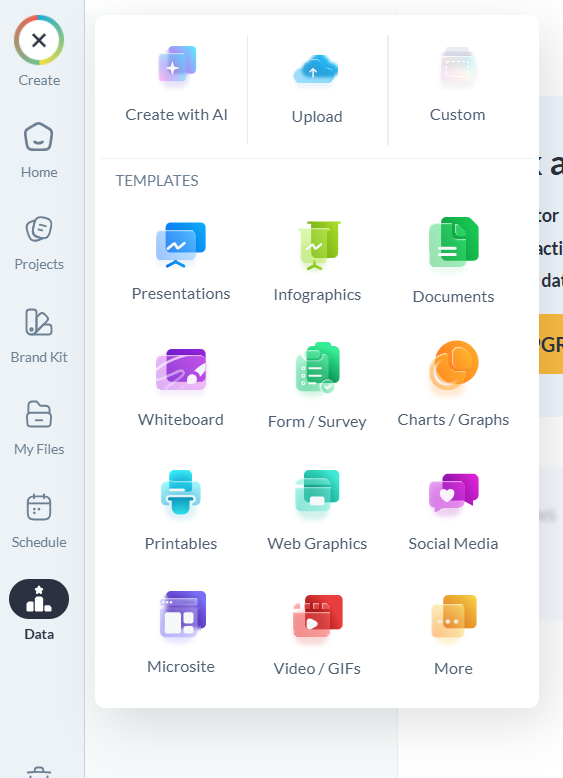
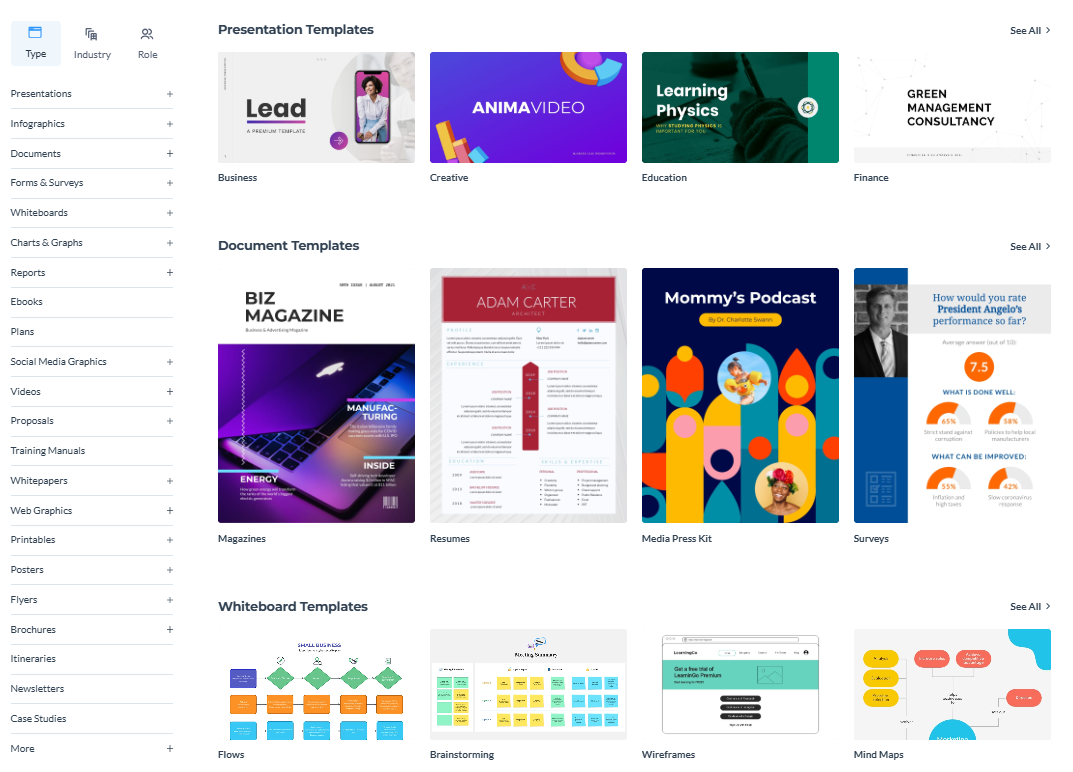
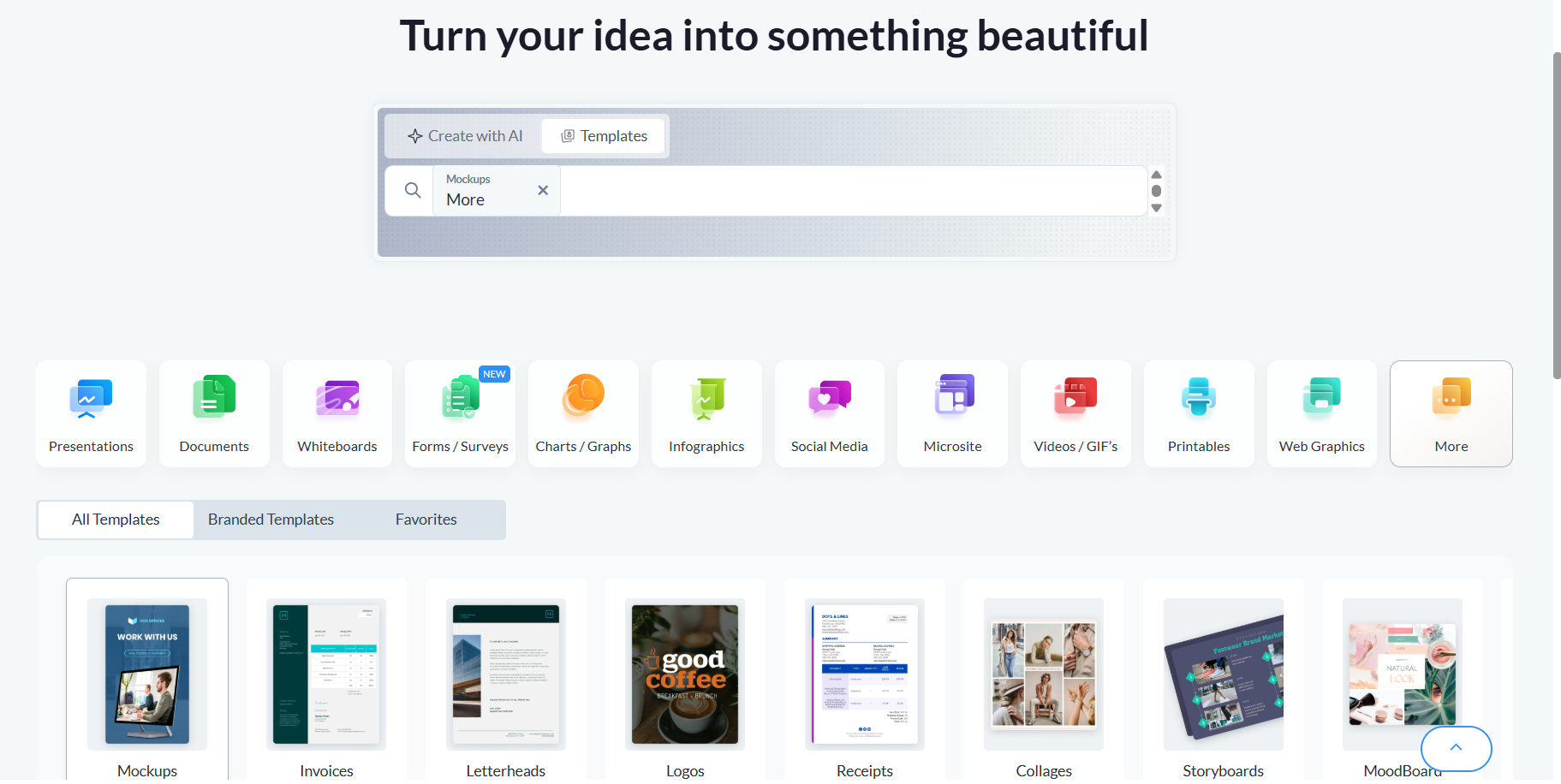
Visme was next for me, and honestly, this is another one of those platforms where you open it up and realise it does way more than presentations. There are infographics, documents, forms, charts, social media graphics, videos, printables, and a bunch of other stuff packed in there. I ignored pretty much all of that and went straight for the presentation maker because that’s what I’m actually testing in this series.
The thing I noticed pretty quickly was that Visme gives me a lot to work with once I’m in the editor. The manual editing side is probably one of the most feature packed I’ve come across so far, so if I actually want to sit down and tweak a presentation myself, there’s plenty there to play with. I can see it being a really good fit for someone who likes having that level of control and doesn’t mind doing a bit of cleanup after the initial generation.
For me, though, the first draft didn’t quite live up to what I was hoping for. The presentation had a decent foundation, but I ran into some annoying formatting and layout issues, particularly with text sizing, that meant I couldn’t just take the deck and call it finished. So I’d say Visme is much more interesting if I’m willing to work on the presentation myself afterward, rather than if I’m looking for something that gives me a completely polished deck and lets me walk away.
First Impressions & User Experience
Despite having quite a lot going on in the interface, Visme was actually pretty easy for me to find my way around. I had presentations, infographics, documents, forms, charts, graphs, social media graphics and plenty of other stuff sitting there, but it never felt like I was fighting the interface just to get to the presentation maker.
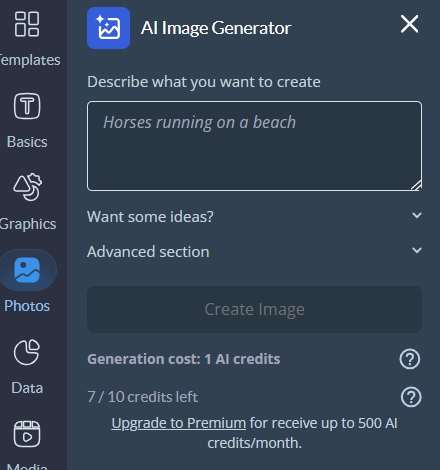
When I signed up, I got 10 AI credits, which initially felt like a pretty small allowance. What I liked, though, was that Visme was very clear about how those credits were being used. A full presentation generation cost me 3 credits, while smaller AI actions, like rewriting some text or generating an image, used 1 credit each. That made it much easier to keep track of what I was actually spending instead of having some vague credit number slowly disappear in the background. It also became pretty important to my overall experience with Visme, especially once I started making edits and seeing how far those 10 credits could actually take me.
Core Features
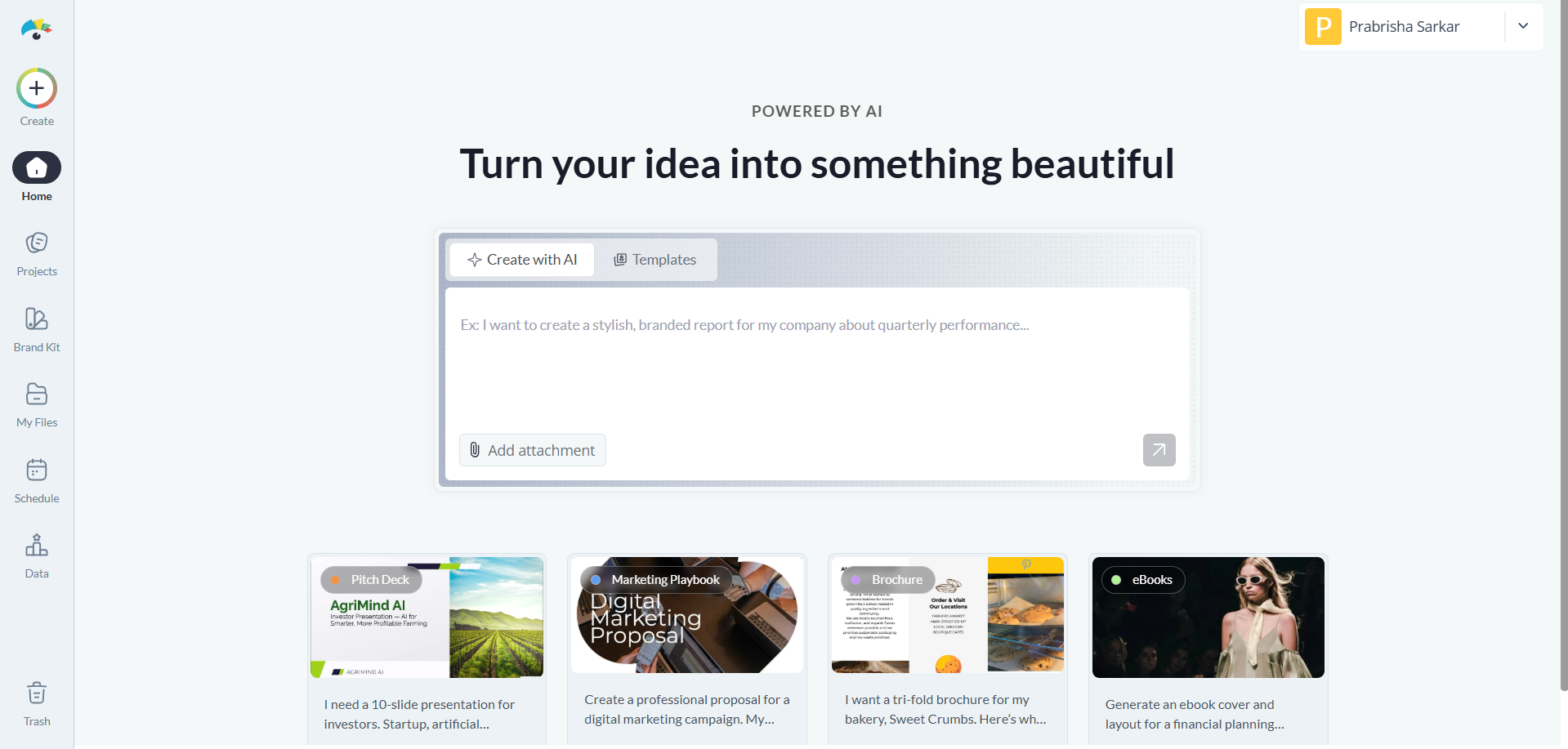
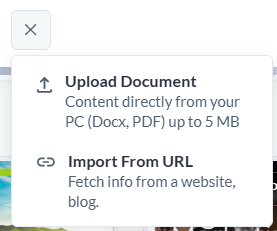
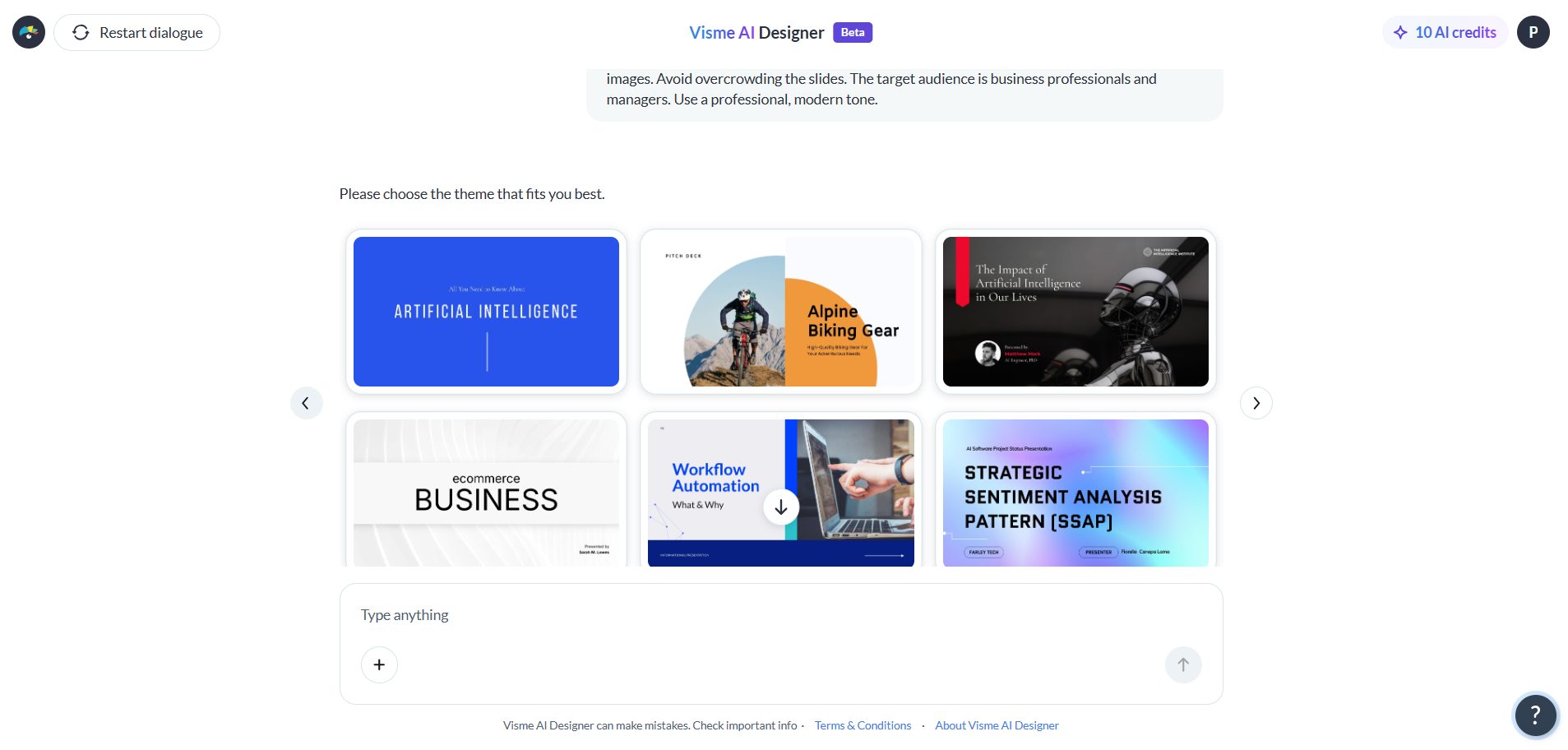
Pre-generation controls. After I put in my prompt, Visme didn’t throw the entire template library at me and make me figure it out myself. It narrowed things down to six themes that it thought would work for my topic, which I actually preferred. I could look through those and pick the one I liked before moving forward. I could also upload a document or bring something in through a URL if I wanted the presentation to work from existing material, so there was some flexibility here without making the setup unnecessarily complicated.
Generation output. The first presentation was a bit of a mixed bag for me. I had specifically asked for seven slides, and Visme gave me ten, which was a pretty basic instruction to miss. That wasn’t enough to make me write the whole thing off, but it definitely wasn’t the first impression I wanted from the generation itself.
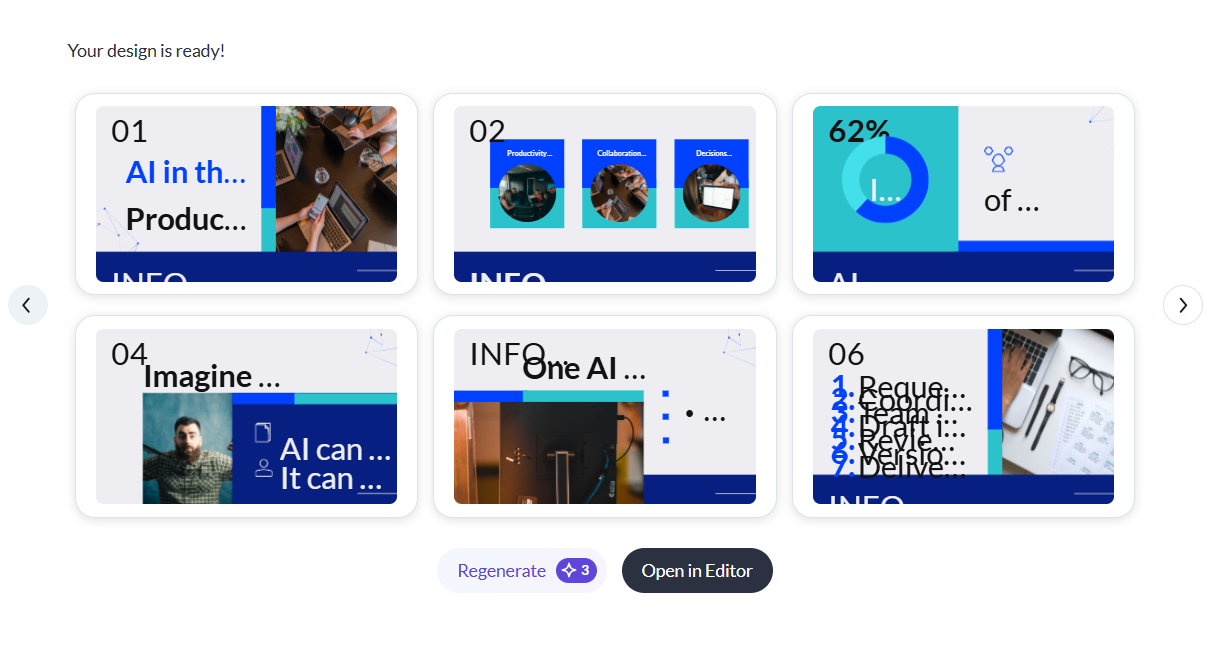
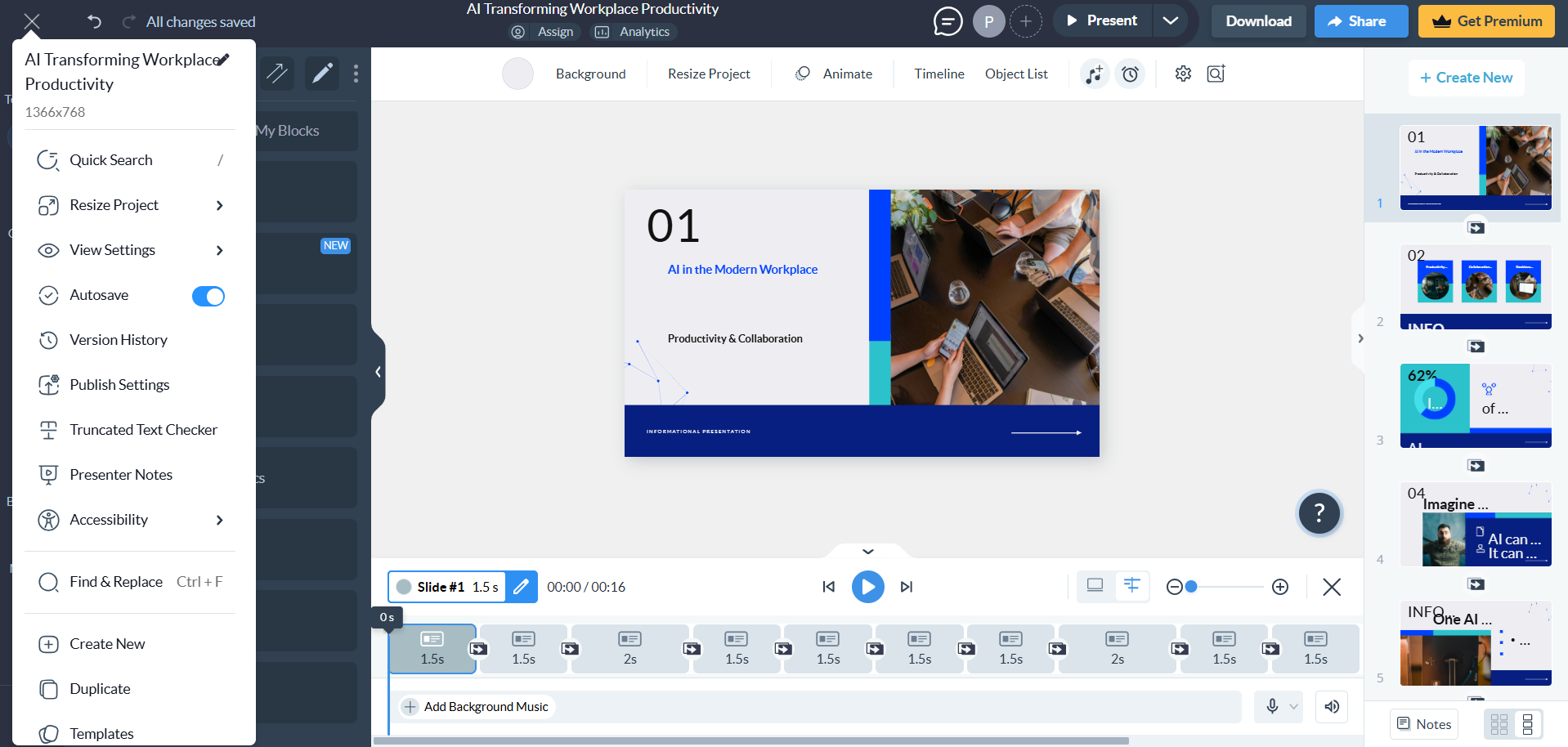
The bigger problem was the text formatting. A lot of the text was simply too large for the boxes it had been put into, so parts of sentences were getting cut off or sitting awkwardly. I ended up having to go through the slides myself and resize quite a few text elements just to make everything readable. That’s where I got a little frustrated, because the actual content wasn’t necessarily the problem. The presentation had enough information and looked pretty good overall, but some of the most basic layout stuff wasn’t being handled properly.
Visual quality. This was actually the part that surprised me in a good way. The visuals were genuinely strong. The images, graphics, diagrams and other elements all worked together pretty nicely, and I never got that feeling of looking at a deck that was mostly empty space with a few lines of text thrown onto each slide. There was enough going on visually to make the presentation feel like an actual designed deck.
So the weird thing with Visme was that the visual side was probably one of its strongest parts, while the text layout was what kept making me stop and fix things. I would look at a slide and think, okay, this actually looks pretty good, and then notice that half a paragraph was overflowing from the text box. It was a very fixable problem, but it was still something I shouldn’t have had to fix on so many slides.
Manual editor. This is where Visme really won me over. The manual editor is one of the strongest I’ve come across in this whole series. I could get into individual text blocks, fonts, headers, stats and graphics and change them properly rather than being restricted to a handful of basic options.
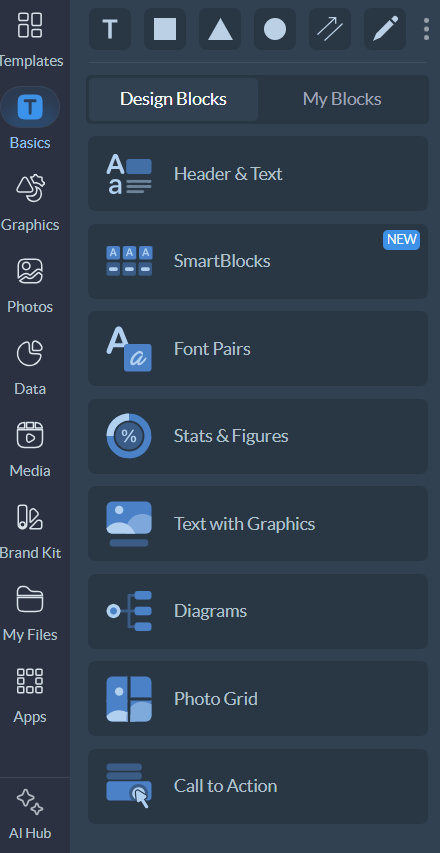
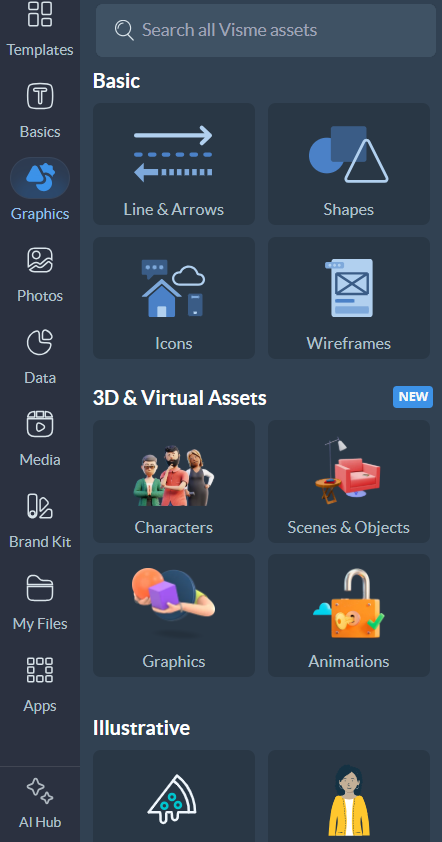
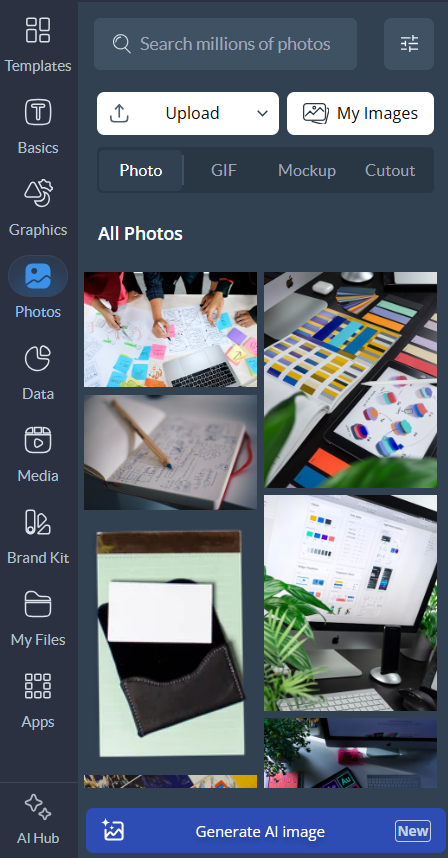
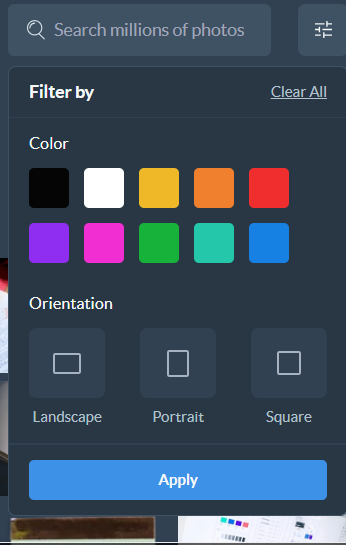
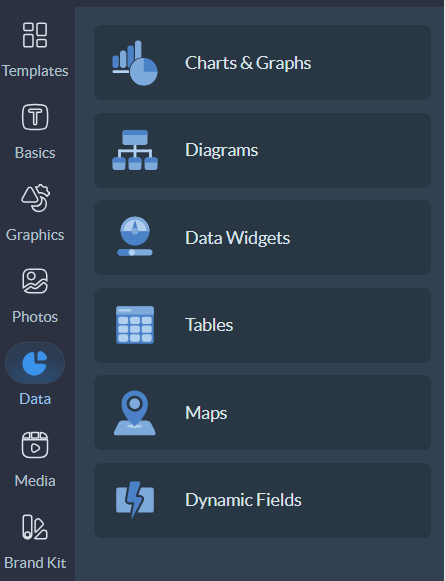
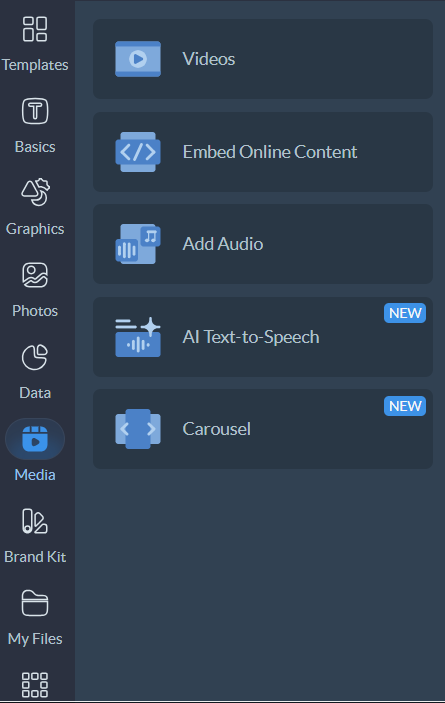
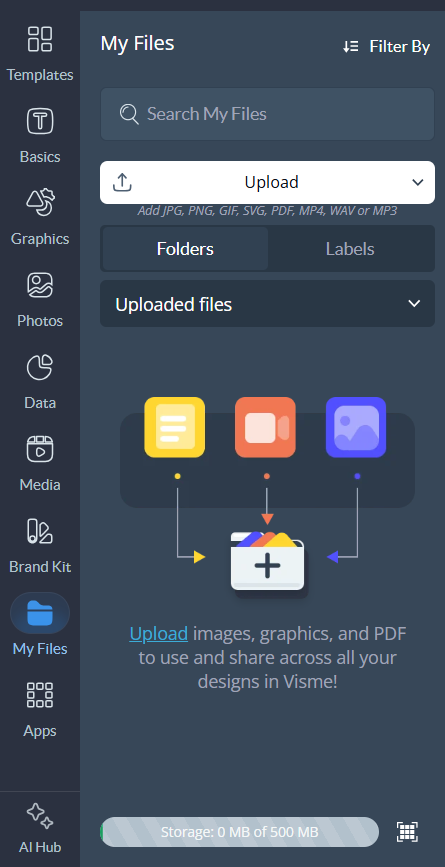
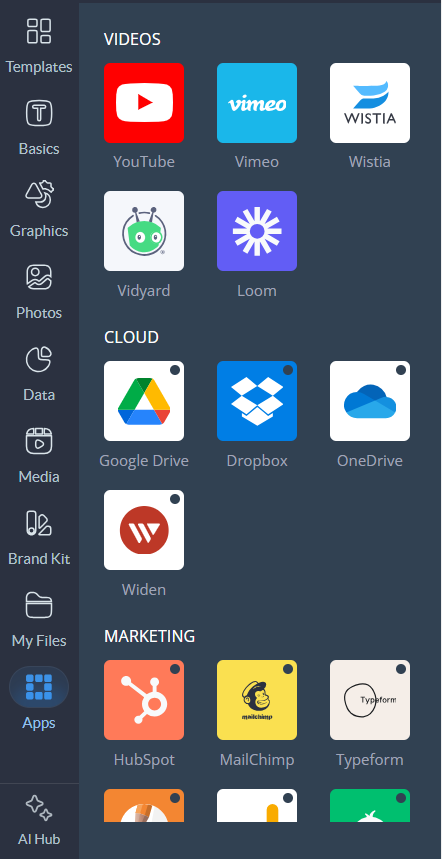
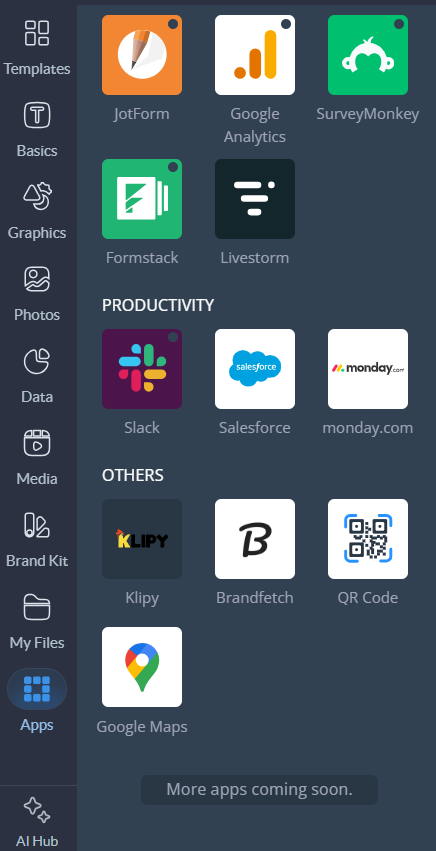
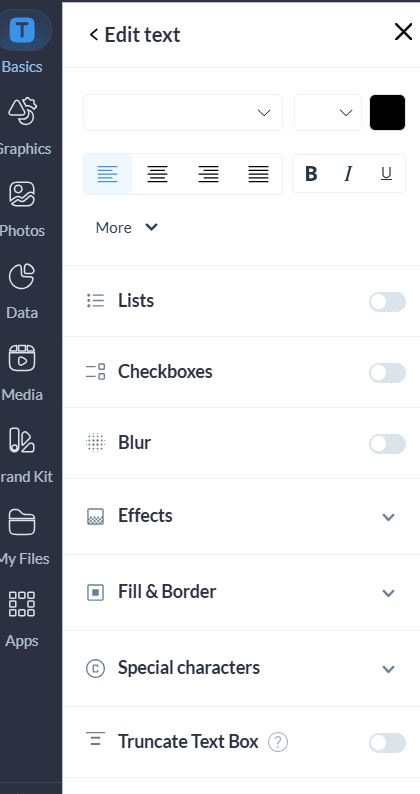
There was also a lot more beyond that. I could add shapes, icons, frames, illustrations, 3D and virtual assets, charts, data widgets, tables, maps, videos, audio, carousels and embedded online content. Even the stock image search gave me proper filters, including things like colour and orientation, which made finding something that actually fit the slide much easier.
So while the generated deck needed some cleanup, I never felt stuck when I wanted to fix something myself. If I saw something I didn’t like, there was usually an actual tool or setting available to change it. Compared with some of the much more restricted editors I’ve tested, this was a pretty big difference.
AI editing tools. Visme’s editing tools worked a little differently from some of the other platforms I’ve tested. I didn’t have a conversational agent that I could just tell to completely restructure the presentation for me. Instead, the tools were more focused on individual tasks.
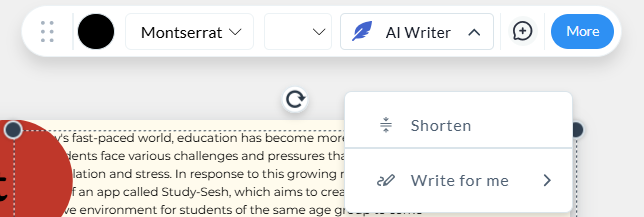
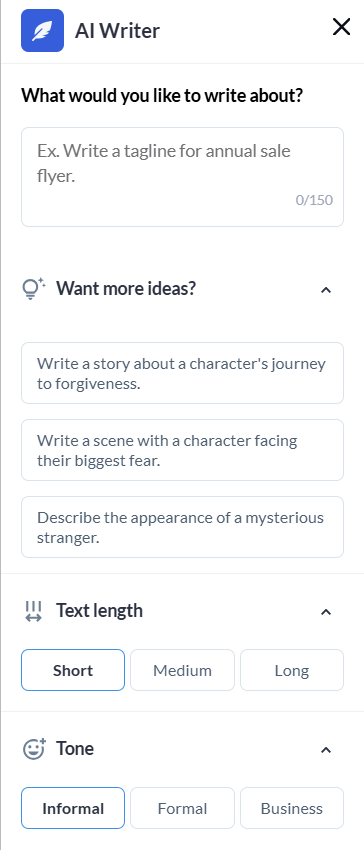
For example, I could select a piece of text and use the AI Writer to shorten it, expand it, change the tone, adjust the length or rewrite it based on what I asked for. I could also generate images separately. Each of these used one credit, which made the credit system fairly easy to understand while I was actually working on the deck.
It wasn’t as powerful as being able to say “go through this whole presentation and fix the layout” and have it do everything for me, but I actually found the individual tools useful for the smaller changes I was making.
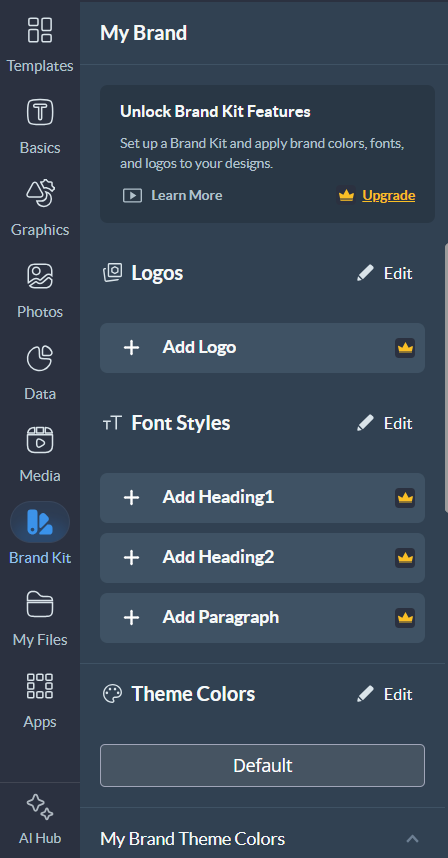
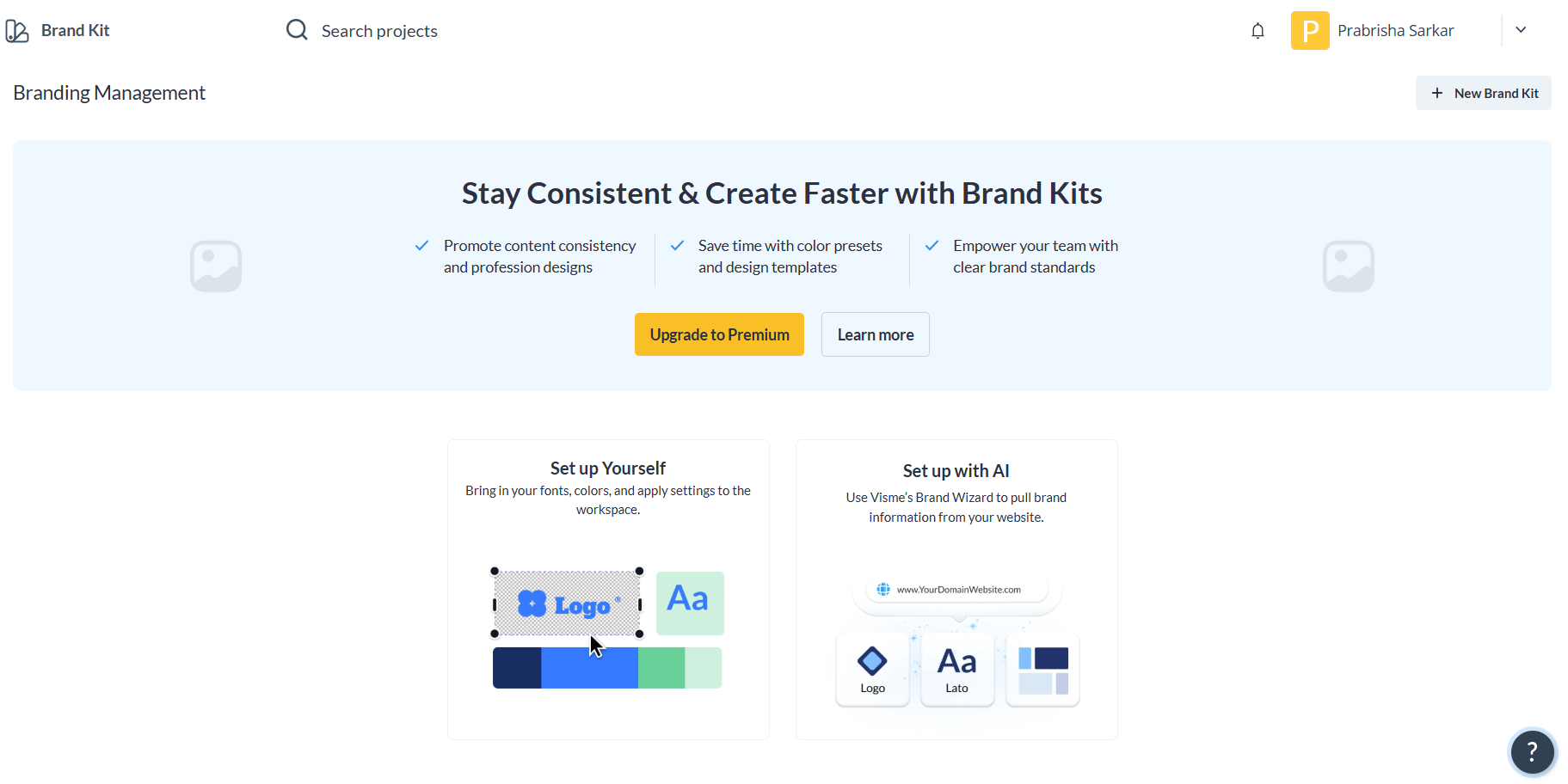
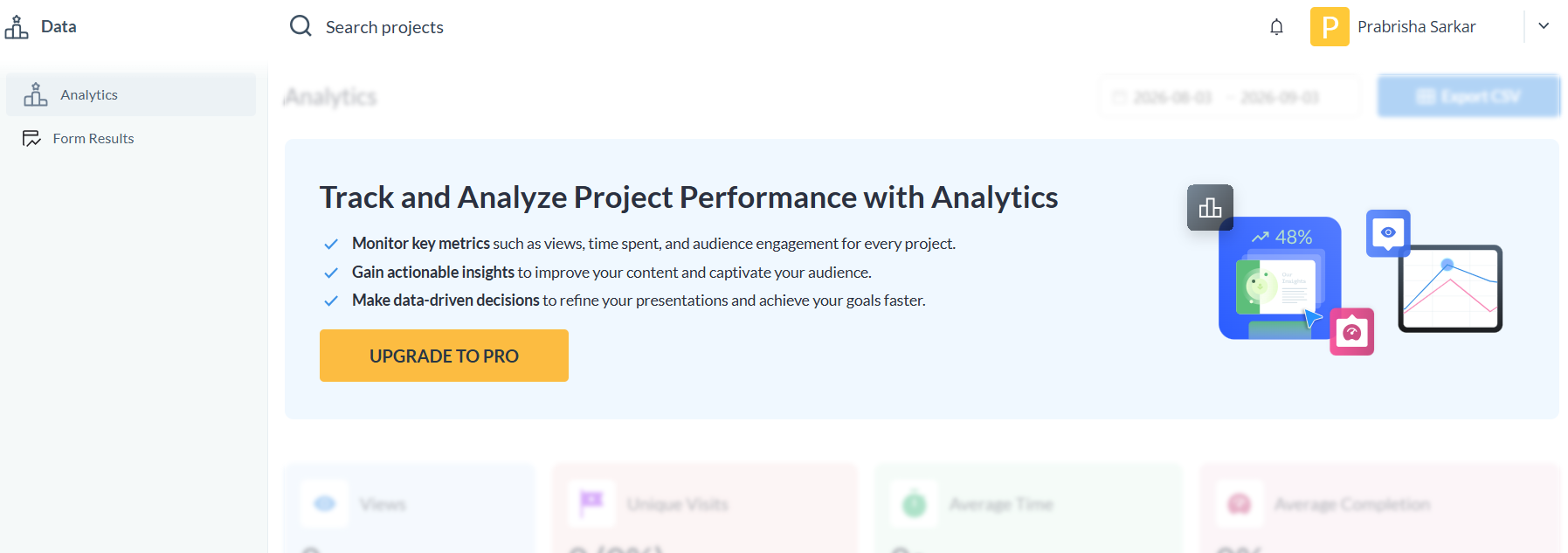
AI Hub. There was also a separate AI Hub with things like writing, image generation, touch ups, resizing and other editing tools. I didn’t get to test every single thing in there, partly because some of the more advanced features were behind Pro. Things like the Brand Kit and certain analytics features weren’t available to me on the plan I was testing.
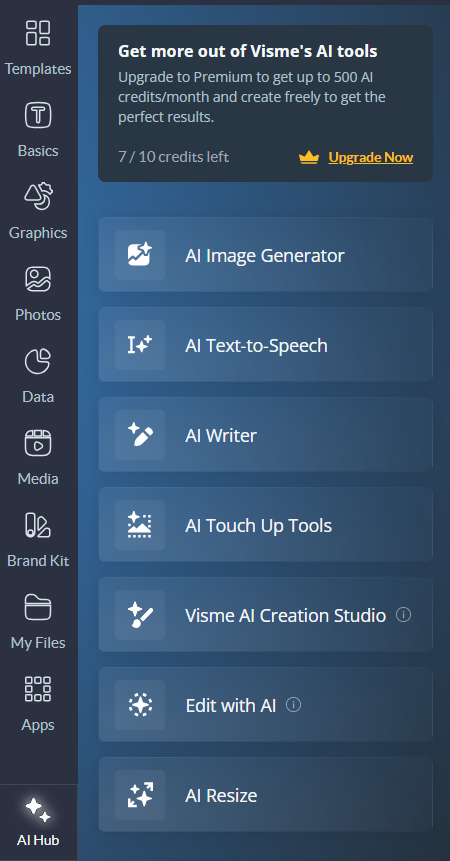
Still, I liked having all those smaller tools in one place. The credit system was also consistent, with these actions generally costing me one credit at a time, so I could see pretty clearly what I was using rather than having to guess.
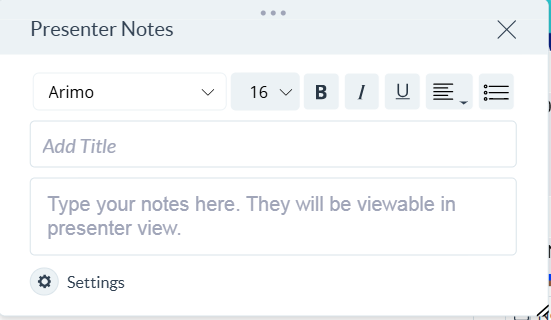
Presenter notes. Presenter notes were available, but there wasn’t any option for me to have them generated for me. I had to write the notes myself, which is a bit of a shame considering how many other writing tools Visme gives me. I would’ve liked to see the same kind of assistance here, especially since speaker notes can take quite a bit of time to write out manually.
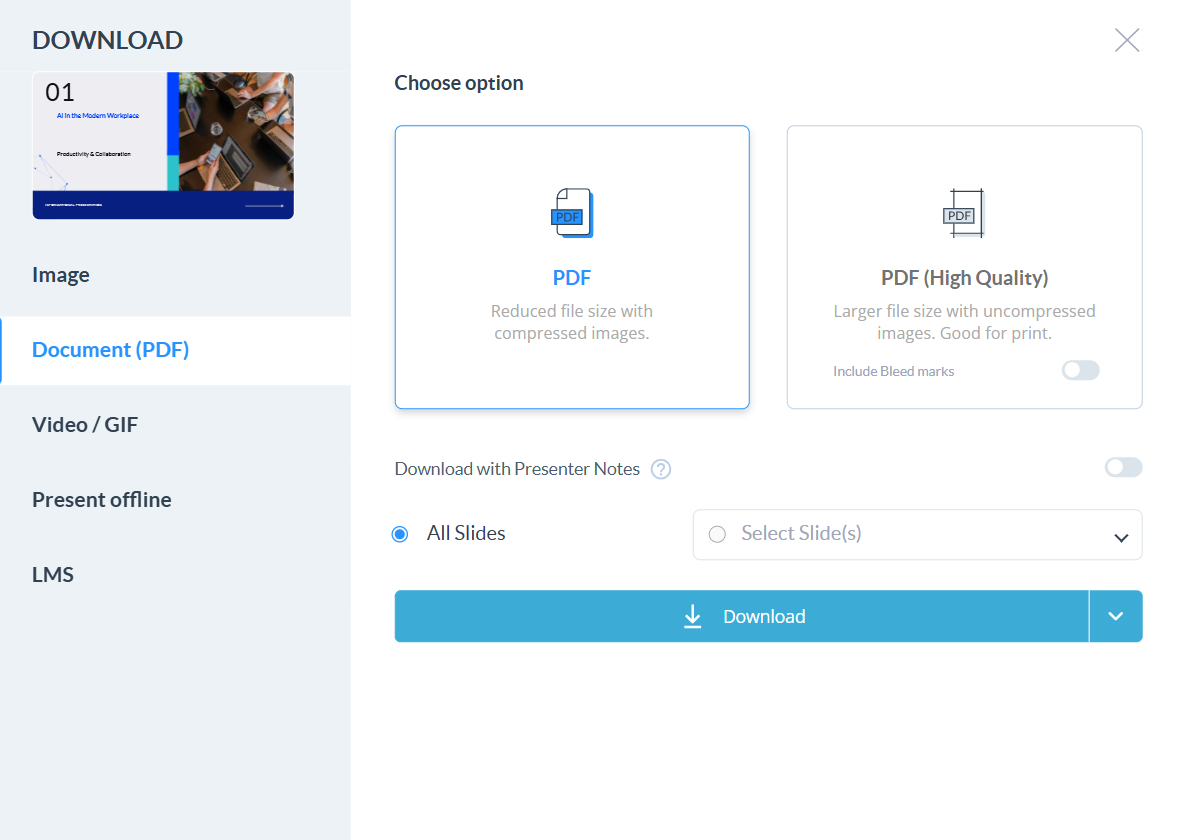
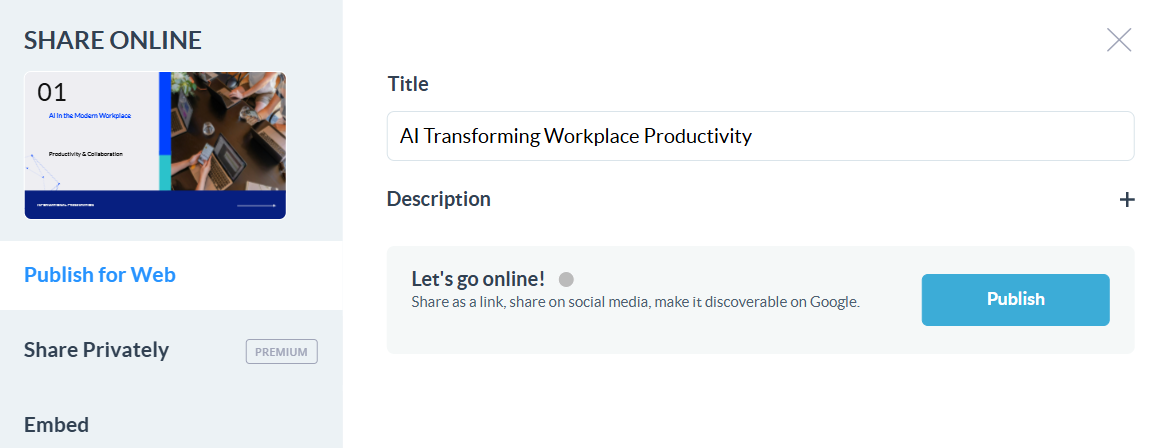
Export. Export was thankfully very straightforward. I could share the presentation through a link or actually download the finished file, and I wasn’t stopped by a paywall just for wanting to take the presentation out of Visme. After dealing with tools where even basic exporting is locked behind a subscription, I genuinely appreciated this. It meant that even though I had to do some manual cleanup, I could actually finish the deck and take the file with me.
Performance, Reliability & Everyday Usability
Apart from the text overflow issue, Visme was actually pretty stable for me. I didn’t run into any crashes or anything randomly breaking, and the editor stayed responsive even when I was going through the deck and making quite a few manual fixes. So from a technical point of view, I didn’t really have much to complain about.
The annoying part was that I had to spend that time fixing things in the first place. A lot of the text formatting issues were basic enough that I would’ve expected them to be caught before the presentation was handed over to me as a finished deck. So the problem wasn’t really “Visme keeps breaking on me”, it was more “why am I manually fixing this much basic formatting?” The editor itself worked fine, but the amount of cleanup I had to do definitely took away from the convenience of having the presentation generated for me.
Pricing Breakdown & Limitations
The Free plan gives me unlimited projects, but premium templates and assets are limited. I actually liked how clearly the AI credits were handled here, since I could see exactly what I was spending.
- Free: Unlimited projects, 10 AI credits, limited premium assets
- Starter: $12.25/month per person, full templates and assets, JPG, PNG and PDF export
- Pro: $24.75/month per person, adding PPTX, HTML5, video and GIF export, Brand Kit, analytics and more
- Enterprise: Custom pricing, starting at 10 users, with extras like SSO and dedicated support
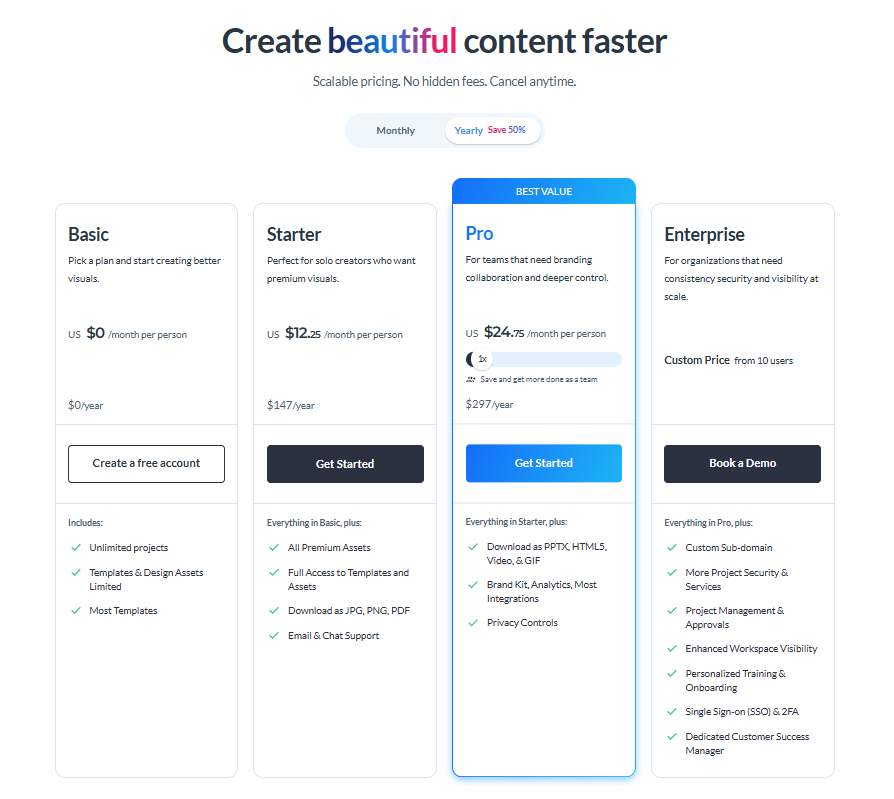
Those 10 free credits went further than I expected. I could either get multiple generations or do one full generation and still make several smaller edits afterward. Compared with some of the other tools I’ve tested, that made the free tier feel pretty fair and the credit system much easier to understand.
Privacy & Data Handling
Visme’s privacy policy covers the usual stuff like account information and how I use the platform. One thing I found interesting was that when Visme’s own tools create AI content, they put some responsibility on me as the user. Basically, if something is AI generated and leaving that information out could mislead a normal reader, they expect me to make that clear. They also point to the policies of outside providers, such as OpenAI, where those services are involved.
They also have the standard security disclaimer that no information sent over the internet can ever be guaranteed to be completely secure. What I couldn’t find, though, was a clear statement saying whether the prompts or files I upload are used to train Visme’s own models. So if I was planning to put anything particularly sensitive into it, that’s something I’d want to check with them directly rather than assume.
Comparison With Felo AI and Simplified
Category | Felo AI | Simplified | Visme |
|---|---|---|---|
AI presentation quality | Strong visuals, missing title slide on first attempt | Strong content, visually plain | Strong visuals, basic slide count and text formatting errors |
Design quality | Visually harmonious templates, good infographic use | Basic throughout | Genuinely the strongest visual toolkit of the three |
Visual assets | Strong infographic and visual usage from generation | Added one chart on request, stayed thin | Extensive, 3D assets, diagrams, data widgets, wide media support |
Editing experience | Individual slide AI editing, whole deck editing unavailable | Manual editor limited, AI editor handled single asks | Manual editor exceptionally deep, no whole deck AI agent |
AI assistance | Reliable per slide, refused whole deck edits outright | Reliable for single instructions, failed compound ones | Reliable at the individual task level, missed basic instructions like slide count |
Speaker notes | NA | Claimed to add them, didn’t actually appear | Manual only, no AI generation available |
Credit clarity | Confusing, burned through fast despite a large allowance | Reasonably efficient across a full workflow | Genuinely the clearest credit system of the three |
Visme comes out ahead for me when I put the three side by side. Felo gave me the better first impression visually, mainly because I didn’t have to deal with the wrong slide count or all the text overflowing out of its boxes. But once I look at the whole experience rather than just the first draft, Visme gives me a lot more to work with.
The manual editor is the biggest reason for that. If I actually want to sit down and fix things myself, Visme gives me far more control than either Felo or Simplified. I also liked how straightforward the credit system was, because I always had a pretty good idea of what each action was going to cost me. Simplified was more generous with credits overall, and Felo’s generated deck was more polished from the start, but Visme’s combination of editing options, visual tools and export flexibility puts it a step ahead of both for me.
Final Verdict
My overall impression of Visme was pretty mixed, but I came away more positive than negative, mainly because there’s so much I can actually do once I’m in the editor. The manual editor is honestly one of the best I’ve tested in this series, especially for visual elements, charts, data and media. I also really liked how clear the credit system was, and the fact that I could export without immediately hitting a paywall was a big plus.
The generation itself is where Visme lost points. Getting the slide count wrong when I’d specifically asked for seven was annoying, but the text overflowing out of its own boxes was the bigger issue. I don’t mind fixing a few small things, but having to resize so much text just to make the deck readable felt like something it should’ve handled itself.
So compared with Felo and Simplified, I’d put Visme slightly ahead of both, mostly because of how much control I have once the deck is generated.
Overall Score: 6.2/10.
Frequently Asked Questions:
Yes, Visme allows users to download presentations as PDF documents or publish them online via shareable web links without being blocked by an immediate paywall.
No, while Visme provides a presenter notes panel for organizing talking points, it does not currently offer an automated AI generator to write them for you.
The main issue is text formatting: fonts are often generated too large for their assigned containers, causing sentences to cut off or overlap slide boundaries, requiring manual resizing.
Free accounts receive 10 AI credits. Generating a full deck costs 3 credits, while individual AI Writer tasks or AI image generations cost 1 credit each.
Abonneer je op onze nieuwsbrief en ben als eerste op de hoogte van tijd- en geldbesparende AI-tools!
Comments