Conclusion
SlidesAI distinguishes itself through an adaptive pre-generation interview that questions users on audience, tone, presentation medium, and core goals before generating a single slide. This upfront rigor pays off with highly relevant content, accurate slide counts, and rich Mermaid diagram support. It also permits free exports to PowerPoint and PDF, albeit with a watermark. However, the free plan is heavily restricted to just one presentation during testing, and the app lacks a conversational AI editor for making structural changes post-generation.
Pros:
- Adaptive pre-generation interview tailors slides specifically to audience, tone, and delivery time
- Provides a full text outline and content preview for slide-by-slide editing before final design rendering
- Deep manual editor featuring custom color palettes, Google font pairings, and Mermaid code diagrams
- Free export available to PowerPoint, PDF, and Google Slides (with watermark)
Cons:
- Free tier is extremely restrictive, effectively capping users at 1 AI presentation during testing
- No conversational AI editing assistant inside the editor for post-generation structural changes
- Occasional syntax rendering errors with complex Mermaid diagrams that require AI regeneration
- Input content is processed directly through OpenAI’s servers, which may concern sensitive users
Table of Contents
- First Impressions & User Experience
- Core Features
- Performance, Reliability & Everyday Usability
- Pricing Breakdown & Limitations
- Privacy & Data Handling
- Comparison With Gamma
- Final Verdict
SlidesAI came right after SlidesGPT in my testing, and despite the almost identical names, they actually felt pretty different once I started using them. SlidesAI is very much about figuring out what I want before it makes the presentation. There are quite a few questions and settings to go through first, plus extensions for Google Slides, PowerPoint and ChatGPT, rather than one big editor trying to do everything.
And honestly, I didn’t mind that approach. I was happy to spend a few extra minutes answering questions if it meant getting a deck that was already pretty close to what I wanted. In this case, that upfront effort actually paid off and I didn’t have a huge amount to fix afterward. The downside is once the deck is made, there’s not really an AI editor I can keep talking to. I can’t just ask it to add a few slides, restructure something or make bigger changes for me. So for me, SlidesAI works better if I want to get the setup right first and then do any smaller changes myself.
First Impressions & User Experience
The interface was really simple and clean. There wasn’t a ton going on or a bunch of options staring at me the second I opened it. It started with two pretty basic questions: what the presentation is about, and what I already have to work with. I could just give it the topic, add some rough notes, or, on the paid plans, provide a full draft or source material.
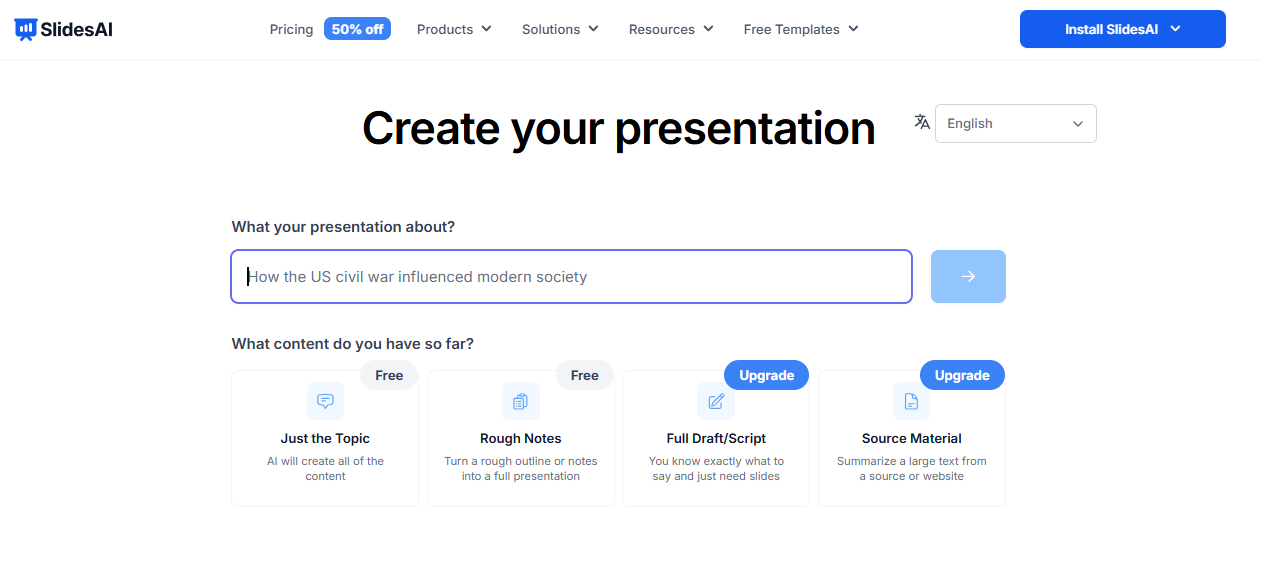
The free plan only gives me the topic and rough notes, which is a bit limiting if I already have a proper document I want to work from. I also noticed the topic box has a 120-character limit, which is pretty short. But honestly, it didn’t bother me that much because this isn’t where SlidesAI gets most of its information from anyway. There are a lot more questions coming after this, so I didn’t feel like I had to cram the entire presentation into that tiny box.
Core Features
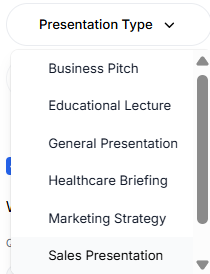
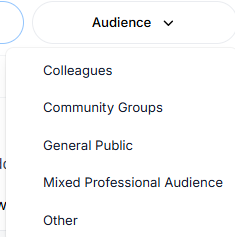
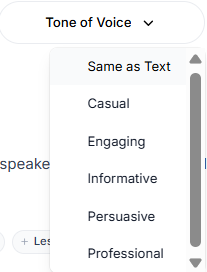
The pre generation interview. This was probably the part I liked most about the setup. Once I gave it the topic, SlidesAI didn’t just jump straight into making slides. It actually took me through a pretty long list of questions about what I wanted the presentation to be. I could tell it who I was making it for, whether that was colleagues, a community group, the general public, or a mixed professional audience. Then I could pick the tone, from casual and engaging to informative, persuasive or professional, and choose what kind of presentation I was actually making, like a business pitch, educational lecture, marketing strategy, sales presentation, and so on.
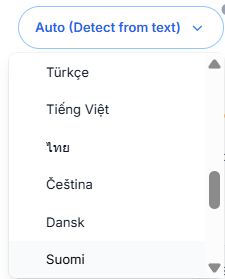
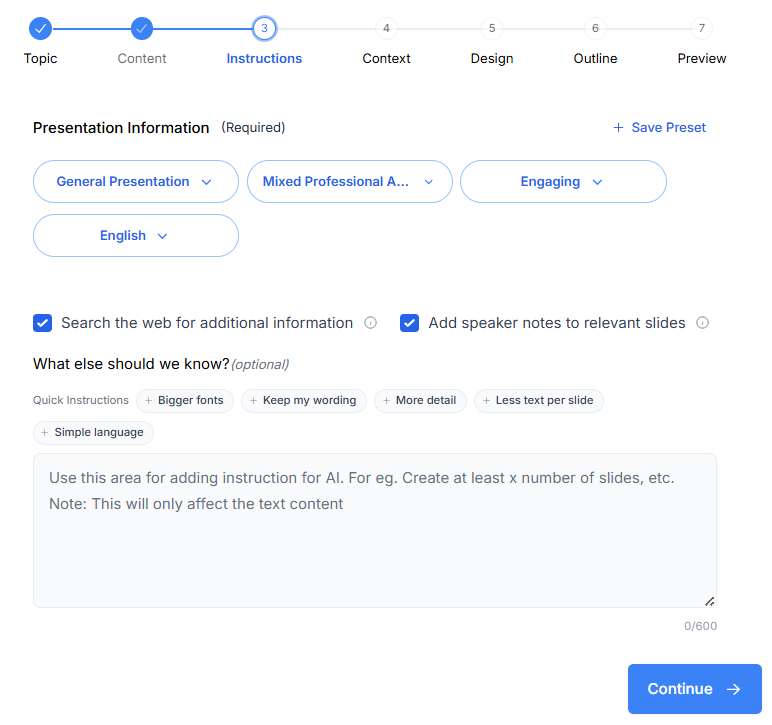
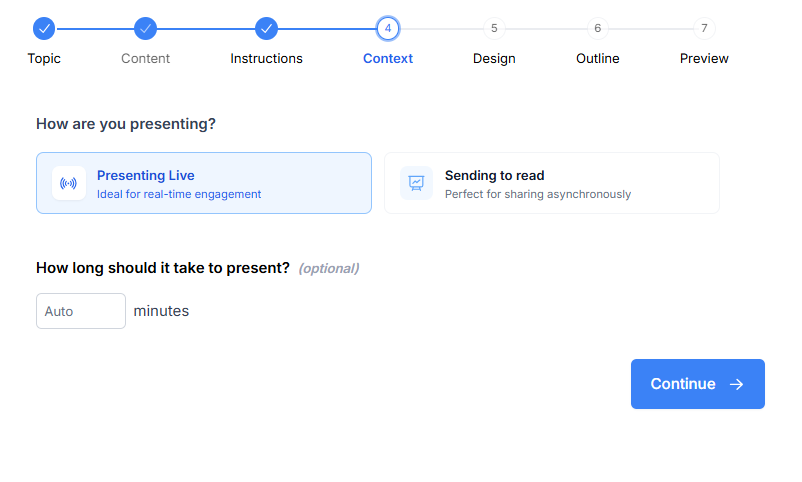
It also asked about the language, whether I wanted it to look things up on the web for extra information, and whether I wanted speaker notes added. Then there were a few questions about how I was actually going to use the presentation. I could tell it whether I was presenting it live or sending it to someone to read, and if it was going to be live, roughly how much time I had. I thought that was a really nice detail because those things genuinely change how much information I’d want on each slide.
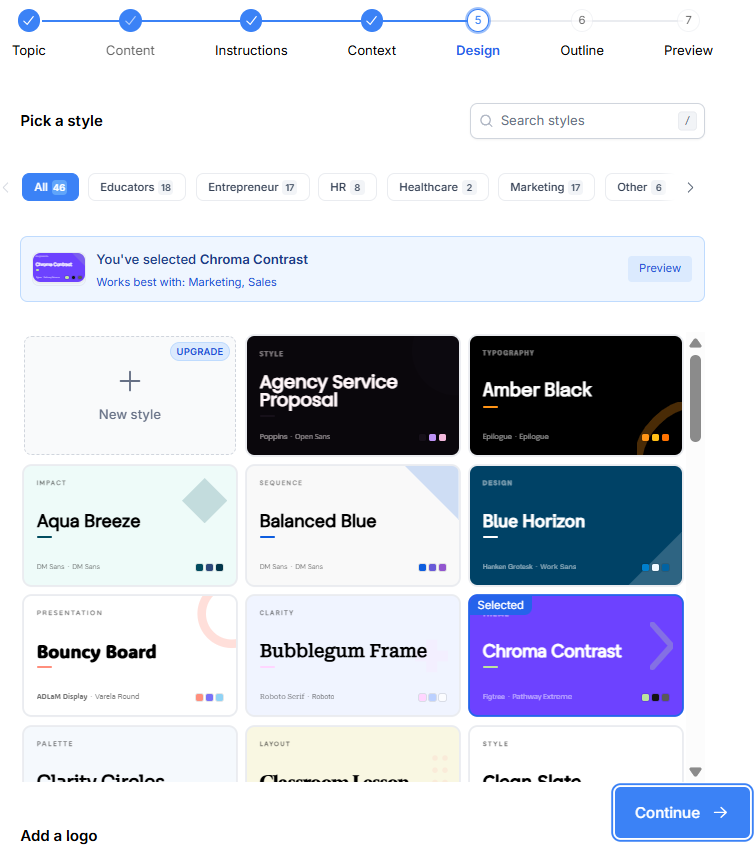
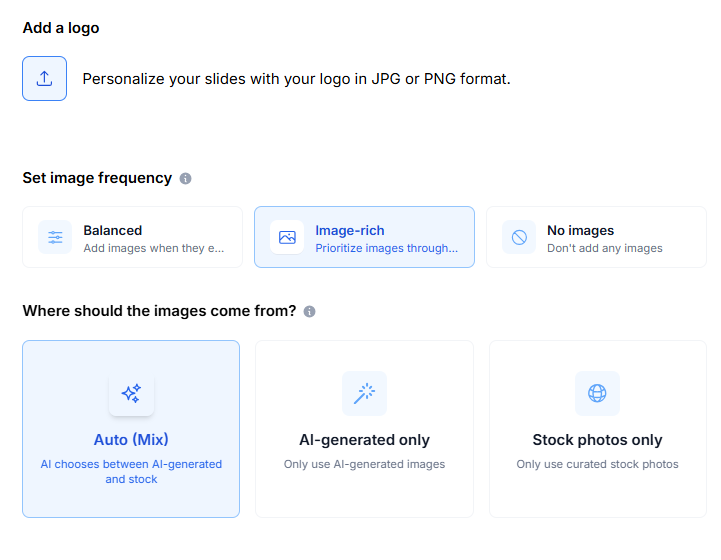
Then came the design side. I had a decent selection of themes to choose from, could add a logo, and could decide how image-heavy I wanted the presentation to be. I could go with no images, a more balanced approach, or something much more image-heavy, and then choose between AI-generated images, stock photos, or a mix of both. It is a lot of questions before I actually get to the slides, but in this case I honestly didn’t mind it. Most of them felt relevant rather than like SlidesAI was just making me fill out a form for the sake of it.
The questions actually adapted to my topic. This probably was the thing that impressed me most. It didn’t just stop after the usual setup questions and move on. Once I’d given it enough information, it came back with two more questions about what I actually wanted the presentation to achieve and which parts of the topic I wanted to focus on.
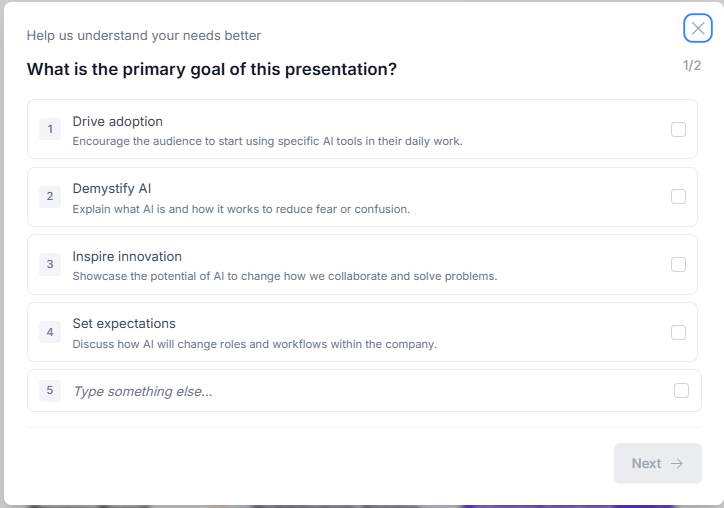
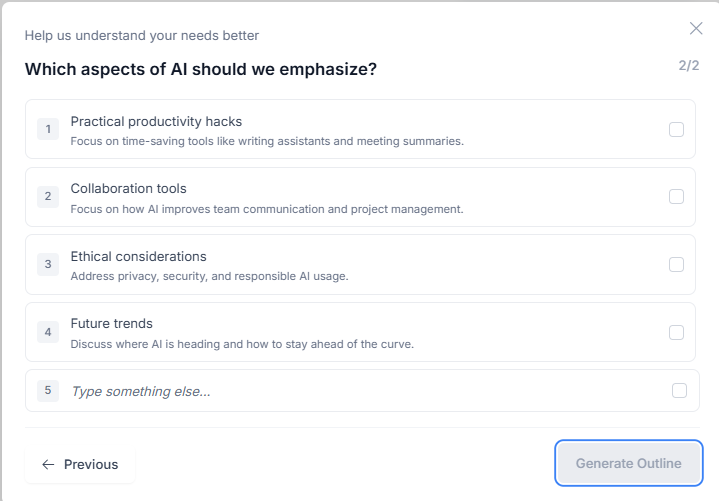
And the questions themselves made sense for what I’d asked it to make. They didn’t feel like the same two questions it would throw at me regardless of the topic. It was pretty clear that it had taken what I’d already told it into account and was using that to figure out what I wanted from the final presentation. That made the whole process feel a lot more useful than just filling in a bunch of boxes before getting my slides.
Outline and preview before final generation. Once I’d gone through all those questions, SlidesAI gave me an outline and then a full preview of the actual content. Basically, I could see the whole presentation in text before any of the proper design was added. I could also make changes at that stage, ask it to regenerate something, make a section shorter or more detailed, split one slide into two, improve the wording, make something more engaging, or just give it my own instruction. Only once I was happy with the content did I actually move on to generating the finished slides.
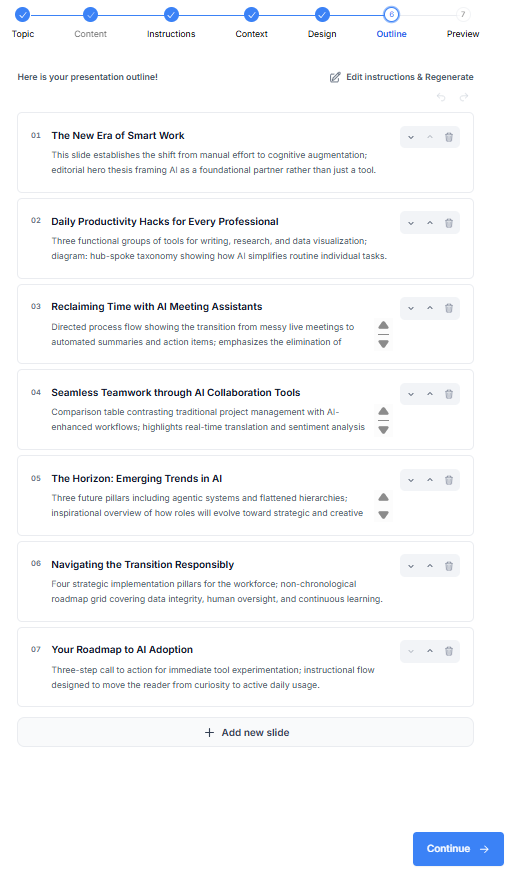
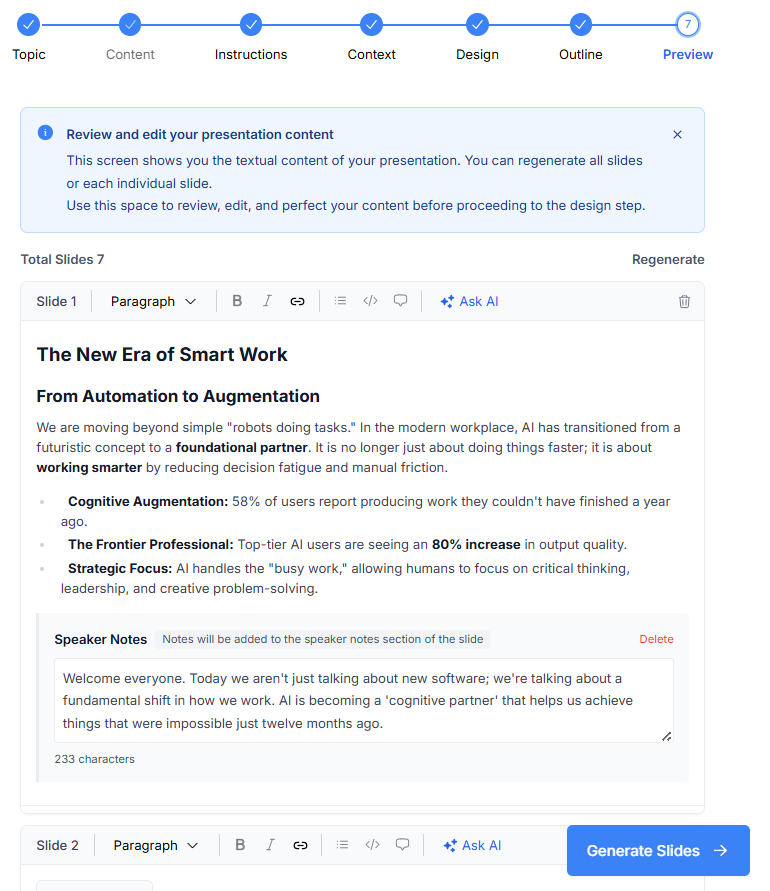
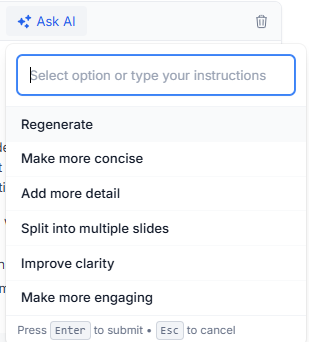
And honestly, I think the extra time was worth it. Yes, it took longer to get to the final presentation because there were so many questions and then the outline to go through. But I’d much rather spend five minutes upfront explaining what I want and get a deck that’s already pretty close than get something in two minutes and then spend another twenty fixing it myself. In my case, the final presentation actually stayed pretty close to the topic and the choices I’d made throughout the setup, which made all those extra questions feel justified.
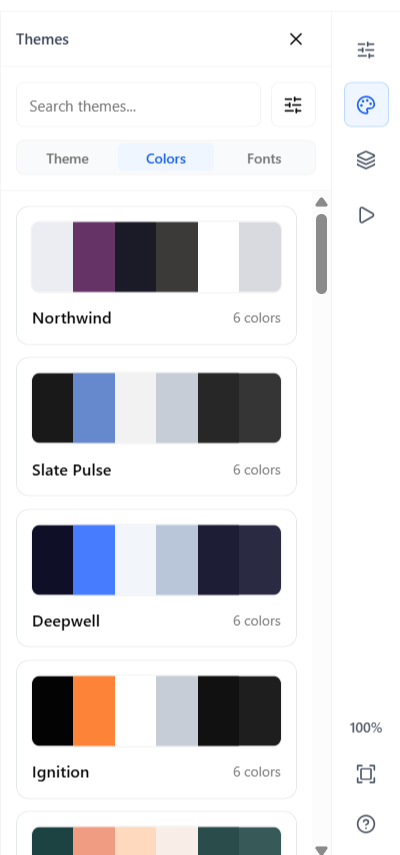
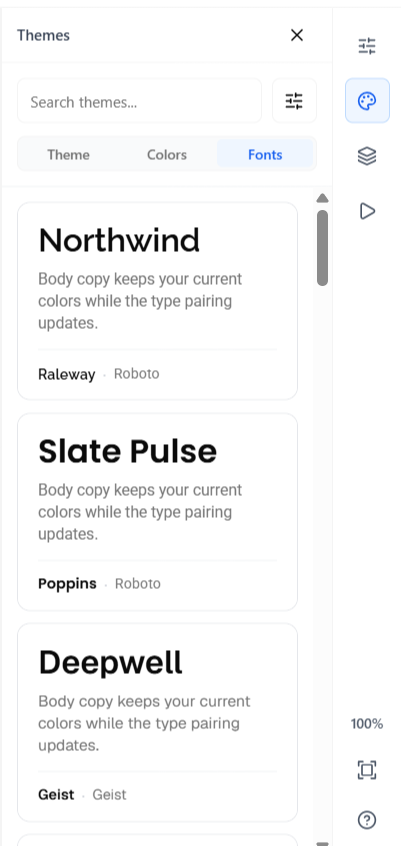
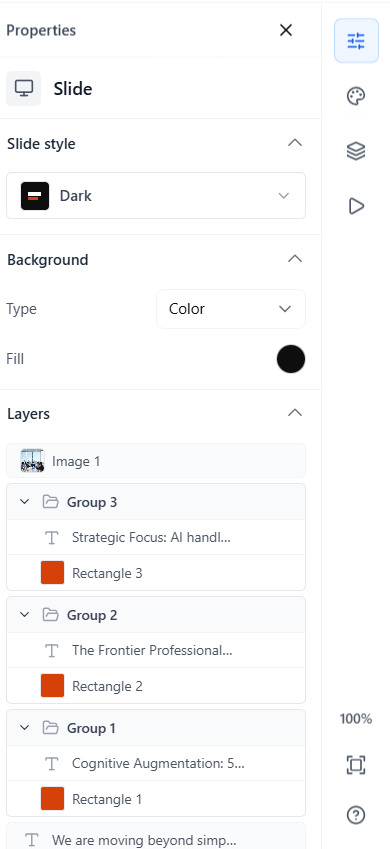
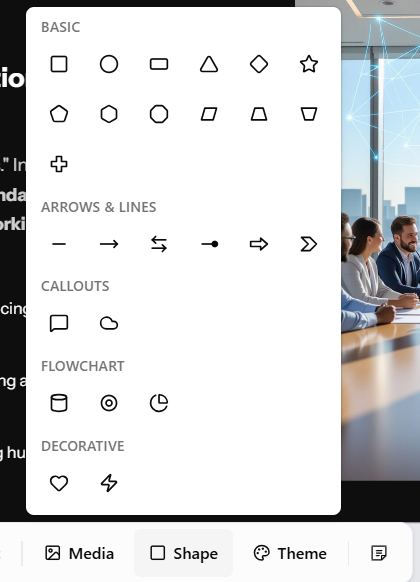
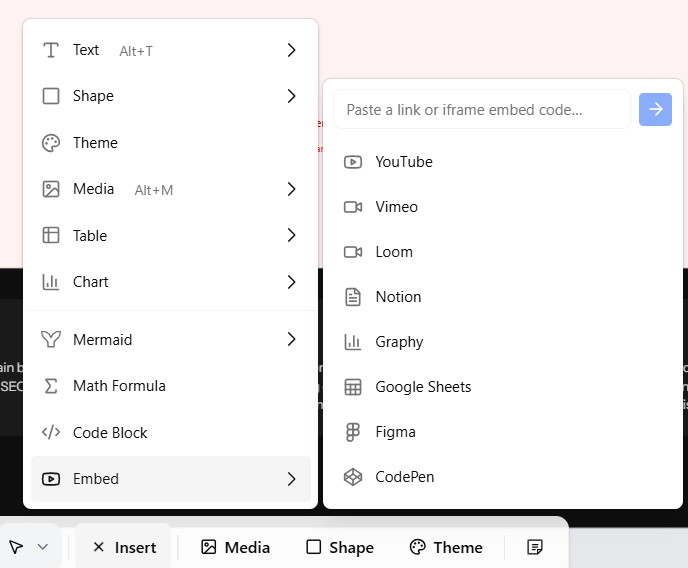
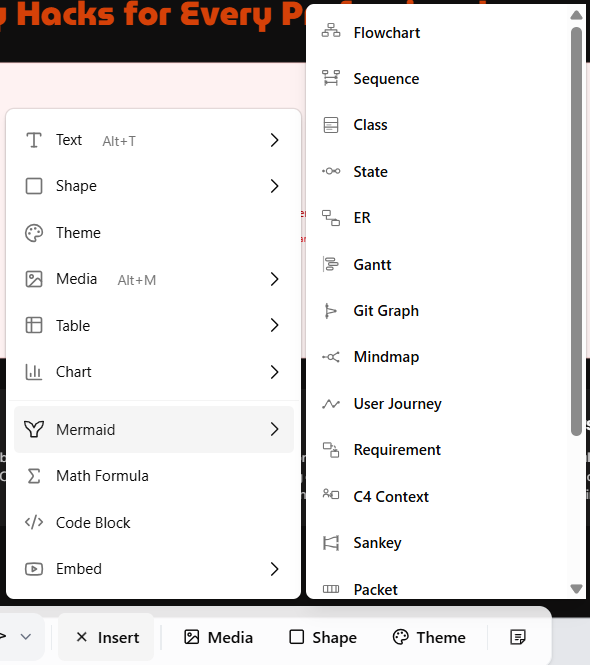
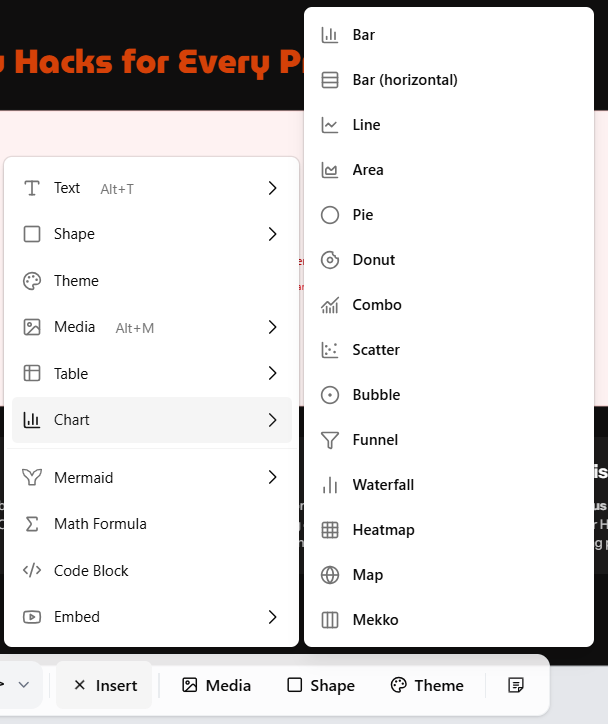
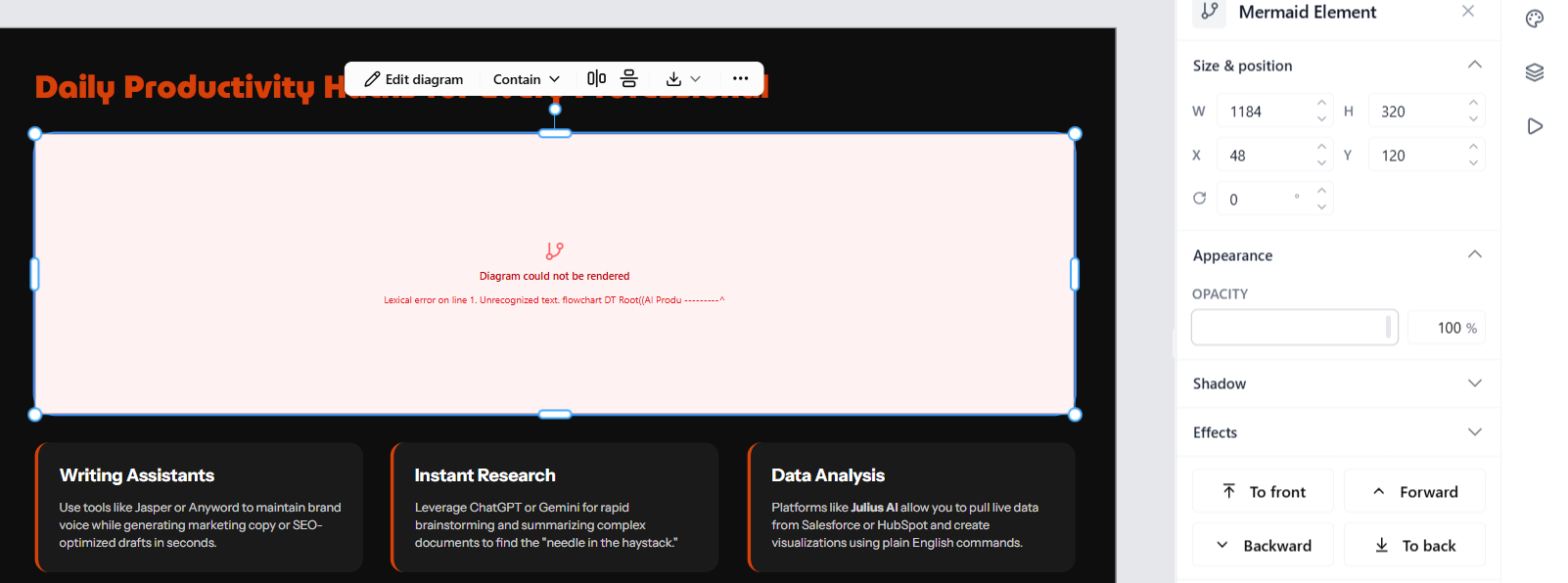
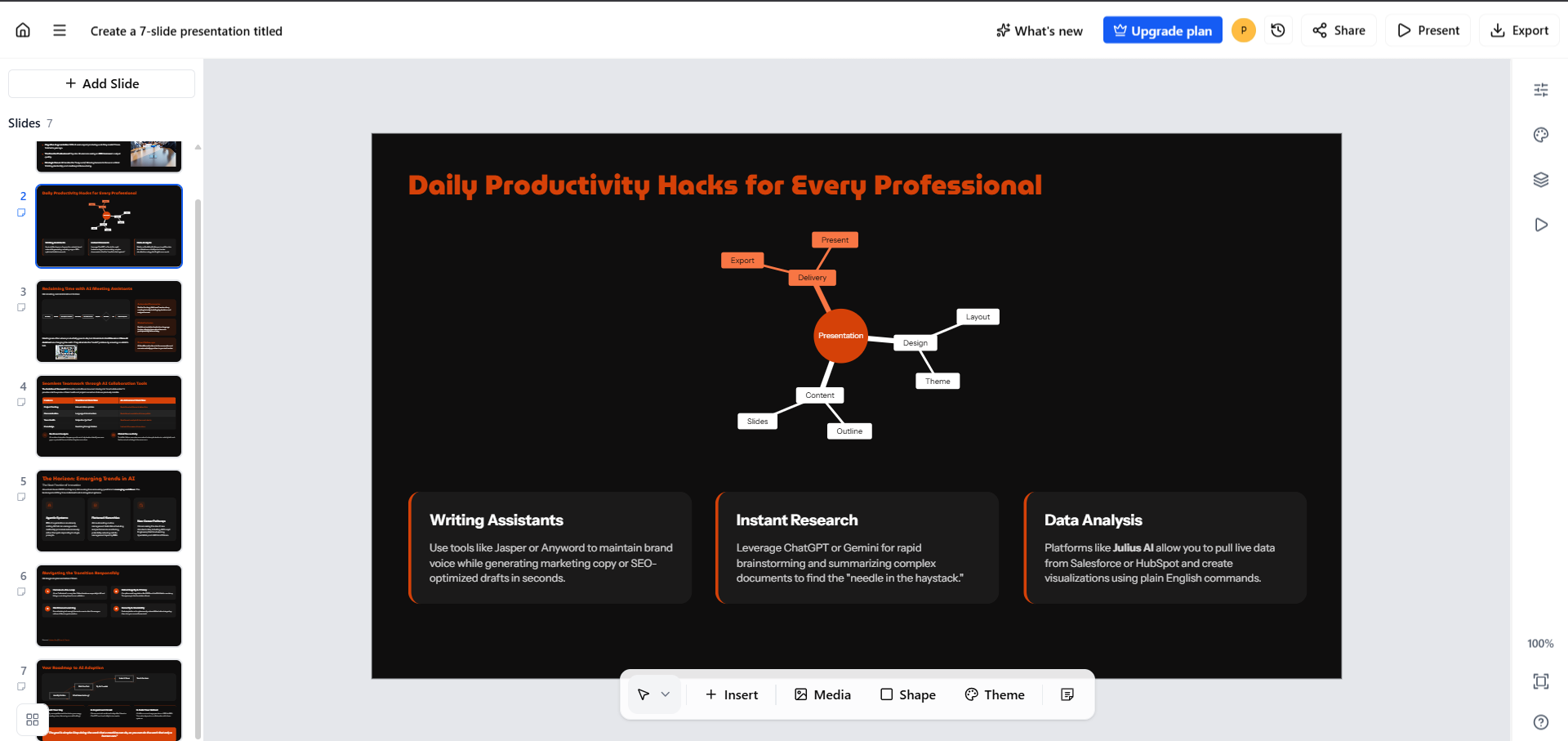
Manual editor and what happens after generation. The manual editor was actually pretty solid, and I had more control than I expected. I could change the theme, colours and fonts, but also click into individual elements and edit them separately. I could add shapes, text, images and other media, generate AI images by describing what I wanted, add charts, embed links, and even use Mermaid diagrams for things like flowcharts, sequences, class diagrams and mind maps. So if I wanted to go through the deck myself and clean things up, there was plenty to work with.
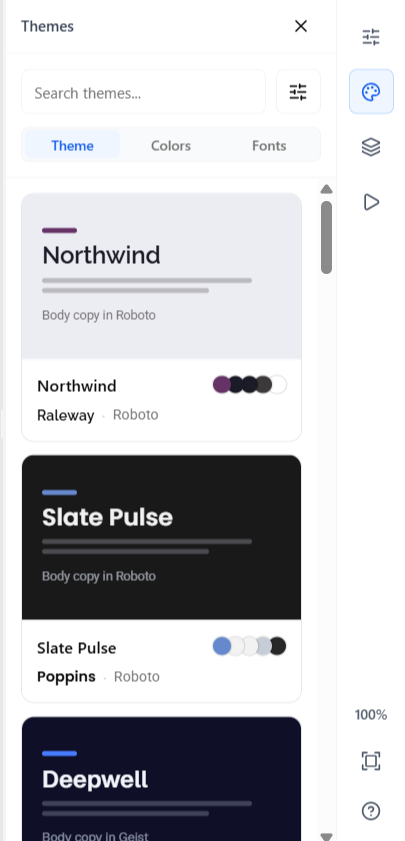
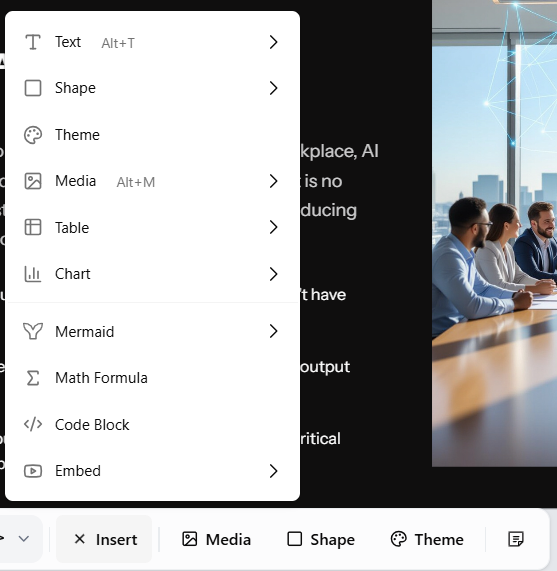
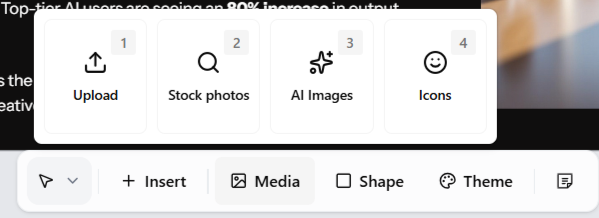
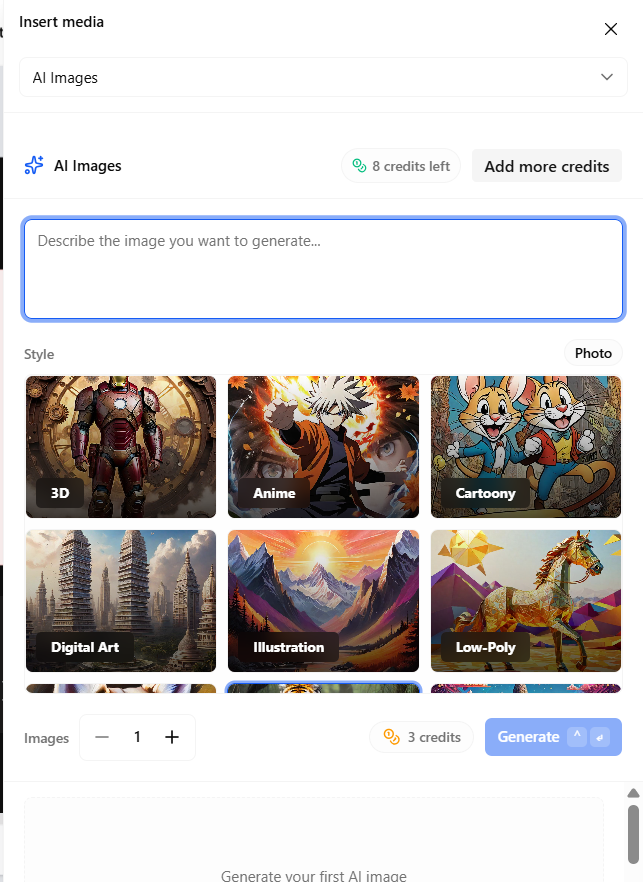
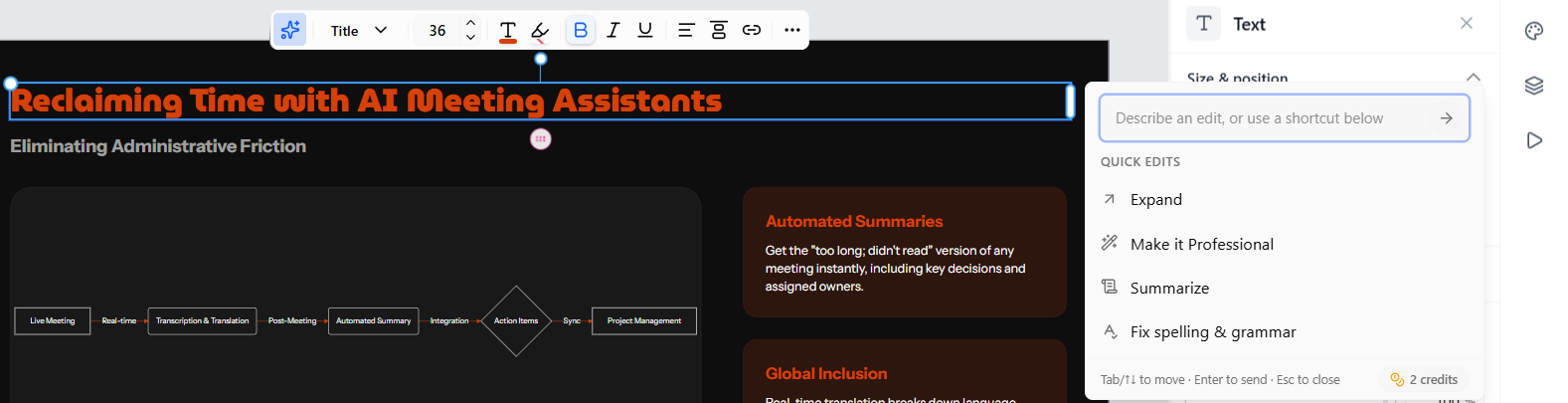
Adding a new slide was straightforward too. I could pick from a good range of layouts and build it myself, but there wasn’t any AI help for creating that new slide. That’s also the bigger limitation I noticed. Once the presentation was generated, there wasn’t really an AI editor I could keep talking to. I could use AI for smaller things, like generating images or rewriting text by asking it to summarise, expand, fix grammar, or make it more professional.
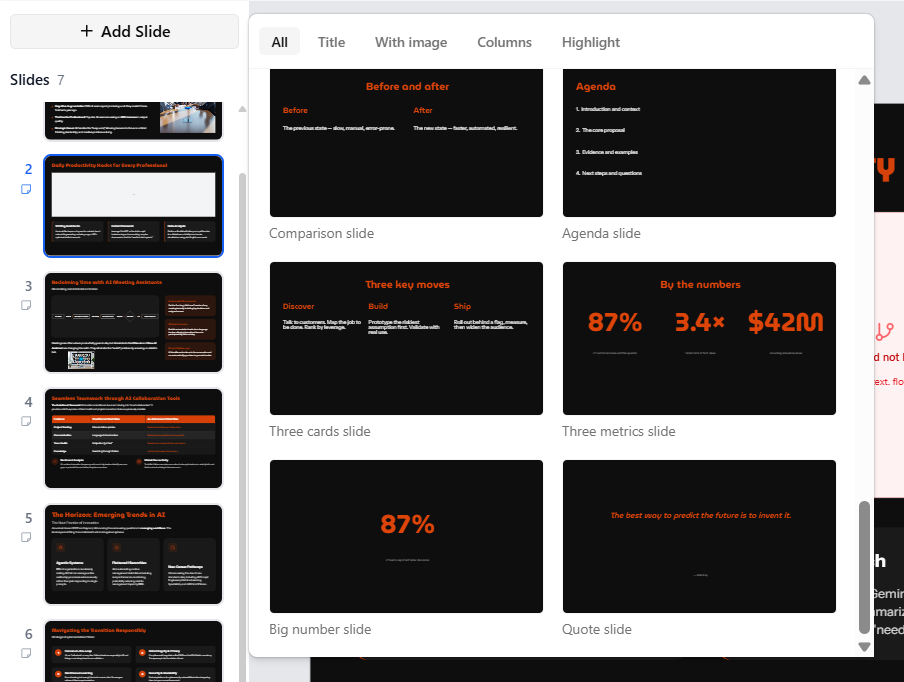
But if I wanted to change the structure, add or remove slides, rearrange things, or make bigger changes to the deck, I had to do it myself. So overall, it felt much more like a good manual editor with a few useful AI features built in than a presentation editor where I could keep giving the AI instructions after generation.
Speaker notes. The speaker notes were actually pretty decent. They weren’t super long or detailed, so I wouldn’t say they were enough to completely replace my own preparation, but they were useful as a quick reminder of what I was supposed to talk about on each slide. I also liked that I could ask for them during the setup itself and have them included with the presentation rather than having to go back and add them afterward.
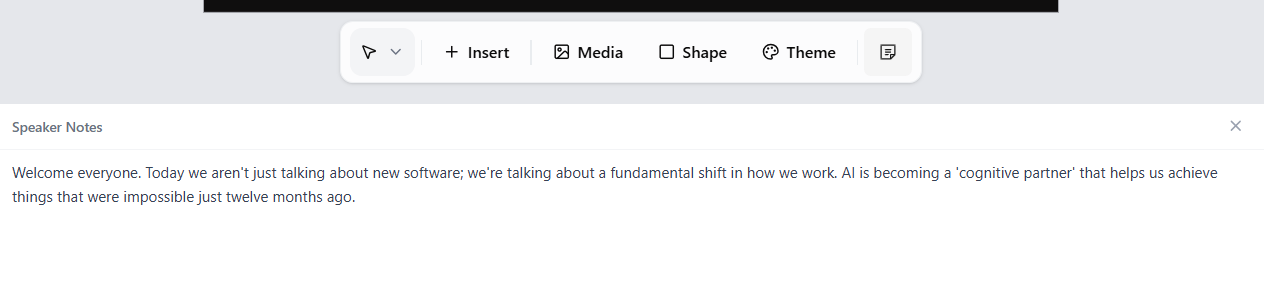
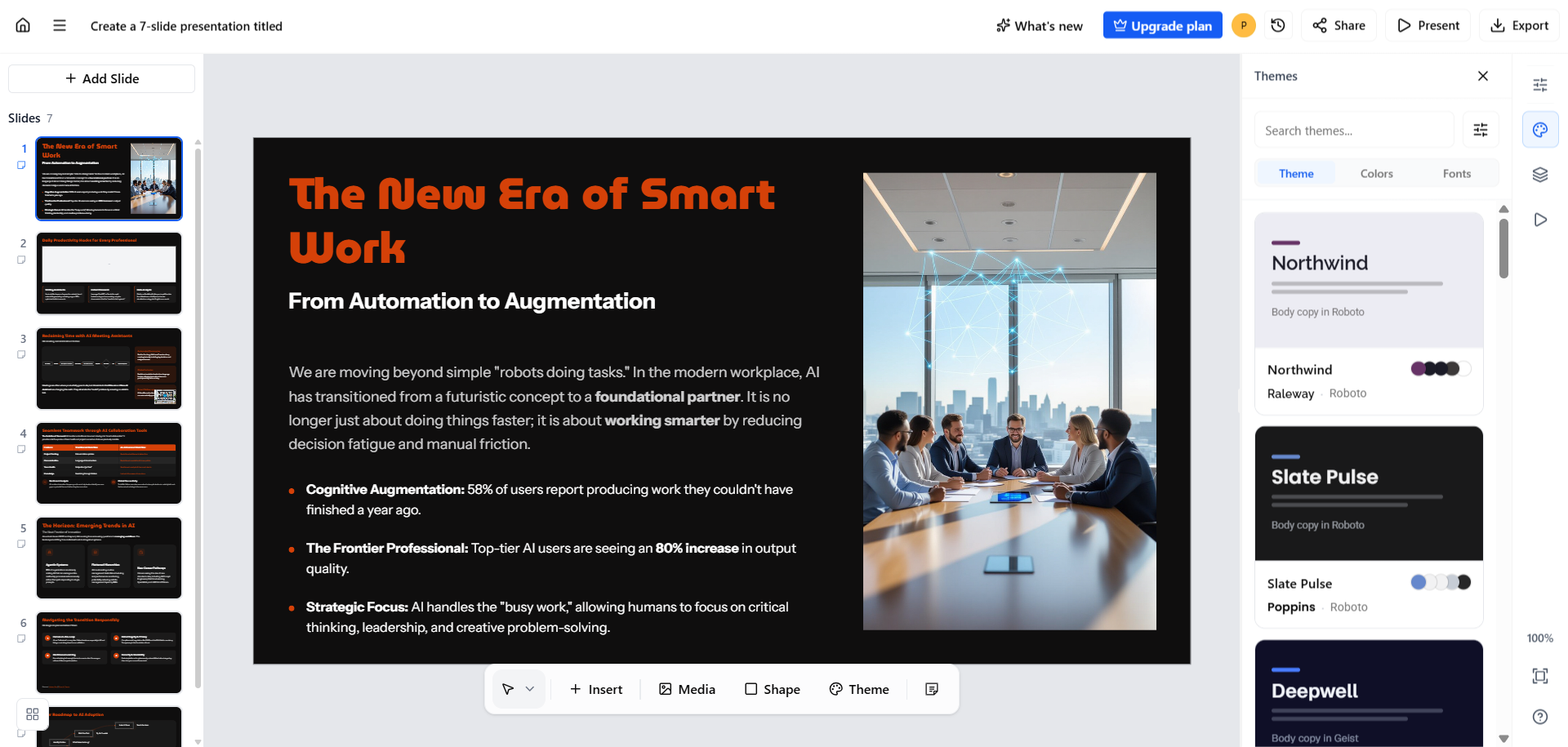
Image quality. The AI-generated images were pretty decent overall. They were obviously AI-generated in a lot of cases, especially if I looked closely, and I wouldn’t call them fully realistic or particularly impressive compared with dedicated image-generation tools. But for a presentation, they did the job. They looked good enough within the slides and didn’t make the deck feel cheap or unfinished, which is honestly all I really needed from them here.
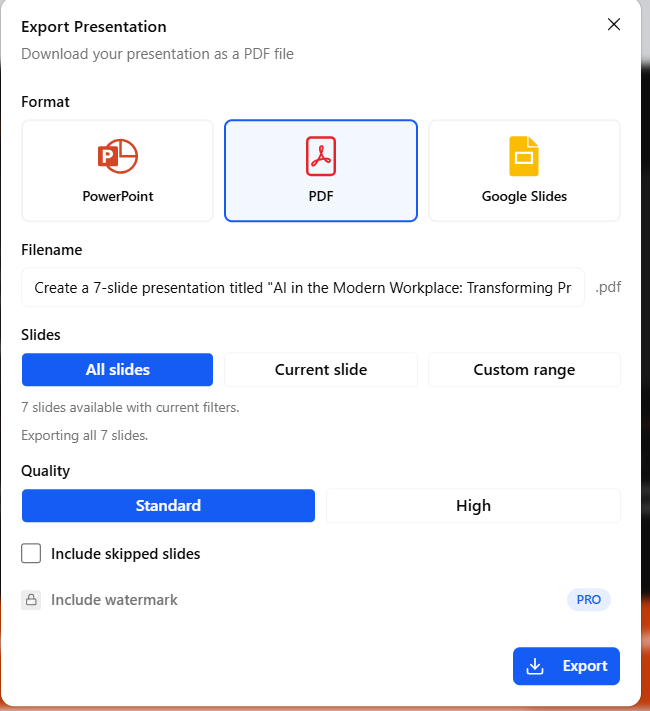
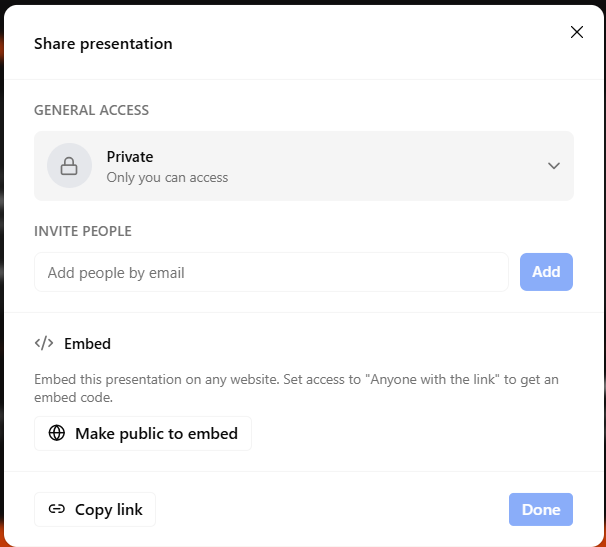
Export. This was another thing I appreciated. I could either share the presentation through a link or actually export the finished deck and use the file somewhere else. The free version does put a watermark on the exported presentation, which obviously isn’t ideal, but at least I wasn’t completely blocked from downloading it. Compared with tools where I can make the presentation for free but then immediately hit a paywall when I try to get the actual file, having a working export option here was a pretty big plus for me.
Performance, Reliability & Everyday Usability
The setup took longer than most of the tools I’ve tested in this series, mainly because SlidesAI asks so many questions before actually making the deck. But honestly, I didn’t mind the extra time because most of those questions were actually useful and relevant to what I was trying to make. The one proper hiccup I ran into was with a Mermaid diagram that failed to render and left a blank space where it should’ve been. It was annoying, but I could ask the AI to fix it and it got the diagram working again pretty quickly, so I didn’t have to rebuild anything myself. Other than that, everything stayed pretty consistent throughout my testing, and I didn’t run into any crashes or weird behaviour.
Pricing Breakdown & Limitations
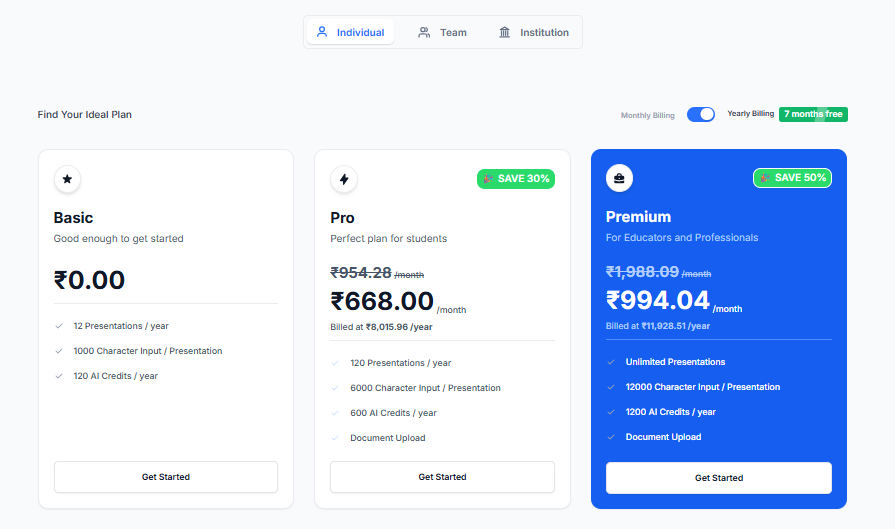
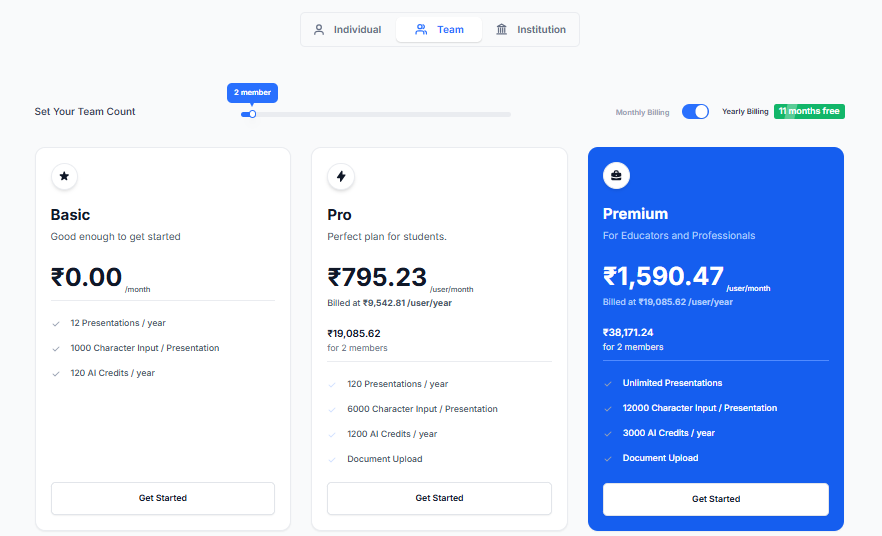
The free plan gives me 12 presentations a year, which works out to roughly one a month if I spread them out. It also has a 2,500-character limit per presentation and 120 AI credits a year. I could only generate one presentation during my testing, though, so it still felt pretty limited compared with some of the other tools I tried.
- Basic: Free – 12 presentations/year, 2,500 characters, 120 AI credits
- Pro: $10/month billed annually – 120 presentations/year, 6,000 characters, 600 AI credits, plus document uploads
- Premium: $20.83/month billed annually – unlimited presentations, 12,000 characters, 1,200 AI credits, plus document uploads
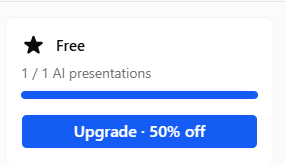
For me, the bigger limitation wasn’t really the credits, it was the number of presentations. I only got one proper deck during testing, so I couldn’t explore it as much as I’d have liked. Compared with Gamma, where I could make multiple decks for free, this felt noticeably more limited.
Privacy & Data Handling
SlidesAI’s privacy policy is pretty straightforward about where the content goes. Anything I put into the presentation generator gets sent to OpenAI’s servers to help create the presentation, so their policy points back to OpenAI’s own privacy terms for that part. My email is mainly used for logging in and providing the service, and they say it isn’t shared with third parties beyond that.
The PowerPoint add-in works similarly, with the text I enter being sent to OpenAI to generate the content. They specifically say that other files, personal information, metadata, or anything beyond that input text isn’t shared. Overall, I found the policy reasonably clear, but the fact that my presentation content is being routed through OpenAI is still something I’d want to keep in mind if I were working with particularly sensitive material.
Comparison With Gamma
| Category | Gamma | SlidesAI |
|---|---|---|
| AI presentation quality | Polished, consistent, ready to present | Highly comprehensive, closely matched my actual topic thanks to the interview process |
| Design quality | Clean and professional | Good theme variety, solid without being overwhelming |
| Pre generation process | Straightforward prompt plus settings | Genuinely thorough, multi step interview tailored to the topic |
| Editing experience | AI editor plus full manual tools | Manual editor only after generation, AI limited to text rewriting and images |
| AI assistance | Reliably executes structural instructions post generation | No in app AI editor for structural changes, everything manual after the outline stage |
| Free plan generations | More than one presentation possible on free credits | Capped at one presentation on the free tier |
| Export options | PDF, PowerPoint, Slides, PNG free | Export available free, with watermark |
| Pricing | Roughly $8 to $20 a month | $10 to $20.83 a month, billed annually |
| Best use case | Fast AI assisted decks with in app editing | Getting the generation right the first time through a thorough setup process |
Gamma edges ahead for me, mainly for two things I noticed while actually using both. First, its free plan gave me more room to test and generate multiple decks, whereas SlidesAI was much tighter there. Second, Gamma has that proper in-app AI editor where I can keep asking it to change the presentation after it’s been made. SlidesAI doesn’t really have that.
SlidesAI doesn’t have either of those, but it makes up considerable ground with how good that first generation actually turns out to be, largely because the setup process does so much of the thinking upfront instead of leaving it to trial and error afterward.
Final Verdict
Coming out of this one, I actually really liked SlidesAI. It ended up being one of the better surprises in this whole series. The biggest thing for me was the question-and-answer process before the presentation was made. There are definitely a lot of questions, but most of them actually felt useful, and I especially liked that some of the later ones were based on what I’d already told it about my topic. I think that really showed in the final deck, because it felt much closer to what I was actually asking for instead of just being another generic presentation.
The editor was good enough for the changes I wanted to make, and I could actually export the finished presentation on the free plan, even with the watermark. I also had that one annoying Mermaid diagram issue, but it was fixed pretty quickly, so it didn’t really bother me beyond that.
The two things keeping it behind Gamma for me are the lack of a proper AI editor after generation and the restrictive free plan. I could only make one presentation during my testing, so I didn’t get much room to try different prompts or really push it.
But the actual deck was good, and that’s what mattered most to me. The extra few minutes I spent answering all those questions genuinely paid off, and I’d take that over getting a quick deck and spending ages fixing it afterward.
Overall: 8.5/10.
Frequently Asked Questions:
Yes, SlidesAI allows free downloads in PowerPoint, PDF, and Google Slides formats, though exported files include a watermark unless you upgrade to a paid Pro tier.
SlidesAI conducts a thorough multi-step interview, asking questions about target audience, time limits, presentation format (live vs. reading), and specific topic focus areas before generating an outline.
No, once the presentation is rendered, there is no conversational AI agent for structural changes; AI is limited to inline text rewriting and image generation, requiring layout tweaks to be done manually.
Mermaid diagrams allow users to create structured visual elements—such as mind maps, flowcharts, timelines, and sequence diagrams—directly inside slides using simple code-based markup.
Abonneer je op onze nieuwsbrief en ben als eerste op de hoogte van tijd- en geldbesparende AI-tools!
Comments