Conclusion
ImagineArt’s “Computer” workspace features a remarkably obedient AI agent that executes prompt instructions faithfully, adhering to exact slide counts, brightening themes, and adding requested images on command. It also includes a capable manual editor and provides completely free downloads in PPTX, PDF, and PNG formats. However, the generated output is visually and textually bare-bones—often featuring little more than a single chart and shallow text blocks. With credits running dry after just one deck and a single round of edits, it struggles to impress as a dedicated slide maker.
Pros:
- Highly obedient AI Agent that faithfully follows slide counts, theme color changes, and image requests
- Completely free, unrestricted downloads in PowerPoint (.pptx), PDF, and PNG formats
- Pre-generation outline view lets users review and tweak structure before slides are built
- Solid manual editor supporting shapes, transitions, charts, and media adjustments
Cons:
- Generated presentations are visually and contextually thin, lacking depth, infographics, and polish
- Free credits exhaust rapidly, lasting through only one presentation generation and one edit round
- Pre-generation slide count selection is rigidly restricted to small buckets (3–5, 6–8, or 9–12 slides)
- AI model training opt-in clause persists even after an account is deleted
Table of Contents
- First Impressions & User Experience
- Core Features
- Performance, Reliability & Everyday Usability
- Pricing Breakdown & Limitations
- Privacy & Data Handling
- Comparison With SlidesPilot
- Final Verdict
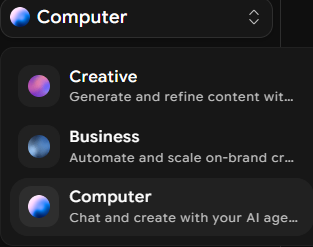
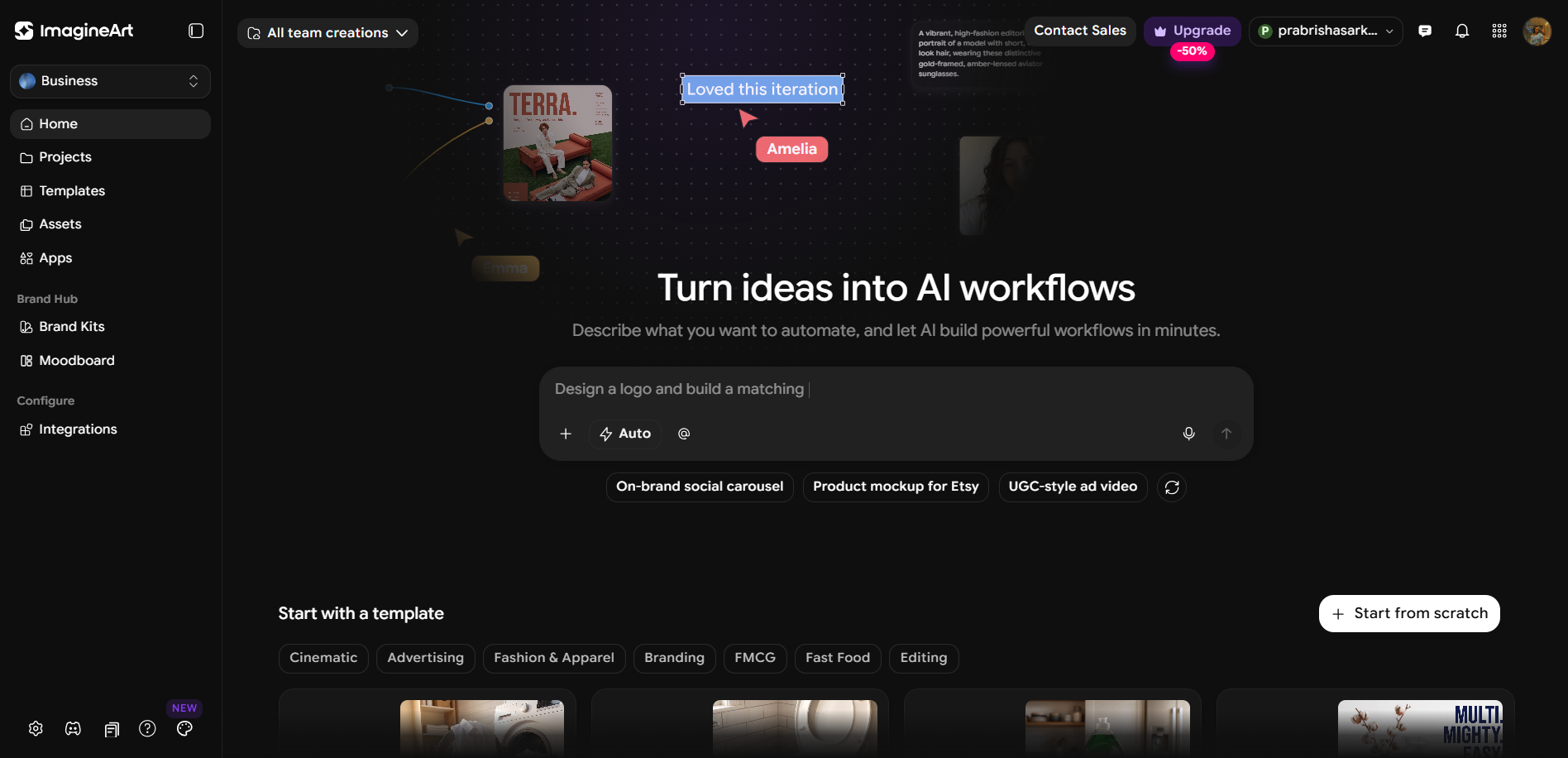
ImagineArt was next in this series, and this one is a little harder to judge because the platform is massive compared with the presentation tools I’ve tested so far. It’s split into three main areas: Creative, which covers things like images, video, audio and editing; Business, which is more about setting up automated workflows; and Computer, which has an AI agent that can make all sorts of things, from graphs and resumes to research, spreadsheets, websites and presentations.
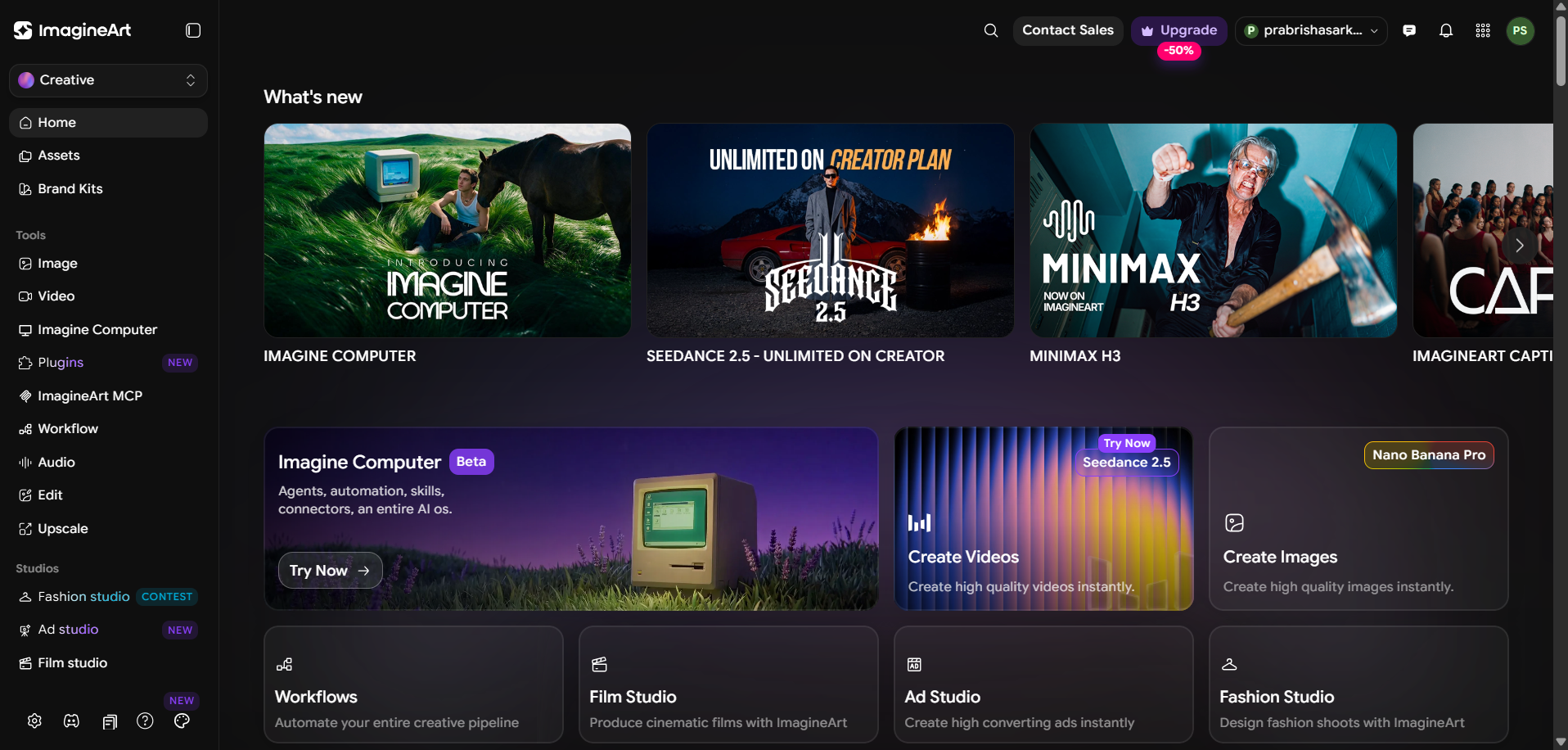

For this review, I only tested the Slides option inside Computer. I didn’t go through all the other things ImagineArt can do, so I’m really only talking about the presentation experience I had. I can see this being useful for someone who wants one place to handle lots of different kinds of work and happens to need presentations as well. But if I’m specifically looking for a tool that’s really good at making presentations, I wouldn’t put ImagineArt at the top of my list based on what I saw here.
First Impressions & User Experience
The scope of this thing honestly caught me a little off guard. There are three big workspaces, and even within Computer there’s a Knowledge feature where I can upload files and basically give the AI a pool of information to work from across different tasks. I left that alone for my first test because I wanted to see what it could do with just a normal prompt, without giving it any extra material to lean on.
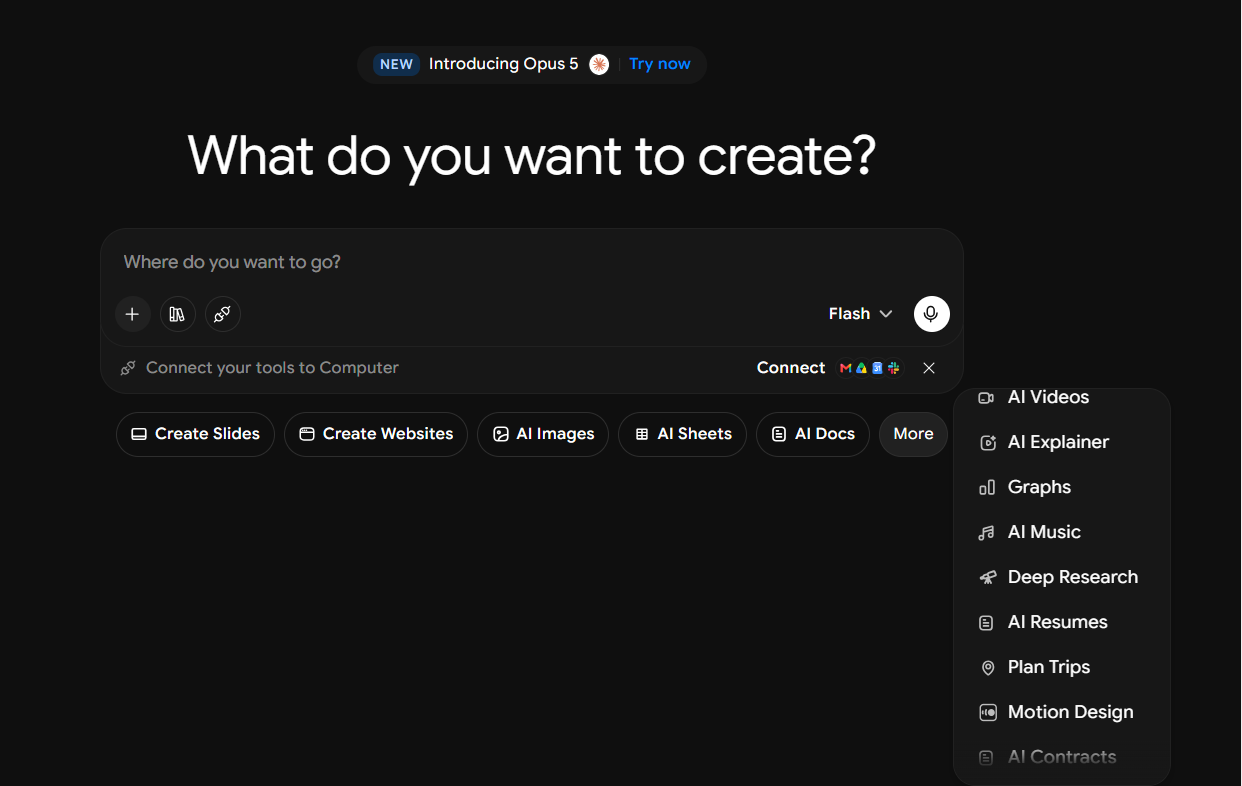

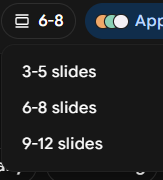

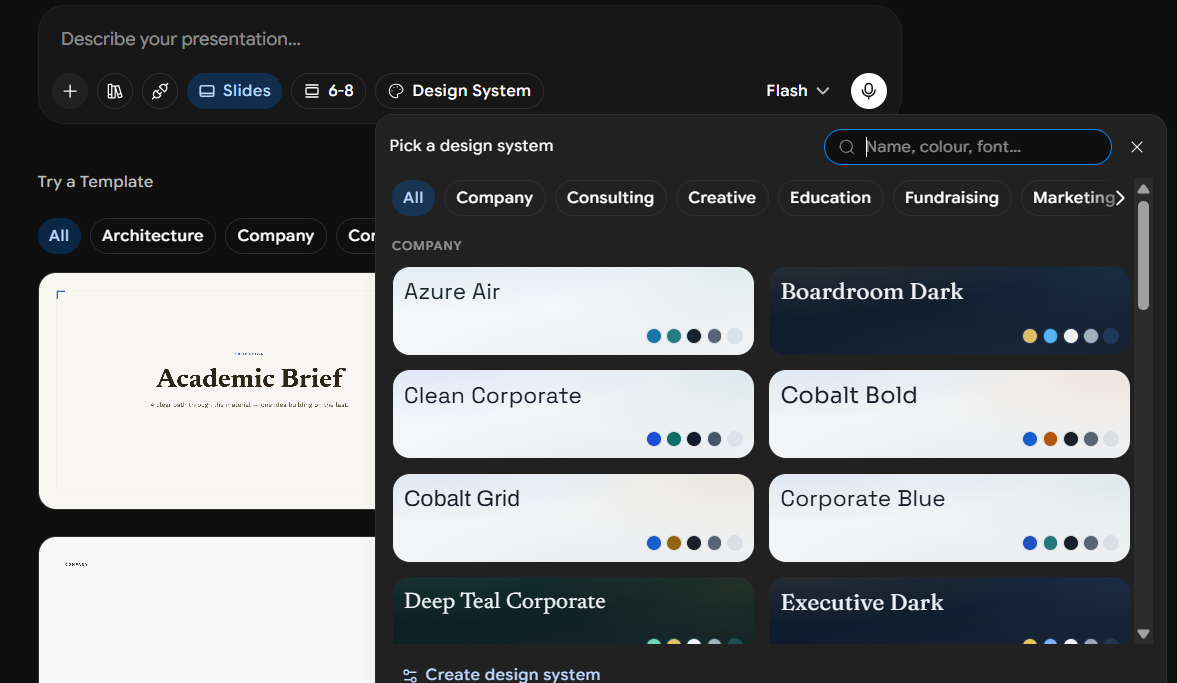
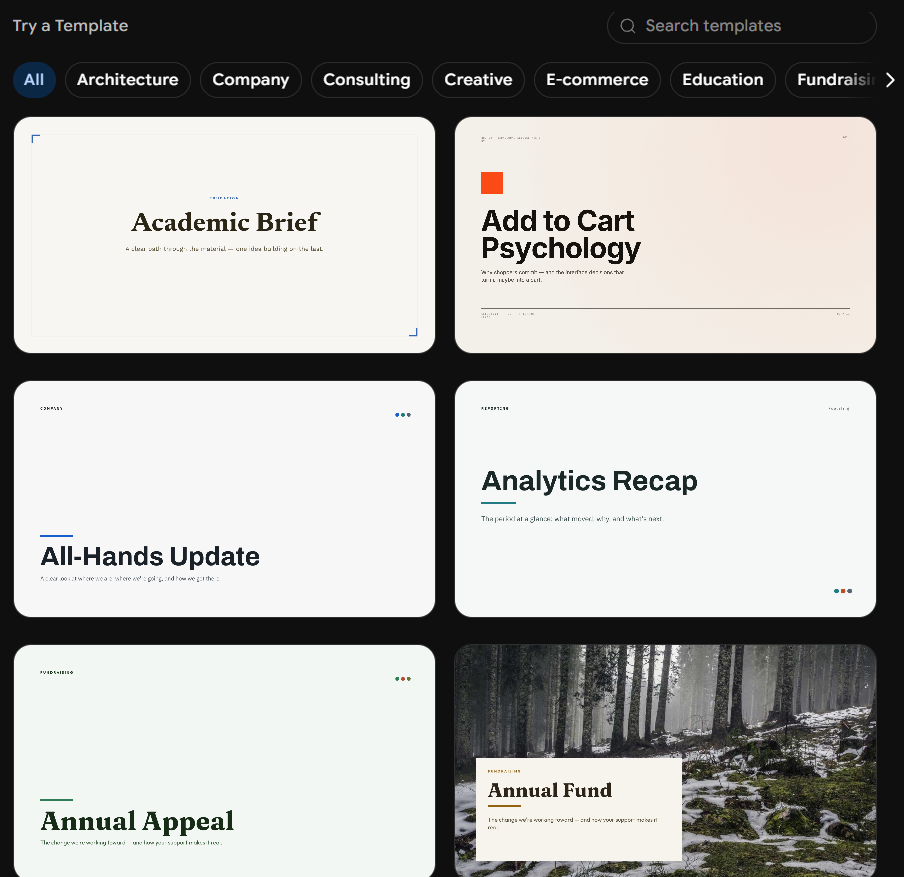
Before generating, I had a decent amount of control over how I wanted the presentation to look. I could pick the colour scheme and font, choose the slide count, upload files or photos if I wanted to use my own material, and pick from a template library organised by topic. The slide count options were a little restrictive, though, with three to five, six to eight, or nine to twelve slides, and nothing beyond that. The templates themselves were actually pretty good. There was enough variety that I could find something that suited the topic without having to settle for a design I didn’t like.
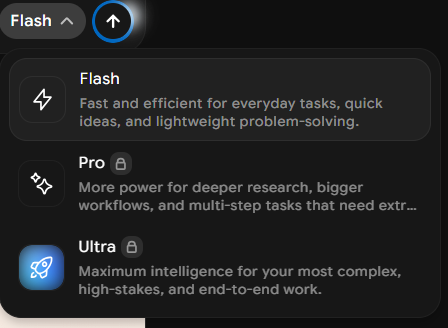
I could also choose which model to use: Flash, Pro or Ultra. Pro and Ultra were locked behind the paid plans, so on the free tier I was limited to Flash. Still, for a first run, I thought there was a reasonable amount I could control before I even got to the actual generation.
Core Features
This is where things got complicated, because the actual behavior of the AI and the actual quality of what it produced pulled me in two very different directions.
Initial generation. I asked it for a six-slide deck on AI and workplace productivity, went with a brown colour scheme and a Word-style font, and left the specific theme option alone. One thing I liked right away was that it built the outline before actually making the slides. I could see what direction it was taking before the finished deck showed up, which gave me a chance to get a sense of the structure first.
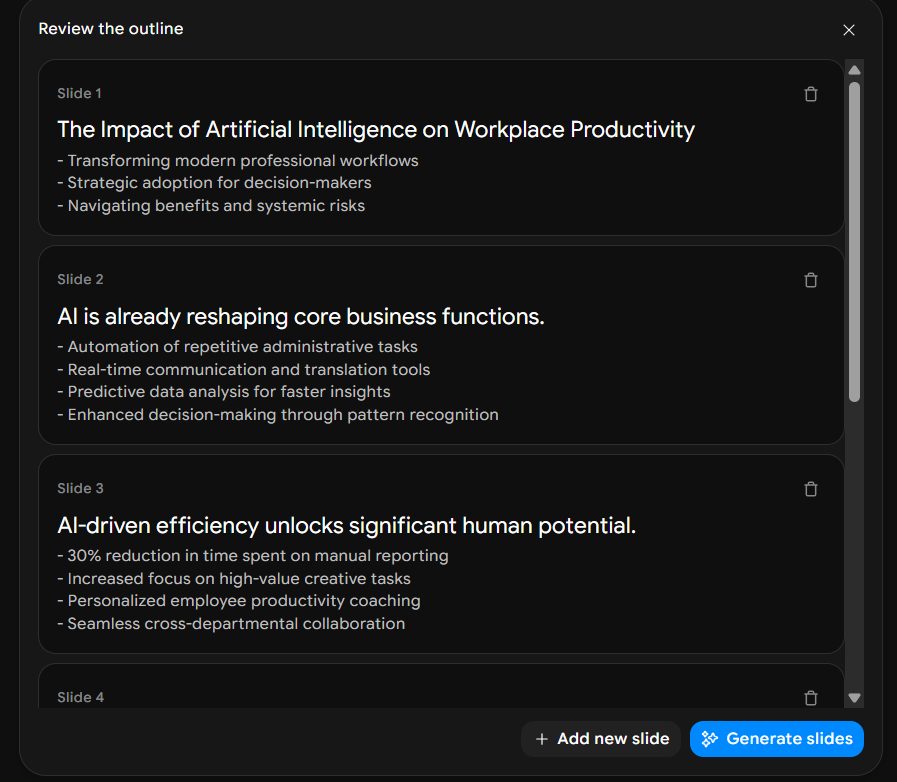
The actual presentation took around two to three minutes to generate, which I thought was absolutely fine. More importantly, it followed the six-slide instruction exactly. I’ve had enough experiences with other tools ignoring the number of slides I asked for that I was genuinely pleased to see it get such a basic thing right on the first try. At this point, I had no complaints about the generation process itself.
Output quality, and this is where things started falling apart for me. The finished presentation was just really thin. There was one chart, basically a simple bar graph, and that was pretty much the extent of the visual side of the deck. I was expecting at least some images, maybe an infographic or two, or just a bit more going on visually, but there wasn’t much there at all. It ended up looking very plain.
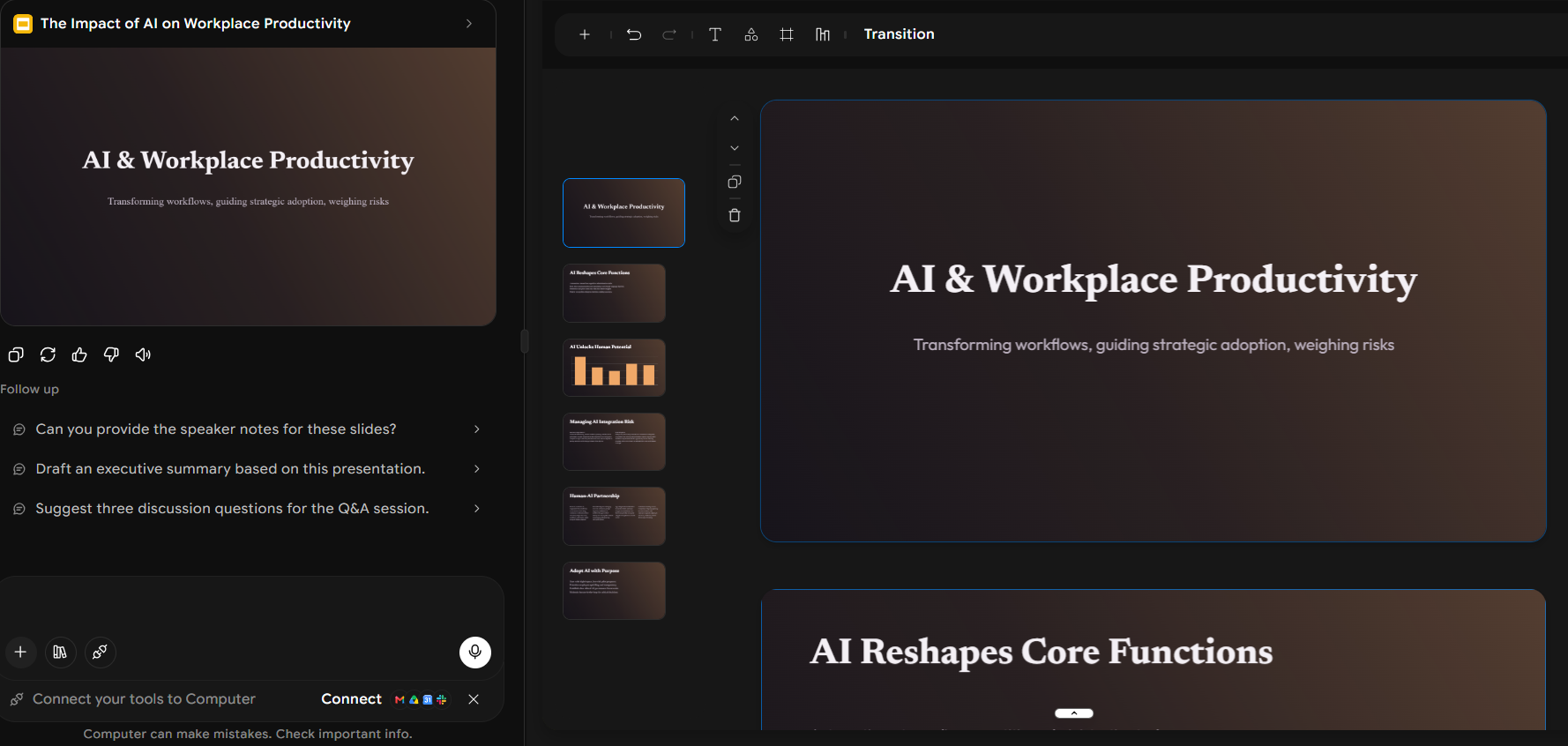
The actual content wasn’t much better. It covered the topic, technically, but everything felt very surface level. There wasn’t much detail on how AI is actually affecting workplace productivity, what people are using it for, where the real gains might come from, or even where the limitations are. Compared with some of the other tools where I’ve given basically the same kind of prompt, this felt noticeably more bare-bones.
Honestly, if someone had shown me this deck without telling me it came from an AI presentation tool, I would’ve assumed it was a rough first draft some novice had thrown together in five minutes and hadn’t really gone back to properly flesh out. It wasn’t broken or completely unusable, but it definitely didn’t feel like something I could just take and present as-is.
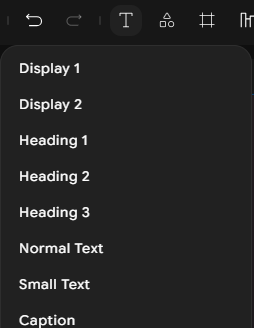
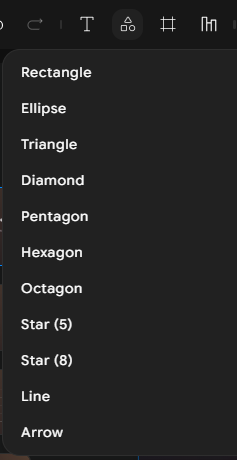
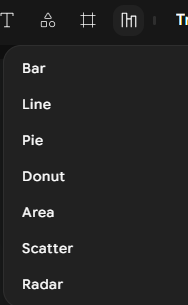
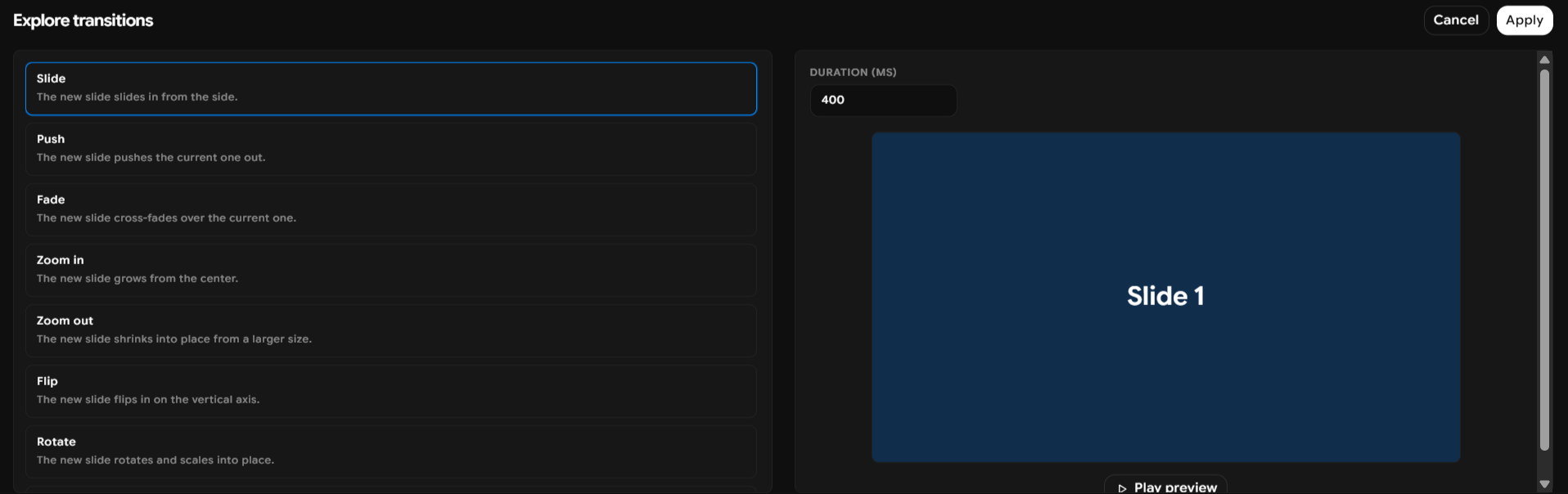
Manual editor. The manual editor was reasonably capable. I had the usual things I’d expect, text editing, shapes, charts, image frames, and even slide transitions. So if I took the presentation it gave me and decided to build it up myself, there was enough there to do that. I could add more visuals, move things around and generally make the deck look more complete. But that’s not really what I’m judging here. The whole point of this series is to see how much of the work the AI can actually take off my hands, not how good I am at fixing a presentation after the AI has given up.

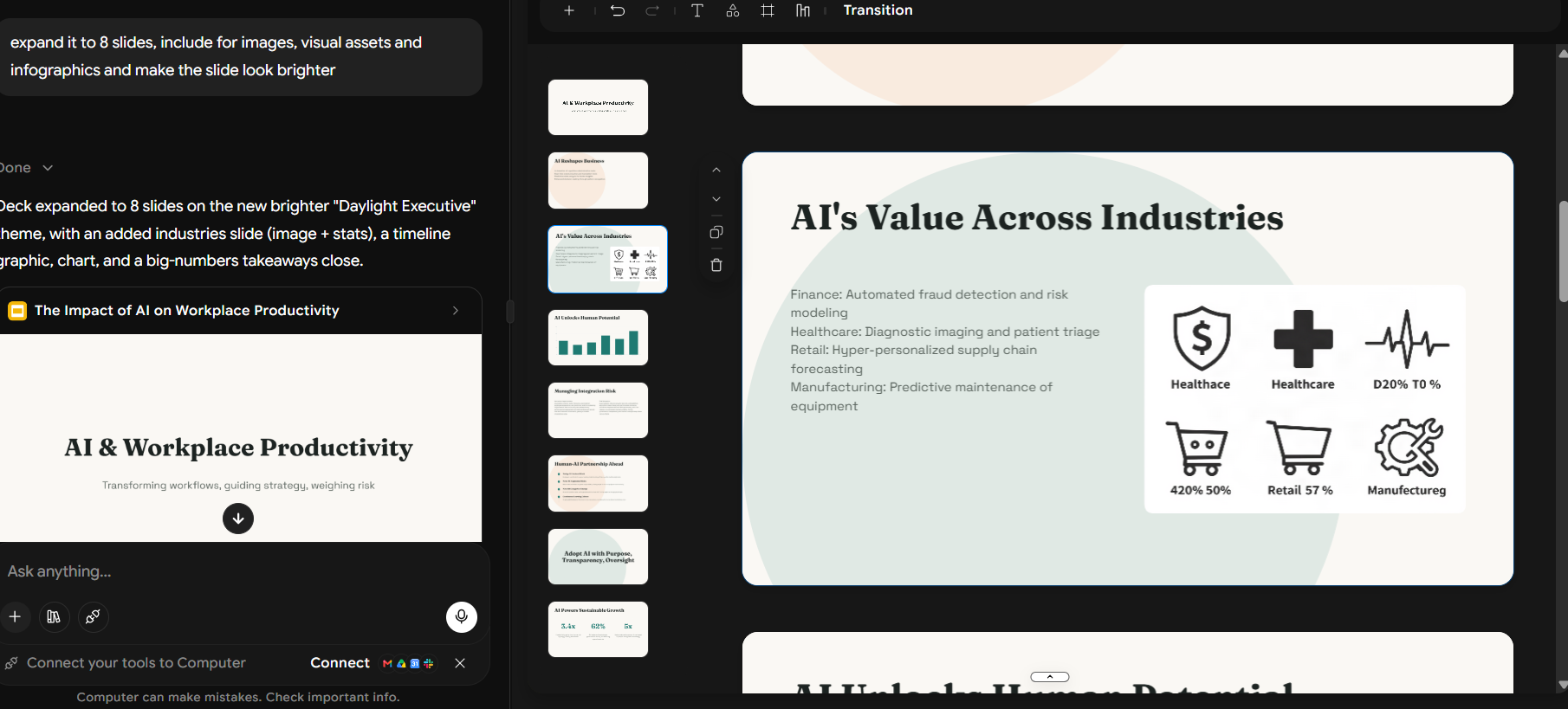
The AI Agent, technically obedient. This part was a little more complicated. I asked it to add more images, bring in more visual elements and infographics, brighten up the presentation, and increase it from six slides to eight. And to be fair, it did every single thing I asked. I got eight slides, an extra image was added, and the original brown colour scheme was changed to a much brighter white-based one. So if I look purely at whether it followed my instructions, it did a pretty good job.
The problem was that the changes didn’t really make the presentation better. It was brighter, it was longer, and there were more visuals, but the deck still felt just as thin as it had before. The extra slide didn’t suddenly give the topic more depth, and the added image and visual elements didn’t really make it feel more polished either. This was one of those cases where I could clearly see that the AI had done what I’d asked, but I still looked at the finished thing and thought, okay, but this isn’t really good. So for me, following the instruction and actually improving the presentation were two very different things here.
There was a gap between following instructions and actually doing a good job. This was really the main thing I kept coming back to with ImagineArt. I can’t say the Agent ignored me, because it didn’t. Every request I gave it was carried out. If I asked for more images, I got more images. If I asked for eight slides, I got eight slides. If I asked it to brighten the deck, it changed the colour scheme. On paper, that’s all correct.
But I still wasn’t happy with what it produced. It felt like the Agent was very good at checking things off my list without really thinking about whether those changes were making the presentation any better. I ended up in this slightly weird position where I had to give it credit for doing exactly what I said while also being pretty disappointed with the actual deck sitting in front of me. I’ve run into tools that ignore instructions completely, but this felt like a different problem. ImagineArt listened to me, it just didn’t do enough with what I was telling it.
Credits. I had 100 credits available when I started, and ImagineArt does advertise 100 free daily credits, with the allowance refilling every 12 hours on its free tools. What I couldn’t confirm was exactly how that credit system applies to Slides inside the Computer workspace, or how many credits each generation and edit uses. So I wouldn’t treat the 100 credits as a simple “100 credits per presentation” kind of allowance, but it does appear to be a recurring free allowance rather than a one-time trial.


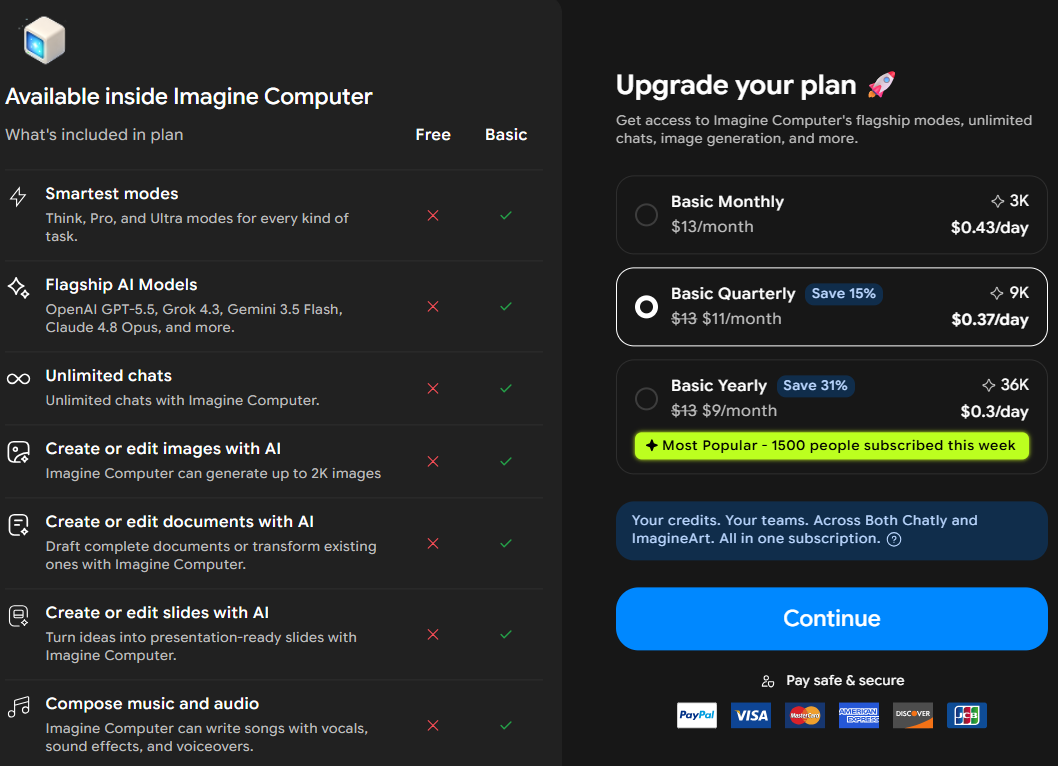
The credits ran out really very quickly though. I got through one full generation and one round of AI edits, and that was basically it. The second I tried to do anything else, I was getting pushed towards upgrading. That felt especially restrictive because the AI Agent is probably the biggest reason I’d want to use the Computer workspace in the first place. Being able to use it for one proper generation and one set of changes before hitting the limit doesn’t leave much room to actually explore what it can do.
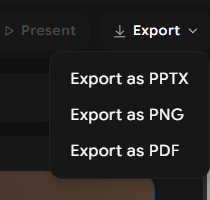
Export. This was actually a nice surprise. I could download the presentation without having to pay for it, which already put ImagineArt ahead of quite a few of the tools I’d tested. I had PPTX, PNG and PDF available, so I wasn’t forced into sharing a link or upgrading just to get the actual file. I really appreciated that, even if, in this particular case, the deck wasn’t exactly something I was desperate to download and use.
Performance, Reliability & Everyday Usability
The generation was pretty quick, usually around two to three minutes, and the interface stayed responsive while I was using it. Nothing crashed and nothing froze, and I didn’t get any weird behaviour. So on the basic performance side I had no complaints.
The problem was just what I was getting at the end of it. I could tell it to do something and it would do it, but that didn’t mean the presentation actually got much better. So it wasn’t unreliable in the sense of breaking or messing up halfway through. It was more that the quality just hit a ceiling pretty quickly, and for me, that ended up being the bigger issue.
Pricing Breakdown & Limitations
The paid plans I saw started at around $9 to $13 a month, depending on billing, and went up through Standard, Ultimate and Creator, with the higher tiers getting pretty expensive.
- Basic: around $9 to $13/month
- Standard: higher usage and more features
- Ultimate: access to better models and higher limits
- Creator: the highest tier, reaching well into the hundreds
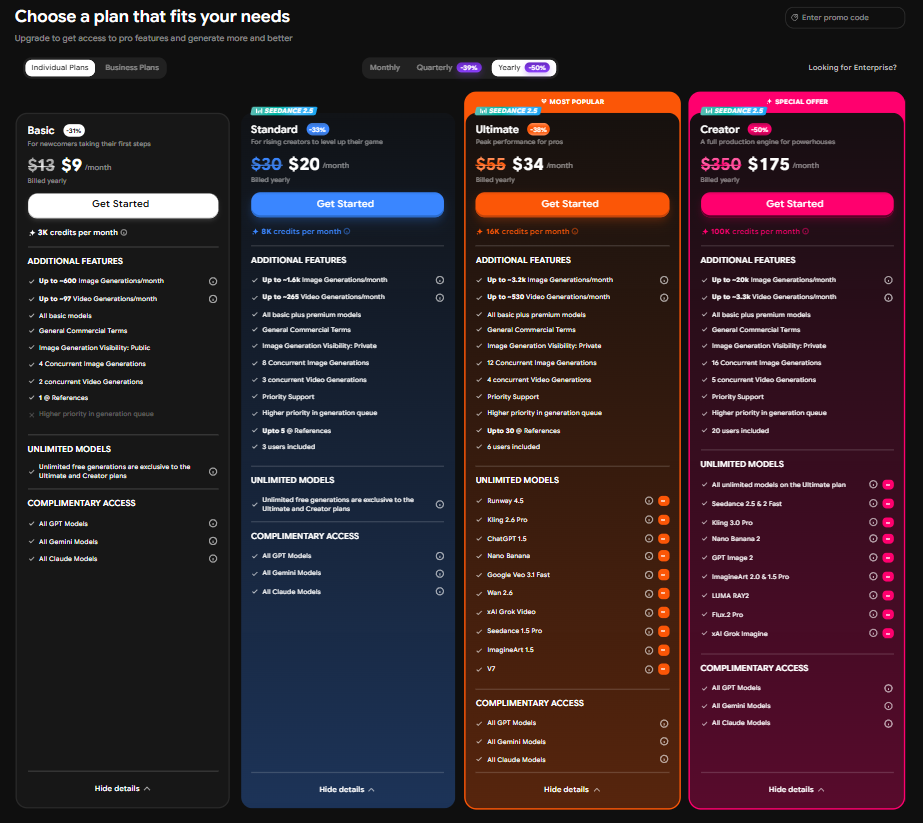
The extra features apply across the whole Computer workspace, not just Slides. Given how limited the free presentation experience felt, I wouldn’t pay purely for Slides without knowing whether the higher tiers actually improve the output, which I wasn’t able to test.
Privacy & Data Handling
According to ImagineArt’s policy, they collect the usual account and usage data, along with any personal information that ends up in my prompts or generated content. They say they don’t sell personal information for third-party marketing, although some data is shared with service providers for things like hosting and customer support.
The bit I’d pay attention to is the AI training clause. They say content is only used for training if I explicitly opt in, but that permission continues even after deleting the account. So if I was uploading anything sensitive, I’d definitely check that setting first rather than assume it’s off. There are also the usual cookies and tracking tools, which can be managed through browser settings.
Comparison With SlidesPilot
Category | SlidesPilot | ImagineArt |
|---|---|---|
AI presentation quality | Good structure, followed instructions precisely including slide counts | Followed slide count correctly but output was visually and content thin |
Design quality | Decent, theme library isn’t a particular strength | Very sparse, one chart and little else on first generation |
Visual assets | Strong infographic selection, add on request | Minimal, added one image after a direct request |
Template variety | Limited but functional | Genuinely decent, sorted well by topic |
Editing experience | AI editor plus beautification plus manual tools | Manual editor solid, AI Agent present but limited by credits |
AI assistance | Reliably executed compound instructions in one pass | Technically obedient, but results still underwhelmed after edits |
Export options | Download locked behind subscription, share link free | PPTX, PNG, PDF all available free |
Pricing | $8 to $23.33 a month | Roughly $9 to over $175 a month depending on tier |
SlidesPilot wins this comparison pretty comfortably for me. The biggest difference is that when I gave it a specific instruction, the presentation actually got better, not just technically changed. ImagineArt did follow what I asked, but the final decks still felt pretty thin.
ImagineArt’s main advantage is free export, which SlidesPilot doesn’t offer, but for me that doesn’t make up for the difference in the actual presentation quality. If I’m choosing based on how well the AI can build and improve a deck, I’d take SlidesPilot.
Final Verdict
My overall experience with ImagineArt’s Slides feature was mixed, but honestly I’m kinda leaning towards negative. I do want to be clear that I’m only judging the Slides option inside the Computer workspace here, not the much bigger Creative or Business sides of ImagineArt that I didn’t test. Within that limited scope, the AI Agent did deserve credit. It listened to what I asked for and actually followed through, whether that meant changing the slide count, adding visuals, or brightening up the deck. I never really had the problem of it ignoring an instruction or doing something completely different from what I’d asked.
The problem is that simply doing what I asked isn’t enough for me. The final presentation still felt way too thin, and that was the bigger issue throughout the test. One basic bar chart and a few paragraphs didn’t really feel like a finished presentation, and even after I specifically asked the AI to add more visuals and expand the deck, it still didn’t get to the level I’d seen from other tools using the same prompt. The changes were there, but they didn’t really transform the presentation into something I was excited to use. The templates were better than I expected, and being able to export for free was definitely a plus, but neither really made up for the quality of the actual deck.
Overall Score: 4.5/10.
Frequently Asked Questions:
Yes, ImagineArt allows free users to download their finished presentations directly in PPTX, PDF, and PNG formats without paywalling the files.
The AI agent is technically very obedient: in testing, it followed compound requests to brighten color schemes, adjust slide counts from 6 to 8, and add imagery without dropping instructions.
Despite following instructions, the final slides feel sparse and superficial—often featuring minimal copy, generic styling, and very few graphic or infographic elements to support the content.
ImagineArt’s policy indicates that user content is only used for model training if you explicitly opt in; however, that permission continues to apply even if the account is subsequently deleted.
Abonneer je op onze nieuwsbrief en ben als eerste op de hoogte van tijd- en geldbesparende AI-tools!
Comments