Conclusion
SlidesPilot is one of the most dependable AI slide generators tested, standing out for an AI editor that flawlessly executes compound instructions—such as simultaneously expanding slide counts and adding complex infographics in a single prompt. Its pre-generation controls, one-click “Beautify” slide tool, and smooth PDF conversion deliver structured, professional results. However, the free plan is tightly constrained: your starter credits burn through almost immediately during editing, and all file exports (PowerPoint, PDF, Google Slides) require a paid subscription.
Pros:
- Highly intelligent AI editor that reliably executes compound instructions without dropping commands
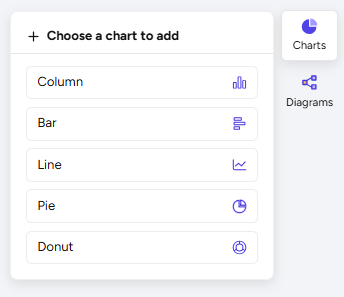
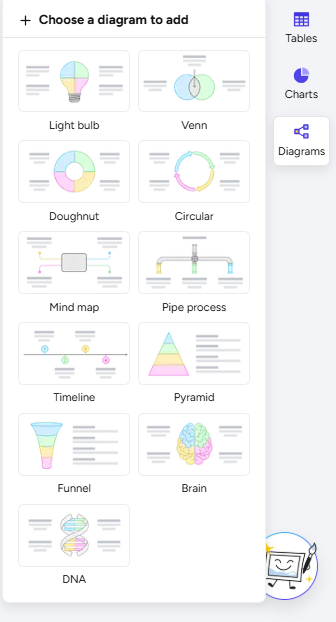
- Rich infographic and diagram library (funnels, timelines, Venn diagrams, process maps)
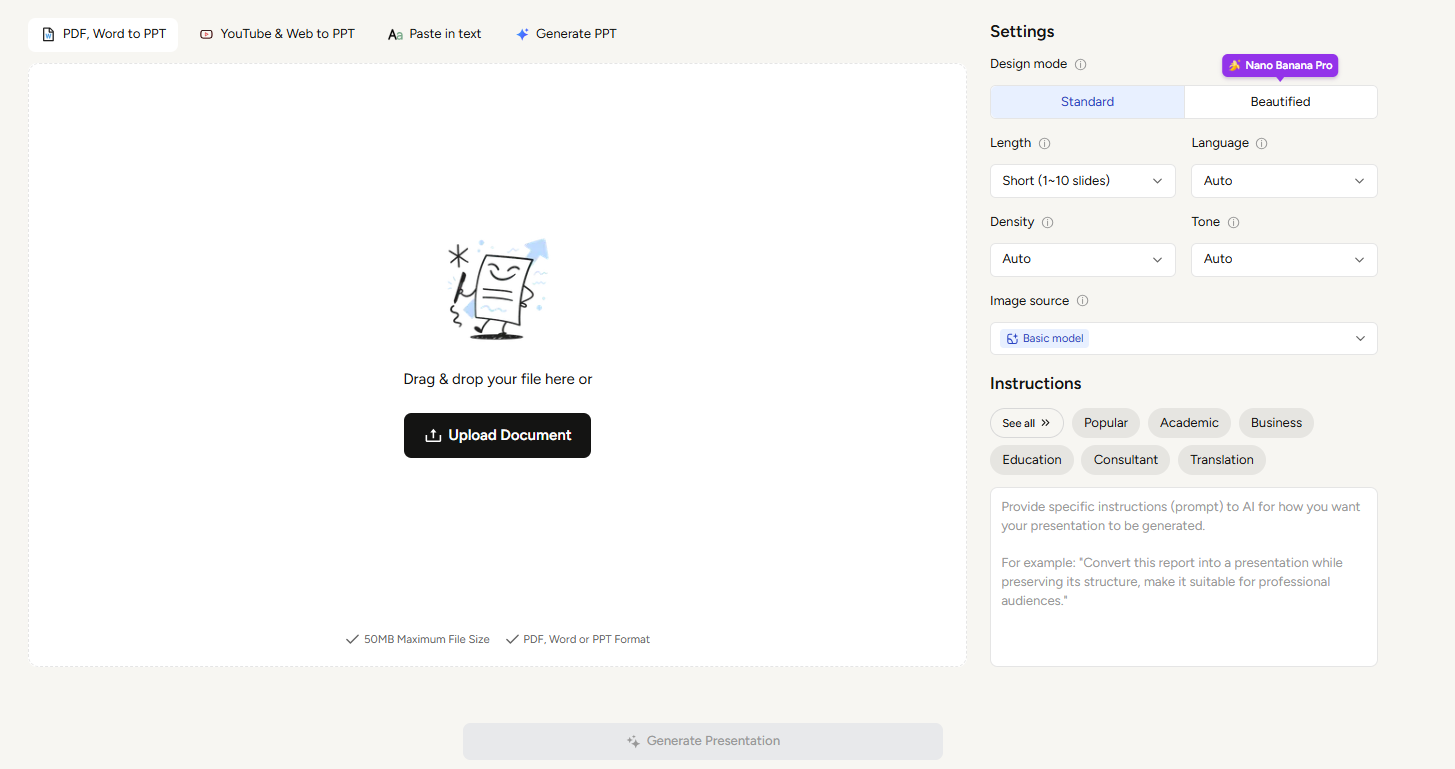
- Granular pre-generation controls for audience, tone, information density, and exact slide counts
- Smooth, error-free PDF-to-PowerPoint conversion that preserves source meaning
Cons:
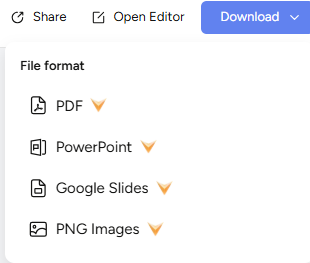
- All downloadable file formats (PowerPoint, PDF, Google Slides, PNG) are paywalled
- Free credit allowance (80 credits) is easily exhausted after one generation and a few edits
- Default visual themes and styling options are somewhat plain compared to category leaders
- Privacy documentation lacks explicit clarity regarding whether user uploads train AI models
Table of Contents
- First Impressions & User Experience
- Core Features
- Performance, Reliability & Everyday Usability
- Pricing Breakdown & Limitations
- Privacy & Data Handling
- Comparison With Gamma and Tome
- Final Verdict
SlidesPilot ended up being one of the nicer surprises in this series for me, mostly because of one thing: it actually listened to what I was asking it to do. After using a bunch of tools where I had to keep correcting the AI or checking whether it had done what I asked, that made a pretty big difference.
There’s quite a lot packed into SlidesPilot. I could make a presentation from a prompt, turn an existing document into a deck, and then make changes to it using the AI afterwards. There are also other tools for PowerPoint and document conversion, so it’s doing more than just making presentations.
The part I liked most was the editing. I could actually give it instructions and have it make the changes I wanted, which made me much more comfortable relying on it after the first presentation was generated. I think it’s a good fit for someone who wants to keep using AI while working on a deck, rather than just using AI once to get a first draft.
The main downside for me was the free plan. The credits disappeared quicker than I expected once I started actually using the editing features, so if I wanted to test SlidesPilot really thoroughly without paying, I don’t think I’d get very far.
First Impressions & User Experience
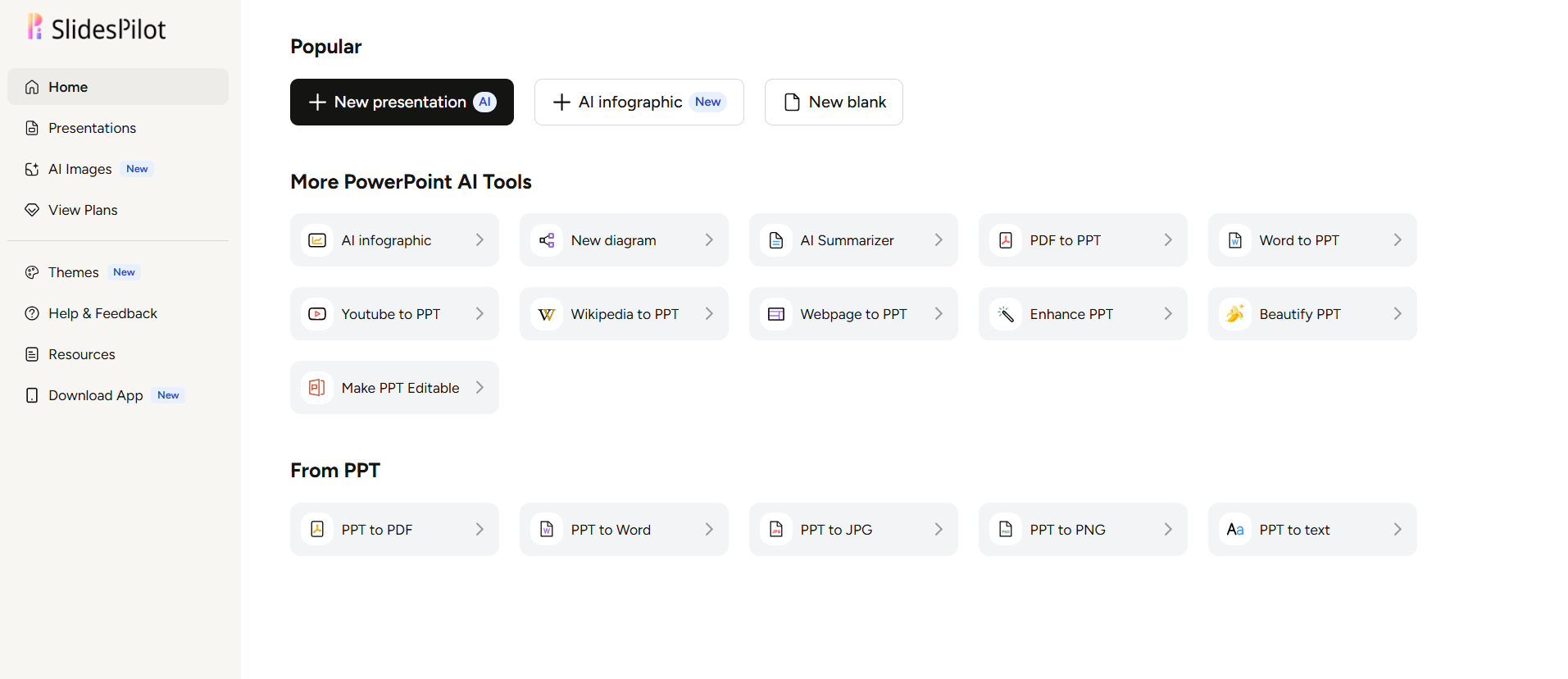
The interface was clean enough, especially considering how much SlidesPilot actually has packed into the homepage. The presentation tools sit alongside a whole bunch of other stuff, like PDF to PPT, Word to PPT, YouTube to PPT, AI summarising and infographic creation. I didn’t test every single one of those separately because I was mainly focused on the presentation workflow, but I did look around enough to see what was there.
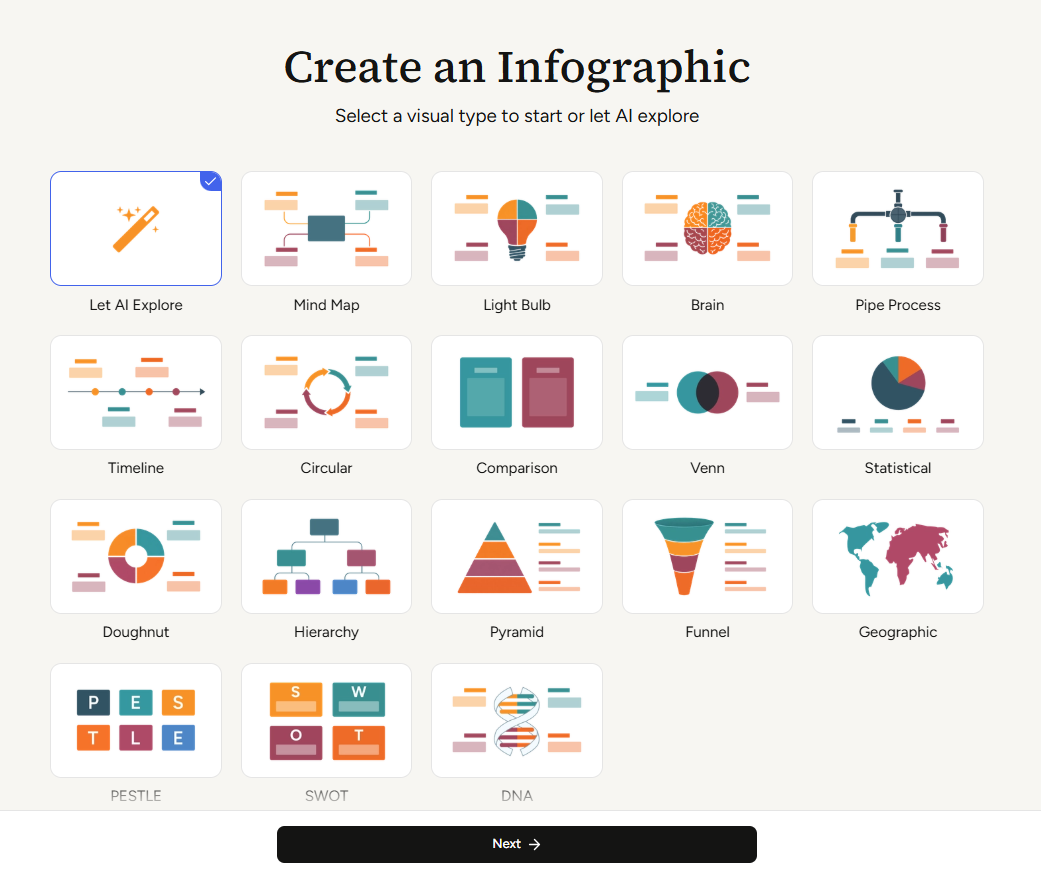
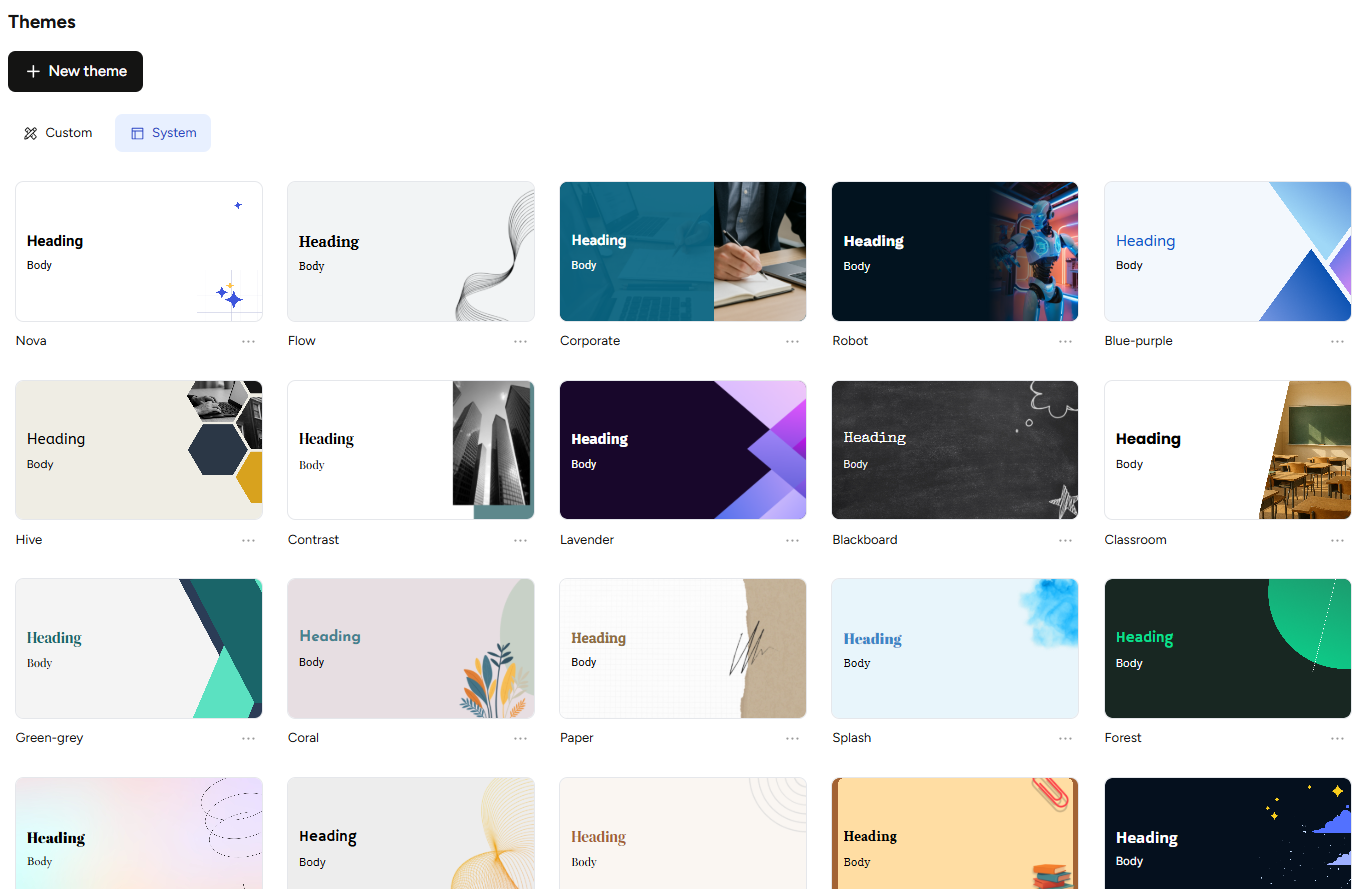
The infographic section actually caught my attention. There were quite a few different layouts and ways to present information, and I thought that part was genuinely useful. The regular theme library was more average for me. There was enough variety to find something I could work with, but I wouldn’t say the themes themselves were one of the things that made SlidesPilot stand out.
Core Features
This is where SlidesPilot quietly became one of my favorite tools in the whole series, even with some real limitations sitting alongside the good parts.
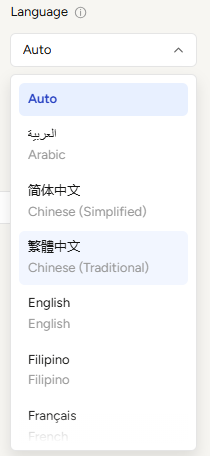
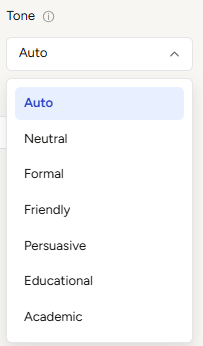
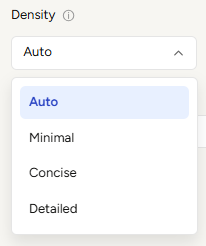
Pre Generation Controls. The pre-generation controls were actually one of the things I liked about SlidesPilot. I could choose the length, language, tone, how much information I wanted on each slide, and even where the images should come from before I generated anything. There was a pretty good range of options for all of these. I could pick from different languages. For tone, I could choose between Auto, Neutral, Formal, Friendly, Persuasive, Educational and Academic. The information density ranged from Minimal and Concise to Detailed. For the length, I could let SlidesPilot decide, choose Short or Long, or set a custom number of slides. Short meant roughly one to ten slides, while Long covered 11 to 20. The custom option could go as high as 200 slides, although the Long and Custom options were only available on a paid plan. I used the Short setting and specifically asked for six slides.
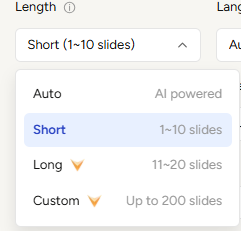
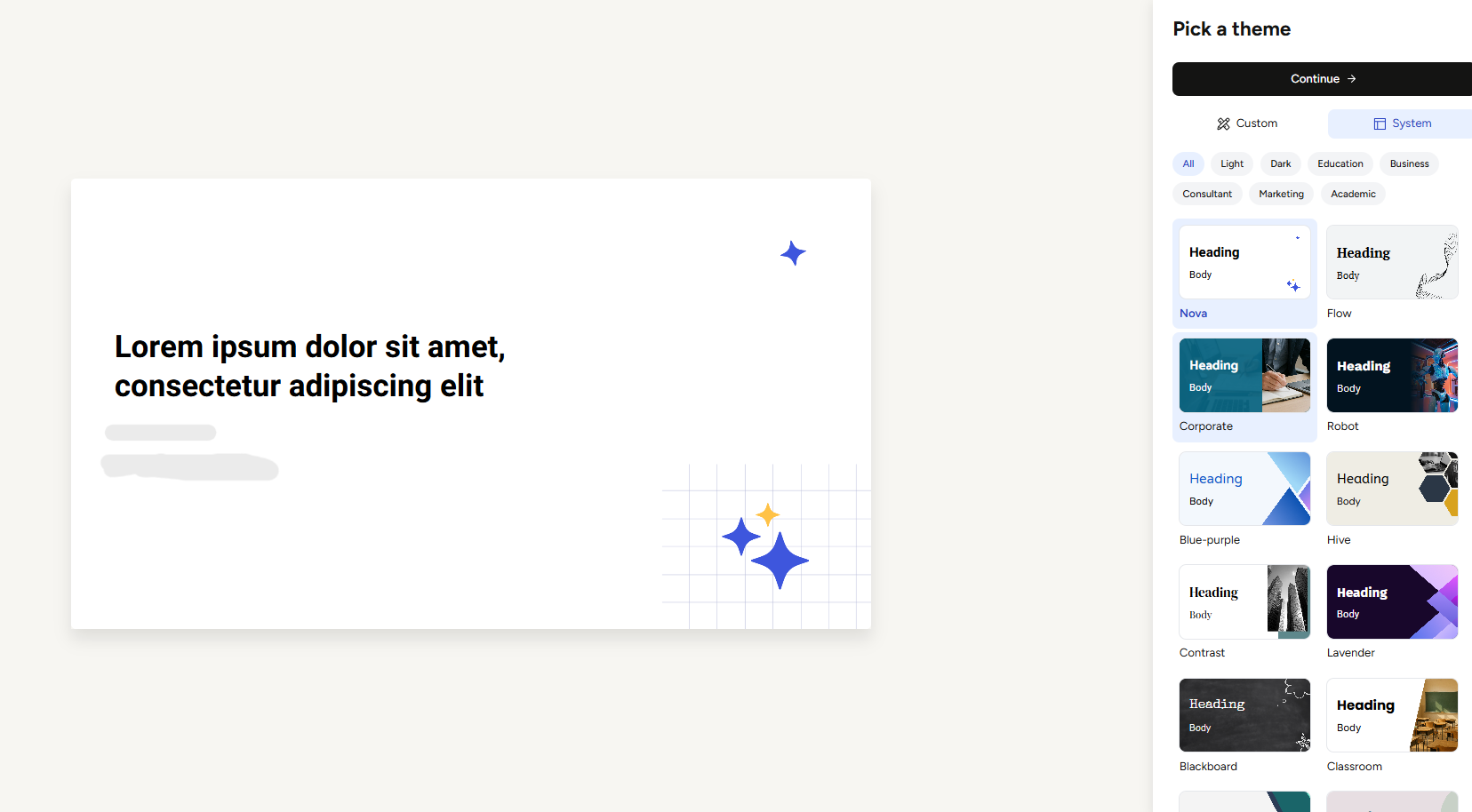
And, importantly, I actually got six slides. That sounds like a very basic thing, but after seeing other tools completely ignore the slide count I’d asked for, or give me a different number and then mess it up again when I tried to correct it, I was genuinely happy to see SlidesPilot just follow the instruction. It was one of those small things that made me feel like I could actually rely on what I was telling it.
Generation speed and initial quality. The generation took around two minutes, which I thought was pretty reasonable. I didn’t have to sit around waiting for it, and once it finished, I was actually quite happy with what I got. The deck had a proper structure to it, and the slides felt like they were building on each other instead of just being a bunch of text put onto different backgrounds. It wasn’t perfect, but it was a solid starting point and, importantly, I didn’t open it and immediately feel like I had to redo half of it myself.
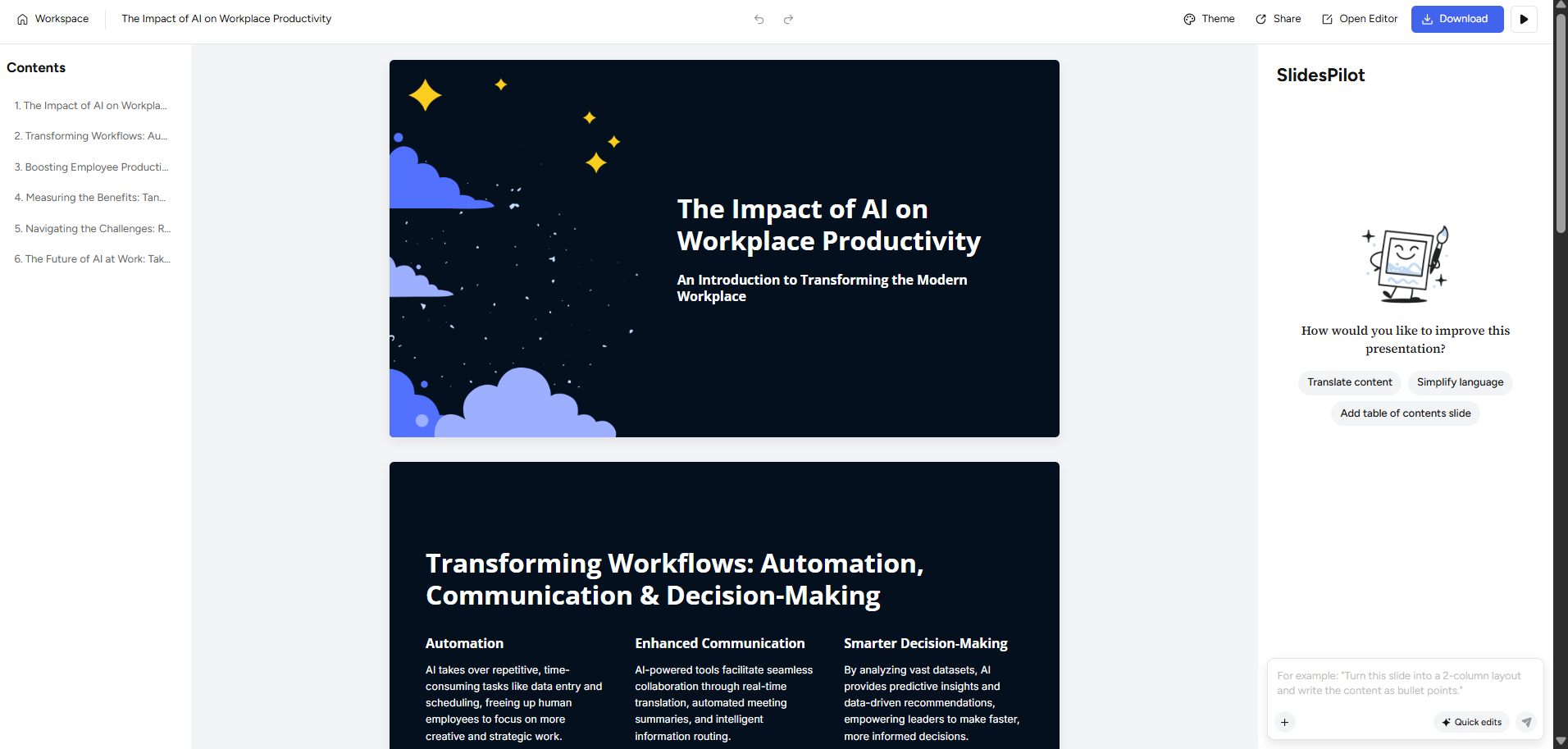
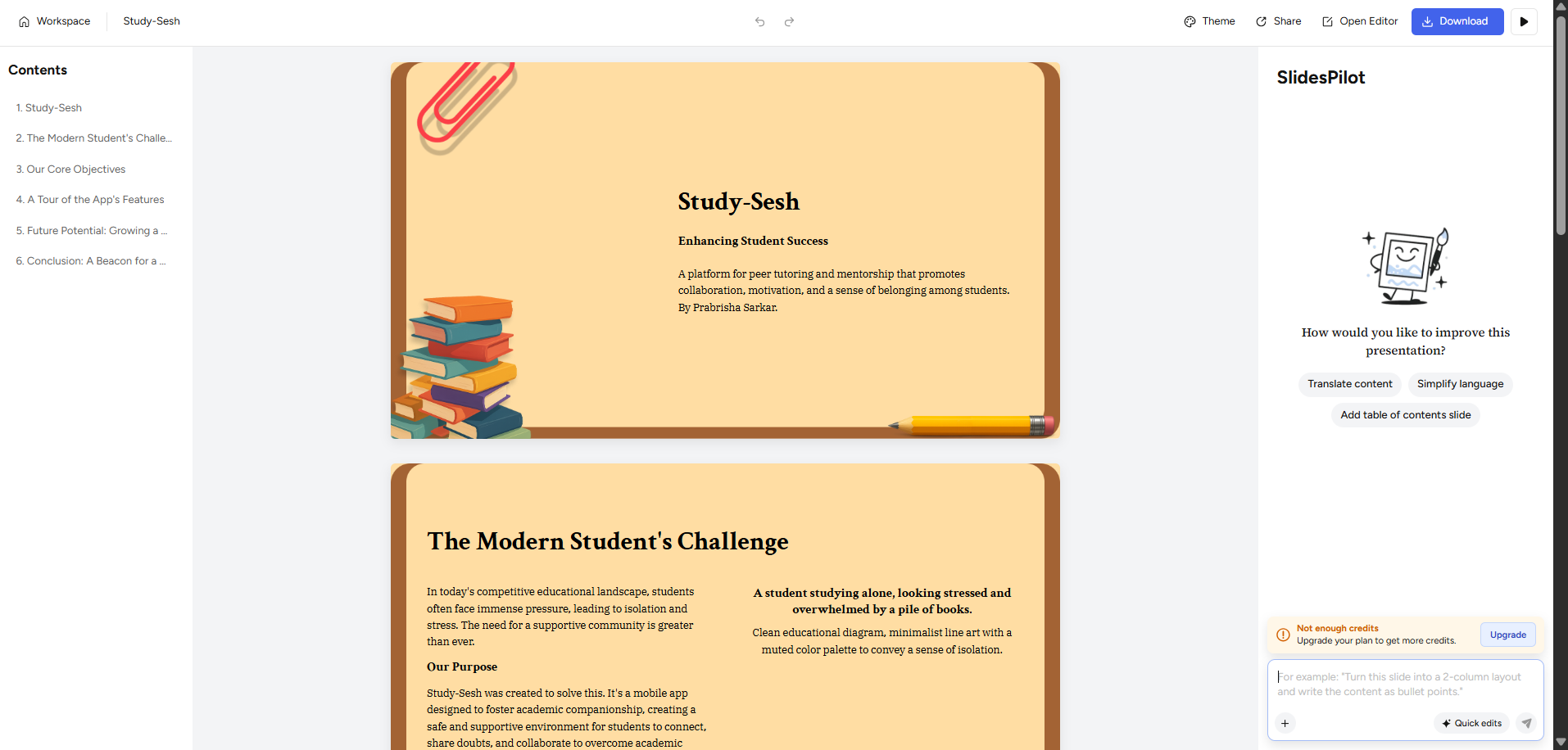
The AI editor, easily the best part. This was probably the point where my opinion of SlidesPilot really changed. I first asked it to add more visuals to the presentation, and it actually did what I asked. Then I gave it a slightly more involved instruction: take the six-slide deck, turn it into eight slides, and add infographics as well. It managed to do both in the same go, and the changes actually made sense.
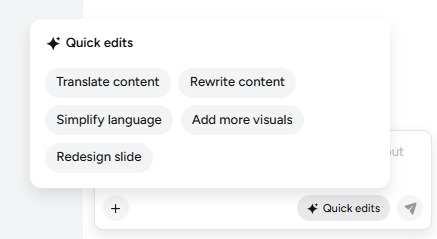
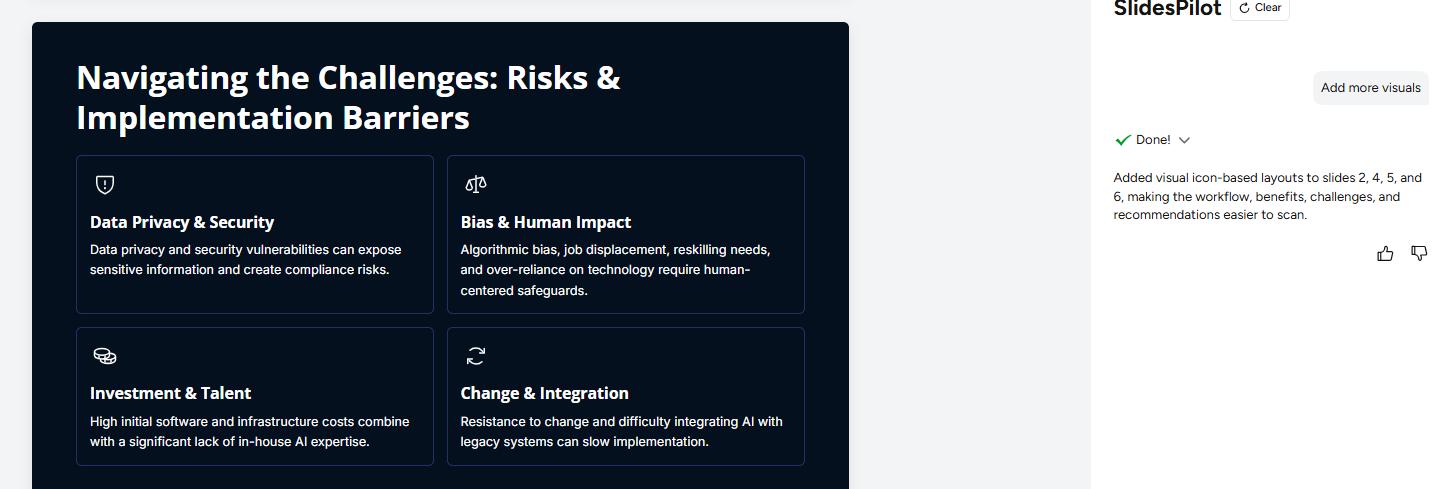
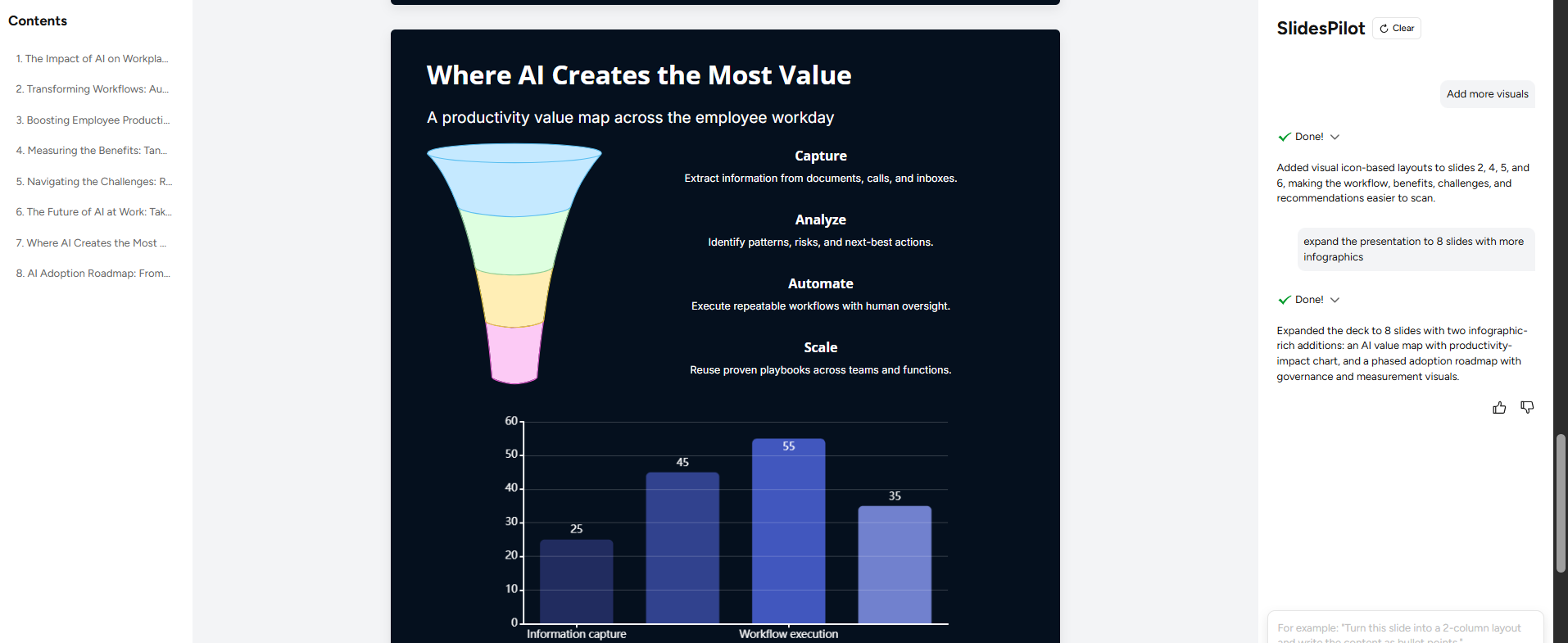
That might not sound like a huge deal on its own, but after testing so many of these tools, I had started expecting AI editors to pick one part of an instruction and completely forget about the other. I’d ask for two or three changes and end up with one of them done, one half-done, and sometimes something else changed that I hadn’t even asked for. I didn’t have that problem here. I didn’t have to repeat myself, go back and fix the slide count, or manually add the visuals afterwards. It just handled the whole request.
That was honestly what made SlidesPilot stand out for me. It wasn’t just that the individual edits worked. It was that I could give it a proper instruction with multiple things in it and trust that it would actually work through the whole thing. After some of the other agents I’d tested in this series, that felt like a pretty big difference.
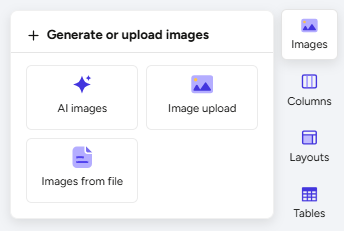
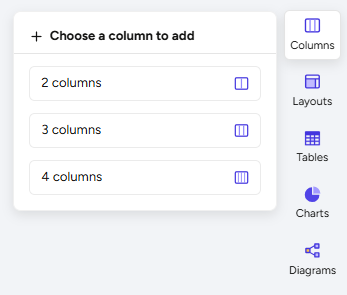
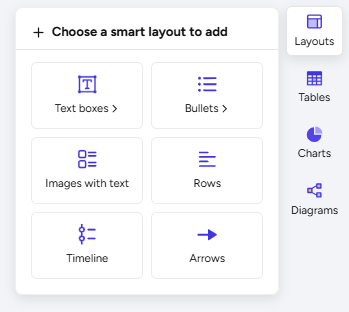
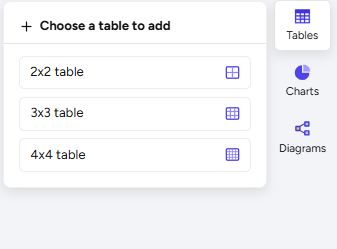
Manual editor. The manual editor was pretty solid. I could edit text, add images, use different column layouts, and work with tables, charts, diagrams and infographics. There was enough there for me to make fairly specific changes myself without feeling like I was fighting the editor. What I liked most was that I could still take over whenever I wanted instead of having to rely completely on the AI.
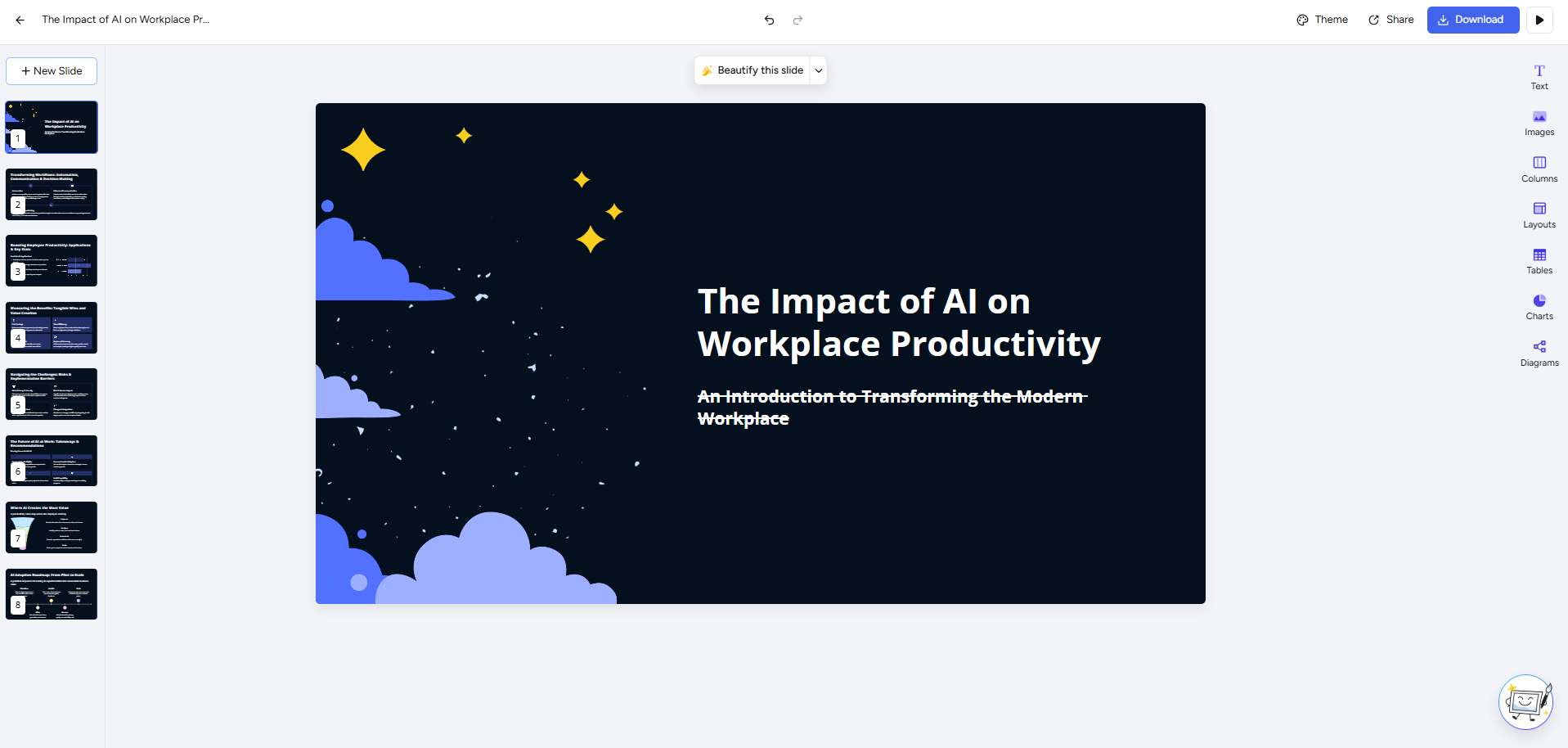
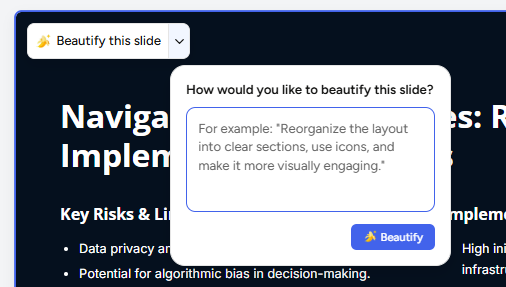
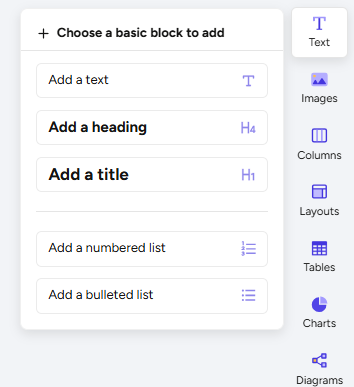
Then there was Beautification, which I found pretty useful. I could ask the AI to change how a particular slide looked instead of manually going through every element and trying to make it look better myself. There was also an option to change the whole theme, so I had a couple of different ways to change the visual direction of the presentation without having to start from scratch. I liked that balance overall. I could let the AI deal with the tedious stuff, but still have proper manual control when I wanted to get more specific.
PDF to PPT. I tested this feature separately from the prompt-based presentation maker. It wasn’t a perfect conversion, but I thought it handled the uploaded material reasonably well. It understood the source content well enough that the resulting presentation was actually useful. I wouldn’t say I could take it and use it without checking anything, but it was definitely closer to something I could work with than a conversion I’d have to completely rebuild myself.
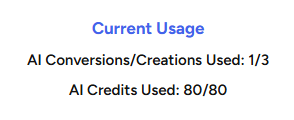
Credits. The credits were probably the biggest downside for me. I started with 80 AI credits, and between the first full presentation generation and the AI editing I actually wanted to try, I managed to use the whole allowance. That was especially frustrating because the AI editor was the part of SlidesPilot I liked most. I finally had a tool where I actually wanted to keep trying different edits and see how far I could push it, but the free credits didn’t really give me enough room to do that.
I could still make a second presentation through the PDF workflow, but if I wanted to keep using the AI editing features regularly, I’d pretty clearly have to move onto a paid plan. So the free tier was enough for me to get a feel for SlidesPilot, but not really enough to properly explore the feature that ended up impressing me the most.
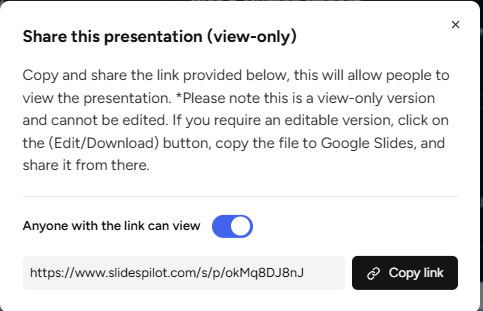
Export. The export was another familiar limitation. I could share the presentation through a view-only link on the free plan, which worked fine, but actually downloading the finished file was locked behind a subscription. I still prefer having the actual file, especially when I’m testing a presentation tool, so that was a bit frustrating.
Performance, Reliability & Everyday Usability
Throughout my testing, SlidesPilot stayed pretty quick and dependable. The generation was consistent, and I didn’t run into any crashes, freezing or weird behaviour while I was using the editor. Everything stayed responsive when I was moving between the different tools and making changes.
The bigger thing for me was that the performance stayed consistent across the different things I tried. The AI didn’t suddenly slow down or start behaving strangely when I followed up with another request, and I didn’t run into anything that interrupted the workflow. After some of the other tools where I’d had problems with things breaking or behaving differently from one request to the next, SlidesPilot felt pretty dependable here. I could actually get on with testing it instead of spending half my time wondering whether the next thing I clicked was going to work.
Pricing Breakdown & Limitations
The free plan gives me 80 AI credits along with three AI conversions or creations. The paid plans are:
- Starter: $8/month
- Plus: $15/month
- Pro: $23.33/month
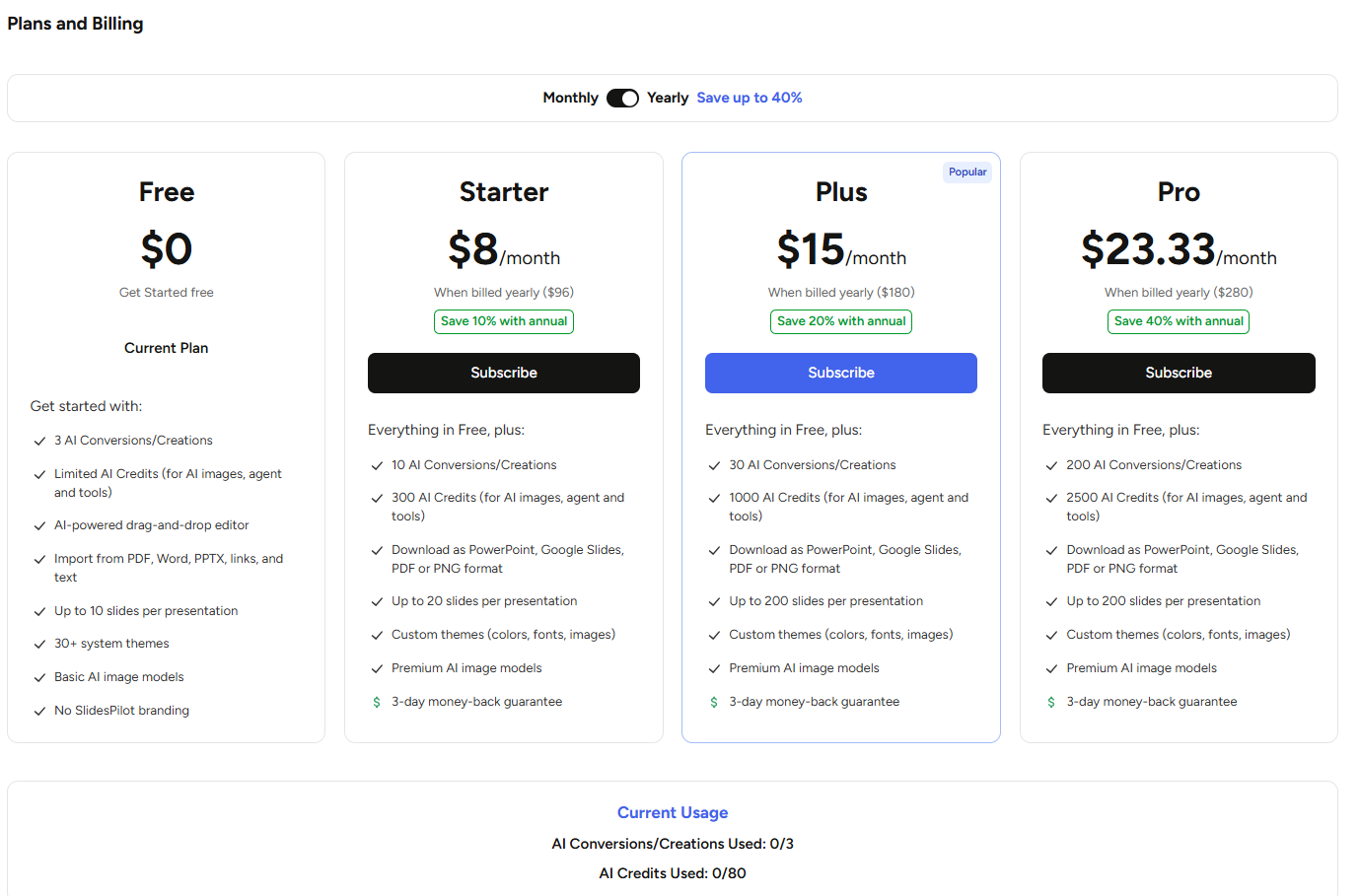
Each step up gives me more credits, more template options, additional download formats and higher slide limits. For me, the main issue is how quickly those free credits disappeared. I used them up pretty much just by generating a presentation and using the AI editing features I actually wanted to try. So if I were planning to use SlidesPilot’s AI editing regularly, I think I’d end up on at least the Starter plan fairly quickly.
Privacy & Data Handling
I wasn’t able to get the same level of detail from SlidesPilot’s own privacy policy that I found with some of the other tools in this series. The mobile app, listed under the name Pilot AI, does disclose the usual account and usage information being collected and handled. SlidesPilot also says it has several million users across its web and mobile products.
What I couldn’t find was a clear statement about whether uploaded documents or the presentations I generate are used to train their AI. Since that’s not something I could confirm either way, I wouldn’t make assumptions about it. If I was planning to upload anything sensitive or confidential, I’d check with SlidesPilot directly before doing so.
Comparison With Gamma and Tome
Category | Gamma | Tome | SlidesPilot |
|---|---|---|---|
AI presentation quality | Polished, consistent, ready to present | Visually decent but image relevance was weak | Good structure, followed instructions precisely including exact slide counts |
Design quality | Clean and professional | Distinctive editorial look, but repetitive across decks | Decent, theme library isn’t a particular strength, but better than Tome |
Visual assets | Automatic charts and diagrams | Decent but frequently mismatched to content | Strong infographic selection, add on request |
Template variety | Solid range | Thin, limited Showcase gallery | Limited compared to Gamma, functional but not extensive |
Editing experience | AI editor plus full manual tools | Almost entirely AI dependent, minimal manual control | AI editor plus beautification plus manual tools |
AI assistance | Reliably executes instructions | Inconsistent, succeeded once, failed twice on similar asks | Reliably executed compound instructions in one pass |
Export options | PDF, PowerPoint, Slides, PNG free | All formats locked behind paid plans | Download locked behind subscription, share link free |
Pricing | Roughly $8 to $20 a month | Roughly $9.50 to $47.90 a month | $8 to $23.33 a month |
Free plan | Genuinely usable | Thin credits, plus queue delays pushing an upgrade | Credits burn through fast with real editor use |
Gamma and Tome both make sense as comparisons here, but for different reasons. Gamma is the benchmark for a genuinely complete AI presentation workflow, while Tome is useful because its AI Agent had some of the same reliability problems I’ve seen elsewhere. That makes SlidesPilot’s instruction following stand out even more.
Gamma still comes out slightly ahead overall, mainly because of its better free export options and stronger template library. I couldn’t really trust Tome’s AI Agent. It would sometimes stop halfway through a task or change the slide count unexpectedly when the request itself was pretty straightforward. SlidesPilot was the opposite in my testing. When I asked it to expand a six-slide deck to eight slides and add infographics, it did both without me having to step in. On AI editing alone, I’d put SlidesPilot much closer to Gamma than Tome, even if its smaller template library and tighter free credit limit hold it back a bit.
Final Verdict
My overall experience with SlidesPilot was pretty positive, and most of that came down to the AI editor. Seeing it take a more complicated instruction, like adding slides and putting in a specific type of visual at the same time, and actually do both properly was one of the better moments of this whole testing series. I didn’t have to repeat myself or go back and finish the job manually. Even the fact that it followed my six-slide instruction when I first generated the presentation made a difference. It’s a small thing, but after seeing other tools ignore basic instructions, I definitely noticed it here.
The credits are still a real problem, though. I used up the free allowance pretty quickly, and unfortunately the feature I liked most was also the one I wanted to keep using. Having downloads locked behind a paid plan doesn’t help either. On the free tier, I could share a view-only link, but I couldn’t actually take the finished presentation with me as a file. I enjoyed using the editor enough that neither of these things ruined the experience for me, but they would definitely matter if I was deciding whether I could stick with the free plan.
Overall, SlidesPilot felt like one of the more reliable tools I’ve tested, especially when it came to making changes after the initial presentation was created.
Overall score: 7.5/10.
Frequently Asked Questions:
SlidesPilot excelled in testing by handling compound requests in a single pass—such as taking a 6-slide deck, expanding it to 8 slides, and integrating custom infographics without losing context or requiring follow-up prompts.
No, free users are limited to sharing view-only links. Exporting to PowerPoint, PDF, Google Slides, or PNG files requires upgrading to a paid plan.
The Beautify feature is a one-click AI layout optimizer that automatically reorganizes an unformatted slide into clear sections, adds supporting icons, and enhances overall visual balance.
The free plan provides 80 credits and permits up to 3 AI conversions or creations, though active testing of the AI editor will typically exhaust your credits after the first full deck.
Abonneer je op onze nieuwsbrief en ben als eerste op de hoogte van tijd- en geldbesparende AI-tools!
Comments