Conclusion
Presentations.AI produces some of the most sophisticated, contextually intelligent infographics and workflow diagrams in the automated slide space. Its presenter-role customization, handy “Split into 2 Slides” tool, and ready-to-deliver speaker notes deliver an exceptional first draft. However, the free experience is heavily crippled: your starter credits run dry after just two decks, and all direct file exports (PPTX, PDF, Google Slides) are locked behind an expensive $20/month subscription.
Pros:
- Contextually intelligent infographics and diagrams that genuinely represent complex slide concepts
- High-quality, context-rich speaker notes that require virtually no editing before presenting
- Unique “Split into 2 Slides” feature intelligently redistributes overloaded content
- Fast generation speed, assembling complete, visually coherent decks in roughly one minute
Cons:
- Every export format (PPTX, PDF, Google Slides) is locked behind a paid Pro plan
- Extremely small free credit allotment that is completely exhausted after only two generations
- AI editing relies on a predefined menu of actions rather than an open conversational agent
- Upgrading to access file exports requires a steep jump to $20 per month
Table of Contents
- First Impressions & User Experience
- Core Features
- Performance, Reliability & Everyday Usability
- Pricing Breakdown & Limitations
- Privacy & Data Handling
- Comparison With AutoPPT and Presenti
- Final Verdict
I moved onto Presentations.AI right after AutoPPT, and I was hoping this one would be a bit better because the last tool had left me pretty underwhelmed. Thankfully, my first experience with it was much more positive. The thing that stood out to me pretty quickly was how much attention Presentations.AI seemed to put into the actual look of the presentation. It wasn’t just generating slides and putting some nice colours and images around the text. The diagrams, charts and infographics actually had a purpose and, in most cases, made sense with what the slide was trying to explain.
Because of that, I think Presentations.AI is a particularly good choice for someone who cares about the visual side of a presentation and wants something that already looks fairly polished without having to spend ages fixing every slide afterwards. I also liked that there was still quite a bit I could change myself once the presentation had been generated.
That said, I don’t think it’s going to be everyone’s thing. If you’re looking for an AI editor where you can just type out exactly what you want changed and have a proper back-and-forth with it, Presentations.AI felt a little more restrictive to me. Its AI editing tools are more structured, with specific actions you can choose from rather than a completely open-ended conversation. The free plan is also something I’d keep in mind. It’s fine for getting a feel for the platform, but after using up the credits, I didn’t really see it as something I’d keep coming back to for regular presentation creation without paying.
First Impressions & User Experience
The interface was clean, and I didn’t really experience any learning curve while using it. I was able to find my way around pretty quickly without having to stop and figure out where everything was. My one recurring complaint, though, was the lack of a dark mode. It’s a small thing, and it obviously doesn’t affect how well the presentation itself works, but at this point I definitely notice when a tool doesn’t offer one.
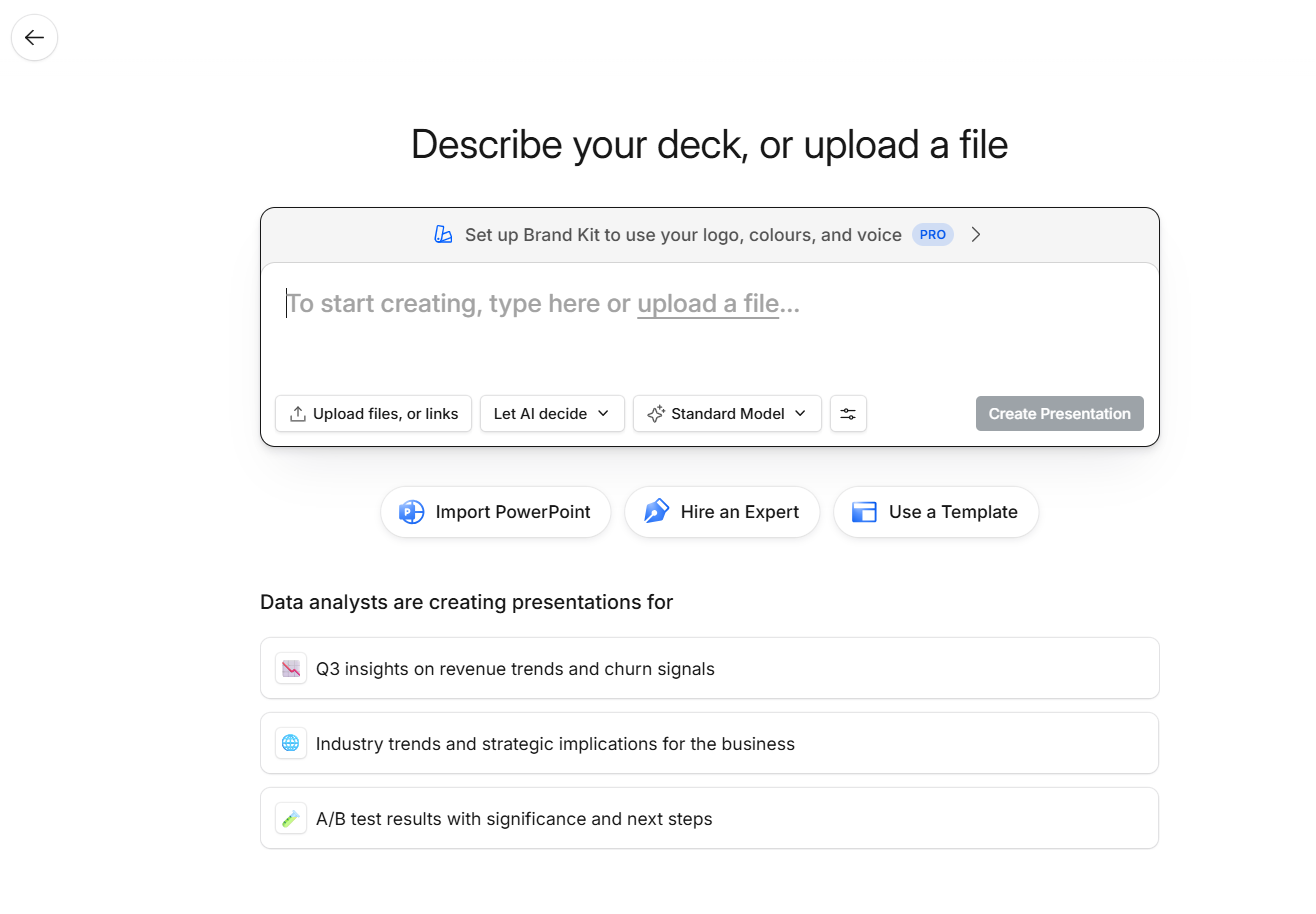
Right from the home screen, I had quite a few different ways to get started. I could generate a presentation from a prompt, pick a template, upload an existing file or presentation, or import content that I already had. There was also a “hire an expert” option, which I thought was pretty interesting because it basically combines the AI platform with an actual human presentation consultant. I didn’t try that option myself, though. Since I was testing these tools specifically to see what the AI could do on its own, bringing an actual person into the process would’ve kind of defeated the point of the test for me. So I stuck to the AI features and left the expert option alone.
Core Features
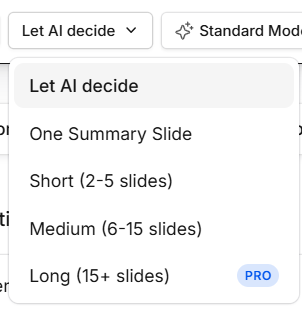
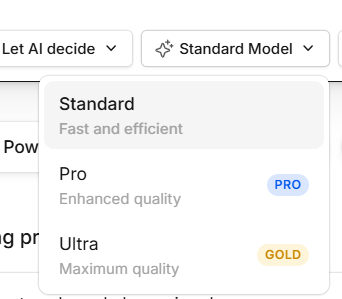
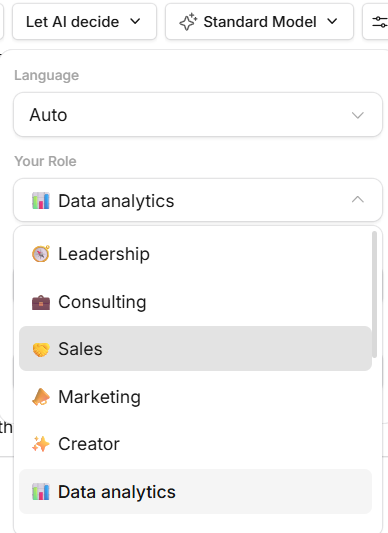
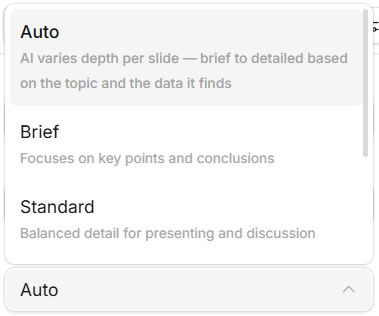
Pre generation controls. Before generating anything, I had a decent set of dials to turn, slide count in which I could let the AI decide, or pick a range from one summary slide up to long decks over 15 slides, with that longer option gated to Pro, model choice between Standard, Pro and Ultra, with the latter two paid only, language, and something I hadn’t seen phrased quite this way before, my role. Instead of asking who the audience was, it asked who I was, data analytics, leadership, consulting, sales, marketing, creator. That’s a pretty different angle than the audience first approach most other tools take, and I found it an interesting way to think about tailoring a deck around the presenter’s own perspective rather than just the viewer’s.
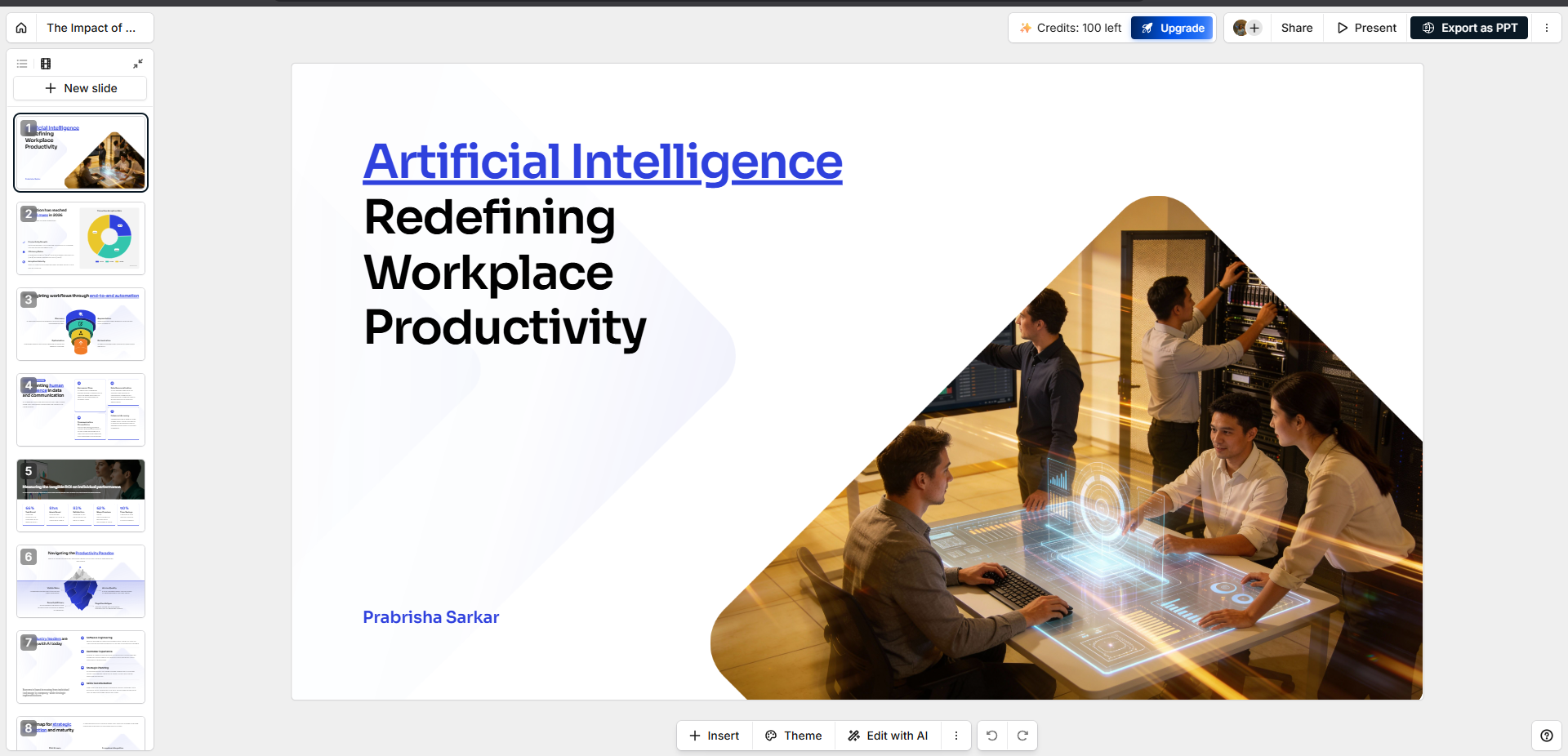
Output quality. Presentations AI generated the ppt fairly quickly, in just about a minute or so. And I must say, the output quality is where it really pulled ahead of AutoPPT for me. The infographics and charts actually connected to the content they sat next to, this wasn’t text dropped over a nice background, the visual elements were doing real communicative work. My AI and workplace productivity deck included actual workflow diagrams instead of another wall of bullet points, and the overall visual hierarchy felt considered rather than templated on top of my content.
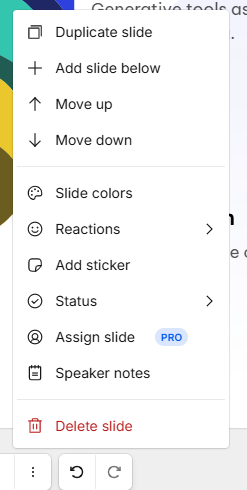
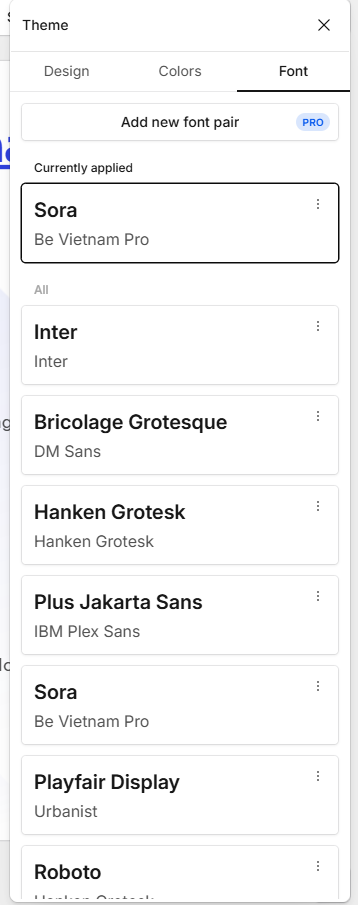
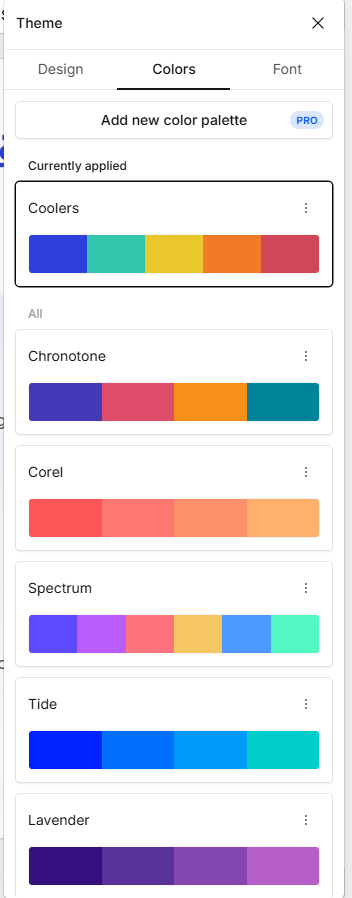
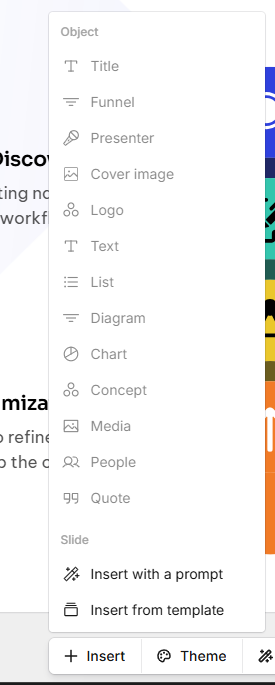
Manual editor. There was a solid range here, I could select individual elements and edit titles, text, images, add lists, diagrams, charts, media, quotes, people blocks, insert new slides via prompt or template, duplicate, reorder, recolor, even add stickers or assign a status like in progress or done. Theme controls were separated into design, color and font, with several genuinely distinct palettes to choose between rather than slight variations on one look.
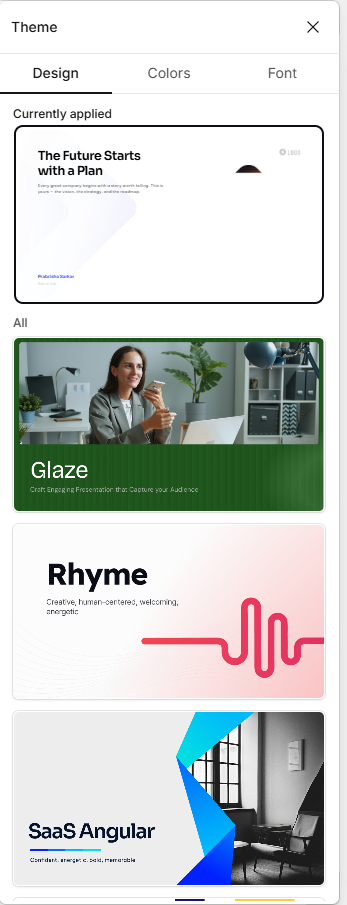
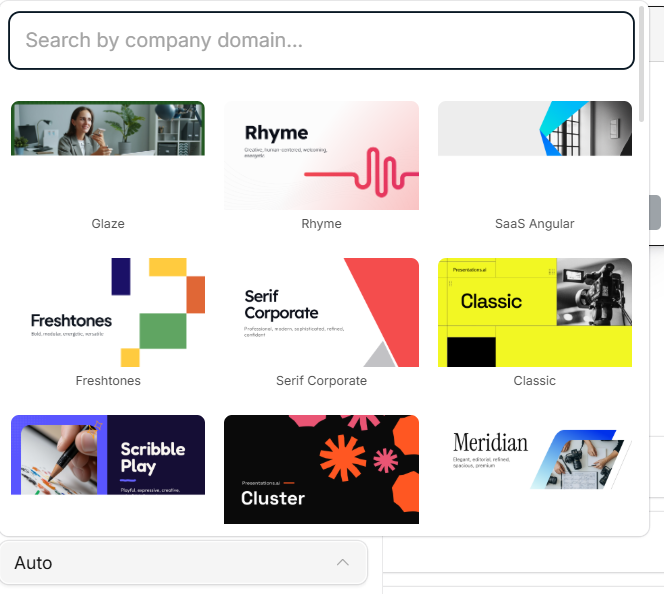
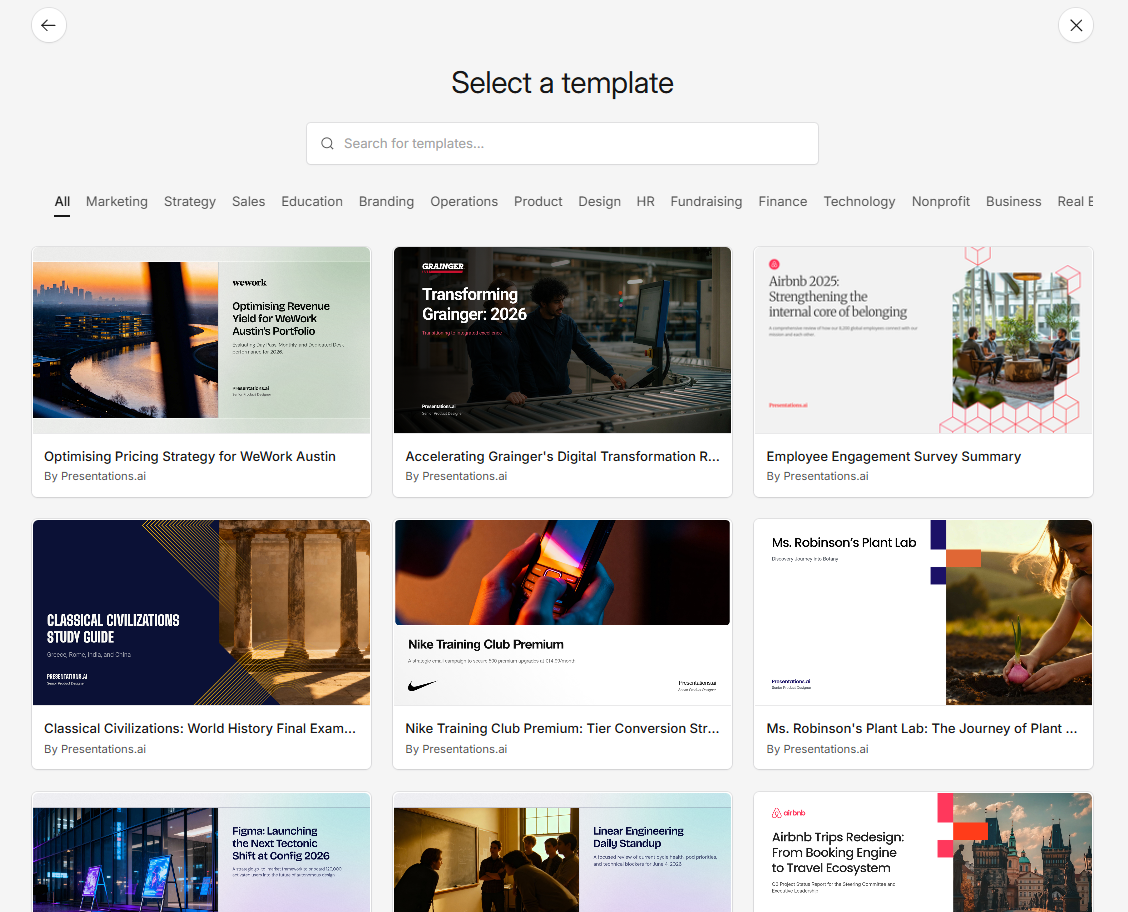
Template quality. It was another clear step up from AutoPPT here too. The styles actually looked different from each other, I could browse by category, and more importantly wasn’t constantly hitting a paywall in the middle of browsing free templates the way I had with AutoPPT’s Pro locked options.
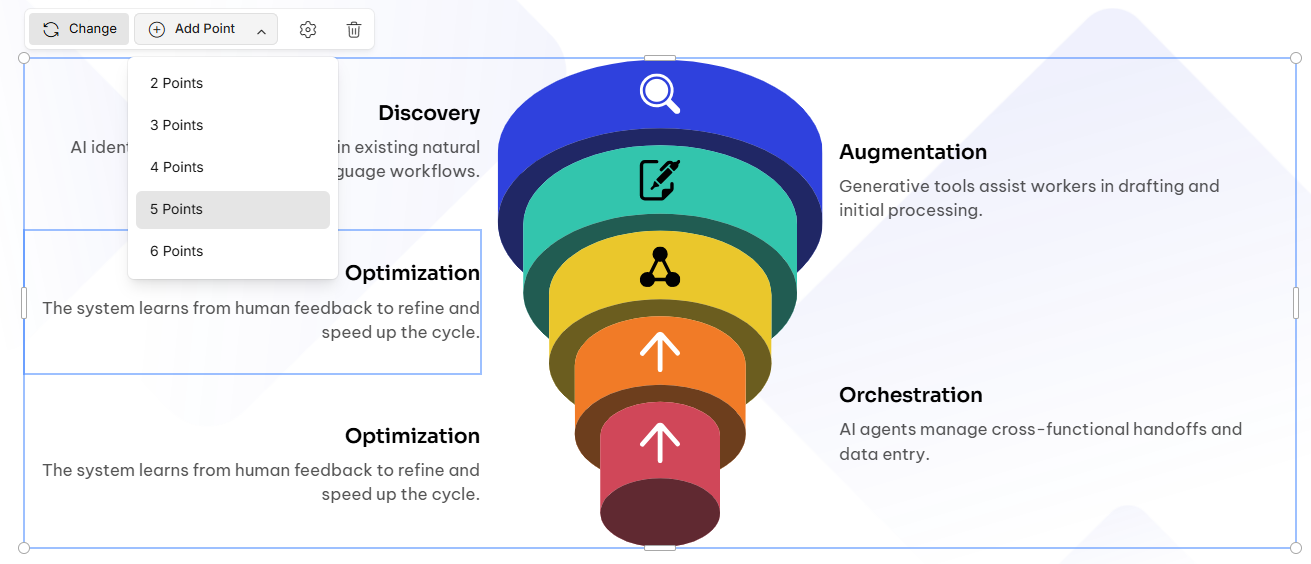
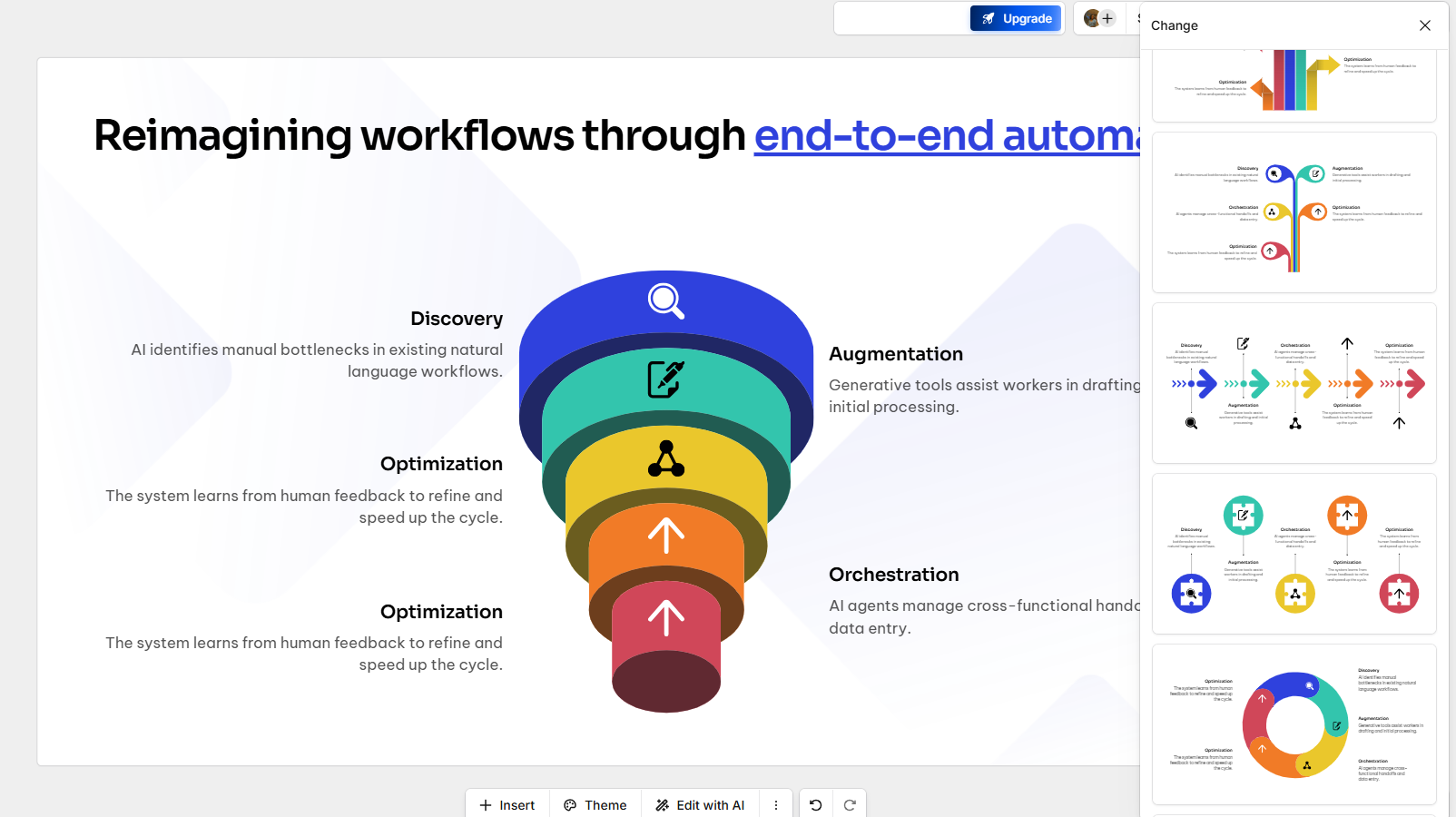
Editable infographics. I liked that the diagrams weren’t static images I was stuck with. I could add or remove individual points within a diagram and switch between different visual forms for representing the same underlying information. That adjustability made the whole deck feel more like something I was actually working with rather than something I had to accept as final.
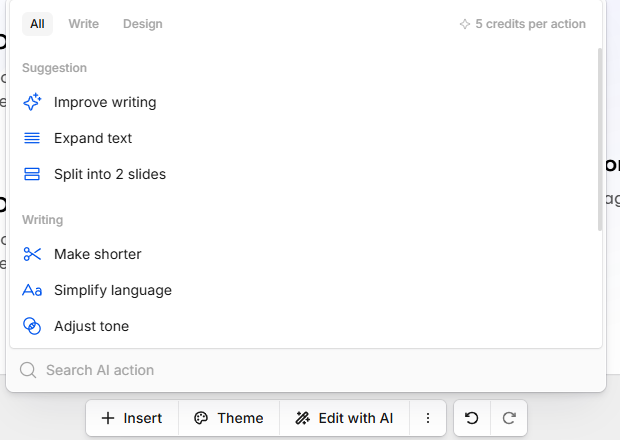
The AI editing system, sort of an agent. The AI editing system here isn’t really a fully open-ended conversational agent like what I found in Gamma. It’s more of a curated set of actions that I can pick from depending on what I want to change. I could make text shorter, simplify it, adjust the tone, improve the writing, expand it, split the content into two slides, redesign the whole slide or redesign a graphic. I found these options useful for the more common presentation edits, but the system did feel a bit rigid because I was limited to whatever actions were available. I couldn’t just type out a specific instruction like “move the diagram to the left, make the image smaller and add another example underneath it” and expect it to figure out the whole thing. I had to work within the buttons Presentations.AI gave me.
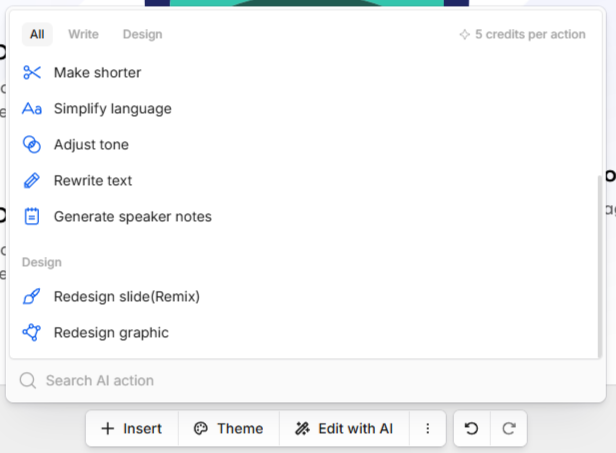
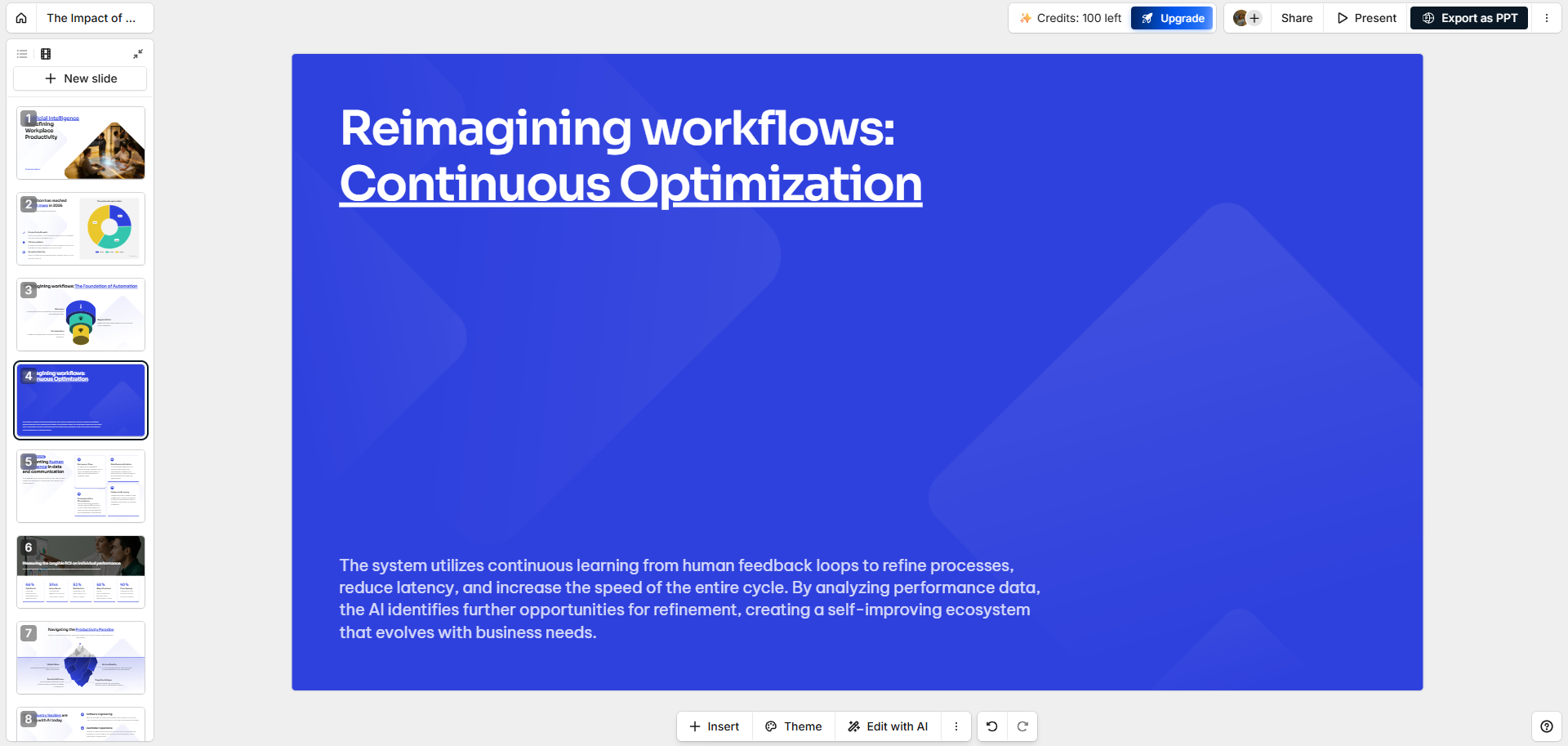
One option that I thought was particularly worth mentioning was Split into 2 Slides. I tested it on a slide that had around five points and was starting to feel a little overloaded, and it actually did exactly what I wanted. Instead of simply cutting the text in half or duplicating the original slide, it divided the information sensibly between the two slides. It’s a fairly small feature, but I found myself appreciating it because it solved an actual presentation problem without me having to manually reorganise everything.
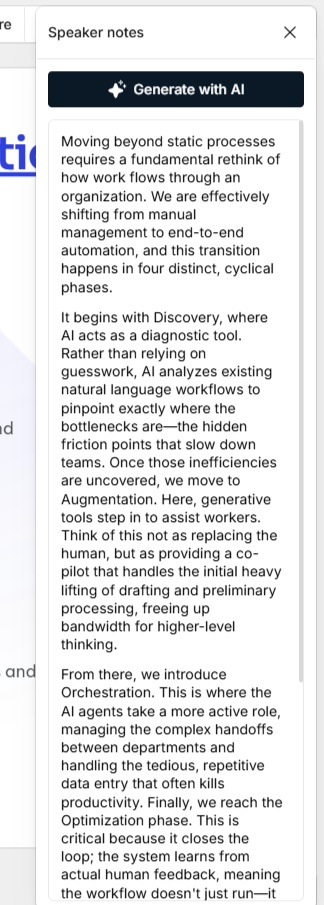
Speaker notes. Honestly my favorite single feature across this whole test. The notes were good enough that I didn’t feel any urge to rewrite them before actually using them, they gave real context beyond just restating what was already on the slide. Compared to some of the other tools in this series where speaker notes felt like an afterthought, this one actually delivered.
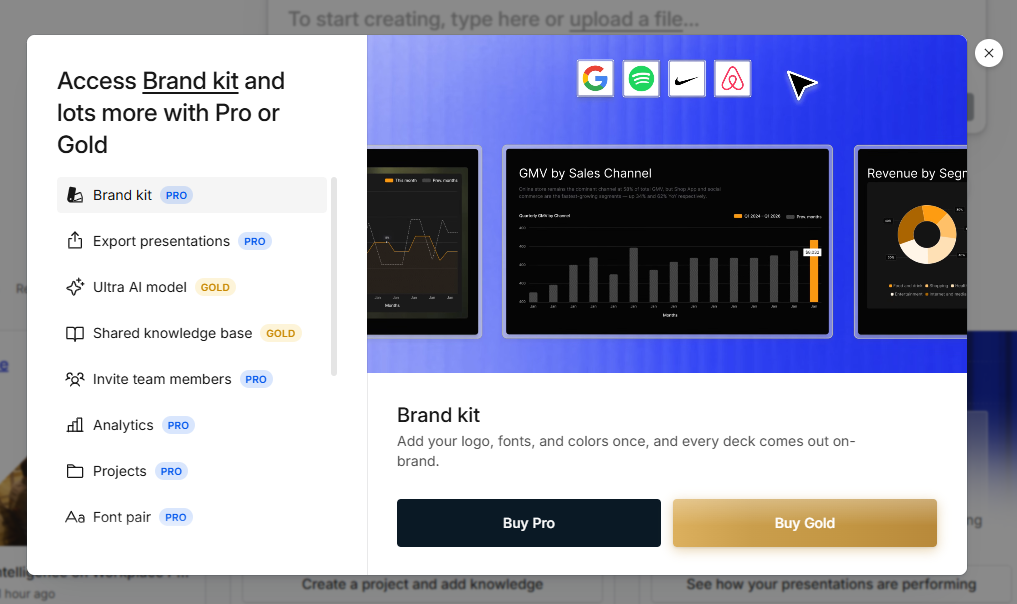
Brand Kit. Logos, colors, fonts, all managed centrally, genuinely useful for corporate use, though it’s locked behind Pro, with some pieces further gated to the Gold tier.
PDF plus template test. I also tried the PDF-to-presentation route, combining an uploaded PDF with one of the templates to see how well Presentations.AI could work with material I already had rather than starting from a blank prompt. It understood the PDF pretty well, so I didn’t have any major issues with it completely misreading the source. The problem was more with how much of the information actually made it into the final deck. The presentation felt noticeably thinner than the one I had generated from a prompt, and some of the content was simplified more than I expected considering how much information was in the original PDF. It wasn’t a bad result by any means, but when I put the two side by side, I definitely preferred the prompt-generated version. That one felt more complete to me and the information was structured in a way that made more sense as a presentation.

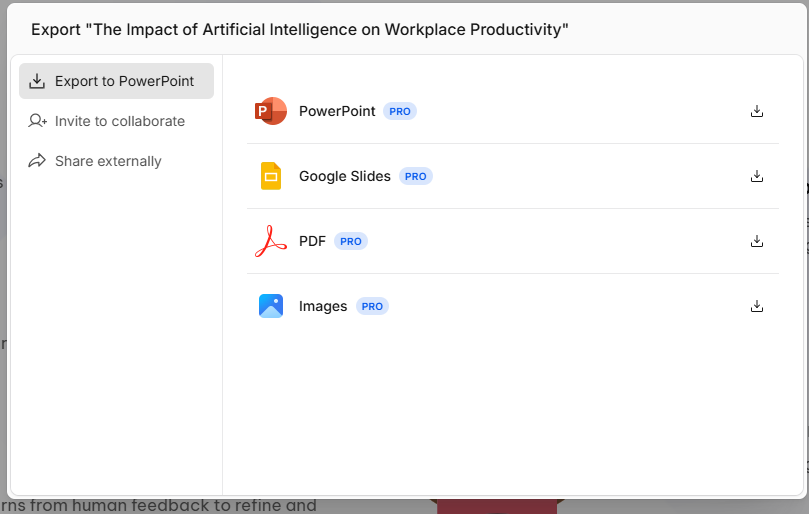
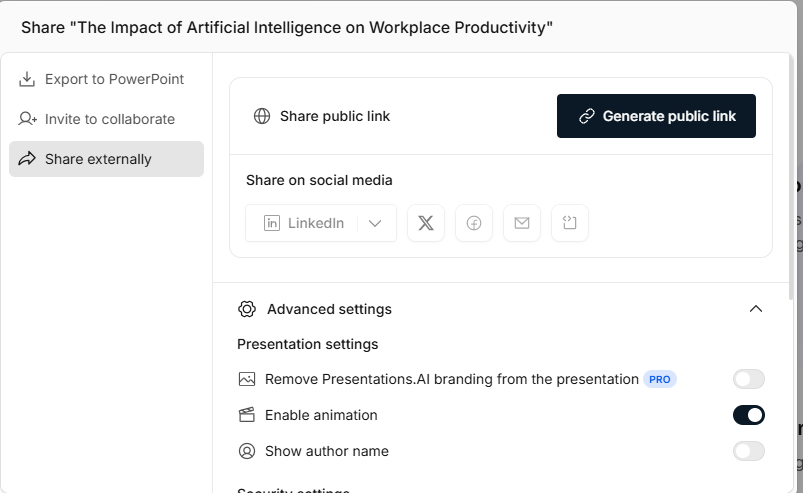
Export. This is where the experience turned frustrating. PowerPoint, Google Slides, PDF and image export were all shown but every one of them sat behind Pro. I could create and polish a deck extensively and then hit a wall the moment I wanted to actually take it anywhere. Sharing via public link was available for free, along with social sharing, but the deck kept Presentations.AI branding unless I paid to remove it.
Credits. This is the other real limitation. The free Starter plan handed me 100 credits, and by the time I’d generated two presentations, the prompt based one and the PDF plus template one, I was basically out. Two full generations is not a lot of runway for someone actually trying to use this regularly, it’s enough to get a feel for the platform and not much more.
Performance, Reliability & Everyday Usability
I didn’t really have any complaints about stability. Generation was fast and consistent, and I didn’t run into the kind of reliability issues. There was no weird agent behaviour, and I didn’t see the slide count suddenly changing on me either. The predefined AI actions were definitely more limited than a full conversational agent, but I actually think that made them more predictable. If I clicked an option, it pretty much did exactly what I expected that option to do.
Pricing Breakdown & Limitations
The pricing is where Presentations.AI started feeling a little less appealing to me. The free plan is enough to get a proper feel for the platform, but I wouldn’t call it particularly generous if I actually wanted to keep using it regularly.
- Starter – Free: 100 credits, the base AI model, and a 20-slide limit.
- Pro – $20/month: Billed annually, with around 6,000 credits, better AI models, presentation tracking and analytics, and brand customization.
- Gold – $100/month: Billed annually, with a much larger credit pool, the highest-tier models, and the full set of brand features.
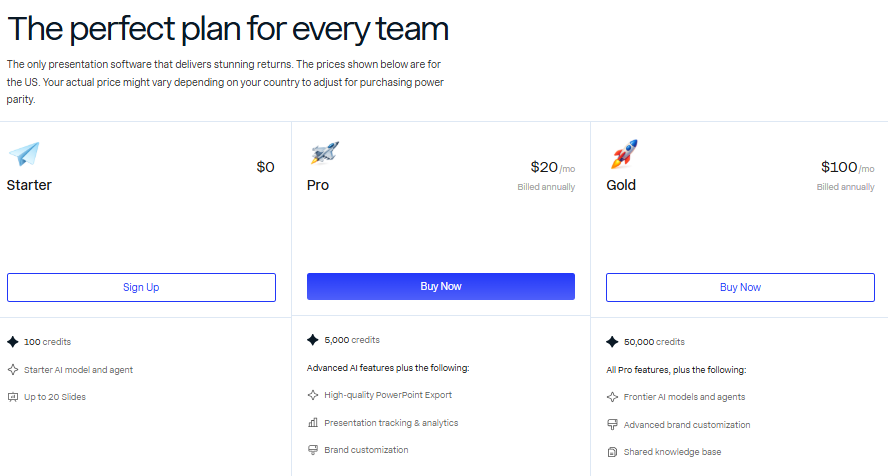
The jump from completely free to $20 a month is pretty significant, especially when I consider that my Starter credits ran out after just two presentations. So for me, the free plan felt more like a way to test the platform properly rather than something I could realistically keep using for regular presentation creation.
Privacy & Data Handling
Presentations.AI collects fairly standard contact and profile data, name, email, mailing address, professional title, company name, phone number, plus whatever username and password get set up for an account. They’re explicit that anonymized data may get used and shared with third parties for business purposes, including improving the service and promoting the business, which is a bit broader than some of the other tools I’ve checked in this series. Personal information gets shared with corporate affiliates, service providers handling things like hosting and analytics, and payment processors. Marketing communications are opt out based rather than opt in by default, though an unsubscribe path is available. I didn’t find anything specific about whether uploaded presentation content itself gets used for AI training, so that’s a gap worth being aware of if privacy around actual deck content matters for a specific use case.
Comparison With AutoPPT and Presenti
Category | Presentations.AI | AutoPPT | Presenti |
|---|---|---|---|
AI presentation quality | Strong, diagrams and charts genuinely tied to content | Generic, occasional text overlap issues | Good initial output, undermined by weak instruction following |
Design quality | Polished, corporate friendly | Repetitive across topics | Strong, especially brand focused work |
Visual assets | Editable infographics and diagrams | Manual shapes and charts only | Wide manual asset library |
Template variety | Genuinely varied, not paywalled on free | Limited, some locked behind Pro | Large, plus dedicated brand template system |
Editing experience | Curated AI actions plus solid manual editor | Manual editor only, no AI editing | Manual editor excellent, AI Agent unreliable |
AI assistance | Predefined but effective, Split into 2 Slides stood out | None inside the editor at all | Failed a basic slide reduction request |
Pricing | $20 to $100 a month for paid tiers | $16.66 to $19.99 a month, plus lifetime option | $6 to $16 a month |
Presentations.AI comes out ahead of both on pure output quality, the diagrams and charts here are the best I’ve seen actually connect to the underlying content rather than just sitting there looking nice. Presenti’s manual editor is deeper, and AutoPPT is cheaper compared to Presentations AI, but neither matches the visual sophistication I got out of Presentations.AI’s prompt based generation specifically.
Final Verdict
Coming out of this one, my overall impression of Presentations.AI is genuinely positive, definitely the strongest visual output I’d seen since moving past AutoPPT. The prompt generated deck looked considered rather than templated, the diagrams and infographics actually did their job, the template library gave me real variety without constantly hitting a paywall while browsing, and the speaker notes were good enough to use without editing, which is rare.
Where it lost me was the practical side of things. Only two generations before the free credits ran dry doesn’t leave much room for someone actually trying the platform out properly, and locking every single export format behind Pro means I could build something I was happy with and then simply not be able to take it anywhere without paying. The AI editing system, while effective within its scope, isn’t the fully flexible agent some of the other tools offer, so more specific or compound edits still require going manual.
Weighing all of it, I’d put Presentations.AI ahead of both AutoPPT and Presenti. The visual quality and diagram intelligence are genuinely the best I’ve encountered in this batch of testing, and if the free plan and export restrictions were less punishing, I think the score would be pushing even higher.
Overall Score: 7/10.
Frequently Asked Questions:
No. While you can generate a public view link, all downloadable file options—including PowerPoint, PDF, Google Slides, and images—require an active Pro subscription.
Rather than slapping generic stock icons next to text bullets, Presentations.AI builds editable, multi-point conceptual diagrams (such as optimization funnels and workflows) directly mapped to the slide’s narrative.
The free Starter tier grants 100 credits at signup, which is generally consumed after creating just two complete presentations.
Yes, but it uses curated command actions (such as “Split into 2 slides”, “Make shorter”, “Simplify language”, and “Redesign graphic”) rather than an open-ended conversational chat agent.
Abonneer je op onze nieuwsbrief en ben als eerste op de hoogte van tijd- en geldbesparende AI-tools!
Comments