Conclusion
Design.com provides a comprehensive visual design ecosystem with a solid manual graphic editor, custom shapes, charts, and QR code integration. However, its “AI Presentation Maker” is essentially a basic keyword-to-template matcher rather than an intelligent slide builder. The generator ignores detailed prompts, fails on requested slide counts, offers no conversational AI editing, and gates file exports behind paid subscriptions. For full graphic branding bundles it has value, but as a dedicated AI presentation maker it falls flat.
Pros:
- Robust manual editor supporting custom backgrounds, shapes, charts, and uploaded logos
- Built-in customizable QR code generator for interactive marketing slides
- Large library of professional pre-designed graphic and presentation templates
- Fast initial setup and generation process without complex technical overhead
Cons:
- AI generation merely matches broad keywords to rigid templates rather than building custom content
- Completely lacks a conversational AI agent for post-generation revisions
- File downloads (PPTX/PDF) are entirely blocked behind a paid subscription
- Consistently fails to follow specific prompt constraints like topic focus and slide count
Table of Contents
- First Impressions & User Experience
- Core Features
- Performance, Reliability & Everyday Usability
- Pricing Breakdown & Limitations
- Privacy & Data Handling
- Comparison With AutoPPT
- Final Verdict
Design.com was next in this series, and honestly, this was one of the more frustrating tools I’ve tested so far. I went in expecting a pretty straightforward presentation maker, but Design.com turned out to be much bigger than that. It’s got tools for logos, business cards, social media graphics, websites and a bunch of other design stuff, so presentations are really just one small part of the whole site.
For this review, I ignored most of those other features and went straight to the Presentation Maker, since that’s what I’m actually testing throughout this series. I wanted to see what happened when I tried to make a presentation, not whether Design.com was a good place to make a logo or business card.
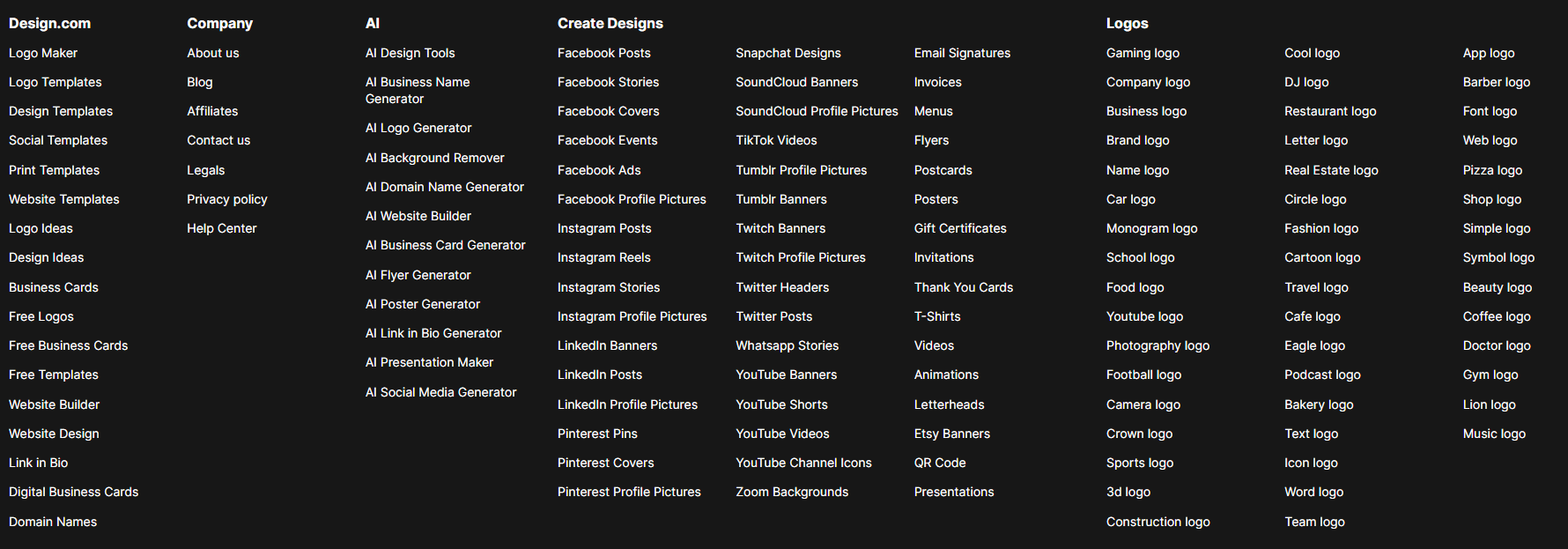
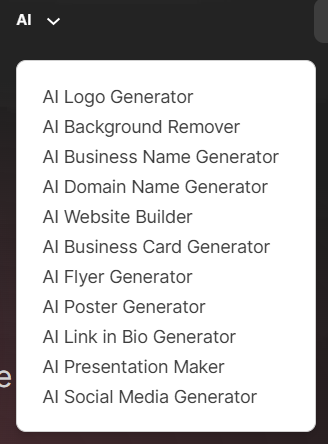
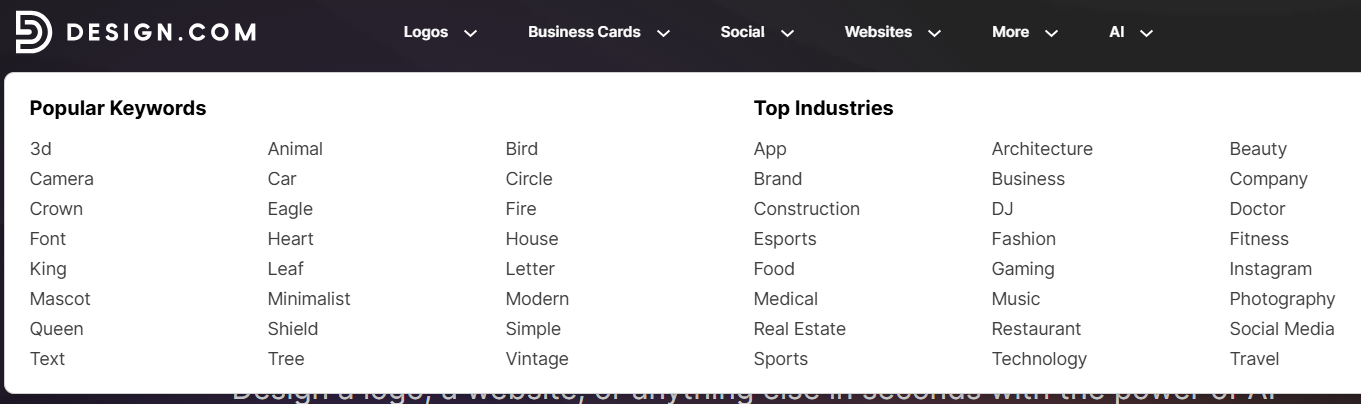
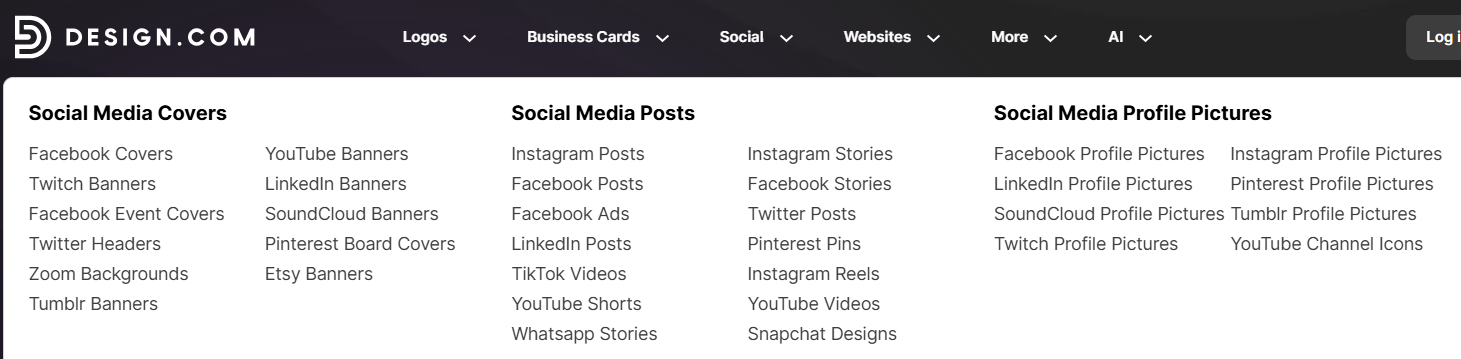
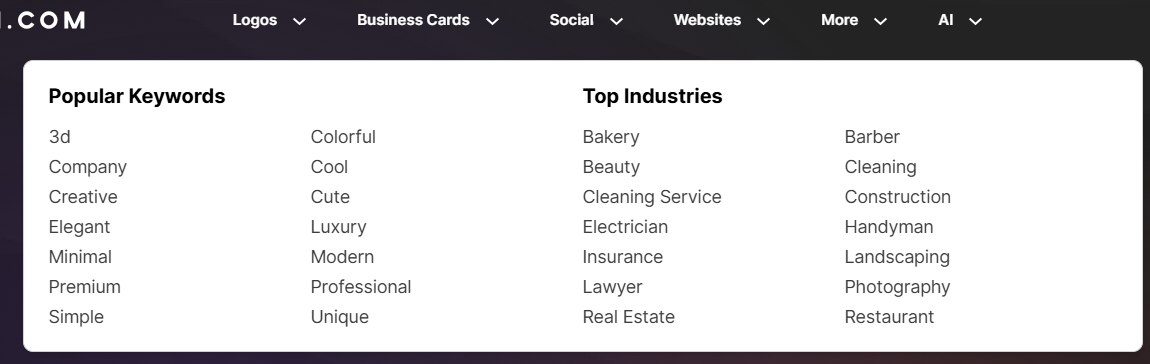
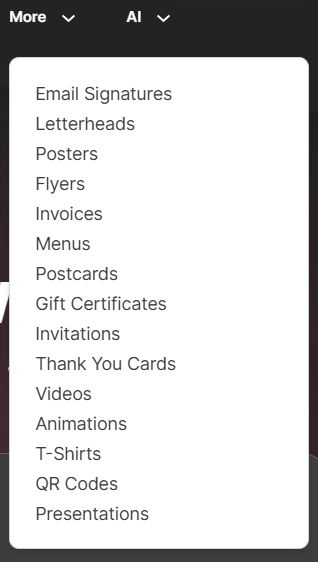
I can see the appeal if someone already needs those other design tools and likes the idea of having everything in one place, with presentations being another thing they can make there. But if you’re specifically looking for something where you can give it a prompt and have it build a proper deck for you, I don’t think Design.com is a great fit. That was pretty much the main problem I ran into during my test: the presentation tool didn’t really work the way I expected it to.
First Impressions & User Experience
The interface itself was pretty simple. I had a prompt box, an option to add a business name, and a place to put in relevant keywords. There wasn’t really any learning curve here, and I didn’t have to spend much time figuring out where things were or what I was supposed to do next. Everything I needed was fairly obvious from the start.
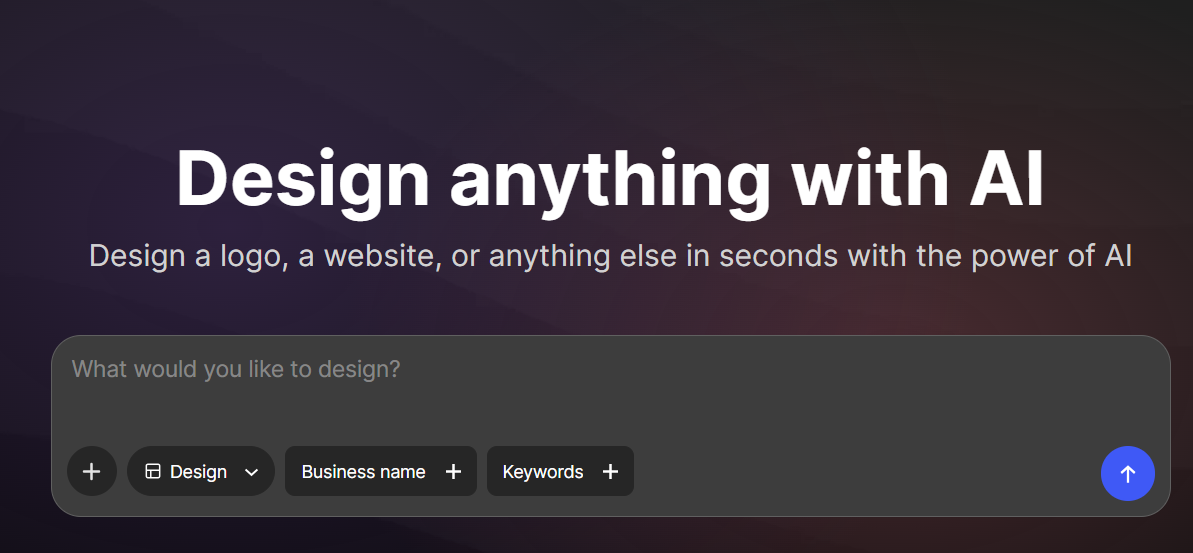
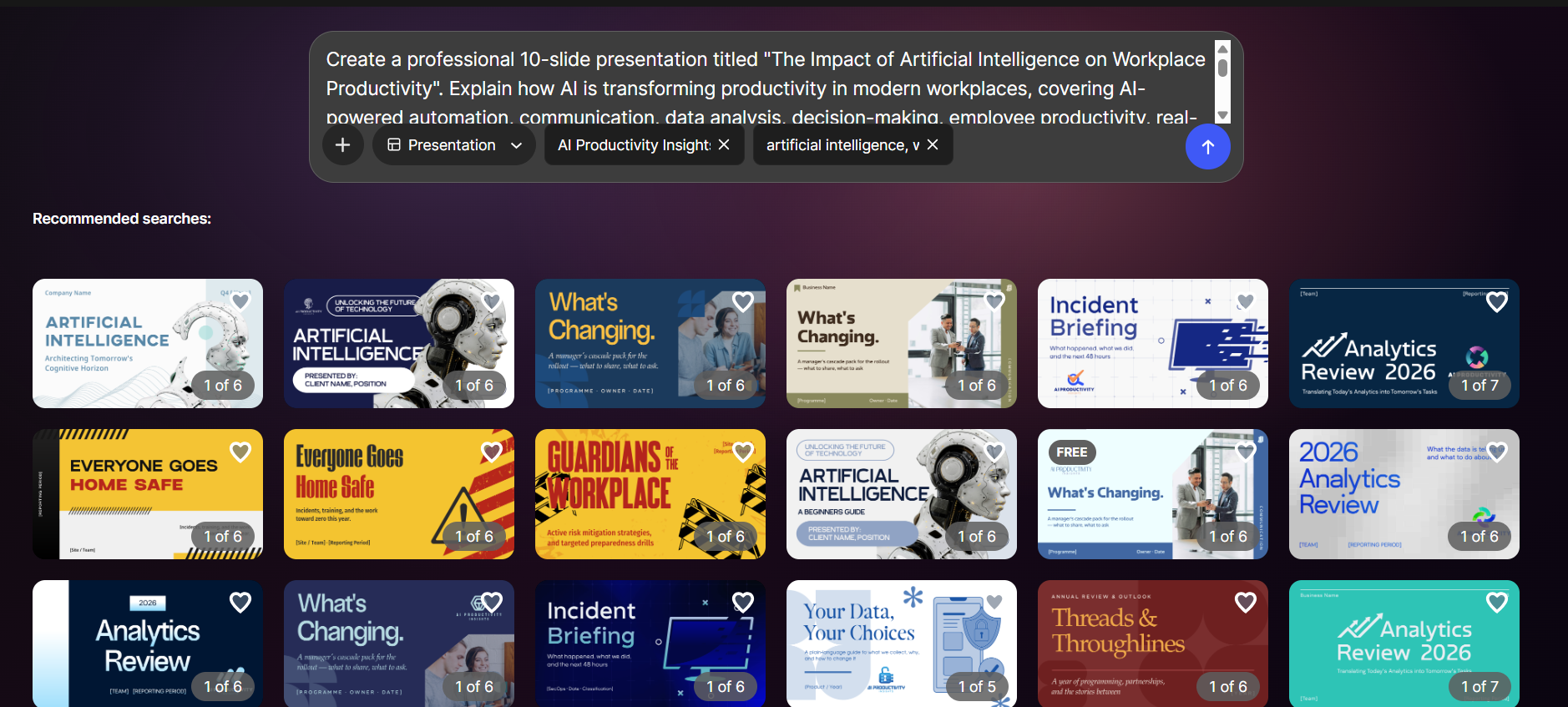
Once I entered my prompt, Design.com gave me a few recommended searches first, followed by a selection of templates that were supposed to match what I’d asked for. I browsed through those and picked one that seemed relevant to my topic. From there, I just let it generate and waited to see what I would actually get from the presentation tool.
Core Features
What actually got generated. The generation itself took around two minutes, so I didn’t really have any complaints about the speed. The problem was what I actually got at the end of those two minutes. I’d specifically asked for a 10-slide presentation about the impact of AI on workplace productivity, but the result was only around seven or eight slides, and even those weren’t really about the topic I’d given it.
Instead, I got a very general introduction to AI: what AI is, machine learning, deep learning, real-world applications, benefits and challenges, and the usual broad stuff you’d expect from a presentation about “artificial intelligence.” There was barely anything about the workplace side of my request. Nothing much about how employees are actually using AI day to day, what kinds of tasks are being automated, or how AI is changing the way people work.
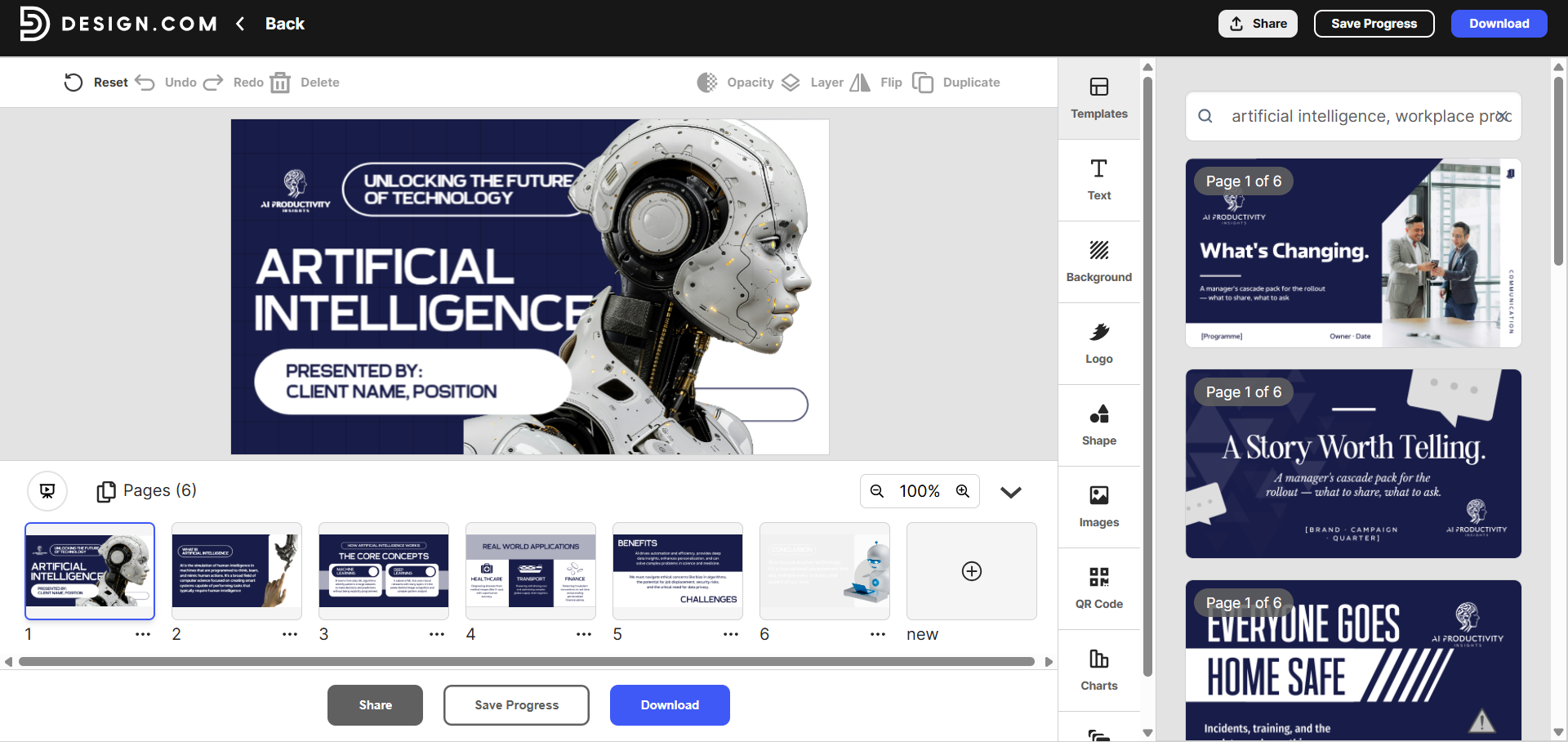
It honestly felt like it saw the word AI, found an AI-themed template, and went from there. The specific part of my prompt seemed to get lost somewhere along the way. So while the two-minute generation time was perfectly fine, the actual result was nowhere near what I’d asked it to make, and that was a much bigger problem for me.
Is this even AI generation. This is also where I started wondering whether I was really using an AI presentation generator at all. From what I could tell, the process was basically matching my topic to a template and filling that template with some general information. That’s quite different from what I’d been testing with the other tools in this series, where I could actually give the system a specific request and see it build the presentation around that request.
There was also nothing I could really do about it afterwards. I couldn’t go back and say, “Actually, make this specifically about workplace productivity,” or ask it to add something about how employees are using AI in their day-to-day work. There was no Agent or chat-like editor waiting for me after the initial generation. With tools like Gamma and Pitch, and even Presenti despite the problems I had with it, I at least had something I could interact with and tell what I wanted changed. With Design.com, once that initial template and content were there, that was pretty much it.
So for me, the bigger issue wasn’t even that the first presentation was bad. It was that I couldn’t really see much happening beyond the initial template selection. It felt more like I was choosing a ready-made design and getting some content dropped into it than actually having something build a presentation around my prompt.
Adding new content. There wasn’t any AI help once the presentation had been generated. If I wanted to add another slide, I had to make it myself from scratch. I was the one deciding what the slide should say, how much information to put on it, where everything should go and how the whole thing should look. There wasn’t an option to give the system a quick instruction and have it work out the changes for me.
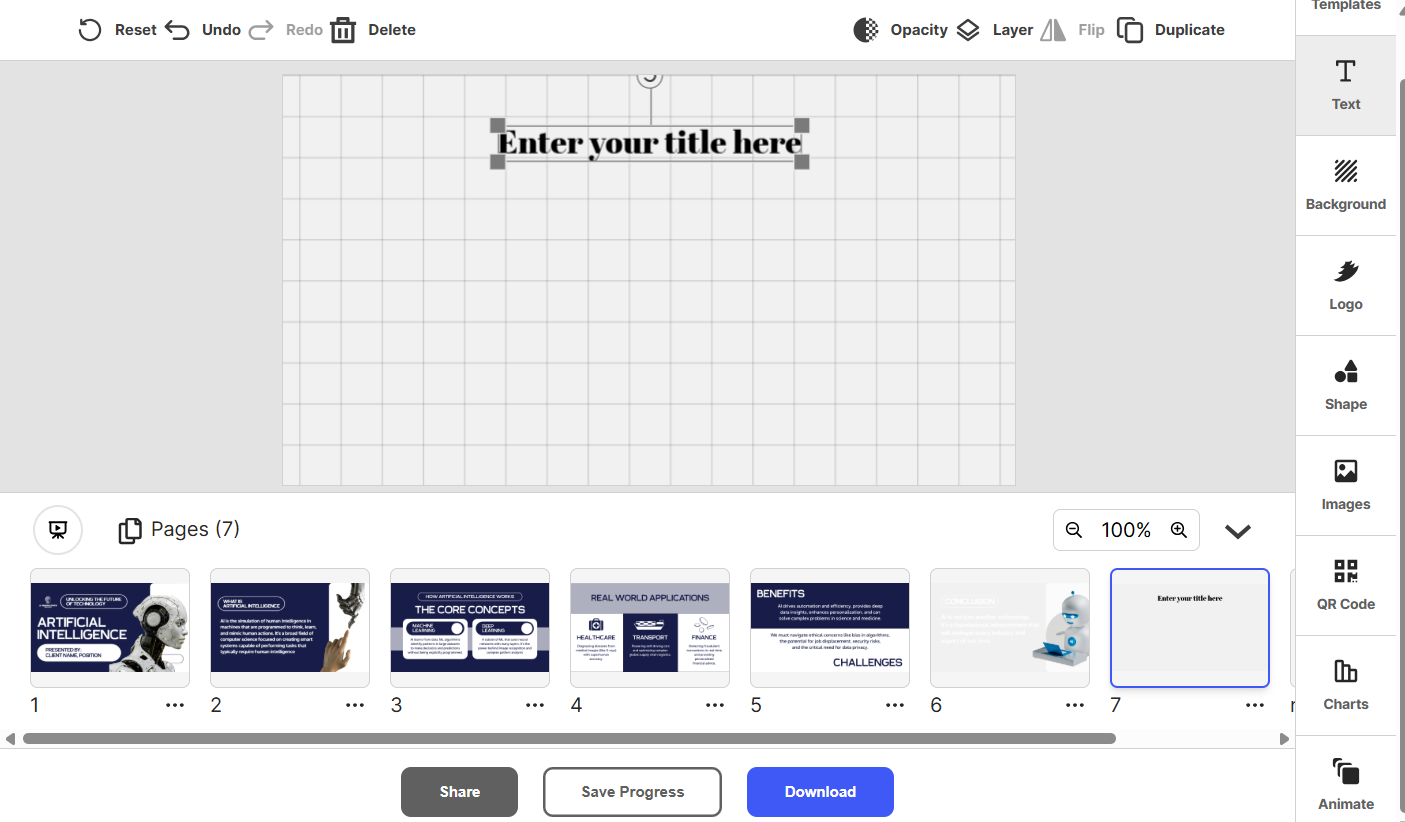
That made the whole experience feel even more like I was using a template library rather than an AI presentation maker. The more I tested it, the harder it was for me to see where the actual AI part was supposed to come in. I could pick a template that matched my topic and get some content placed into it, but once I wanted to actually shape the presentation around my own requirements, I was completely on my own. Compared with the other tools in this series, that felt like a pretty big limitation.
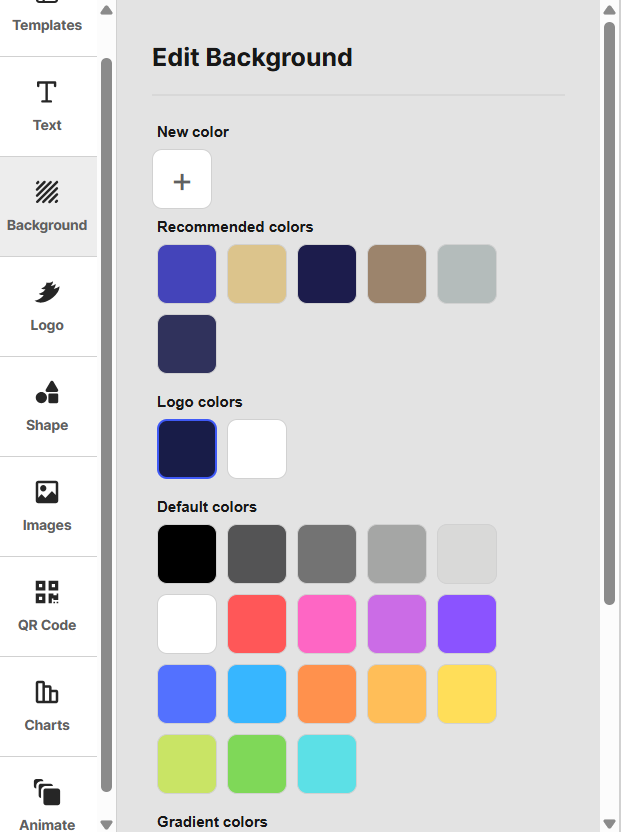
Manual editor. Truth be told, the manual editor was probably the strongest part of my whole test, and I think that’s worth saying because it did hold up pretty well. I could change the background, edit text, add or replace logos, work with shapes and charts, swap out images and make fairly big changes to the template itself. There was enough here that I could take the presentation I’d been given and actually make it look the way I wanted instead of being stuck with the original version. There was also a built-in QR code generator, which I thought was a nice extra, especially for business or marketing presentations. I could choose what the QR code linked to and change things like its styling and colours. So while I wasn’t impressed with the AI side of Design.com, I had a much better experience once I started doing things myself.
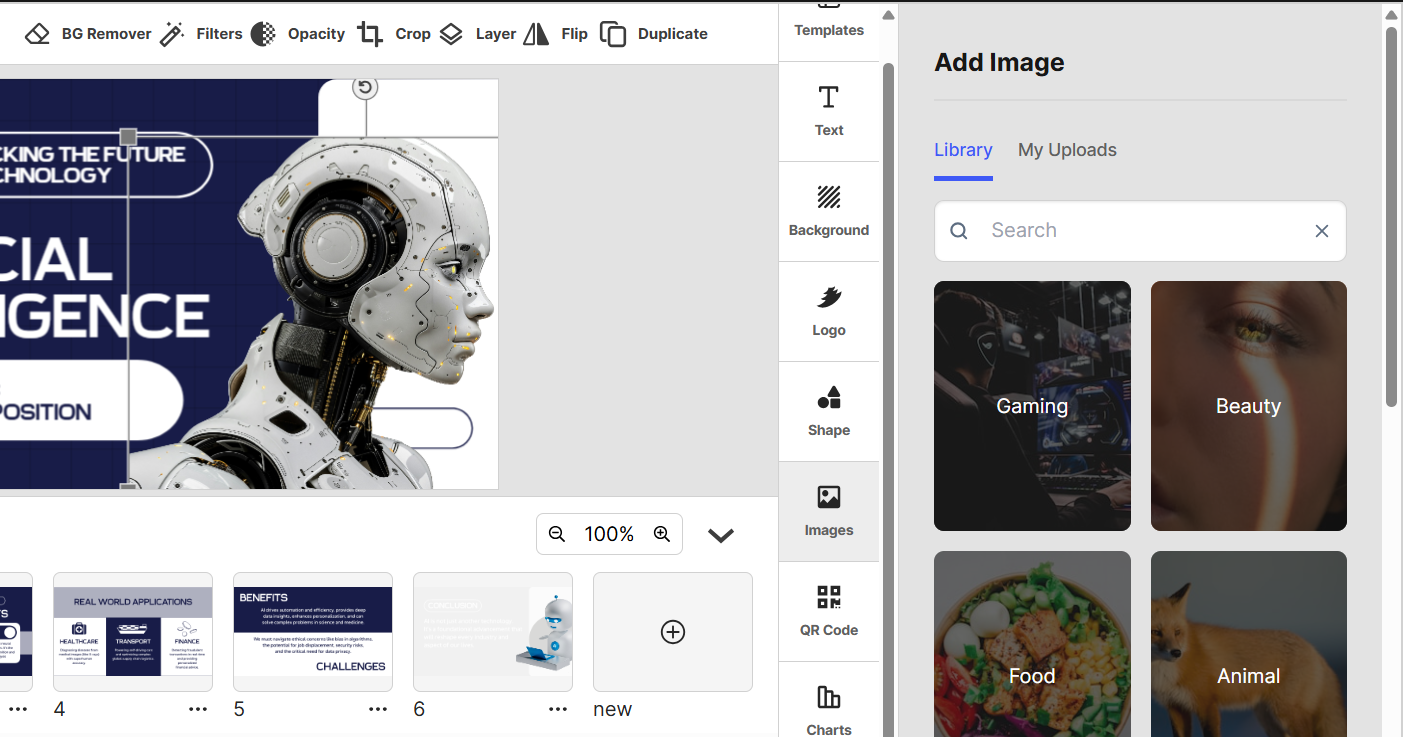
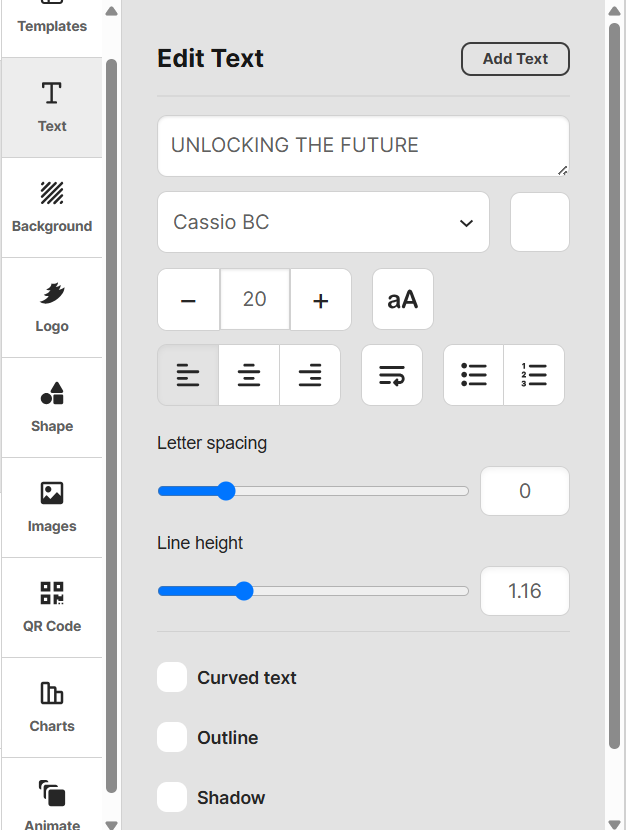
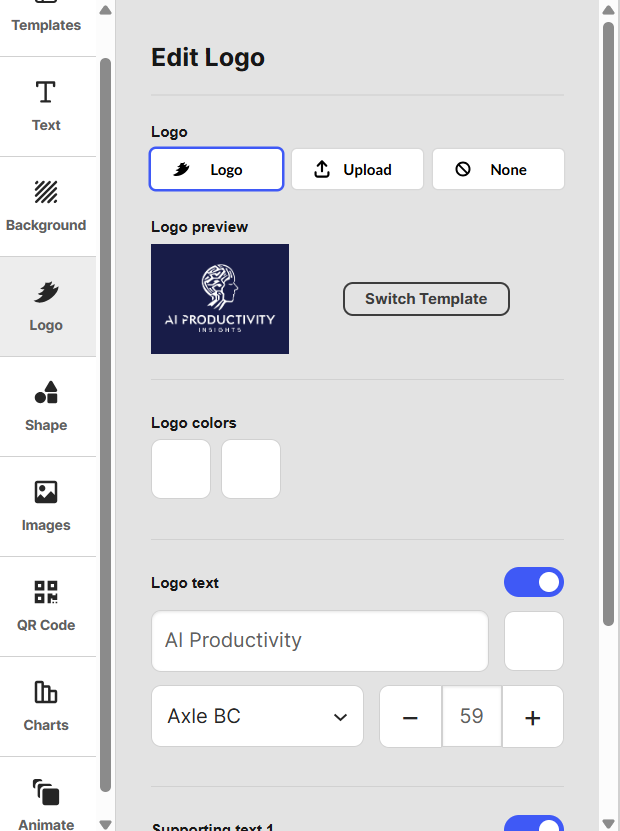
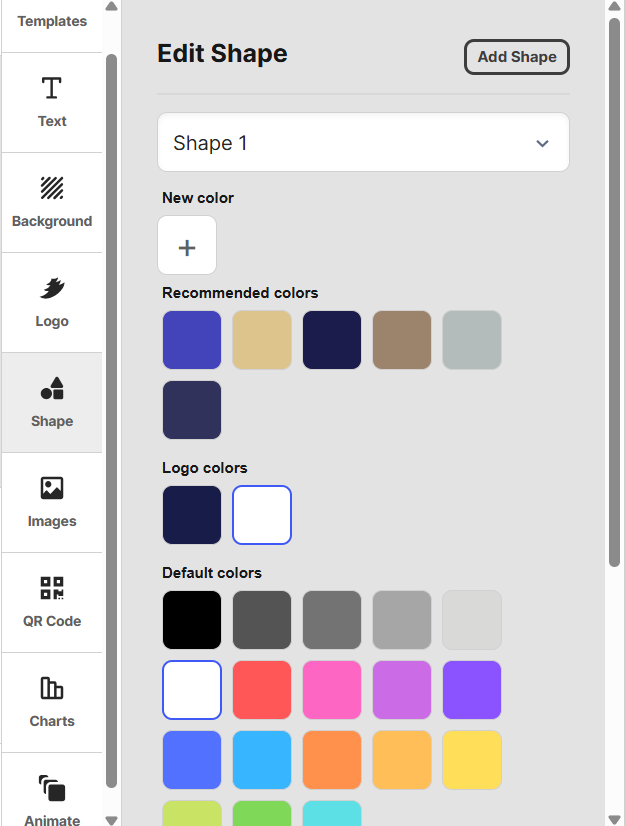
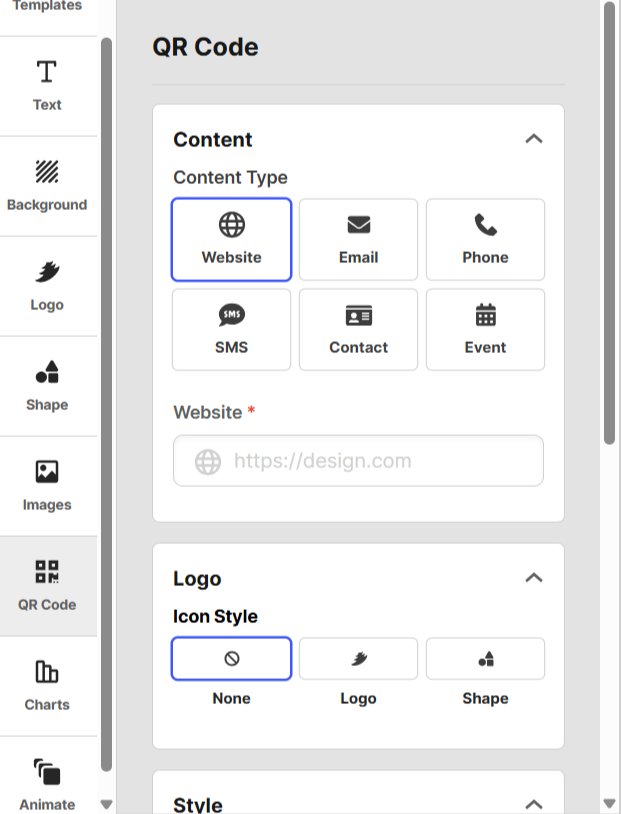
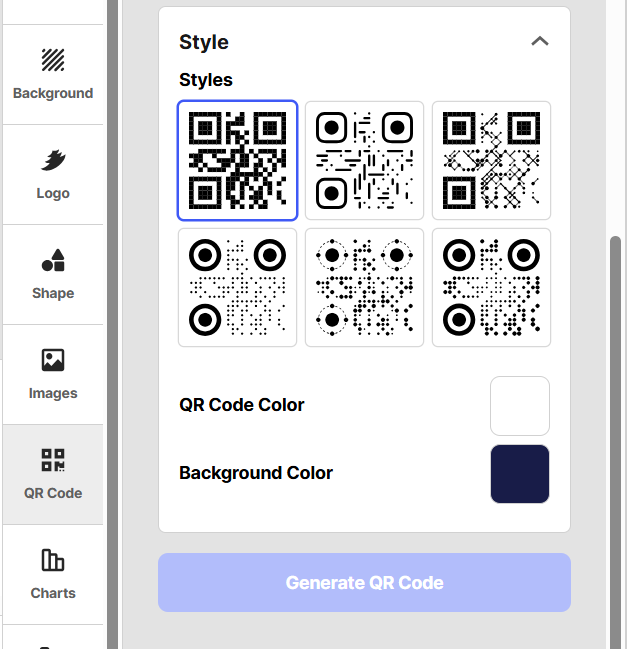
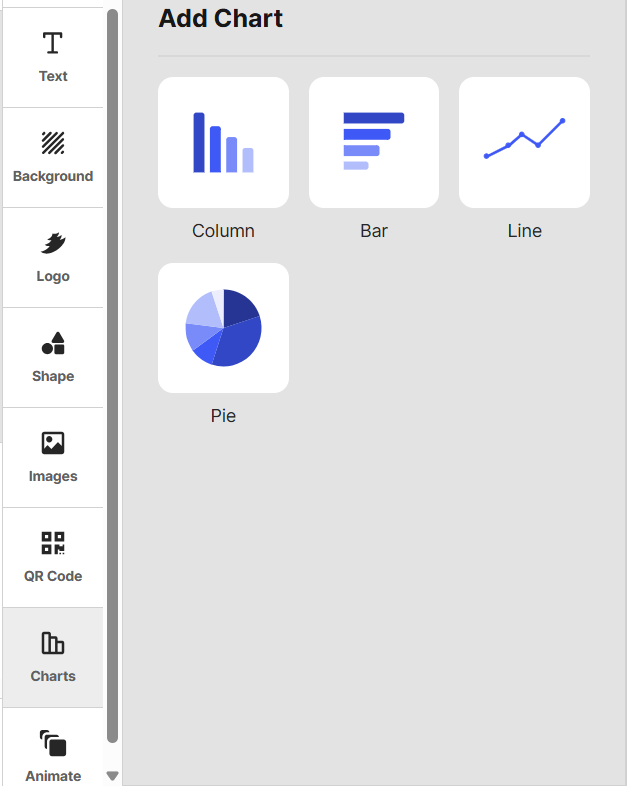
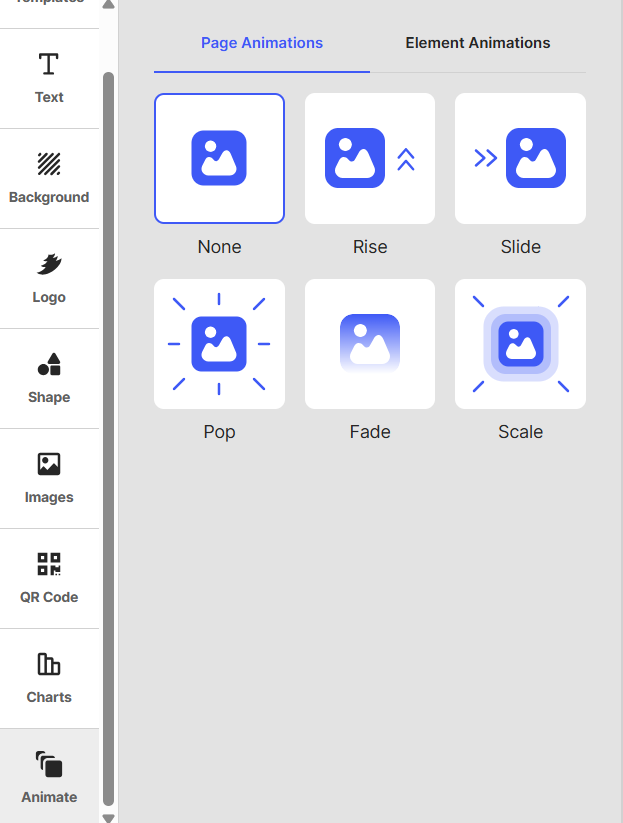
Templates. The templates were actually pretty good too, especially when I searched using a specific keyword. I could put in a topic and get templates that were clearly related to what I was looking for, rather than having to scroll through completely random designs. Some of the templates I was shown looked genuinely professional and gave me a good starting point. So I think there is definitely value in Design.com if what I want is a template that I can take and customise myself. The irony is that the template side ended up being much more convincing to me than the part that was supposed to actually build the presentation for me.
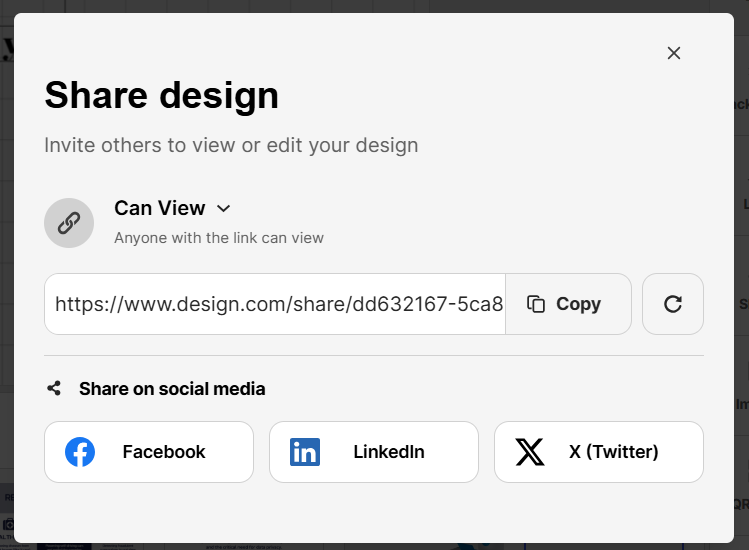
Export. This was another frustrating part for me. I could share the presentation through a link, so that part worked fine, but when I actually wanted to download the finished presentation, I couldn’t just get the file. Clicking the download option sent me straight to a subscription page instead. After testing so many tools where export has either been free or at least clearly available on the lower tier, this felt pretty restrictive. For me, being able to actually take the presentation out of the platform matters, so having the download option effectively locked behind a subscription definitely took away from the experience.
Performance, Reliability & Everyday Usability
From a basic stability point of view, I didn’t really run into any problems with Design.com. Nothing crashed, the editor stayed responsive, and I could make changes without things suddenly freezing or behaving strangely.
The issue was more with what I was actually getting from the presentation maker. The template side worked perfectly well, and I could pick a design, edit it and build out the slides myself. But that wasn’t really what I was testing. I wanted to see whether the tool could take a specific prompt and turn it into a presentation that actually followed what I’d asked for, and I just didn’t get that experience here. So while the platform itself worked fine, the main feature I was testing didn’t feel nearly as convincing.
Pricing Breakdown & Limitations
The pricing is split into a few different tiers, although most of the extra features seem to be aimed at the wider Design.com platform rather than the presentation maker itself.
- Starter/Saver: Around $15/month, or $5/month when billed annually
- Value: Around $24/month, or $6/month when billed annually
- Premium: Around $29/month, or $7/month when billed annually
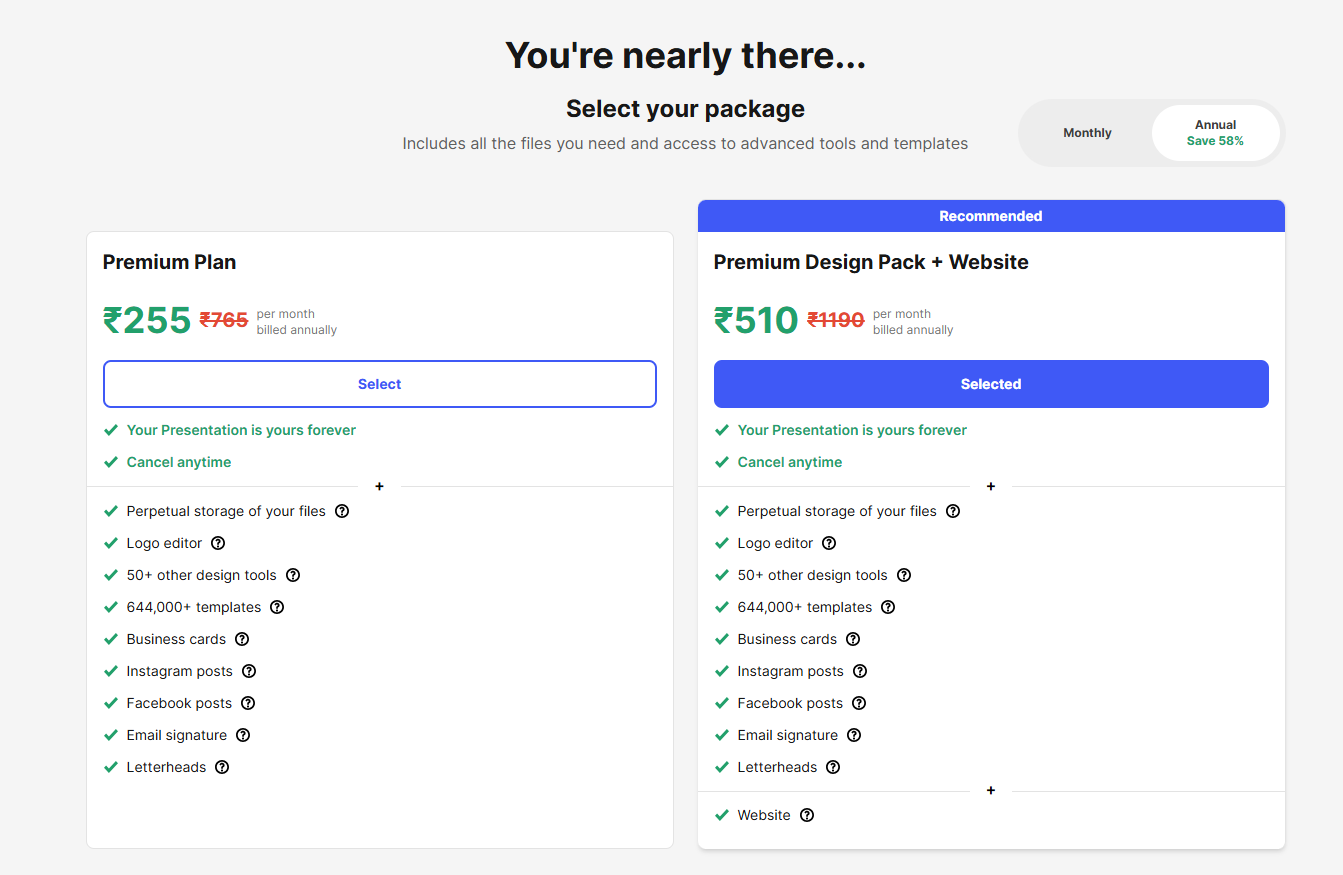
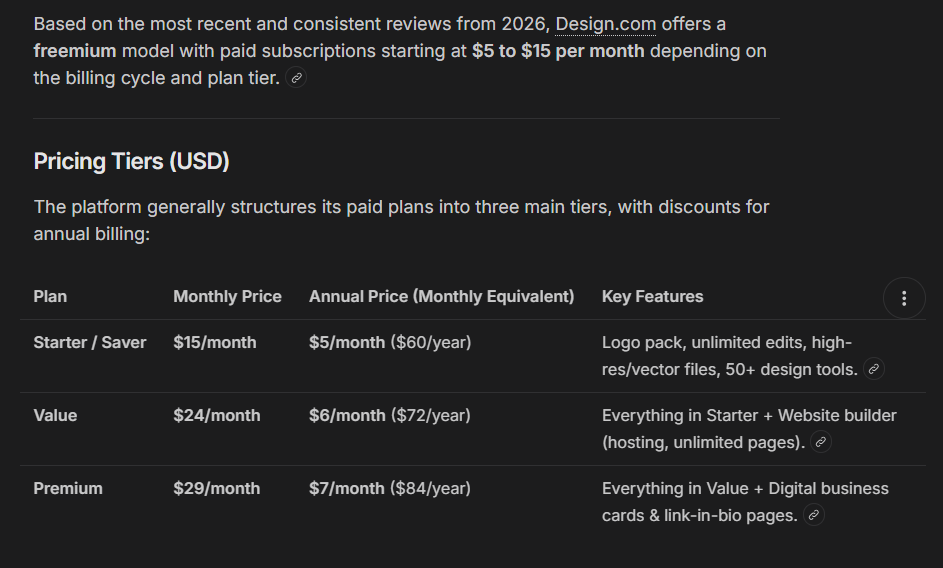
The higher tiers give me access to more templates, tools and features across the wider design suite. But looking specifically at the presentation maker, I found it pretty difficult to justify paying for it. If I also needed things like the logo maker, business card tools and the other design features, I could see the bundle making more sense. Just for making AI presentations, though, I don’t think what I got was enough to make the price worthwhile.
Privacy & Data Handling
Design.com is operated by DesignCrowd Pty Ltd, and their privacy policy also covers BrandCrowd under the same corporate umbrella. Standard information gets collected on account creation and through their web servers automatically. They explicitly reference compliance with Australian privacy law alongside international standards like GDPR and CCPA. Data requests, whether that’s asking what’s held, correcting it, or deleting it, go through a dedicated email address, and they commit to responding within 30 days. I didn’t find anything specific addressing whether prompt content or generated presentations feed into AI training, so that’s something worth flagging for anyone with sensitive material in mind.
Comparison With AutoPPT
Category | AutoPPT | Design.com |
|---|---|---|
AI presentation quality | Generic, occasional text overlap issues | Doesn’t qualifiy as AI generation, template matched to a loose keyword |
Design quality | Repetitive across topics | Templates themselves are fine, just disconnected from the actual prompt |
Visual assets | Manual shapes and charts only | Manual charts, shapes, QR codes, solid asset variety |
Template variety | Limited, some locked behind Pro | Decent variety, but functions more as a template library than generation |
Editing experience | Manual editor only, no AI editing | Strong manual editor |
AI assistance | None inside the editor at all | Effectively none, no agent, no follow up generation |
Export options | Download blocked entirely on free | Download blocked, routes to subscription page |
Pricing | $16.66 to $19.99 a month, plus lifetime option | $5 to $29 a month depending on tier and billing |
I was honestly a little at a loss when it came to deciding what to compare Design.com with. Pretty much every other tool I’ve tested, even the ones that did a bad job, at least tried to take my prompt and turn it into something resembling the presentation I’d asked for. Design.com just didn’t do that, which made it surprisingly difficult to find a fair comparison.
I think AutoPPT is probably the closest useful reference point, mainly because there is some overlap in the template-based experience and the manual editing side. AutoPPT at least attempts something closer to actual presentation generation, even though I had my own issues with overlapping elements there. Design.com’s manual editor is arguably stronger in some areas, but that isn’t really the point when the main AI generation step doesn’t properly respond to the prompt in the first place. So while the two tools aren’t particularly similar overall, AutoPPT is probably the closest comparison I can make here.
Final Verdict
I came away from Design.com pretty disappointed, mostly because what I expected from the AI Presentation Maker and what I actually got were miles apart. I expected to give it a prompt and get a presentation that actually followed it. Instead, it picked a template based on the general topic, filled it with fairly generic information, gave me fewer slides than I asked for, and then left me to fix it myself.
Just to be clear, I only tested the AI Presentation Maker. I didn’t touch the logo maker, business cards, website tools or anything else on Design.com, so I’m not judging those. I’m judging the presentation feature specifically, and honestly, calling it an “AI Presentation Maker” felt insanely misleading after using it. I never really got the experience of giving it a proper prompt and having it build a deck around what I wanted.
The manual editor was actually quite good. I could change backgrounds and shapes, edit charts, swap images and logos, and even make QR codes. But that’s not what I’m testing here. I’m testing whether the AI can actually take the work of making a presentation off my hands, and it really couldn’t.
By the end, it felt much more like a template gallery with a prompt box stuck on top than an actual AI presentation maker. Even the weaker tools I’ve tested at least tried to make a presentation around the topic I gave them. Design.com didn’t really do that.
Overall score: 2.1/10.
Frequently Asked Questions:
In testing, Design.com functioned primarily as a template matcher. It extracts broad keywords from your prompt, drops standard filler content into an existing template, and leaves the rest to manual editing rather than generating custom slides.
No, Design.com does not include a conversational AI agent or post-generation prompt editor. Any slide additions, text restructuring, or styling changes must be done by hand using the manual editor.
No, Design.com does not include a conversational AI agent or post-generation prompt editor. Any slide additions, text restructuring, or styling changes must be done by hand using the manual editor.
Design.com is a broader design suite that includes logo makers, business card creators, website builders, and social media graphic generators alongside its presentation maker.
Abonneer je op onze nieuwsbrief en ben als eerste op de hoogte van tijd- en geldbesparende AI-tools!
Comments