Conclusion
River Editor stands out as a robust and reliable tool for serious writers and researchers. Its strength lies in its structured approach to document editing and AI-assisted writing, making it a solid choice for those working on long-form content. While the AI detector is impressively thorough, the humanizer feature falls short of fully bypassing AI detection. The credit-based system, although transparent, can be a limitation for heavy users. Overall, River Editor offers a mature and pragmatic writing experience, earning it a well-deserved score of 8 out of 10.
Pros
- Structured and clean writing output
- Effective AI detector with detailed breakdowns
- Seamless integration of AI tools within the document editor
- Transparent pricing and credit system
- Comprehensive privacy and data security measures
Cons
- Humanizer feature is less reliable
- Credits deplete quickly, limiting extensive use
- Steeper learning curve due to abundance of options
Table of Contents
- Introduction
- First Impressions & Dashboard Experience
- Core Features
- AI Powered Document Editor
- Voice & Style Customization
- AI Detector & Humanizer
- Rules, Integrations, and Workspace Controls
- Performance & Writing Quality
- Pricing & Plan Limitations
- Privacy
- River Editor vs Copymatic
- Final Verdict
- Frequently Asked Questions
Introduction
River is essentially a dedicated writing workspace designed for those working on longer, more substantial documents. Not quick captions or short blog posts. I’m referring to research drafts, detailed reviews, and structured content that require editing and iterative refinement. That was immediately the impression I received.
Upon opening, it did not feel like a typical AI writing tool. Instead, it resembled a Google Docs-like editor that happens to include AI features. From my perspective, River clearly aims to position itself as a serious writing environment rather than a content-generating machine. It offers structure, version history, collaboration, and then overlays AI tools. I appreciated this approach; it felt more composed.
Ideal for:
- Writers working on long form pieces
- Students or researchers handling structured drafts
- Teams that need version control and shared editing
- People who want AI as an assistant, not the whole system
Not suitable for:
- People just looking to generate quick SEO blogs and leave
- Users who prefer very simple, single click content tools
It’s not necessarily intimidating for beginners, but it is definitely more of a professional workspace than a toy. If someone seeks instant content with minimal effort, this might feel more complex than they expect.
First Impressions & Dashboard Experience
The initial impression was of a clean, straightforward layout. A left sidebar for projects, a large editor in the center, and an AI chat panel on the right. Nothing flashy, no bright colors, and no cluttered interface.

It felt familiar, likely intentionally so. Anyone used to Google Docs will find it intuitive. I didn’t require a tutorial to navigate, which I considered a positive.
The editor is spacious, with clear fonts and familiar toolbar placement. I appreciated that the writing area is the main focus, not overshadowed by banners or ads. It genuinely feels like a workspace.

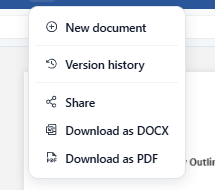
Navigation is intuitive. Users can create documents, notes, canvas boards, sheets, and even slides. It gives the sense of a comprehensive productivity suite, not just a simple writing tool.
There is a minor learning curve due to the abundance of options—voice settings, AI tools, detection, version history. It’s not confusing, but layered. It benefits those willing to explore.
Overall, my initial impression was of a serious tool—no gimmicks, no trends—just a structured environment. That piqued my curiosity to explore it further rather than dismiss it immediately.
Core Features
AI Powered Document Editor
This is where River truly resonates. The editor isn’t merely a blank page with a generate button; it feels like a genuine writing environment, with AI acting as a conversational assistant beside it.
While working within a document, I could request it to generate an outline, write new sections based on that outline, or expand existing parts. It analyzed the entire document, not just a paragraph. When asked to expand a section, it stayed on topic, which I appreciated.

I also used it to improve existing sections rather than generate new ones. It makes modifications directly within the document, but I retain control—accept or reject changes. I dislike tools that overwrite my work without permission, but here I felt in control.

Surprisingly, I appreciated its research capabilities. It can search for and incorporate information, not just paraphrase existing content. I wouldn’t blindly trust citations, but it’s useful for initial research.
Within the editor, there’s a dropdown menu of quick AI tools. I tested several.
- Polish improved clarity but occasionally made the tone more formal than desired.
- Humanize aimed to make the text sound more natural. It worked reasonably well but wasn’t entirely reliable.
- Simplify proved useful, reducing unnecessary complexity without altering the meaning.
- Expand added depth, though sometimes it introduced safe, predictable lines.
- Continue Writing was helpful when I faced writer’s block, mostly maintaining the document’s tone.
- Fix Grammar and Fact Check were utility tools focused on editing and verification.

I appreciated that all these tools operate within the same document, eliminating the need for copy-pasting—making the experience more seamless.
It’s not flawless; some suggestions can seem generic. However, overall, it doesn’t produce low-quality filler. It feels deliberate and structured. I still edited, but mainly refined drafts rather than creating from nothing.
Rating: 8.2/10
Voice & Style Customization
I experimented with the voice settings to gauge the level of control available. There are presets such as Professional, Friendly, Technical, Creative, Minimal, along with granular tags like Warm, Confident, Bold, Calm, and others.
I adjusted tone settings mid-project to observe changes. The differences were noticeable but not drastic, mainly affecting phrasing and confidence levels. It didn’t overhaul the personality, which I prefer—excessive shifts often seem artificial.
Grammar preferences could be toggled, including contractions, sentence variation, and formatting style. This level of control is uncommon and made me feel like I was customizing the AI’s behavior rather than just accepting defaults.


In my experience, these settings are more impactful on longer projects. For short prompts, the differences are subtle; for larger drafts, the tone tends to stabilize.
AI Detector & Humanizer
This section genuinely surprised me in two ways.
Firstly, the AI detector. I found it quite effective. It provided a detailed breakdown, confidence scores, and identified patterns in tone and structure, rather than just labeling content randomly. It felt thorough and serious, not a superficial feature. No detector is perfect, but this one seemed to justify its assessments.

The humanizer, however, was more mixed in its results.
After seeing the detection results, I applied the humanizer to the same document. It rewrote sections, altered sentence flow, and adjusted structure, making the text appear more relaxed and less stiff. Visually, it did change the style.
However, when I ran the revised version through the detector again, it still flagged it as heavily AI-generated. This was intriguing—despite structural and stylistic changes, the detector still identified strong AI patterns.


In my view, the humanizer altered wording and rhythm, but it’s not reliable for fully bypassing AI detection. It seems more like a stylistic tool rather than a genuine method to make content undetectable.
In summary, I trust the detector more than the humanizer. The detector is analytical; the humanizer appears more superficial.
Rating: 8/10
Rules, Integrations, and Workspace Controls
Under Rules & Behaviors, I could create custom rules that apply at different levels. User level, workspace level, even document level. I personally didn’t set up deep rules, but I like that the option exists. It means I could technically tell River to always write in a certain tone or follow certain formatting patterns without repeating myself every time. That feels useful for long projects.

The integrations include Gmail, Google Drive, Calendar, Analytics, with Dropbox coming soon, plus API connections like Stripe, Mixpanel, Anthropic, and OpenWeather. I didn’t connect these during my testing, but it’s evident River aims to fit into larger workflows.


This section feels more like potential than active use. The integrations look powerful, but the core experience remains the document editor and AI features. The integrations are more about future expansion.
I valued the workspace usage tracking, which clearly displayed remaining credits, usage, and token consumption. Transparency is important—I dislike tools where credits vanish without explanation. Here, I could see I had 250 credits and how many I used, adding to the sense of professionalism.
Performance & Writing Quality
Performance-wise, River operated smoothly without crashes or freezes. The editor responded promptly when I used tools like Polish or Simplify, and AI responses were quick. Stability is crucial when working on lengthy drafts.
More importantly, how does the writing sound? When I asked River to draft new sections based on my input, the results were structured and coherent. It generally maintained my tone and stayed on topic, which is a step above many tools.
It doesn’t scream ‘AI’ at first glance. The structure is typically clean, with clear paragraphs, logical transitions, and sensible headings. It reads like competent professional or academic writing—safe and clear.
However, longer generated sections tend to feel uniform—balanced sentences, tidy explanations, neatly framed arguments. While not inherently bad, this neatness can sometimes seem artificial upon closer inspection.
It’s neither sloppy nor chaotic, nor does it contain random filler. It’s polished in a way that suggests machine assistance. Not necessarily negative, but I still prefer to add nuance manually.
My preferred workflow involved combining tools: drafting, simplifying, expanding, and manually adjusting tone. This layered approach made the content more nuanced and less monotonous. Relying solely on large generative outputs tends to produce more uniform results.
In summary, the writing feels structured, intelligent, and controlled. It’s not overly creative or emotional, but it’s also not low-effort AI-generated filler.
Pricing & Plan Limitations
River offers three visible subscription tiers.
- Free – $0/monthWe get the full editor, unlimited documents, real time collaboration, and 250 AI credits one time. It’s enough to test properly, but if we actually draft and expand content, those credits go fast. I used most of mine just exploring features.
- Plus – $14/month3,500 AI credits per month, longer context window, folders, short term version history, better exports, and small team support. This feels like the practical plan for regular writers.
- Pro – $36/month7,500 credits per month, unlimited team members, max context window, full version history, advanced permissions, and priority support. Clearly built for teams.

The main limitation is the credit-based system. Each AI action—drafting, rewriting, detection, humanizing—uses credits. This encourages mindful use. The system is transparent, showing exactly how much I’ve used and remaining.

The pricing feels fair for intentional use, but it’s not unlimited unless you subscribe to a higher tier.
Casual users can explore with the free plan; more intensive writing with heavy AI features benefits from Plus or Pro plans.
Overall, the pricing is reasonable and structured—neither cheap nor exorbitant. It positions River as a professional writing workspace with AI support, not a free content factory.
Privacy
River’s privacy policy appeared straightforward. They state that users retain ownership of their content, which is encrypted during transit and at rest. They may share data with third-party AI providers, but claim appropriate protections are in place. It felt clear and professional.
- Content ownership remains with the user.
- Data is encrypted both in transit and at rest.
- Data sharing occurs only with user consent, service providers, legal obligations, or in aggregated form.
- Users can request access, correction, deletion, or data portability.
- Data is deleted or anonymized after account deletion unless legally mandated to retain it.
- They do not sell personal data.
Overall, it felt responsible. Not overly reassuring, but not careless either.
River Editor vs Copymatic
|
Point |
River Editor |
Copymatic |
|
Starting Price |
Free plan + Plus around $14/month |
Starts around $19/month |
|
Core Focus |
Document-centric editor with in-tool AI assistance |
Article generation with structured SEO support |
|
Writing Experience |
Deep editing, section drafts, contextual AI within document |
Template based article generation with SEO suggestions |
|
Output Style |
Structured, clean, not obviously AI, requires editing |
SEO focused, clean and usable but safe |
In my view, River Editor is the better choice. Copymatic excels at quick, structured SEO article generation, producing clean drafts rapidly. However, it feels more template-based and task-oriented. River, on the other hand, functions as a genuine writing workspace, allowing drafting, refining, simplifying, and expanding within the same document—giving more control over the writing process. If your focus is solely on SEO blogs, Copymatic might suffice; for deeper editing and creative work, River is preferable.
Final Verdict
Having used River extensively, I find it to be a reliable and solid tool. The output is structured and usable, and the in-editor AI features genuinely assist in refining drafts rather than dominating the process.
The AI detector proved dependable, while the humanizer was less consistent. Credits deplete faster than anticipated. Nonetheless, the overall experience strikes me as mature and pragmatic.
Overall rating: 8/10
Frequently Asked Questions
River Editor is a dedicated writing workspace designed for longer, more substantial documents such as research drafts, detailed reviews, and structured content. It is best suited for writers working on long-form pieces, students or researchers handling structured drafts, and teams that need version control and shared editing. It is not ideal for those looking to generate quick SEO blogs or users who prefer very simple, single-click content tools.
River Editor resembles Google Docs in its layout and functionality but includes additional AI features. It offers a clean, straightforward interface with a focus on the writing area, making it feel like a genuine writing environment. The AI tools are integrated seamlessly, providing assistance without overwhelming the user.
River Editor’s core features include an AI-powered document editor that assists in generating outlines, writing new sections, and expanding existing content. It also offers voice and style customization, an AI detector and humanizer, and various integrations with tools like Gmail, Google Drive, and Dropbox. The editor provides a range of AI tools such as Polish, Humanize, Simplify, Expand, and Continue Writing, all designed to enhance the writing process.
The AI detector in River Editor is quite effective, providing detailed breakdowns and confidence scores. It identifies patterns in tone and structure, making it a thorough and serious tool. The humanizer, however, has mixed results. While it can alter sentence flow and structure to make text appear more relaxed, it is not entirely reliable for fully bypassing AI detection. It seems more like a stylistic tool rather than a method to make content undetectable.
River Editor offers three subscription tiers: Free, Plus, and Pro. The Free plan includes the full editor, unlimited documents, real-time collaboration, and 250 AI credits one time. The Plus plan costs $14/month and includes 3,500 AI credits per month, longer context window, folders, short-term version history, better exports, and small team support. The Pro plan costs $36/month and includes 7,500 credits per month, unlimited team members, max context window, full version history, advanced permissions, and priority support.
River Editor’s privacy policy states that users retain ownership of their content, which is encrypted during transit and at rest. Data sharing occurs only with user consent, service providers, legal obligations, or in aggregated form. Users can request access, correction, deletion, or data portability. Data is deleted or anonymized after account deletion unless legally mandated to retain it. They do not sell personal data, making their privacy practices feel responsible and professional.
River Editor is a document-centric editor with in-tool AI assistance, focusing on deep editing, section drafts, and contextual AI within the document. Copymatic, on the other hand, is more template-based and task-oriented, excelling at quick, structured SEO article generation. River Editor is preferable for deeper editing and creative work, while Copymatic might suffice for those focused solely on SEO blogs.
River Editor receives an overall rating of 8/10. It is praised for its structured and usable output, reliable AI detector, and professional writing workspace. The humanizer feature is less consistent, and credits deplete faster than anticipated. However, the overall experience is mature and pragmatic, making it a solid tool for serious writing tasks.
Abonneer je op onze nieuwsbrief en ben als eerste op de hoogte van tijd- en geldbesparende AI-tools!
Comments