Conclusion
Leave Me Alone is a well-crafted app that effectively addresses the pervasive issue of inbox clutter. It strikes a fine balance between automation and user control, making it a standout choice for those seeking a comprehensive solution rather than a quick fix. The app’s interface is clean and user-friendly, and its advanced features like Shield and Rollups offer promising tools for long-term inbox management. However, the early paywall and limited free version might deter casual users who are not ready to commit to a subscription.
Pros
- One of the best interfaces in this category
- Clear organization and friendly design
- Advanced control features like Shield and Rollups
- Transparent privacy approach
- Works with all major email providers
Cons
- 10 unsubscribes limit is restrictive for free users
- Many appealing features are paywalled
- Might be too pricey for occasional inbox cleanup
Table of Contents
- Getting Started: Setup & First Impressions
- Dashboard and UI Experience
- Core Features: Unsubscribing and Cleaning
- Rollups: Keeping Clutter Under Control
- Shield: Inbox Security and Control
- Shielded Emails: Smart Alias Management
- Pricing and Value
- Privacy & Security
- Performance and Output Quality
- How It Compares with Other Tools I Tested
- Final Summary
- Frequently Asked Questions
Most people agree that inbox clutter builds up slowly and subtly. One newsletter here, one subscription there, and all of a sudden there’s a mountain of junk emails… and an increasing amount of unread ones every day. Leave Me Alone often appears as a popular recommendation in reviews of inbox cleaning tools. I was curious to see how well it performs, given its friendly branding and promise to help regain control over mailing lists.
This review is based on hands-on testing: setting up my email, searching for subscriptions, attempting to unsubscribe, and exploring features and interface design. My perspective was user-focused, not driven by a personal inbox crisis, but to evaluate whether those overwhelmed with subscriptions would find it helpful.
Below is a detailed account of my experience.
Getting Started: Setup & First Impressions
Getting started with Leave Me Alone was quite straightforward. It used secure OAuth for email authentication, so I never had to share passwords directly. It also provided a brief onboarding process, including:
- Linking my Google account
- Deciding what happens to emails after unsubscribing (move, filter, or leave)
- Reviewing language and preferences
- Beginning the scan

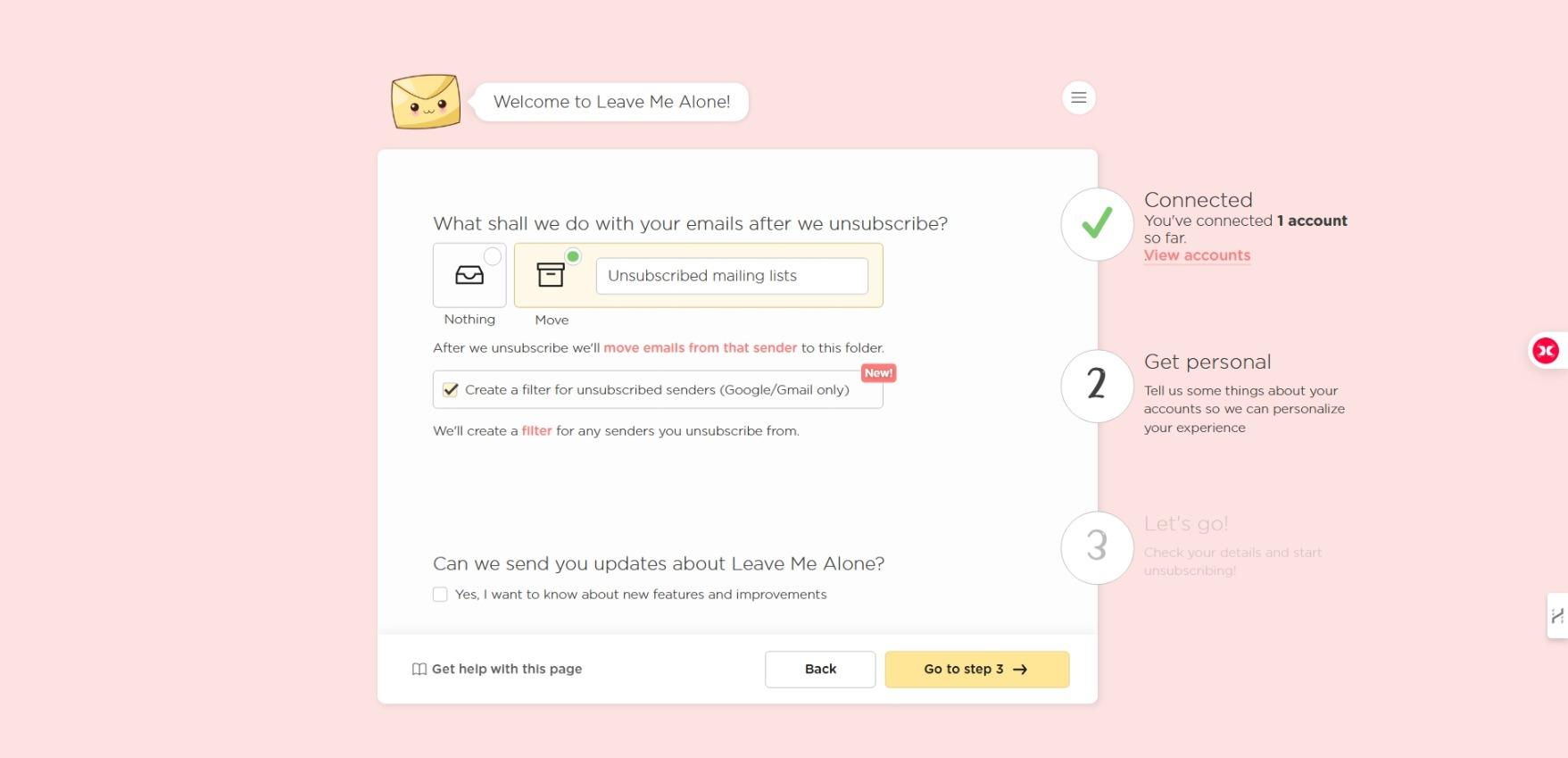
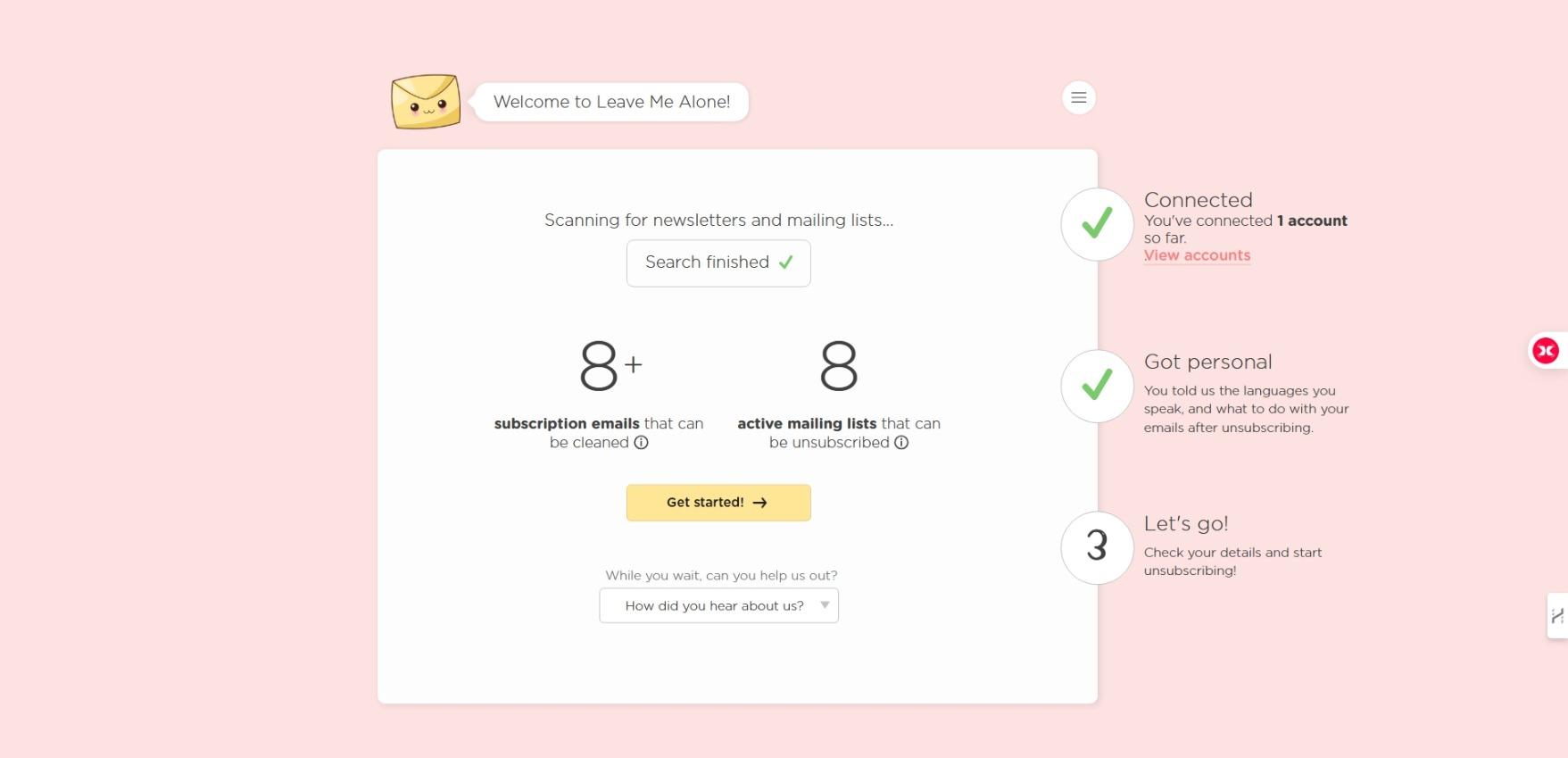
The process required a few security confirmations from Gmail, but I appreciated that step because it shows commitment to privacy. Once setup was done, the initial scan finished fairly quickly and located subscription emails and active mailing lists that I could act on right away.

One thing that stood out while exploring Leave Me Alone is that it isn’t limited to desktop or web usage. There is an Android app available that brings the same unsubscribe features to mobile, meaning inbox control isn’t tied to a laptop or browser session. I liked that newsletters and subscriptions could be managed on the go, especially because emails tend to pile up most when we aren’t at a desk. For those who are awaiting an Apple release, ironically, there is only a newsletter subscribe option available; the iOS app is not yet available. Although the rollout of mobile support is fantastic, iPhone owners will have to be dependent on the website’s interface for the time being.
The platform also made it clear that the free version comes with a limit of 10 unsubscribes. After that, upgrades are needed to continue.
Verdict: Polished onboarding with good focus on user control and privacyScore: 8.5 / 10
Dashboard and UI Experience
First of all Leave Me Alone is CUTE. It has one of the cleanest and most welcoming dashboard designs of any inbox-cleaning tool I’ve tested.It employs adorable iconography and gentle pastel colors to create an unexpectedly serene setting for email organization. Even with a lot of content on screen, it never feels overwhelming.
The navigation is intuitive:
- Subscriptions page: main view for unsubscribe actions
- Screened Mail: shows emails that Shield has filtered (paid feature)
- Rollups: digest emails feature (paid feature)
- Shield & Blocklists: advanced inbox protection
- Settings: simple, easy to modify

Every button has a clear purpose, and there are helpful descriptions everywhere. I never had to guess what a feature would do. Even small touches like progress steps, connect, personalize, go, gave me confidence that I was moving in the right direction.
Sorting options were useful too. I could organize mailing lists based on:
- Total number of emails received
- Most to least received
- Recency of messages
- Subscribed vs unknown lists
These sorting filters made it easier to prioritize major clutter sources first.
Verdict: Clean, friendly, and highly usable interfaceScore: 8.7 / 10
Core Features: Unsubscribing and Cleaning
The unsubscribing workflow is where Leave Me Alone shines most. Each mailing list provides three choices:
- Unsubscribe
- Add to Rollup
- Keep in Inbox
I liked that the tool visually separated promotional mailing lists from necessary ones. It felt thoughtful rather than aggressive. After choosing an action, the tool handled the unsubscribe process automatically. It even tracked progress and displayed stats showing how many emails were successfully removed.

On top of that, there’s a large “unsubscribe from everything” button that might be appealing to people who in actuality wish to start over. Although I didn’t use it, it’s a useful feature.
Unfortunately, the free version’s limit of 10 unsubscribes felt restrictive pretty early into testing. While understandable from a business standpoint, it limits how much someone can evaluate results before paying.
Verdict: Smooth automation but very limited free allowanceScore: 7 / 10
Rollups: Keeping Clutter Under Control
Rollups are one of Leave Me Alone’s more unique features. They reduce clutter without requiring users to unsubscribe by combining a few promotions or newsletters into just one weekly or daily digest email. It’s a compromise that honors consumers who wish to maintain specific subscriptions while avoiding frequent disruptions.

What Rollups do:
- Collect all messages from chosen senders
- Send them as one digest email at a set time
- Reduce daily inbox interruptions
However, Rollups are locked behind the paid tier. I could view the section but it won’t be active until and unless we upgrade.
It’s a clever idea though, especially for people who genuinely enjoy reading certain newsletters but on their own terms.
Shield: Inbox Security and Control
Shield takes Inbox Zero to a deeper level. It’s essentially an advanced filtering system that acts before messages even reach the inbox.
Shield tools include:
- Screener: Blocks new or unknown senders until manually approved
- Blocklists: Permanently blocks repeated unwanted senders
- Do-Not-Disturb: Holds emails during certain hours
- Priority Senders: Guarantees important emails always land in inbox
Shield gives users the ability to protect and control their inbox instead of reacting when clutter appears.

In theory, this feature could dramatically reduce inbox anxiety. In practice, I couldn’t fully test it because Shield is part of the premium upgrade. I could view examples, settings, and statistics placeholders, but activation required a subscription.
Still, the design appears powerful enough to justify being a paid feature.
Shielded Emails: Smart Alias Management
Another paid feature that caught my attention was shielded email addresses. These are generated aliases that users can hand out when subscribing to websites or newsletters. Emails sent to those aliases can:
- Be blocked automatically
- Forward to the actual inbox
- Be rolled up without crowding the inbox
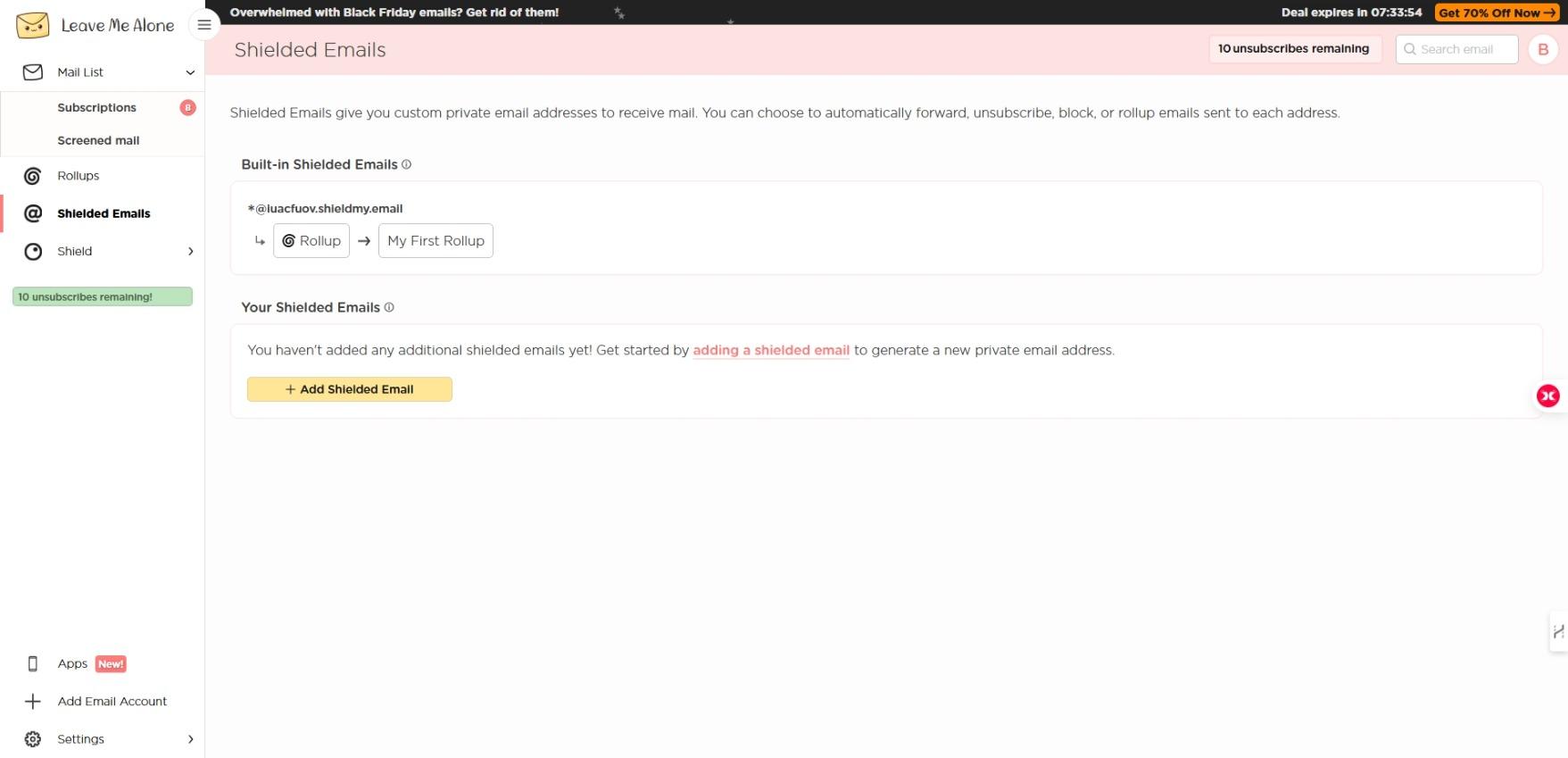

Those who wish to stop future email spam before it begins will find this especially helpful. Although I was unable to fully test it, it’s a progressive concept that perfectly complements the goal of long-term inbox protection.
Verdict: Excellent concept with niche but valuable usageScore: 8 / 10
Pricing and Value
This is where Leave Me Alone asks users to make a choice, convenience and automation versus budget.
Here’s how pricing looked based on what I saw:
- Free plan: 10 unsubscribes only
- Seven Day Pass ($19 one-time)
- Casual Emailer plan (~$4.50 per month billed yearly)
- Inbox Zero Hero plan (~$4 per month billed yearly)
The free version gives just enough access to see whether the tool works. But anyone with years of subscription buildup will need to upgrade almost immediately.

The pricing feels reasonable compared to what manual cleanup time costs, but the limitation on free usage might turn away casual users who just want quick help.
Verdict: Good paid value but limited trial flexibilityScore: 7.5 / 10
Privacy & Security
Throughout onboarding, Leave Me Alone emphasized that:
- Emails are never sold or monetized
- OAuth authentication is used for secure login
- Users choose what happens to messages after unsubscribe
- Data can be permanently deleted through the “danger zone” by deactivating our account
The system gave me confidence that it respects user privacy and does not read emails beyond what is necessary to identify mailing lists.
I appreciated that there were repository-style transparency elements as well. Good privacy documentation matters in a tool handling personal inbox data.
Verdict: Strong privacy focus and clear data controlScore: 9 / 10
Performance and Output Quality
On my test account:
- All unsubscribes were performed correctly
- Unsubscribed senders did not show up again
- Progress stats accurately updated each time
- Processing response times were fast
Where performance felt incomplete was simply due to the free plan constraints. I wanted to evaluate Shield and Rollups more deeply but couldn’t without upgrading.

Verdict: Works reliably for unsubscribing, would love more free-room to exploreScore: 8 / 10
How It Compares with Other Tools I Tested
When comparing Leave Me Alone to other inbox cleaning solutions I tried recently:
Cleanfox
- More focused on bulk deletion
- Less detailed unsubscribe control
- Free to use, but simpler in approach
- No advanced tools like Shield
Clean.email
- More robust automation rules
- Higher learning curve
- More expensive in most tiers
InboxPurge
- Very straightforward
- Paywall after using up initial 20 credits
- Lighter feature set overall
In short:
- Cleanfox = easy and free for quick removal
- Clean.email = good for power users
- InboxPurge = minimal and beginner-friendly
- Leave Me Alone = best mix of automation + control, but paywall arrives early
Leave Me Alone positions itself as a premium experience rather than a temporary fixer.
Pros & Cons
Pros
- One of the best interfaces in this category
- Clear organization and friendly design
- Personalization options are thoughtful
- Advanced control features (Shield, Rollups)
- Transparent privacy approach
- Works with all major email providers: Gmail, Outlook, Yahoo, AOL, Fastmail, and iCloud
- Good performance even on first try

Cons
- 10 unsubscribes limit is restrictive for free users
- Many appealing features are paywalled
- Shield and Rollups can only be previewed, not tested
- Might be too pricey for occasional inbox cleanup
Final Summary
Leave Me Alone feels like a well-crafted app built with real understanding of how overwhelming email clutter can be. It finds the right balance between automation and personal choice, allowing us to tidy up without wiping away emails we still value. It also encourages inbox hygiene going forward, not just cleanup in the moment.
But while it delivers a premium experience, that premium comes with an early paywall. Anyone with more than ten newsletters will need to invest before they truly experience what the app has to offer.
However, Leave Me Alone nevertheless stands out as among the most astute and sophisticated solutions available if someone is sick of inbox clutter and wants beyond just a band-aid solution.
Who it’s best for:
- People with persistent inbox clutter
- Those who prefer digest emails over unsubscribing
- Users who want ongoing defense against newsletter overload
- Privacy-conscious users who like control
Overall Score: 8.3 / 10
Frequently Asked Questions
Leave Me Alone is an inbox cleanup app designed to help users regain control over their email subscriptions. It uses secure OAuth for email authentication, scans your inbox for subscriptions, and provides options to unsubscribe, add to a digest, or keep emails. The process is automated and user-friendly, with a focus on privacy and control.
Leave Me Alone offers a free version, but it is limited to 10 unsubscribes. After that, users need to upgrade to a paid plan to continue using the service. The free version gives a taste of the app’s capabilities but may not be sufficient for users with a large number of subscriptions.
Leave Me Alone offers several key features, including unsubscribing from mailing lists, Rollups for combining multiple emails into a single digest, and Shield for advanced inbox protection. It also provides shielded email addresses for managing future subscriptions and has a clean, user-friendly interface.
Compared to other tools like Cleanfox, Clean.email, and InboxPurge, Leave Me Alone stands out for its balance of automation and personal control. It offers more advanced features like Shield and Rollups, but it also has an early paywall. It is best suited for users who want a comprehensive solution rather than a quick fix.
Leave Me Alone is available on Android devices, bringing its unsubscribe features to mobile users. However, as of now, there is no iOS app available. iPhone users will have to rely on the web interface for the time being.
Leave Me Alone emphasizes privacy and security by using OAuth authentication, ensuring that emails are never sold or monetized. Users have control over what happens to their messages after unsubscribing, and data can be permanently deleted through the account settings. The system is designed to respect user privacy and only access necessary data.
Leave Me Alone offers several pricing plans: a free plan with limited unsubscribes, a Seven Day Pass for $19, a Casual Emailer plan for approximately $4.50 per month billed yearly, and an Inbox Zero Hero plan for about $4 per month billed yearly. The pricing is reasonable for the features offered, but the free version is quite limited.
Abonneer je op onze nieuwsbrief en ben als eerste op de hoogte van tijd- en geldbesparende AI-tools!
Comments