Conclusion
Hemingway Editor is a specialized tool that excels in refining and polishing existing text, making it a valuable asset for writers who already have a draft and need to improve clarity and readability. Its straightforward interface and color-coded feedback system make it easy to identify and address issues in your writing. However, it’s not a tool for generating content or assisting with creative writing, and its AI features can be limiting due to credit consumption. Overall, it’s a solid editing tool that performs well within its defined scope.
Pros
- Excellent for refining and polishing existing text
- Straightforward and user-friendly interface
- Effective color-coded feedback system
- Useful AI-assisted sentence editing
- Good performance and reliability
Cons
- Not suitable for content generation or creative writing
- AI features consume credits quickly
- Can flatten the original voice if suggestions are accepted blindly
Table of Contents
- Introduction
- UI and First Impressions
- Main Editing Features
- Grammar, spelling and fundamental correctness
- Sentence complexity and readability indicators
- Adverbs, weak phrases and softer language indicators
- Simpler word alternatives
- Readability score and target setting
- AI-assisted sentence and document editing
- Performance
- Pricing, limitations, and internal constraints
- Privacy and Data Management
- Hemingway compared to Koala and Rytr
- Final Assessment
- Frequently Asked Questions
Introduction
Hemingway Editor is not a tool for generating content. It doesn’t assist with idea development, drafting, or creative writing. Instead, it acts as an overlay on your existing text, providing blunt feedback on where the writing may be lacking.
I view it more as an editing platform rather than a writing tool. You need to provide your own words, structure, and intent. Hemingway intervenes only after that, assisting in cleaning up, tightening, and simplifying the text. It never replaces the critical thinking process, and that distinction becomes quite clear when using it.
It’s not designed to be used on a blank page. It performs best when working with a rough draft or a few well-developed paragraphs. If you’re unsure of what you want to say, Hemingway won’t be able to help you find that clarity. And I appreciate that boundary.
This tool seems best suited for:
- Writers who already write and want clarity
- Editors polishing tone and flow
- Students or professionals trying to reduce complexity
- Anyone who edits more than they generate
It does not seem intended for:
- Idea generation
- Long form creation from scratch
- SEO writing or content planning
- Creative exploration
It’s very clearly an editing tool, not a content creator. Once I accepted that, its purpose became much clearer.
UI and First Impressions
The user interface immediately appealed to me. I primarily used it in dark mode, which made extended editing sessions more comfortable. It’s simple—no flashy animations, just a calm, focused environment.
The layout of the editor is straightforward:
- Text centered
- Suggestions directly on the text
- Stats and feedback quietly on the side
The most striking feature was the color-coding system. Various issues are highlighted in distinct colors, and over time, I understood what each color indicated.
- Red for very hard to read sentences
- Yellow for sentences that are heavy
- Blue for weak phrases and adverbs
- Purple for simpler word suggestions
- Green for grammar and spelling issues


This color coding made editing feel more visual than technical, which I appreciated. I could quickly scan a paragraph and identify problem areas without opening menus or reading lengthy explanations.
Navigation remained unobtrusive. Menus are available but do not disrupt the workflow. I could select paragraph styles, headings, lists, or quotes without losing focus. The AI features were accessible when needed but never intrusive. Overall, the interface feels calm and deliberate.
Rating: 8.7 out of 10
Main Editing Features
Grammar, spelling and fundamental correctness
This is the most apparent yet subtle layer. Hemingway detects grammar and spelling issues but doesn’t behave like a typical grammar checker that bombards you with alerts. Green highlights appear only when there’s a clear mistake, not for stylistic quirks. I appreciated this restraint—it feels corrective rather than judgmental, and never intrusive.

That said, it’s not a substitute for Grammarly. It’s more minimalist, addressing only obvious errors rather than attempting to optimize every aspect of the text.
Rating: 7 out of 10
Sentence complexity and readability indicators
This is where Hemingway truly shines. Sentences are highlighted in yellow or red based on their readability. Yellow suggests slowing down, while red indicates overly complex or dense sentences.
I began to notice patterns in my writing—long clauses, piled-up ideas, sentences that sounded clever but were tiring to read. The tool doesn’t offer explanations; it just highlights issues and waits. That silence is oddly effective, prompting me to reconsider my structure rather than accepting suggestions blindly.

Occasionally, I disagreed, particularly with technical content. However, it still prompted me to pause, which was beneficial.
Rating: 8 out of 10
Adverbs, weak phrases and softer language indicators
Blue highlights identify adverbs and weak phrases. Words like “quickly”, “very”, “somewhat” are flagged promptly. There’s also a brief explanation encouraging stronger verb choices.


I didn’t always accept the suggestions, but I appreciated the nudge. It felt less like criticism and more like a coach gently suggesting, ‘This could be sharper.’
Rating: 7.5 out of 10
It’s most effective when editing opinion pieces or explanatory content. For creative writing, I needed to be more selective.
Simpler word alternatives
Purple highlights indicate simpler alternatives for complex words. This was unexpectedly helpful—not because the suggestions were always perfect, but because they revealed where I was overcomplicating unnecessarily.

Sometimes I stuck with my original word. Other times, I realized I was overcomplicating to sound smarter. The tool doesn’t automatically replace words; it just offers alternatives, giving me control.
Rating: 7 out of 10
Readability score and target setting
The readability score appears on the side, indicating a grade level. I liked that I could adjust the target setting—options like accessible, default, or technical—which changes how strict the highlighting is.

Setting it to ‘technical’ reduced alerts for long sentences. Leaving it on ‘default’ made it more focused on clarity. This flexibility allows adaptation to different styles, but I must choose the target consciously—it’s not automatic.
Rating: 7.8 out of 10
AI-assisted sentence and document editing
This section took up most of my time, mainly because it’s useful when used correctly. Hemingway’s AI doesn’t attempt to generate new content or ideas; it only responds to existing text. While this might seem limiting, it’s actually the core purpose.
By highlighting a sentence or section, I could ask it to:
- Simplify the sentence
- Shorten it
- Add a bit more detail
- Rephrase it creatively
- Adjust tone to more confident, casual, or professional
The edits show side by side—original and suggested version. I appreciated this comparison, as it made it easier to decide. Sometimes the AI suggested a cleaner version, other times it felt too flat, so I dismissed it.
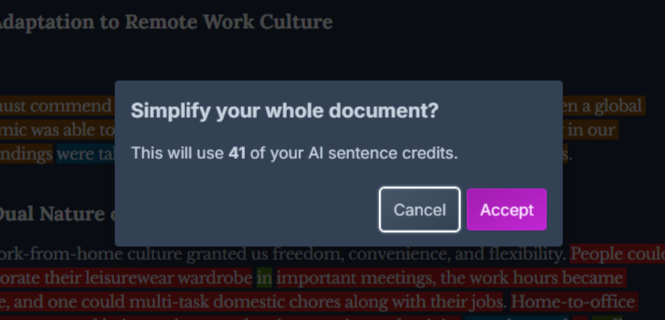
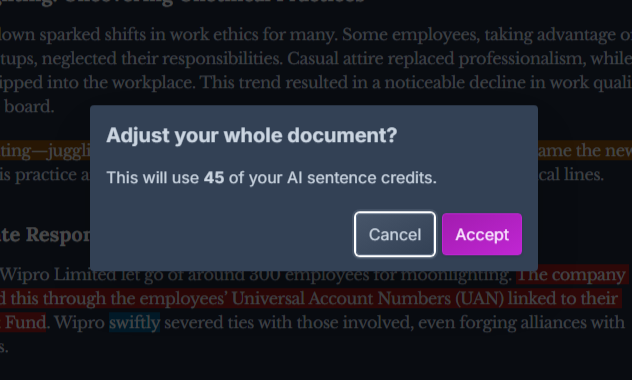
It works best with small sections—one or two sentences. Full-document edits are available but tend to feel cumbersome. Notably, once I saw how credits are consumed, I became more cautious, which actually helped me slow down and think.



The AI doesn’t deeply grasp intent. If my instructions are unclear, the output reflects that. We still need to know what we want to say. It’s not a “write for me” button, but rather a tool to help refine what I already intend to communicate.
So, it’s helpful—but only if we’re already engaged in the thinking process.
Rating: 8.5 out of 10
Performance
Hemingway performs smoothly. Text updates happen instantly, highlights show without lag, and I didn’t encounter any technical issues during editing. It operates quietly in the background.
More important is the experience of working within it.
Editing experience and workflow
- Highlights appear immediately after I stop typing
- Feedback is continuous and highly visible
- The interface encourages immediate editing
While helpful, this can also feel overwhelming. I quickly realized Hemingway works best when used in stages—first reading, then editing. Trying to fix everything at once often led me to cater to the tool rather than genuinely improving the text.
Quality of edits and AI suggestions
- Sentences tend to become clearer and more concise
- Paragraphs appear more organized
- The voice can become flatter if I accept too many edits
AI edits are consistent but lack subtlety. They tidy up the text but don’t preserve tone automatically. I often had to manually adjust to maintain the original voice.
Reliability and trustworthiness
- Suggestions follow consistent patterns
- Behavior remains predictable
- Context and intent are not deeply grasped
Hemingway is dependable within its scope but lacks flexibility. It’s most effective as a final polishing tool, when the writing is already established. Used as guidance, it helps; blindly following it can strip away personality.
Pricing, limitations, and internal constraints
Hemingway’s pricing structure is straightforward, but the usage limits significantly influence daily usability.
Based on what’s presented in the app:
- Free version
- Full access to readability highlights
- Sentence color coding works
- No AI rewriting, simplification, or grammar tools available after the initial 200 free credits.
- Hemingway Editor Plus
- $19.99 monthly, billed monthly
- Or $8.33 per month when billed annually at $99.99
- Unlocks AI rewriting, simplification, expansion, and tone adjustment features.
The AI features run on sentence-based credits, not words. Editing long documents or running full document actions consumes credits quickly, so I had to be careful about when to use AI and when to just edit manually.


Different actions consume credits at varying rates, subtly affecting usage. I tended to reserve AI for difficult sentences rather than entire paragraphs, which made heavy AI use feel slower.
The pricing is justified if frequent editing and polishing are part of your workflow. For occasional cleanup, its value diminishes.
Privacy and Data Management
Hemingway’s privacy setup is typical for a writing app. I didn’t feel uneasy or overly tracked, but privacy isn’t a primary focus.
The app collects user-provided data such as account details, as well as automatic data like IP address, device info, usage logs, and cookies. Some data may come from third-party services for analytics, advertising, and operational purposes.
This data supports service operation, feature enhancement, updates, legal and security compliance, and marketing. Tracking via cookies and analytics is employed, including targeted advertising. The platform does not support Do Not Track.
Data may be shared with service providers, marketing partners, legal entities, or future business owners. Users can manage cookies, opt out of marketing communications, and request access or deletion of their data.
Overall, the approach feels practical and standard—neither overly privacy-focused nor alarming.
Hemingway compared to Koala and Rytr
|
Aspect |
Hemingway |
Koala |
Rytr |
|
Starting plan price |
$19.99/month (Plus) |
~$49/month (Professional) |
~$9/month (Saver) |
|
Core purpose |
Editing and readability improvement |
Writing drafts and editing |
General purpose AI writing support |
|
Writing generation |
No (only edits existing text) |
Yes (full articles, long form) |
Yes, but only short bursts |
|
Editing capability |
Strong readability feedback |
Good editing + suggestions |
Basic edits, repetitive |
|
Ease of use |
Very simple and clear |
Balanced and intuitive |
Simple but shallow |
Koala stands out overall for writing and editing, assisting in both content creation and refinement, streamlining the process. Rytr produces many outputs, but they tend to be shallow and repetitive, often requiring cleanup. Hemingway excels as an editor, offering more deliberate and thoughtful suggestions, but it does not support content generation from scratch.
Final Assessment
Hemingway specializes in one core function: highlighting where your writing becomes dense, unclear, or cluttered. It doesn’t attempt to be creative or to think for you. I appreciate that honesty—it clearly defines its role and remains within its scope.
Its readability feedback is straightforward and instant. The sentence-level editing is where it truly excels. The minimal, focused interface makes extended editing more manageable. Its predictable behavior ensures I always understand what’s being addressed and why.
However, blindly accepting every suggestion can flatten my voice. Credits for AI features deplete rapidly with longer texts, limiting their usefulness. It’s also not suitable for drafting or idea generation.
This tool is for polishing, not for assisting in writing from scratch. When used at the appropriate stage, it’s genuinely beneficial. Using it too early can hinder the creative process.
Overall rating: 7.8 out of 10
Frequently Asked Questions
Hemingway Editor is an editing tool that provides feedback on existing text to improve clarity, readability, and conciseness. It highlights complex sentences, weak phrases, and suggests simpler word alternatives, but it does not assist with content generation or idea development.
Unlike Koala and Rytr, Hemingway Editor focuses solely on editing and improving readability rather than content generation. It provides deliberate suggestions to refine text but does not create content from scratch, making it more specialized for polishing existing work.
Hemingway Editor offers grammar and spelling checks, sentence complexity and readability indicators, adverb and weak phrase detection, simpler word alternatives, and AI-assisted sentence editing. It uses a color-coding system to highlight different issues in the text.
Hemingway Editor is not ideal for creative writing as it focuses on clarity and simplicity, which can sometimes strip away the creative voice. It is better suited for editing opinion pieces, explanatory content, or professional writing where conciseness is key.
Hemingway Editor offers a free version with basic readability highlights and a paid version, Hemingway Editor Plus, at $19.99 monthly or $8.33 per month when billed annually. The paid version includes AI rewriting, simplification, and tone adjustment features.
The AI feature in Hemingway Editor assists in refining existing text by suggesting simplifications, rephrasing, and tone adjustments. It works best with small sections of text and provides side-by-side comparisons of original and suggested versions, allowing users to make informed decisions.
Hemingway Editor is limited to editing and does not assist with idea generation or long-form content creation from scratch. Additionally, the AI features consume credits quickly, which can limit extensive use, and the tool may not preserve the original tone if suggestions are accepted blindly.
Abonneer je op onze nieuwsbrief en ben als eerste op de hoogte van tijd- en geldbesparende AI-tools!
Comments