Conclusion
HiPDF successfully expands standard PDF utility into an intelligent document workspace by combining dependable AI detection, multi-tiered mind mapping, and citation-backed document chat. It is well suited for working professionals who need to digest complex research papers, verify content authenticity, and take inline notes without switching between multiple apps. However, the absence of a dark theme can cause visual fatigue during long sessions, and the pricing structure leans noticeably toward business users rather than budget-conscious students. Overall, it is a robust, versatile choice for professional document digestion, provided you do not mind working in a bright interface.
Pros:
- Highly accurate AI detector capable of analyzing text, documents, and nuanced image cues like mirrored text
- Document chat provides direct page citations and maintains context across follow-up queries
- Detailed multi-layered mind map generator that structures document themes effectively
- Privacy-focused file handling that automatically deletes uploaded files after roughly one hour
Cons:
- Web interface lacks a dark mode, causing eye strain during extended night use
- Pricing tiers lean toward business use and may be steep for casual users or students
- Three-panel interface layout feels busy and requires a slight initial learning curve
Table of Contents
- First Impressions & User Experience
- Core Features & Real Usage Testing
- Performance, Reliability & Everyday Usability
- Pricing, Free Plan & Limitations
- Privacy, Data Handling & Account Control
- Comparison: HiPDF vs ChatPDF vs PDF.ai
- Final Verdict & Overall Score
I’ve been going through a bunch of PDF tools lately, mostly the ones that layer AI on top of basic PDF functions, and HiPDF landed on my list because Wondershare has built out a pretty ambitious AI Tools tab inside what is otherwise a standard PDF utility platform. I want to be upfront here, I did not test the entire tool and all its features. HiPDF has dozens of features including a great deal of templates, edit PDF, convert PDF, protect PDF, image tools, the whole works, and reviewing all of that would turn this into a feature catalog instead of an actual honest review.
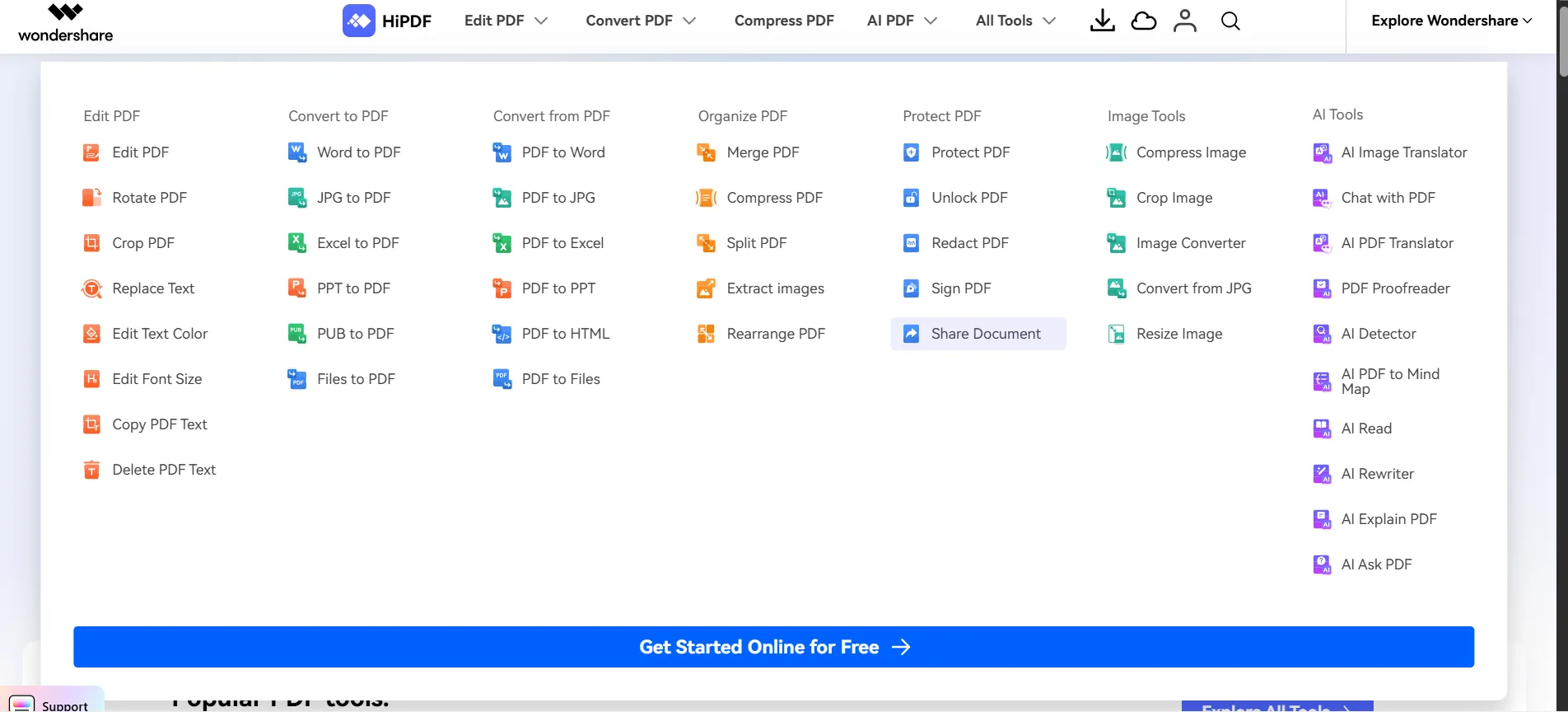
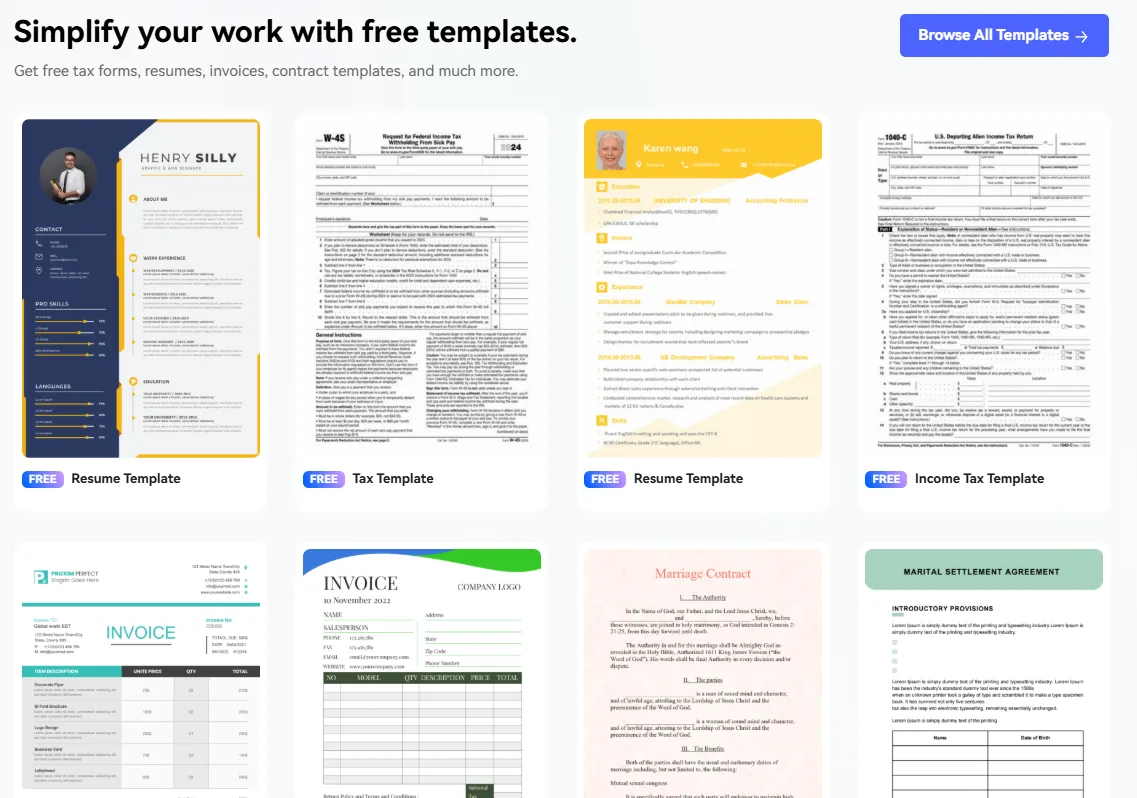
So I focused on what I actually would use as someone who works with documents daily, which meant the AI Detector, the Chat with PDF and Explain PDF combo (these two are basically fused into one workspace), and the Mind Map generator.
I think this tool suits working professionals who need quick document digestion without wanting to open five separate apps for it. I do not think it suits students on a tight budget or anyone who just wants a free, no-frills PDF editor, because the pricing leans more toward business use.
First Impressions & User Experience
Opening up the HiPDF Space felt a little busy at first to be quite frank. There’s a three panel layout going on, one side for documents and notes, the middle for the actual dialogue and AI outputs, and the right side is this “Workspace” column that tracks whatever task you just ran, mind map, summarizer, etc. It took me a minute to figure out where things lived, but once I got the hang of it, navigating between the summary, viewpoints, and dialogue sections was pretty smooth.
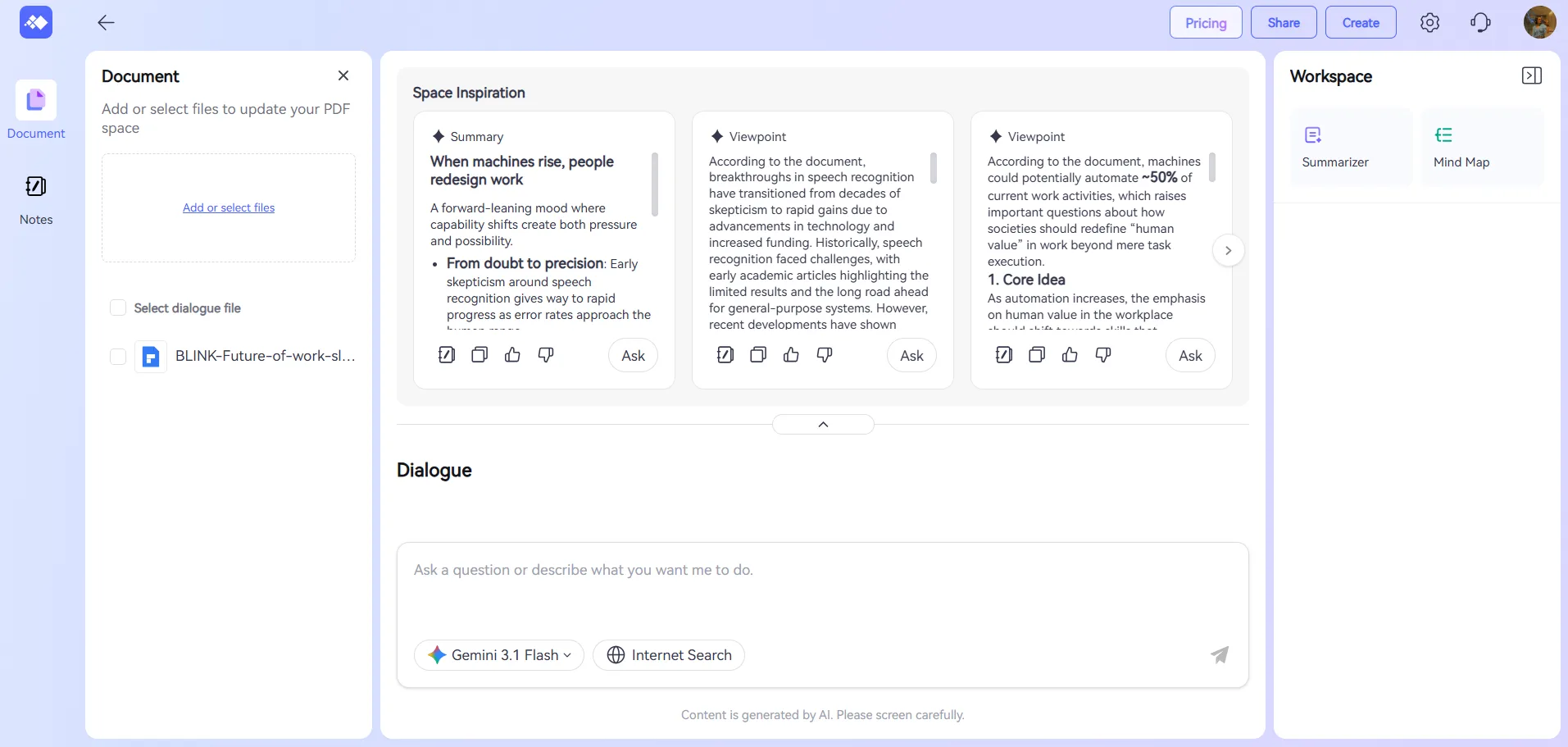
One thing I genuinely missed was a dark theme. I do a lot of late night document work and staring at that bright white interface for long stretches got a little tiring on the eyes. Not really a dealbreaker but it’s the kind of small thing that adds up eventually over perpetually burning the midnight oil.
The model selector was a nice surprise though, I noticed I could pick which AI model powered the chat, and I tested with Gemini 3.1 Flash. There’s also an internet search toggle sitting right next to it which I didn’t dig too deep into but its there if someone needs it.
Core Features & Real Usage Testing
AI Detector
This one impressed me honestly, more than I expected going in. I ran it across two out of the three formats, namely, text, image, and it does document too though I didn’t test that one since it wasn’t really my focus this time round.
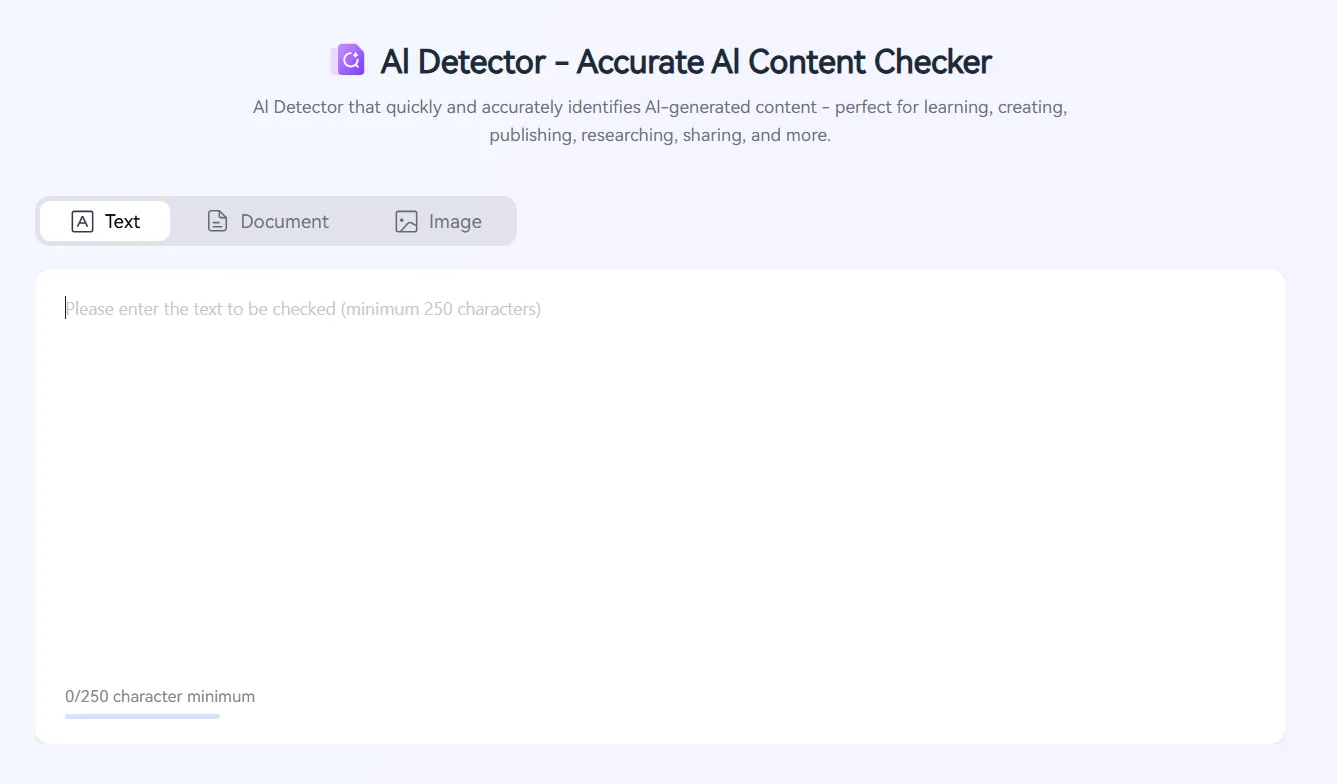
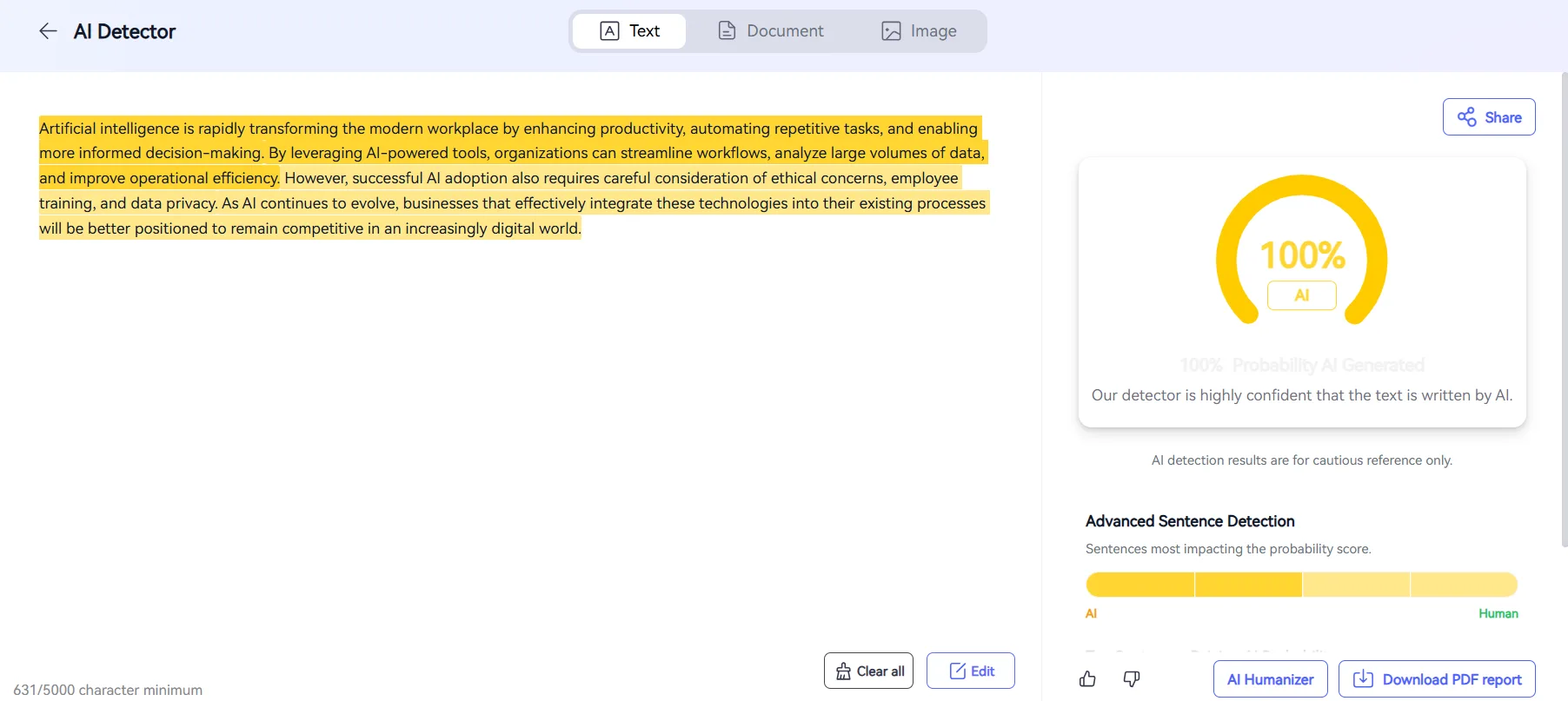
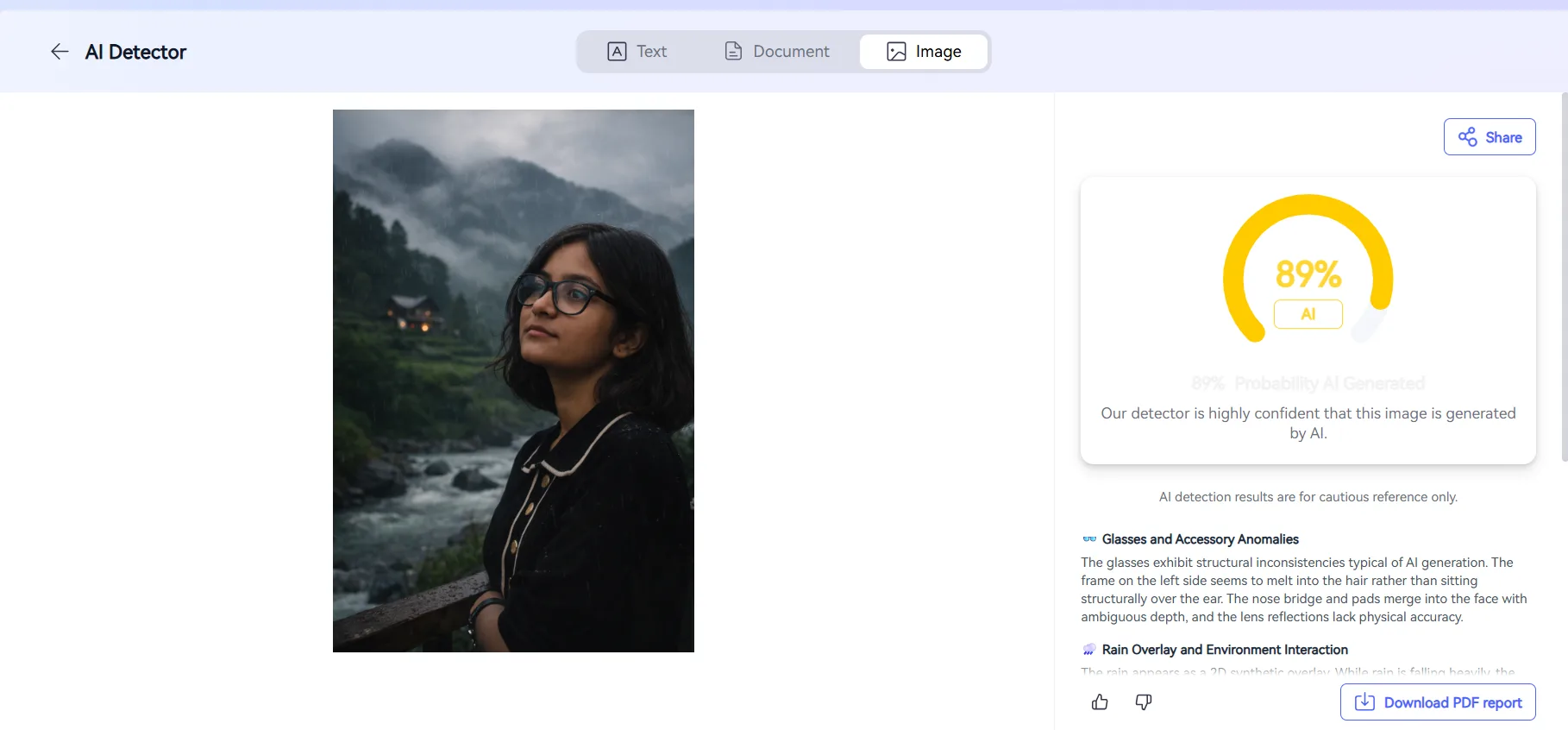
I fed it a chunk of clearly AI-generated text first, just to see how confident it would be, and it came back 100% AI without any hesitation or wishy washy percentage sitting in the middle somewhere. Then I tried an actual AI-generated image and it flagged that correctly as well, and it gave a breakdown explaining why, mentioning things like glasses and accessory anomalies, some weird structural inconsistency around the frame that apparently gave it away.
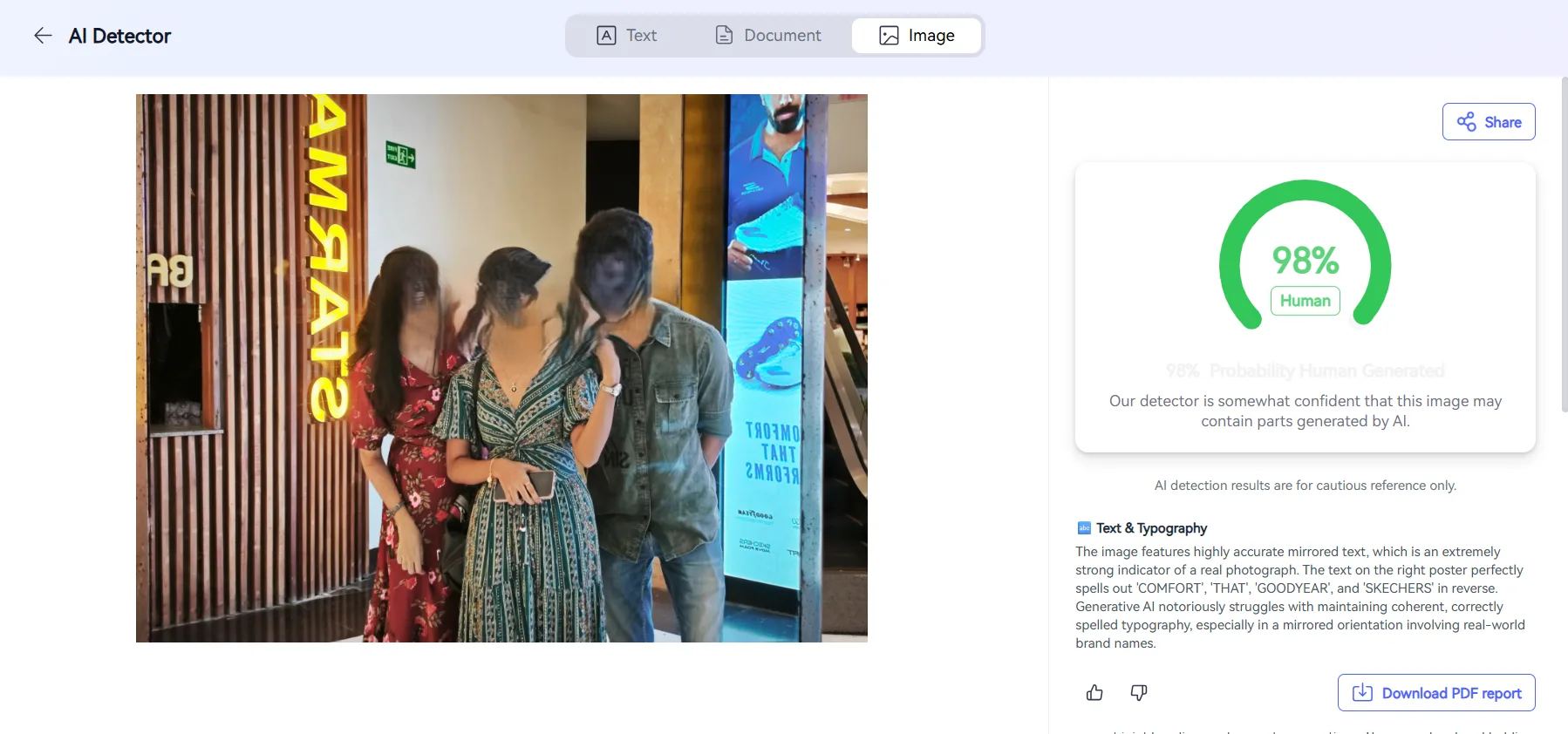
After that I tried a real photo I actually had, one of me and some friends out at a mall, and it correctly flagged it as human, 98% probability, which honestly was the moment that sold me on it. A lot of these detectors either flag everything as AI just to seem cautious, or flag basically nothing to avoid false positives and look “safe,” but this one actually felt calibrated properly instead of just hedging. It even called out the mirrored text on a storefront sign in my photo as evidence the image was real, which is a detail I genuinely wouldn’t have expected an AI detector to pick up on, since generative models are notoriously bad at getting reversed or mirrored text right. Small thing, but it told me the tool was actually analyzing the image instead of just running a surface level check.
Chat with PDF and Explain PDF
I uploaded a document and just started asking it questions directly, just the kind of stuff I’d actually want to know if I were skimming a report before a meeting. The responses came back accurate, and when I asked something specific, like what skills would become more important going forward according to the doc, it didn’t just guess or paraphrase generically the way some chat tools tend to do when they don’t actually have a firm grip on the source material. It pulled the actual keywords straight from the text and cited the page number they came from, right there next to the answer. That citation piece is something I actually care about a lot, because it means I’m not just trusting some black box output and hoping it’s right, I can go verify it myself in two seconds by flipping to that exact page. I tested this a few times with slightly different phrasing of the same question just to see if it would stay consistent, and it did, which told me it wasn’t just pattern matching off my exact wording.
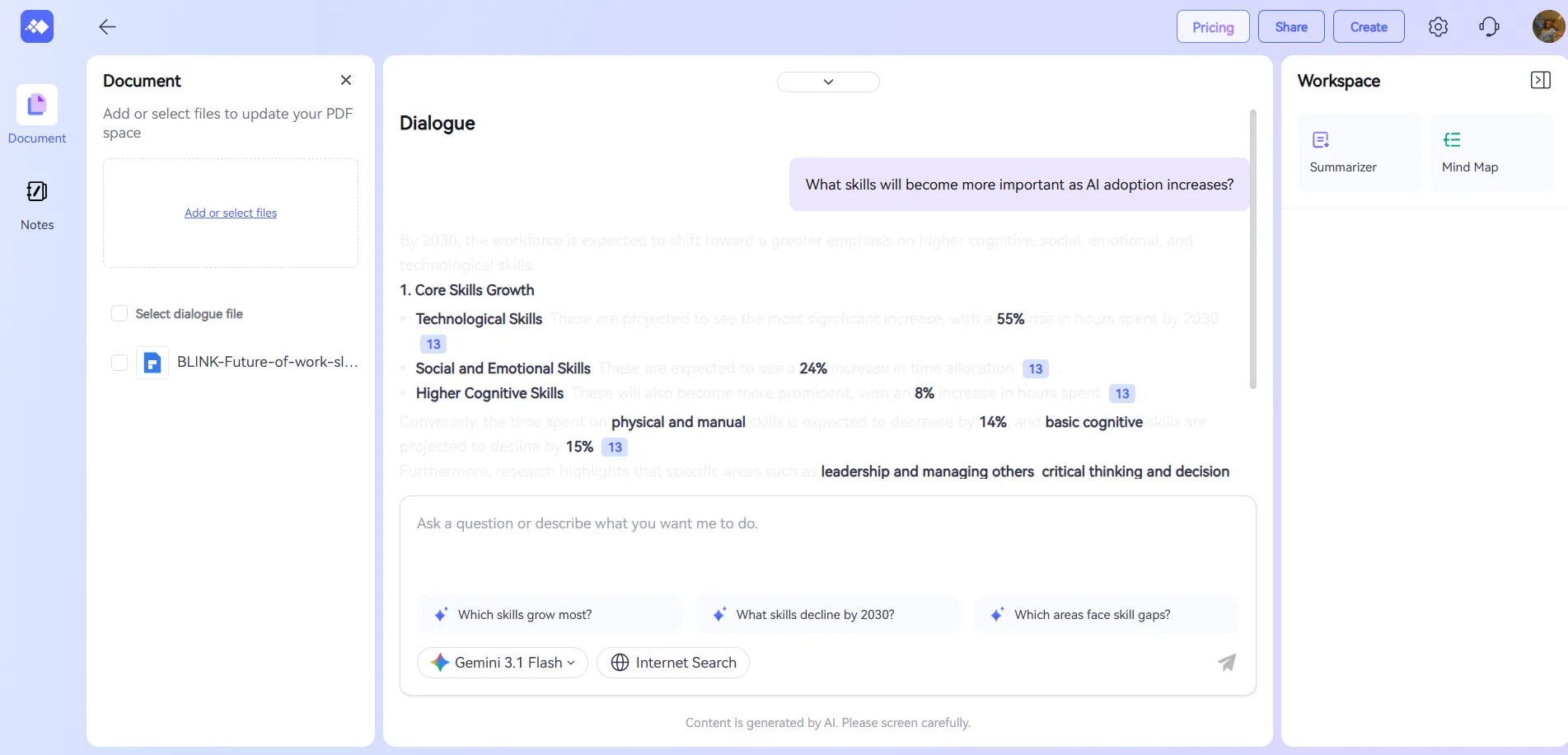
It also summarized the whole document’s key points correctly when I asked for that, no missed sections that I could tell after going through it against the actual PDF myself, and no made up points either as far as I checked line by line. I pushed it a bit further too, asking follow up questions that built on the previous answer instead of starting fresh each time, and it held onto that context fine without me needing to re-explain what I was referring to.
Mind Map
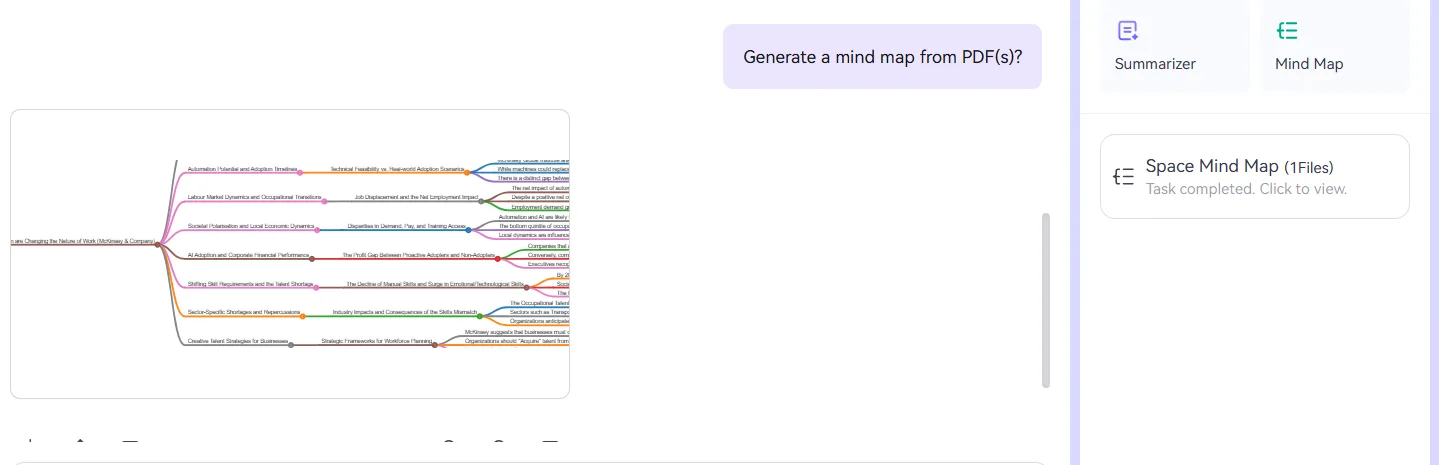
I asked it to generate a mind map from the same PDF and it built out a genuinely detailed one, branching properly across the different themes in the document rather than just spitting out a flat list dressed up to look visual, which is honestly what a lot of “mind map” features end up being once I actually test them. This one had multiple layers going, main themes branching into subpoints, and those subpoints branching further into specific details pulled straight from the text. I’ll admit I’ve seen mind map tools before that feel more like a gimmick bolted onto a chat feature just so the product page can list one more bullet point, but this one actually held up as something I’d use again, especially for breaking down a longer report before a meeting when I don’t have time to read the whole thing start to finish. I also tried regenerating it a second time on the same document just to see how consistent the structure would be, and while the wording shifted slightly, the core branches and themes stayed the same, which told me it wasn’t just randomly generating something different each time.
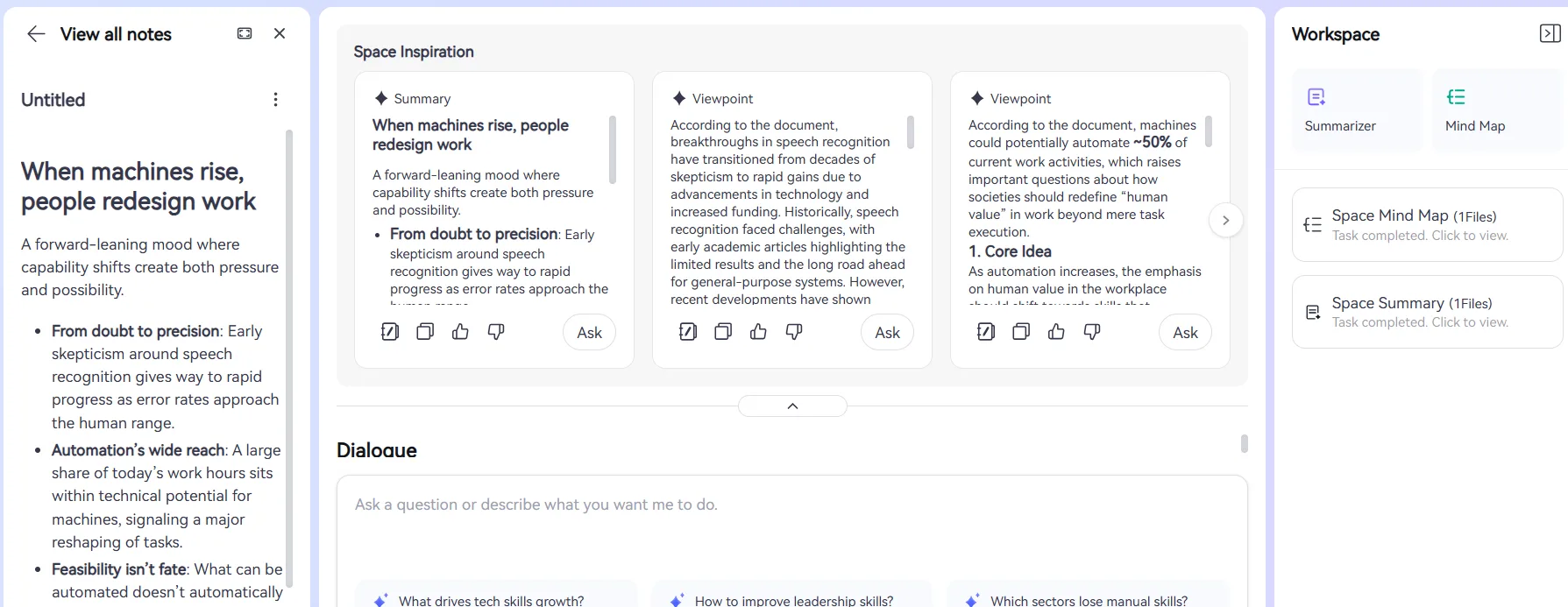
There’s also a Notes feature tucked in there, where any answer I got from the chat could get saved directly into a running notes panel tied to that specific PDF workspace. Small feature but genuinely useful for a quick once-over before I need to reference something again later, and it saved me from having to copy paste answers into a separate document somewhere else like I usually end up doing with other tools.
Performance, Reliability & Everyday Usability
I don’t have any complaints here. Everything ran without lag through my whole testing session, nothing buffered, and I didn’t hit a single one of those loading spinners that just sit there forever making me wonder if the tab froze. The outputs across the summarizer, the detector, and the mind map generator all came back at a reasonable speed, and stayed consistent across the multiple times I reran similar prompts just to double check I wasn’t getting a lucky first pass. I also switched between tasks a fair bit, jumping from chat to mind map to detector and back again within the same session, and the workspace didn’t lag or lose context anywhere along the way, which is honestly where a lot of these AI-heavy tools tend to slip.
For a tool juggling this many AI features stacked into one workspace, I fully expected at least one hiccup somewhere along the line, a slow response, a half loaded mind map, something, and I just didn’t run into that. It held up well even during longer back and forth chat sessions where I kept asking follow up questions instead of just single one off queries, which is usually where I start noticing a tool’s cracks if it has any.
Pricing, Free Plan & Limitations
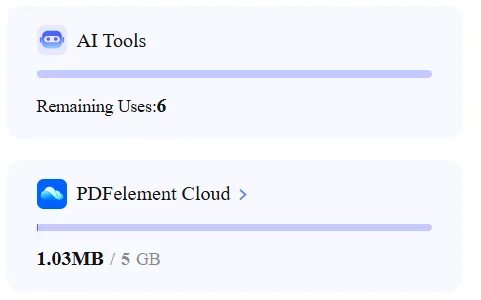
The free trial gave me a decent amount to work with. After running the mind map, the Explain PDF chat, and multiple AI Detector checks, I still had 6 AI uses left on the counter. Storage-wise I was sitting on 5GB total with only about 1MB used, which honestly is more storage than I’d expect to need for PDF chat work anyway.
Here’s the breakdown I pulled from the pricing page:
Plan | Price | What’s Included |
|---|---|---|
Free Trial | Free | 2 free tasks/day, 10MB max file, 50 pages max |
HiPDF Pro (Web) | $48/month (or discounted annually) | No usage limit, 100MB files, 2000 pages, batch processing, OCR access |
HiPDF Pro Plus (Web+Desktop) | $39.99/month billed annually, marked “Most Popular” | Everything unlocked, no limits across the board, desktop access included |
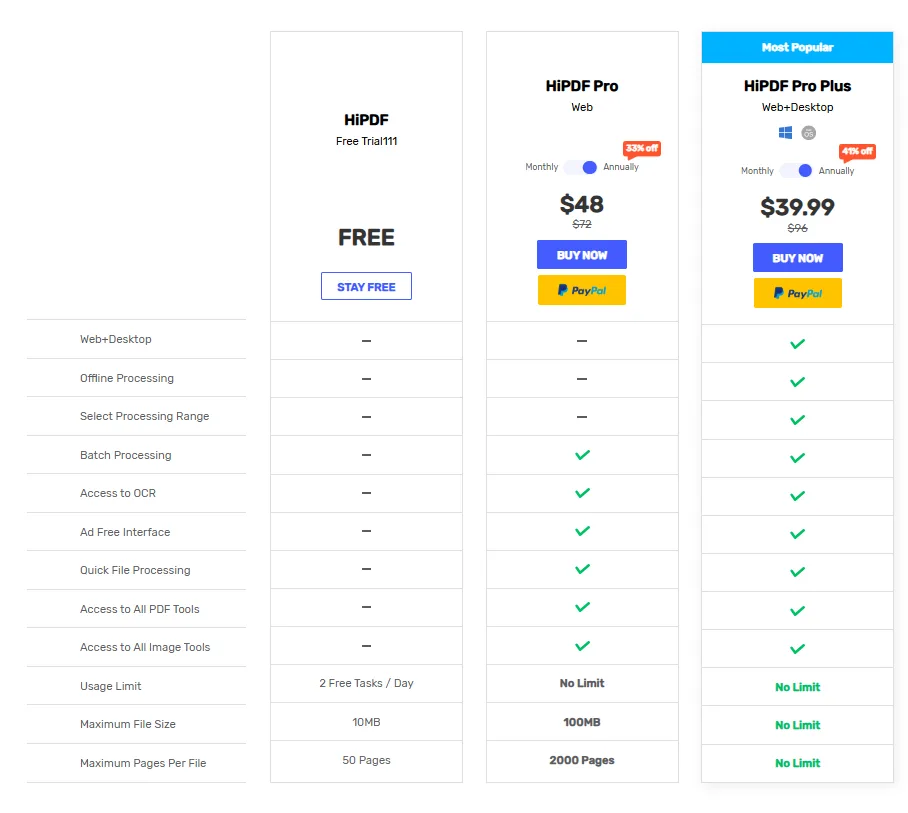
The Pro Plus tier being cheaper than the plain Pro tier despite offering more, that’s a little odd honestly, but I’d guess its just an annual billing incentive baked in. Either way it’s competitively priced against similar tools I’ve tested, and the free tier is actually usable enough to get a real feel for the product before paying, which I appreciate. A lot of tools give you a free tier so limited its basically a demo, this wasn’t that.
Privacy, Data Handling & Account Control
I went and read through HiPDF’s actual privacy policy and a few things stood out that matter practically:
- Uploaded files get automatically deleted from their servers about an hour after processing, and Wondershare states they don’t store, scan, or copy user files beyond that window
- File transfers are encrypted using SSL
- On the Chrome extension listing specifically, Wondershare discloses it does not collect or use personal data, and that data isn’t sold to third parties outside approved use cases
- The broader Wondershare privacy policy (which covers HiPDF as part of its PDF solutions suite) does mention that if third-party services get enabled, like Google API integrations, information could get shared with those third parties, so that’s worth knowing if someone connects external accounts
- Data is stored across servers in the EU, US, and Singapore depending on region, and users get standard GDPR-style rights, meaning access, deletion, and correction requests
Practically speaking, this felt reasonably trustworthy for a document tool. The auto-delete window on uploaded files is the part that actually matters most to me day to day, since that’s the sensitive part, not marketing cookies or whatever.
Comparison: HiPDF vs ChatPDF vs PDF.ai
Feature | HiPDF | ChatPDF | PDF.ai |
|---|---|---|---|
AI Detector | Yes, text/image/document, felt accurate | Yes, 1 use/day on free plan | No |
Mind Map | Yes, detailed and well branched | No | Yes |
Chat with PDF | Yes, with page citations | Yes | Yes |
Notes feature | Yes, built into workspace | No | No |
Free plan usability | Generous, 6 uses left after heavy testing | Very limited | Limited but usable |
Pricing | $39.99 to $48 yearly | $19.99/month | Competitive, similar range |
Honestly, HiPDF edges out both of these for me specifically because of the AI Detector plus Notes combo, neither ChatPDF nor PDF.ai gave me that same all-in-one feeling where I could chat, verify AI content, and save notes without switching tools. ChatPDF’s detector exists but is far more limited on free tier. PDF.ai has the mind map too but I didn’t get the same citation-level detail out of its chat responses when I tested it earlier. If someone needs pure document Q&A on the cheapest plan possible, ChatPDF’s lower price point makes sense. But for someone who wants the fuller AI toolkit in one workspace, HiPDF comes out ahead here.
Final Verdict & Overall Score
What worked for me was the AI Detector. It was genuinely one of the more accurate ones I’ve tested across text and image formats, the Chat with PDF feature backed up its answers with actual page citations instead of vague summaries, and the Mind Map output was detailed enough to actually use before a meeting instead of just looking nice. The Notes feature tying into the workspace was a small but appreciated touch too.
What didn’t work as well unfortunately was the missing dark theme, which is a real miss for anyone doing extended sessions, and the pricing, while competitive, still sits high enough that casual users might hesitate before committing to a paid tier.
Would I keep using it? Yeah, I think I would. For the AI Detector alone I’d come back to it, and the chat plus mind map combo makes it a solid pick for breaking down longer documents fast. I’d recommend this to any working professional who deals with reports or research docs regularly and wants a tool that does more than just basic Q&A. If someone’s only need is casual, occasional PDF chatting, the free tier limitations on paid competitors might feel less restrictive, but for actual regular use, HiPDF earned its spot on my recommended list.
Overall Score: 8.4/10.
Frequently Asked Questions:
Yes, when querying a document, HiPDF pulls specific keywords directly from the text and provides clickable page numbers next to its responses so you can quickly verify findings.
In testing, the detector demonstrated high calibration across both generated and authentic images. It correctly identified synthetic anomalies like distorted eyewear, while recognizing subtle real-world details such as mirrored storefront text to confirm human-captured photos.
According to Wondershare’s privacy policies, user-uploaded files are encrypted during transfer via SSL and automatically deleted from servers approximately one hour after processing.
Yes, HiPDF provides a free trial that allows limited daily tasks (such as two free tasks per day on standard tools) and includes trial credits for AI tools like the detector, chat, and mind map generator.
Subscribe to our email newsletter to get the latest posts delivered right to your email.
Comments