Conclusion
UPDF sets itself apart as a massive all-in-one productivity ecosystem, combining core PDF utilities with a sprawling catalog of AI writing, study, and research assistants. Features like custom-range mind mapping, insightful CV screening, and multi-document chat deliver exceptional utility for professionals seeking broad workflow coverage under one roof. However, its sheer volume of tools creates an overwhelming initial interface, and the platform lacks both a dark theme and an internal AI content detector. For users seeking versatile, multi-disciplinary functionality backed by attractive lifetime pricing, UPDF is a compelling workspace.
Pros:
- Custom-range mind map generation allows targeting specific page segments rather than entire files
- Supports simultaneous multi-document chat across up to 100 files online
- Strict privacy policy that explicitly bars user files and data from being used to train AI models
- Cost-effective lifetime pricing options available for core PDF and bundled Pro features
Cons:
- Missing a native web dark mode, causing visual fatigue during long sessions
- Lacks an integrated AI detector to check or validate its built-in humanizer output
- Sprawling menu structure and multi-tiered plan options create an initial learning curve
- Occasional internal server errors during file uploads
Table of Contents
- First Impressions & User Experience
- Core Features & Real Usage Testing
- Performance, Reliability & Everyday Usability
- Pricing, Free Plan & Limitations
- Privacy, Data Handling & Account Control
- Comparison: UPDF vs HiPDF
- Final Verdict & Overall Score
Okay so this one took me longer than usual to even get through, and that’s saying something considering how many tools I’ve already reviewed at this point. UPDF is honestly on a completely different scale compared to everything else I’ve tested recently. It’s not just a PDF chat tool with a couple extra features added on to it, it’s genuinely an entire ecosystem of AI tools stuffed inside one platform, and figuring out what to even focus on for testing took some real thought.
I think this tool suits people who want one single subscription to handle basically everything, document work, writing help, research, even random fun stuff. I don’t think it suits someone who wants a clean, minimal experience though, because minimal is the opposite of what UPDF is going for here.
First Impressions & User Experience
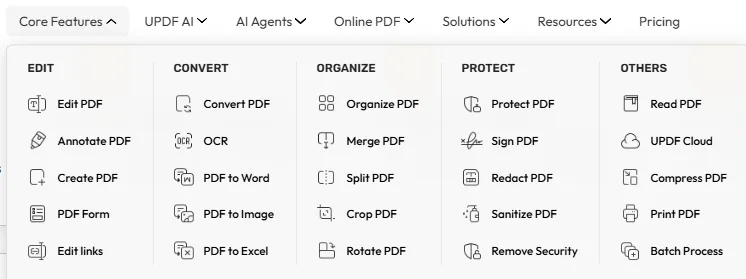
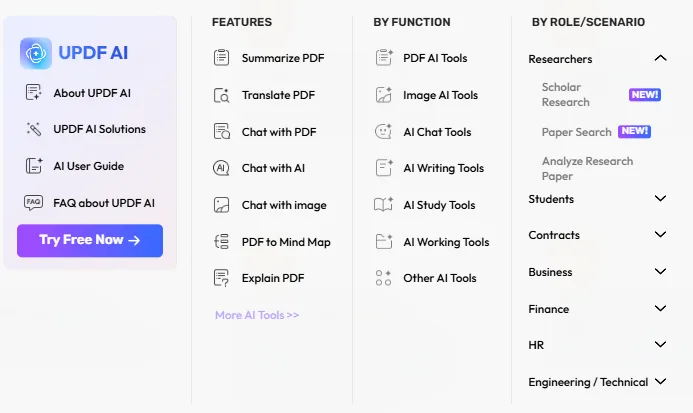
To be very frank, my first reaction opening this thing up was a little bit of overwhelm, not going to lie. There’s just so many tools here. Like genuinely, so many. I’m talking rap lyrics generators, an AI fortune teller, pickup line generators, alongside actual work related stuff like legal document comparison tools and CV screening. Then there’s a whole separate category for study tools, homework helpers, quiz generators, case study tools, essay writing assistants. Then chat tools, chat with AI, chat with DeepSeek, a ChatGPT alternative option. Then image tools. Then the PDF AI stuff I actually came here for, mind maps, chat with PDF, summarize, translate. And then underneath all of that there’s still the core PDF utilities too, converters, organizers, protection tools, editing tools.
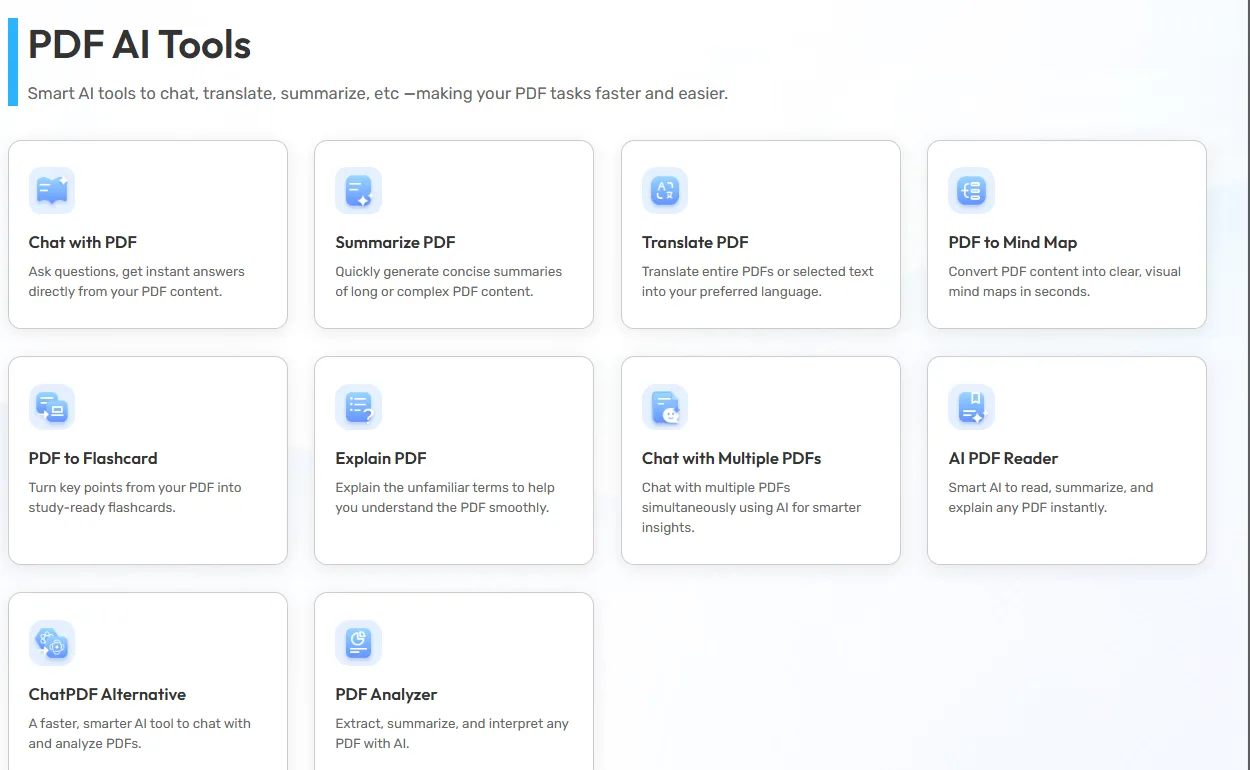
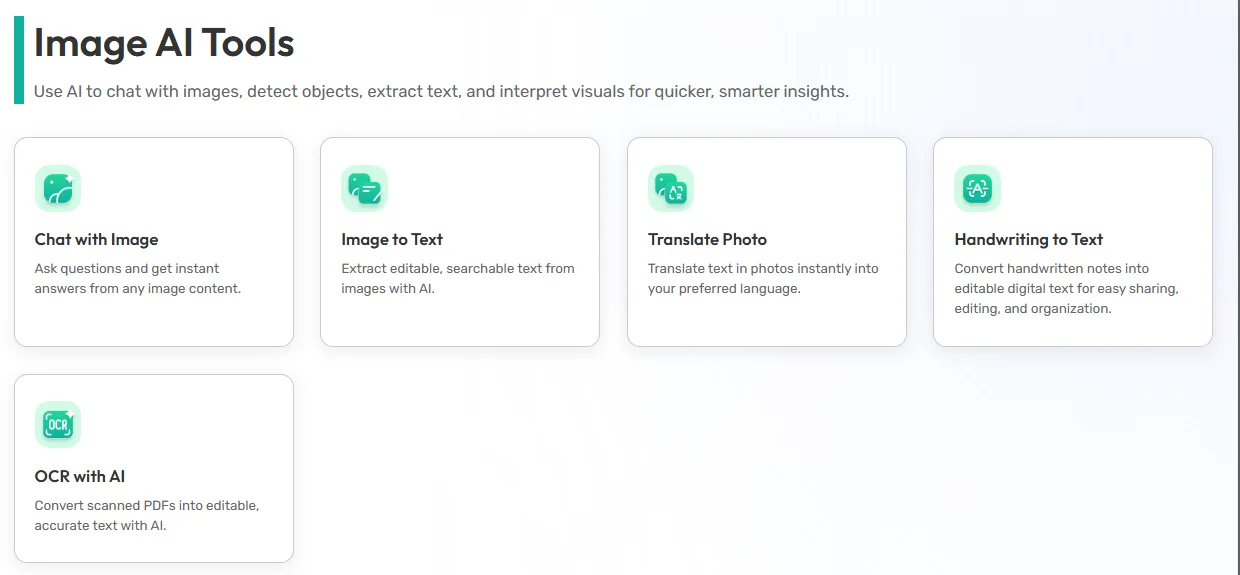
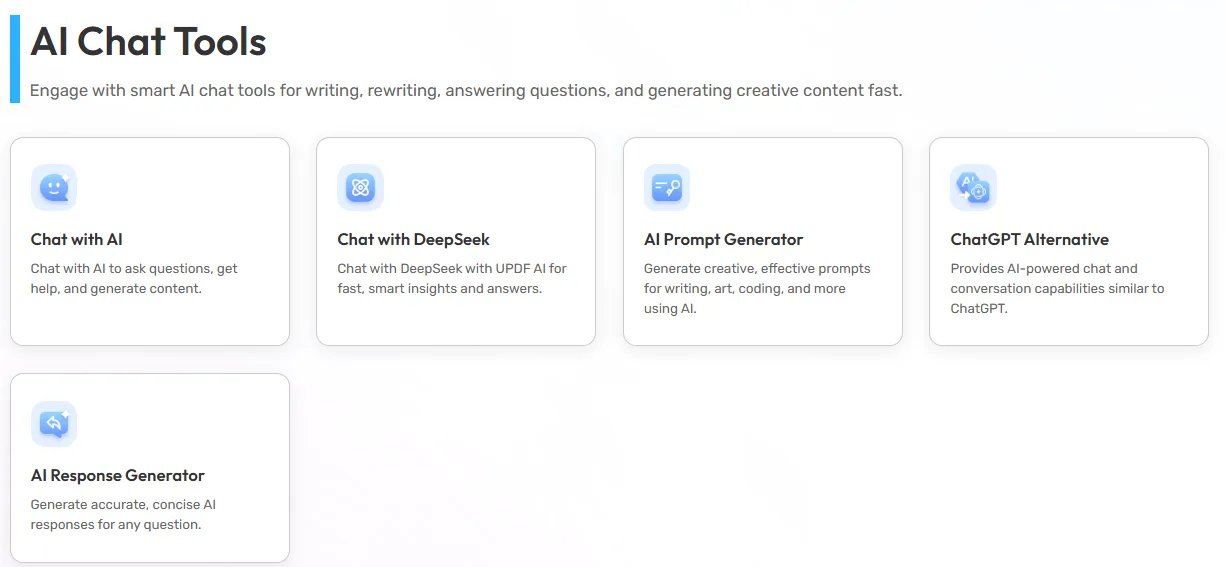
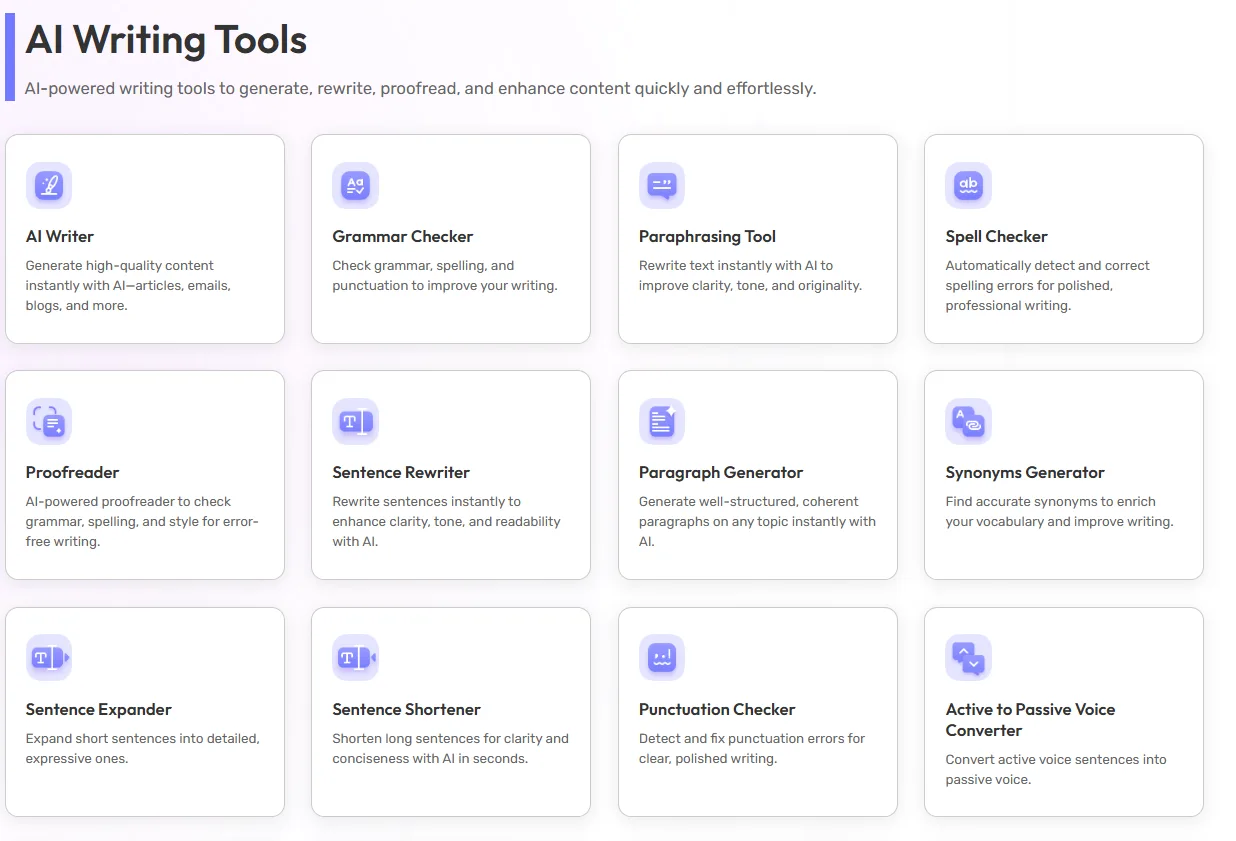
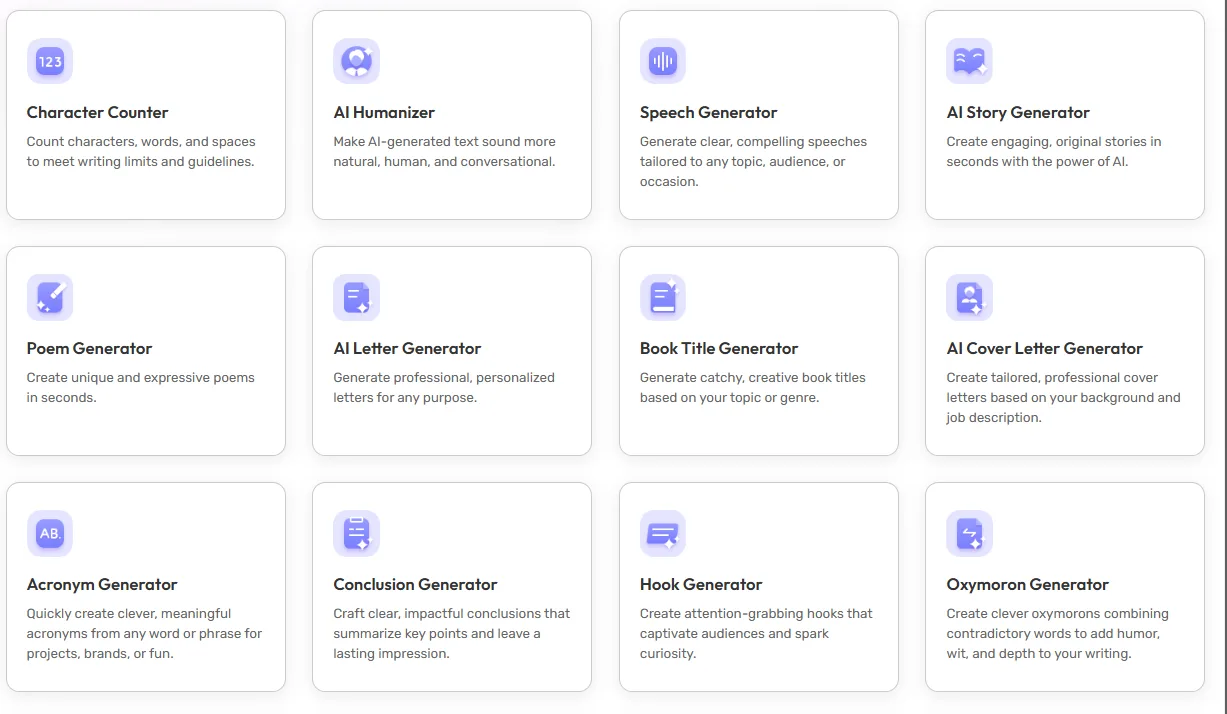
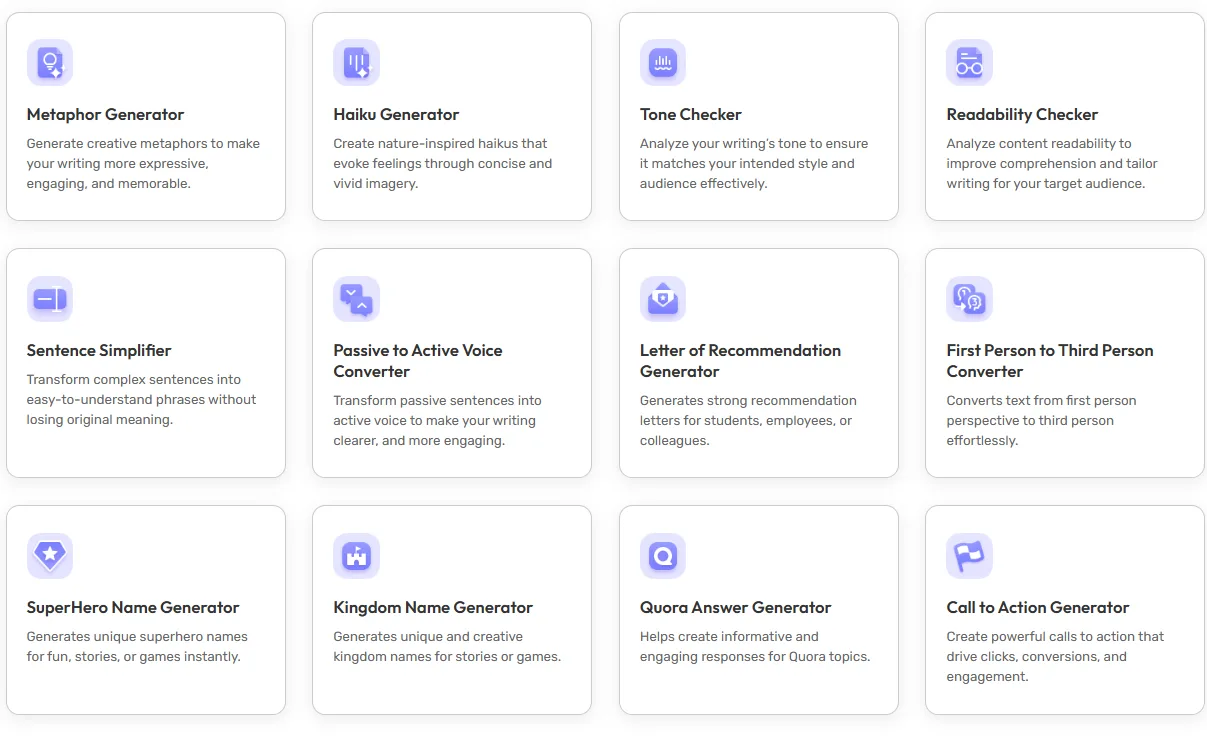
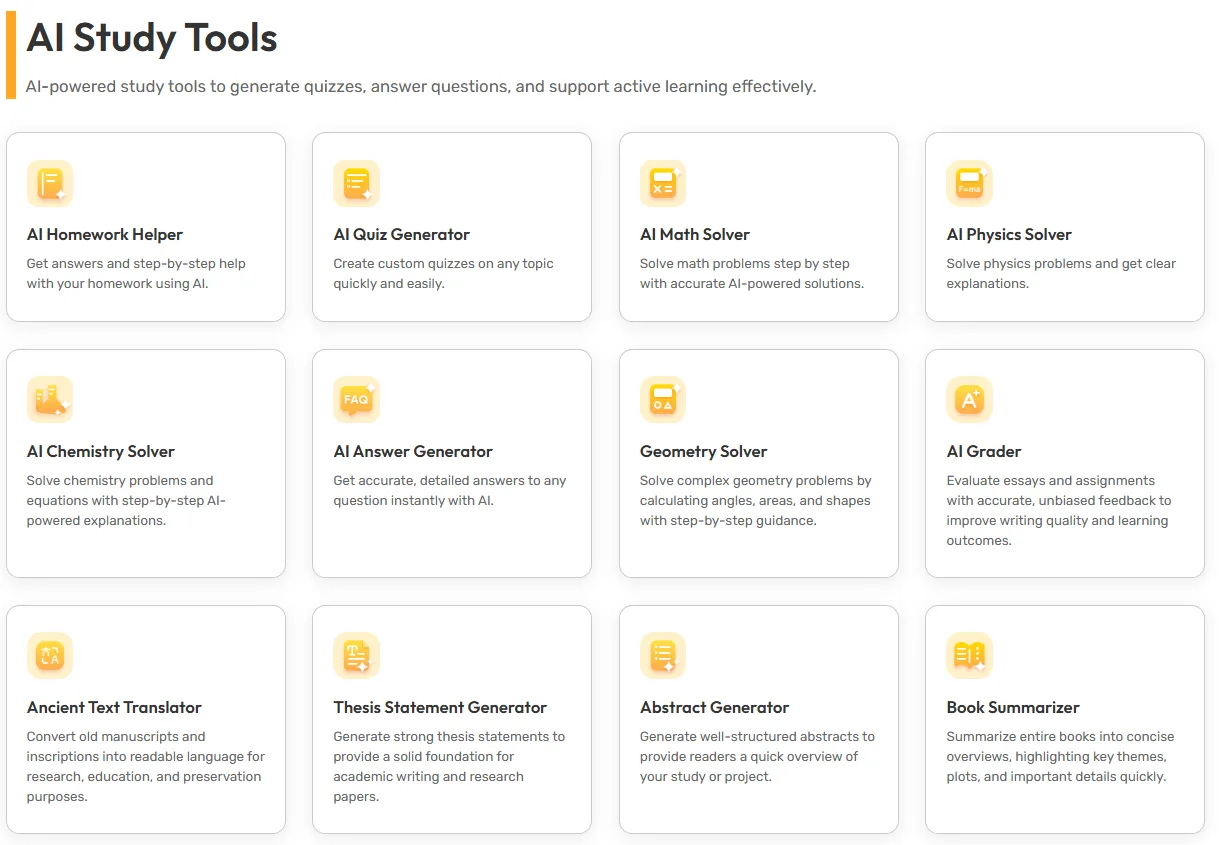
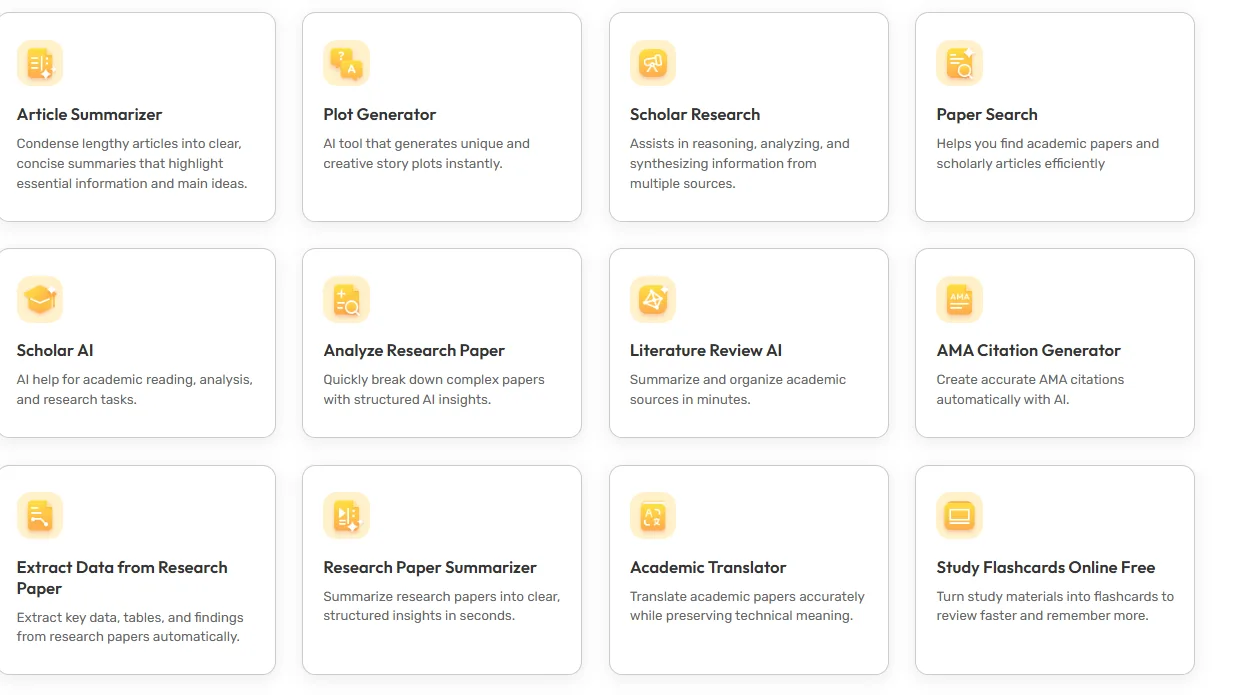
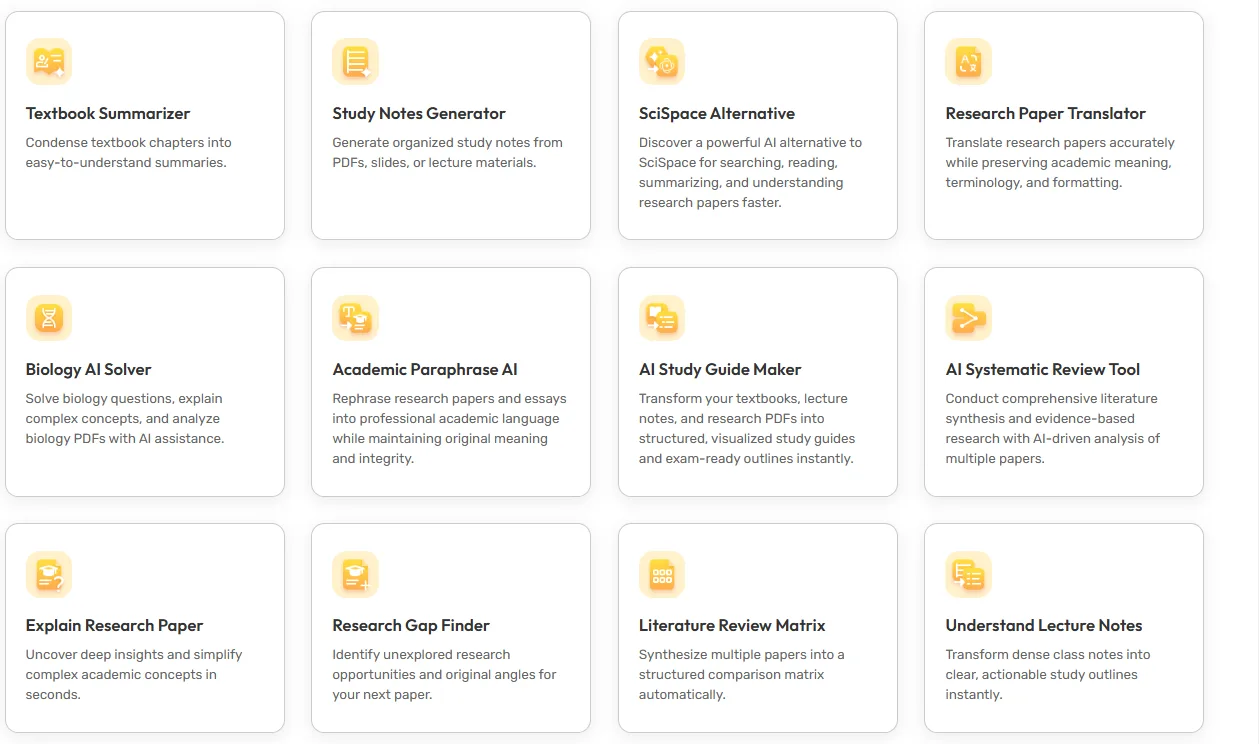
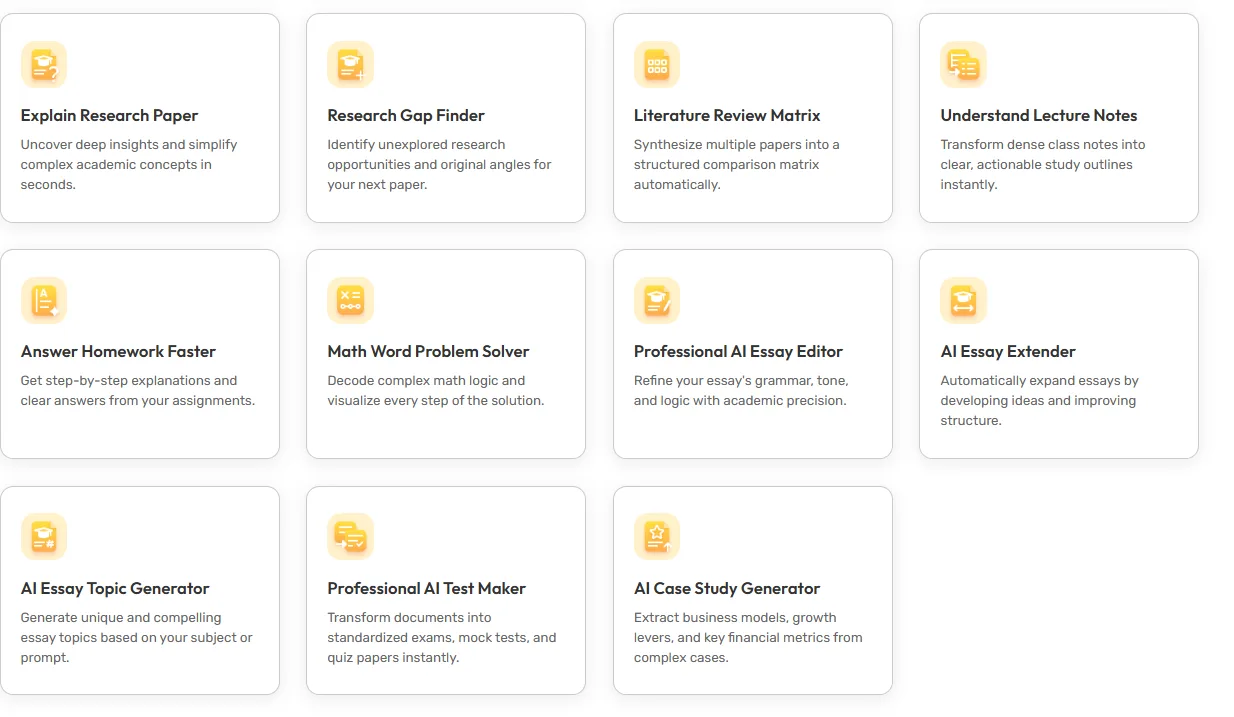
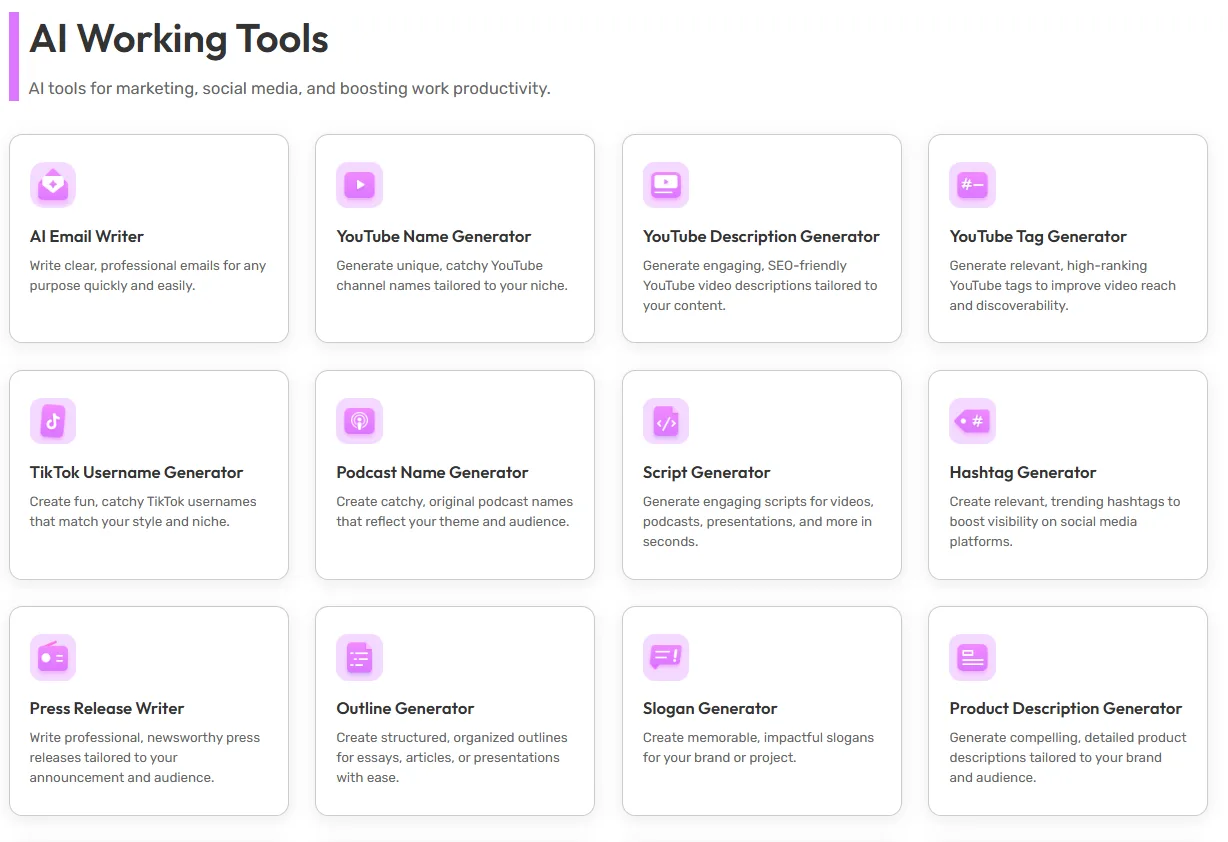
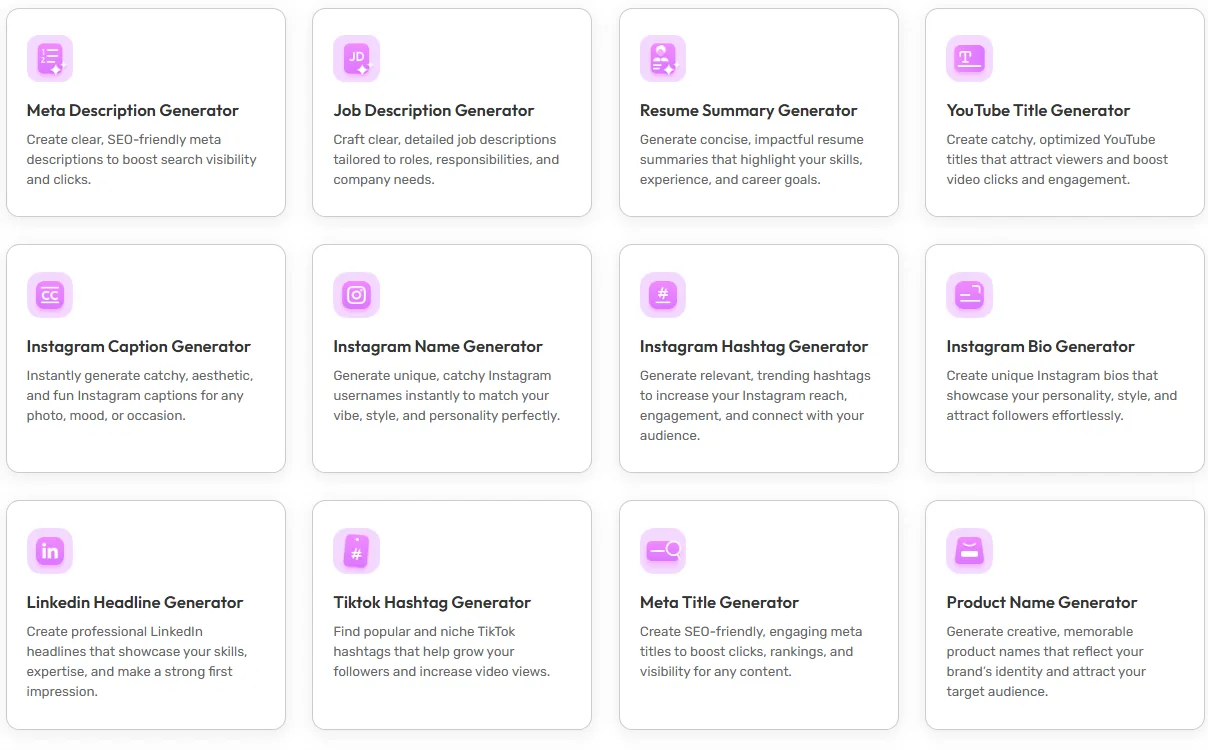
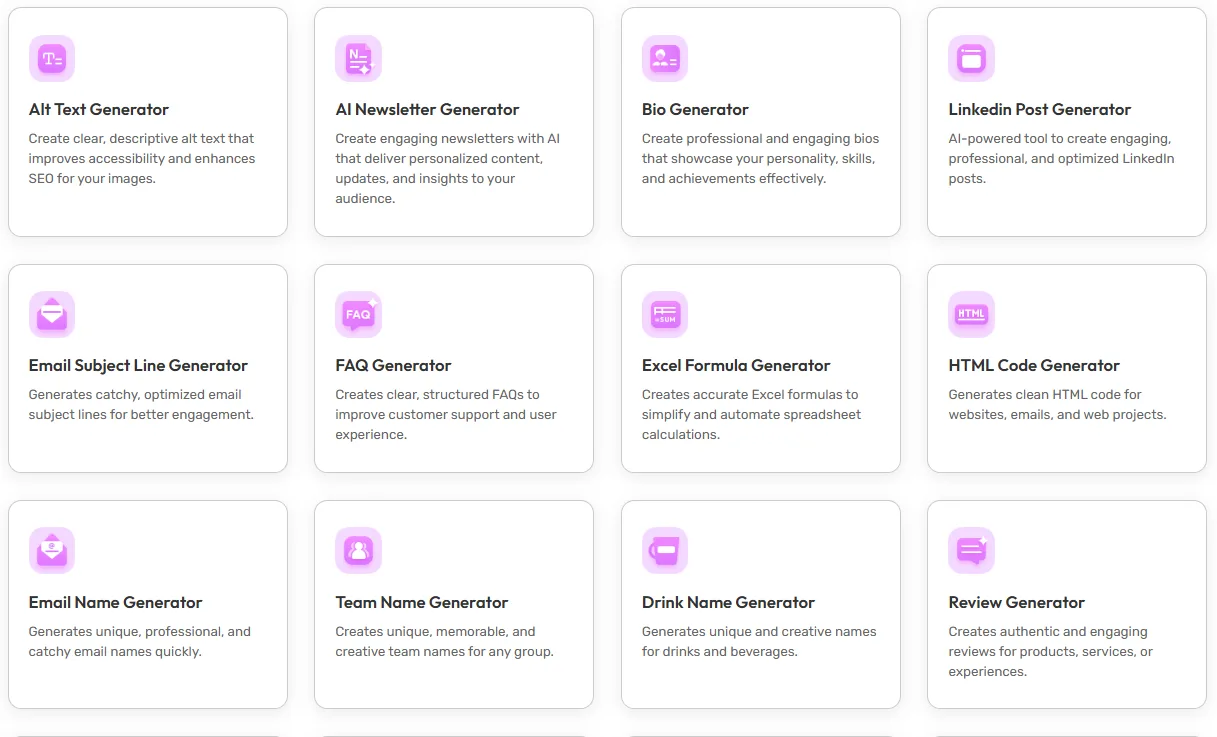
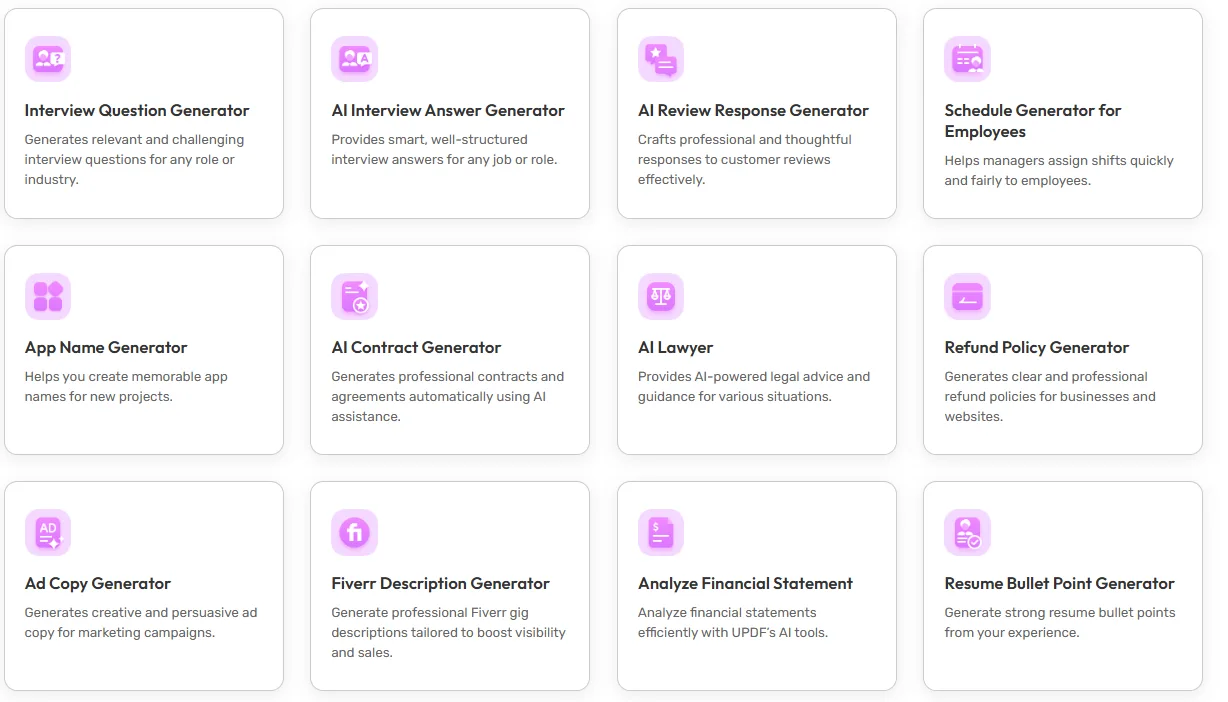
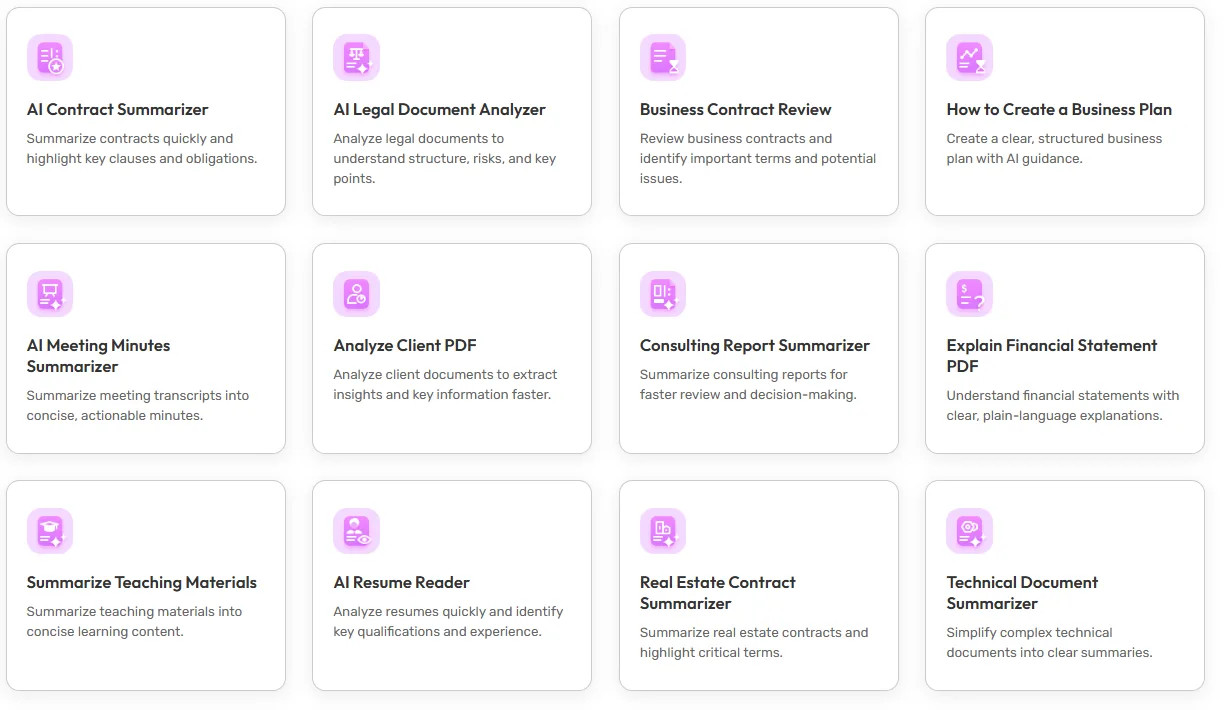
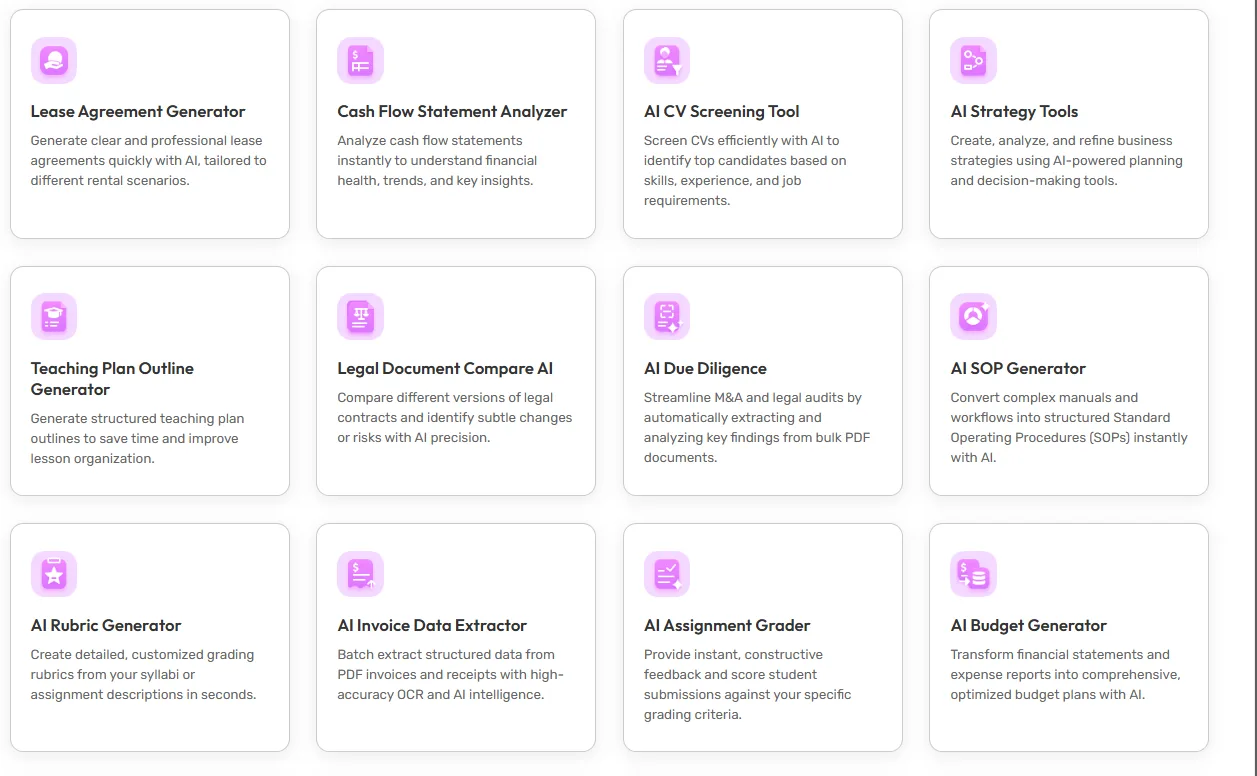
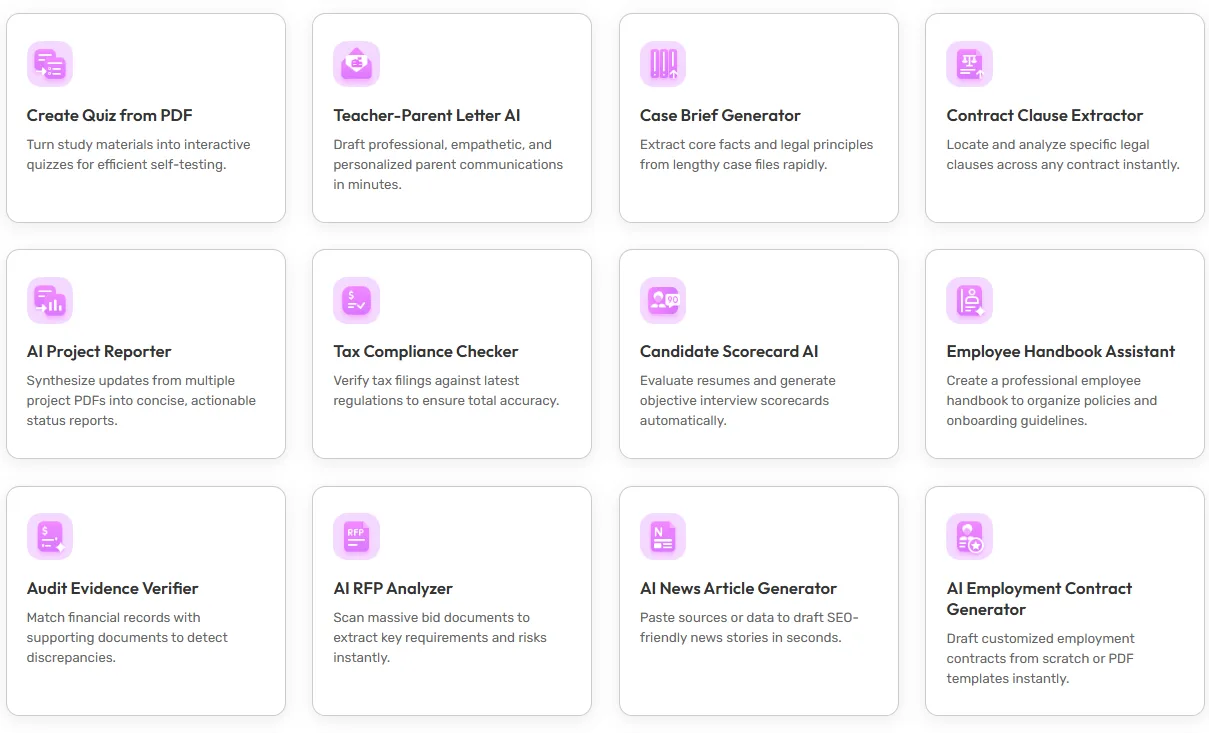
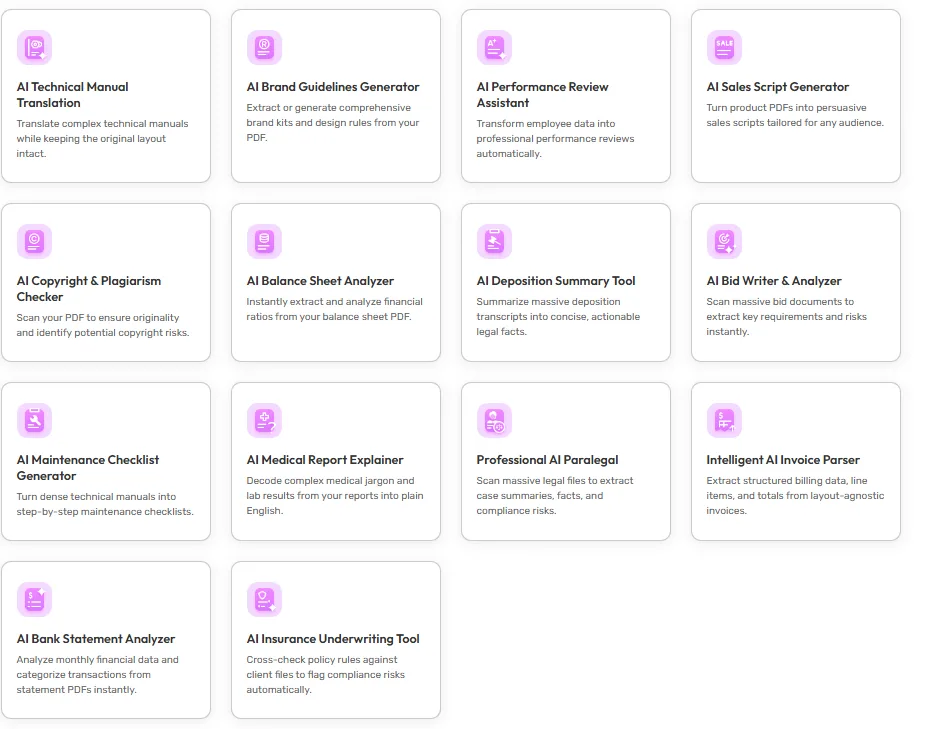
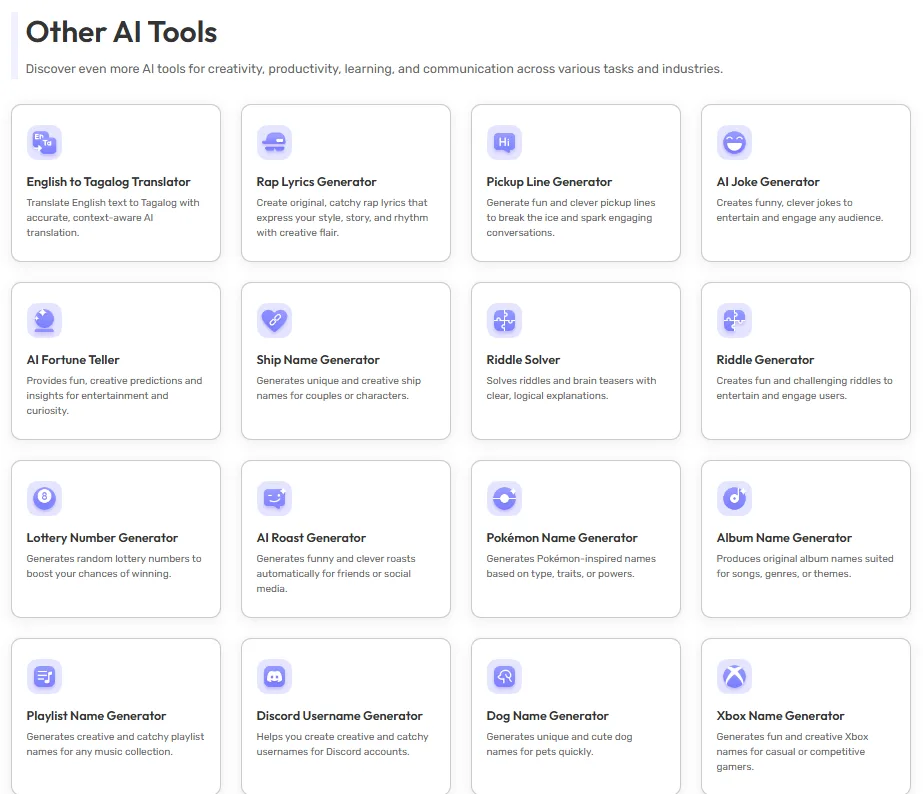
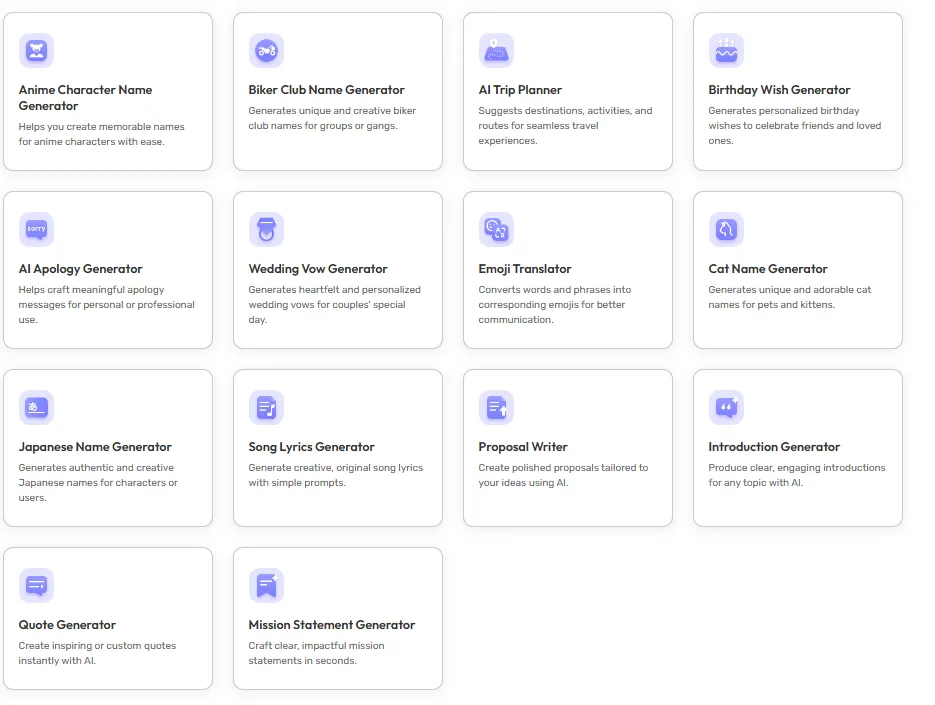
So yeah. It’s a lot. More than HiPDF even, and HiPDF already felt like it had a decent spread of tools when I reviewed that one.
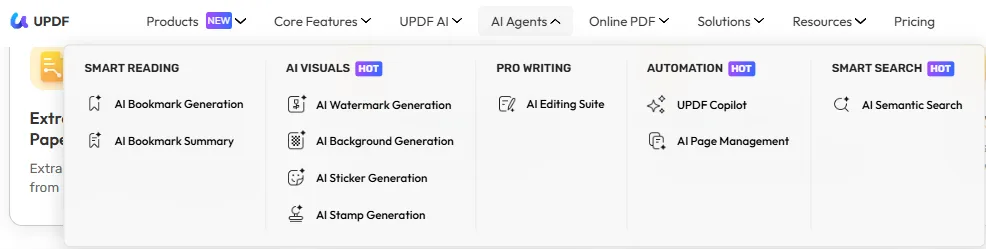
Navigation wise, once I got past the initial “wait, where do I even start” moment, it wasn’t too bad. Everything is organized into these categorized dropdown menus at the top, Smart Reading, AI Visuals, Pro Writing, Automation, Smart Search under the AI Agents tab, and then a whole separate mega menu for Core Features covering Edit, Convert, Organize, Protect. It’s a lot of menu diving honestly but at least it’s not just a giant unsorted dump of buttons.
One thing I noticed pretty quickly, whatever AI tool I clicked into, it would basically funnel me back into the same central AI chat interface. So it’s not like each tool opens its own separate mini app, it’s more like every tool is a specific type of conversation happening inside one shared workspace. New tool, new chat, but same UI wrapper around it. Took a minute to wrap my head around that structure but once I got it, it made switching between tools feel a bit more seamless than I expected given how sprawling the tool list looked at first glance.
No dark theme though, which was a genuine miss for me. I’ve said this before in other reviews but I do a lot of late night work and staring at a bright interface for extended stretches genuinely bothers my eyes after a while.
Core Features & Real Usage Testing
Given the sheer number of tools available, I obviously could not test everything, that would’ve taken me a week to be honest. So I picked what felt like the most relevant and useful features for someone doing actual document and writing focused work, rather than the novelty generators.
Chat with PDF
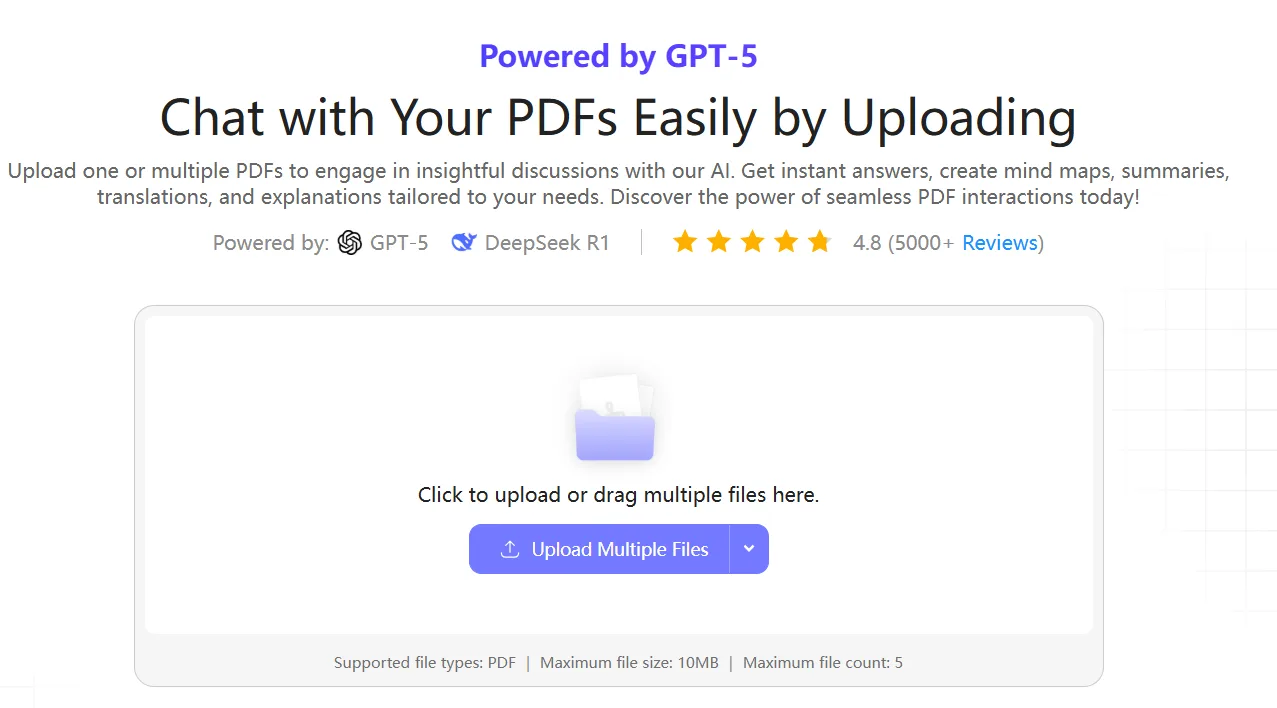
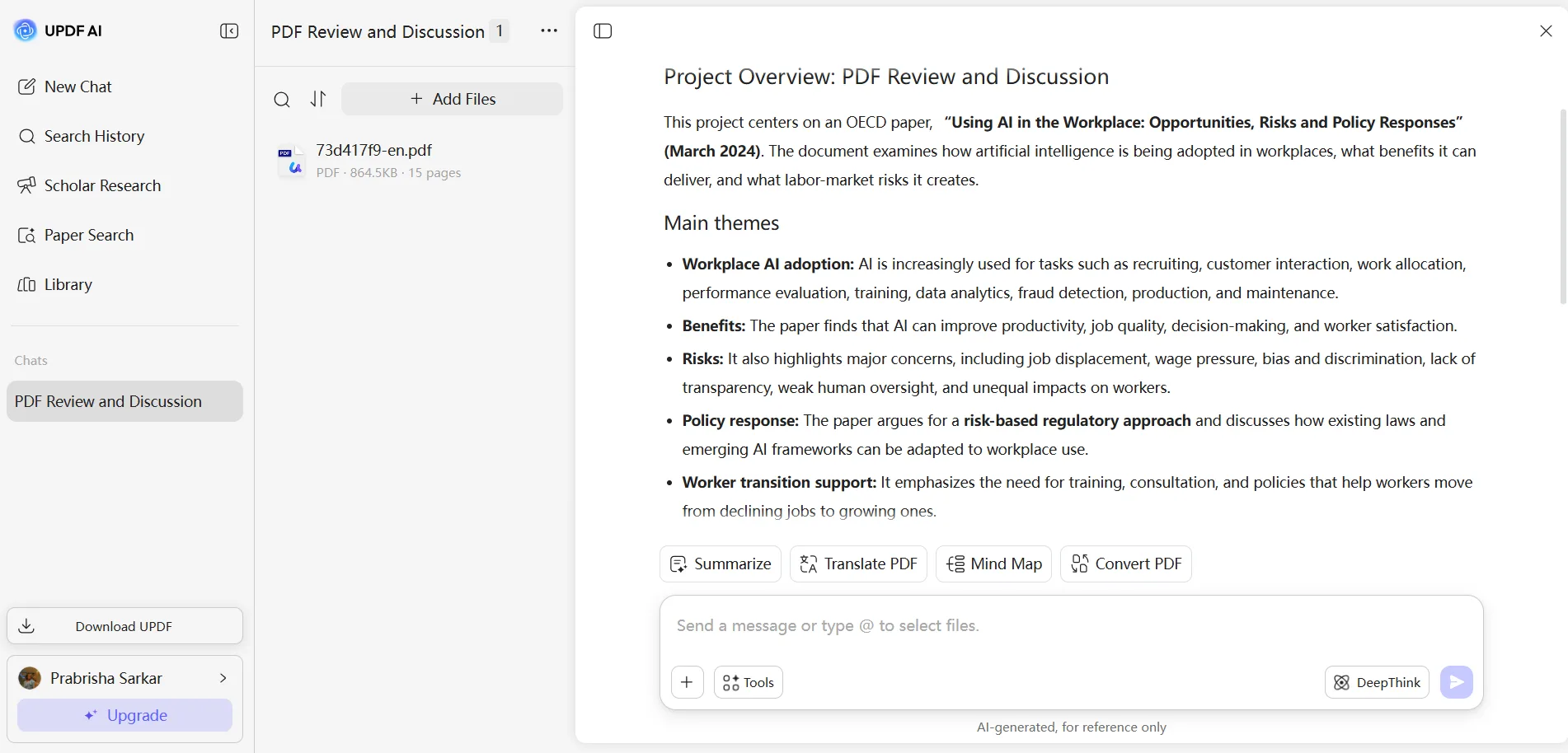
I started with the easy one first since this is usually the baseline test I run on every single tool before moving on to anything fancier. I uploaded a document and asked it to summarize, and it gave me a genuinely solid summary, hit the key points clearly without missing anything major that I could tell when I cross checked against the actual document line by line. I pushed it a bit further too, asking a couple of specific follow up questions about details buried deeper in the document rather than just the obvious headline points, and it pulled those out accurately as well without needing me to rephrase or guide it toward the right section. Nothing revolutionary here honestly, this is table stakes at this point for any PDF AI tool, but it did the job well and didn’t hallucinate anything from what I noticed.
PDF to Mind Map
This is where things got more interesting. I generated a mind map from the same document and it came back detailed, properly branched out across the main themes with sub points underneath. But the standout part, and I mean genuinely standout compared to other mind map tools I’ve tested, is that I could actually select how much of the document I wanted the mind map to cover. Instead of being forced to generate a map of the entire PDF every single time, I could specify something like generate a mind map from page 1 to 5 specifically, and it respected that range and only mapped out that section.
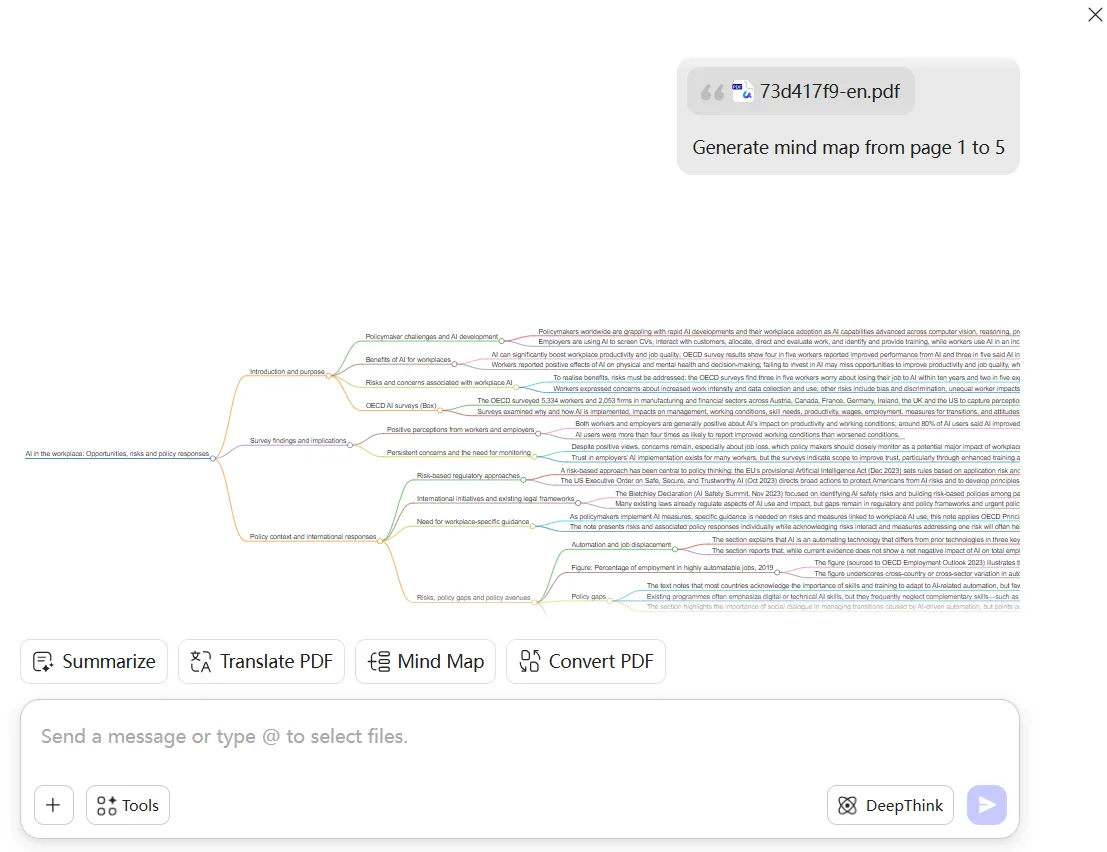
That’s a genuinely useful feature that I haven’t seen implemented this cleanly elsewhere. A lot of these tools just give an all or nothing mind map of the whole document, but this level of control over scope means I could use it for things like breaking down just one chapter of a report without cluttering the map with content from sections I don’t care about right now.
Chat with Image
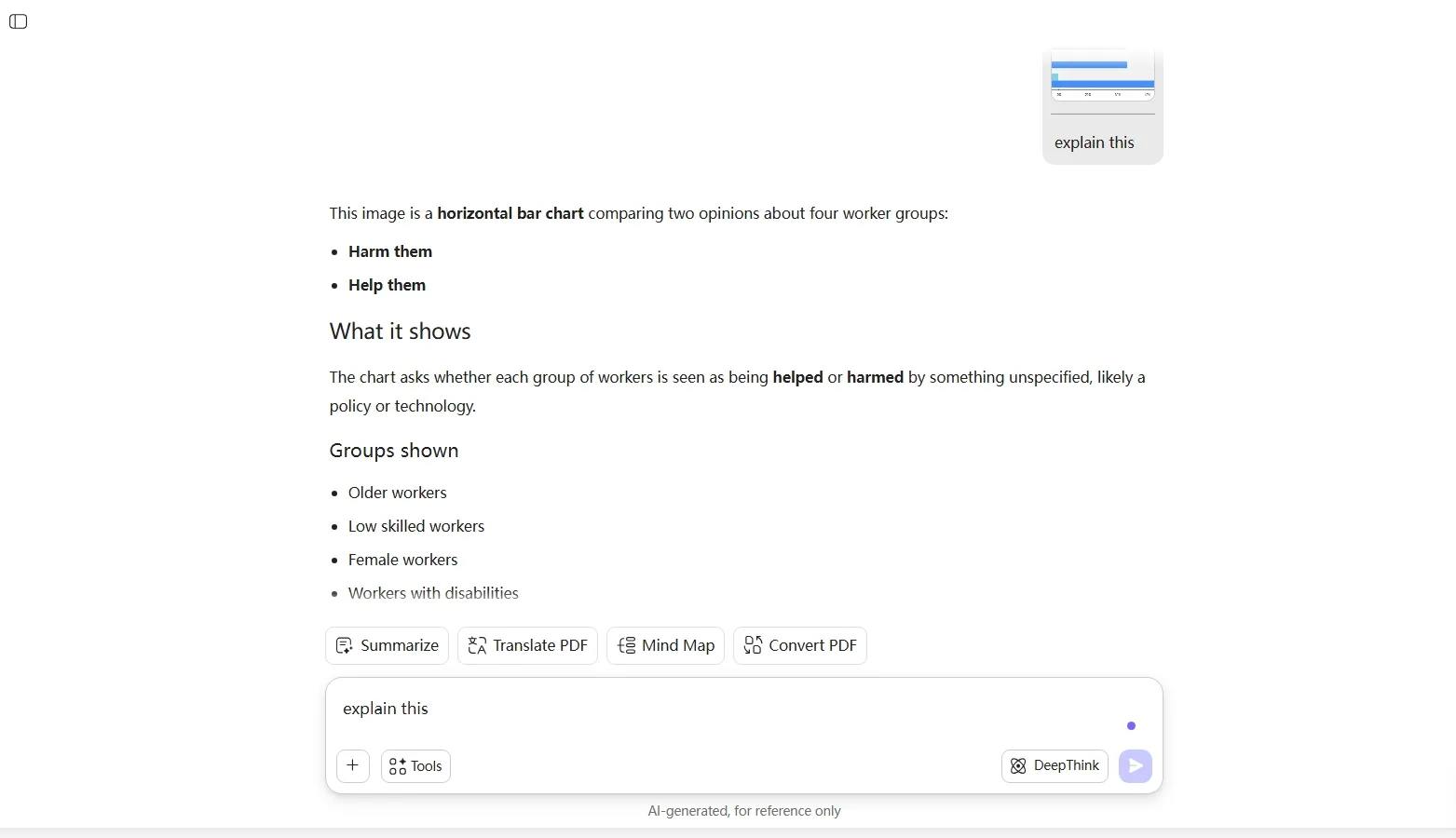
I tried this one out with a horizontal bar chart I uploaded, and honestly it explained the image really well. It correctly identified what type of chart it was, broke down what the chart was comparing, listed out the categories being measured, and gave me a clear explanation of what the data was actually showing without me needing to specify any of that context myself. I asked a follow up “explain this” prompt directly on the chart too and it kept the context fine, building on its own previous explanation instead of restarting from scratch or repeating itself. I also tried feeding it a slightly more cluttered image afterward, just to see if it would fumble on something less clean than a simple bar chart, and it still held up reasonably well breaking down the different visual elements present. For someone who works with a lot of visual data in reports, this is a genuinely handy feature to have baked in rather than needing a separate tool just for image analysis, and it saved me a step I’d normally have to do manually.
AI Email Writer
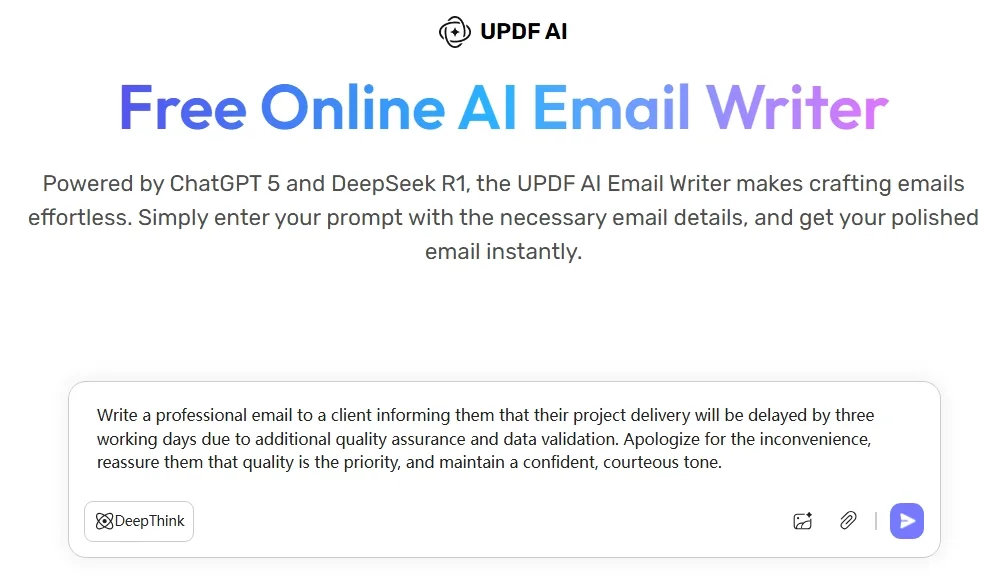
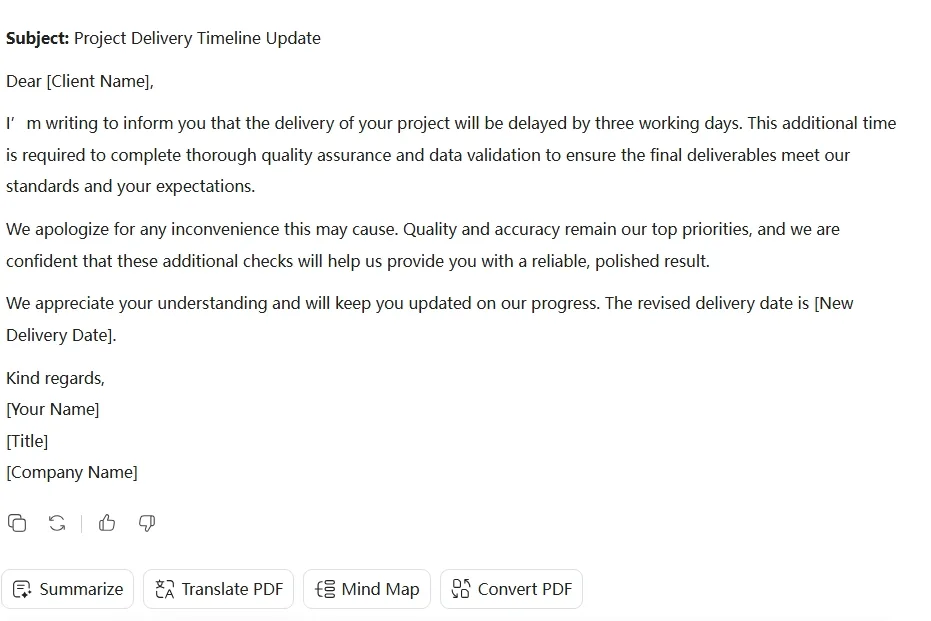
I tested this with a fairly specific prompt, asking it to write a professional email to a client about a delayed project delivery, apologizing for the inconvenience while keeping a confident and courteous tone. What it gave back actually hit the tone I asked for well, it was firm about the delay but not overly apologetic to the point of sounding weak, and it structured the email properly with a subject line, greeting, explanation, and a professional sign off. I didn’t need to edit much of anything, which says something about how well it followed the specific tone instructions I gave it.
CV Screener
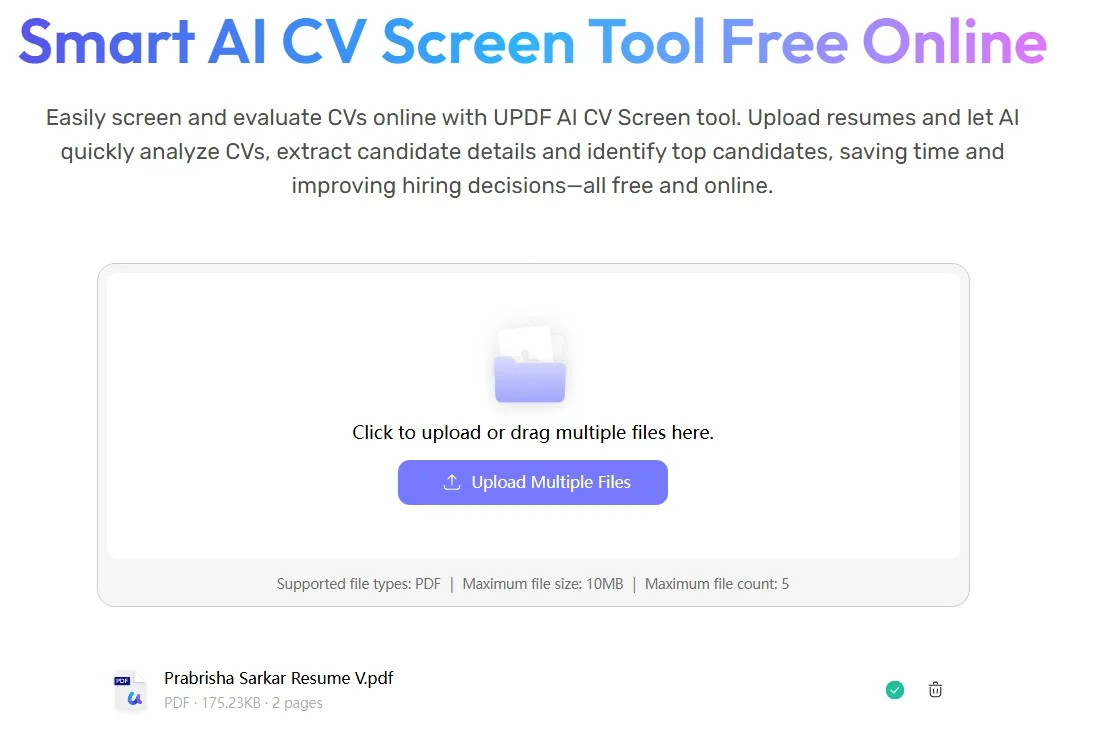
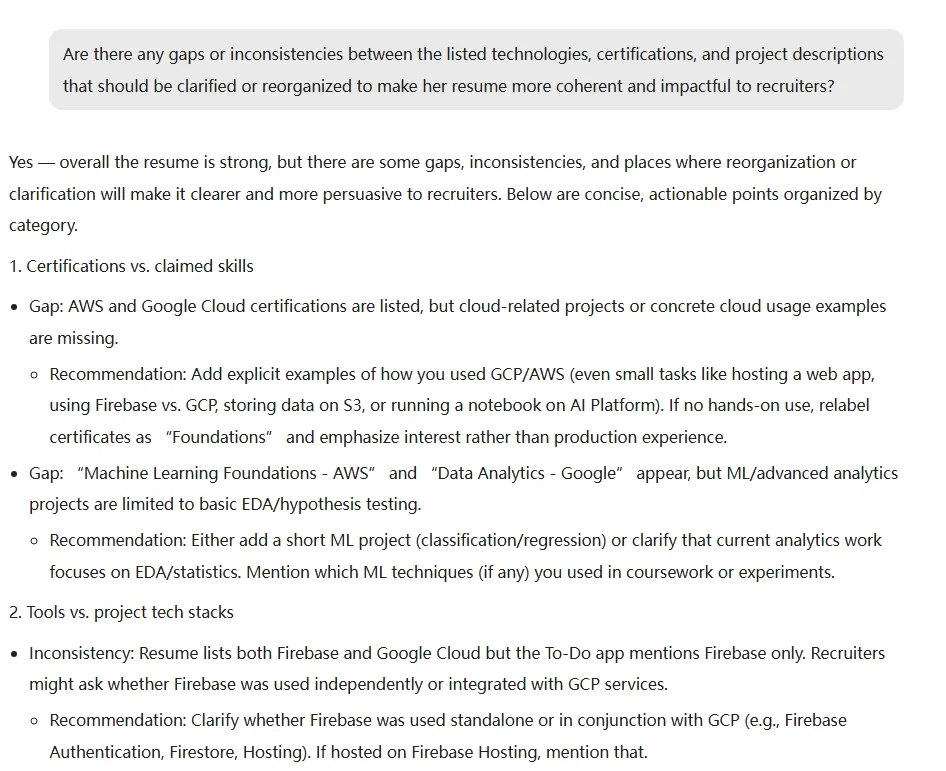
Used one of my older resumes to test this, mostly out of curiosity to see how deep the analysis would actually go. And to be quite honest, it was pretty smart about it. It picked up on actual inconsistencies I hadn’t consciously thought about, like flagging that I had listed certain cloud certifications on the resume but didn’t have concrete project examples backing those specific skills up elsewhere in the document. It gave categorized recommendations too, breaking down gaps by section instead of just dumping a wall of generic feedback at me. This felt like actually useful, specific feedback rather than the kind of vague “consider adding more detail” suggestions.
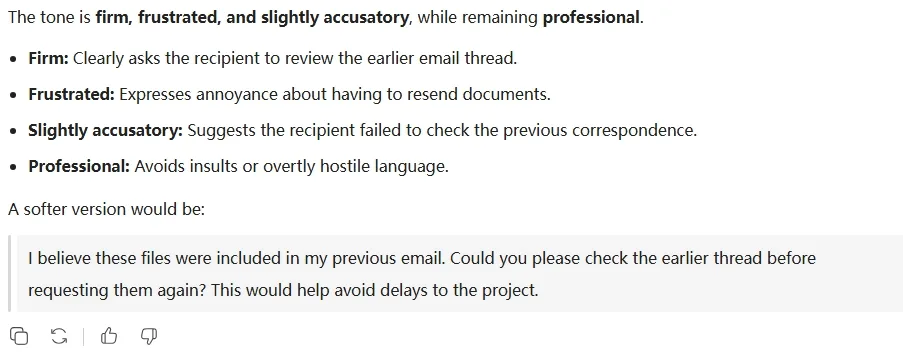
Tone Checker
I pasted in a preview sentence I’d written elsewhere and asked it to check the tone. It came back accurately describing the tone as firm, frustrated, and slightly accusatory while still remaining professional, and it broke down exactly why it read that way, pointing out specific phrases that contributed to each of those descriptors. It even offered up a softer rewritten version afterward without me needing to ask for one separately. That extra step of proactively offering an alternative version was a nice touch I wasn’t expecting.
Quiz Generator
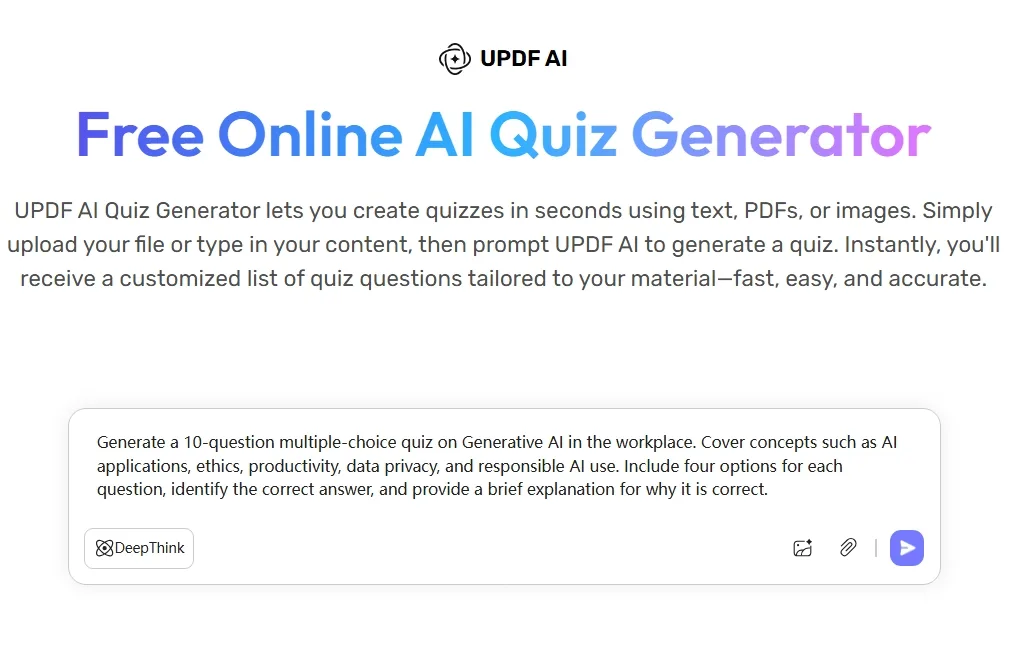
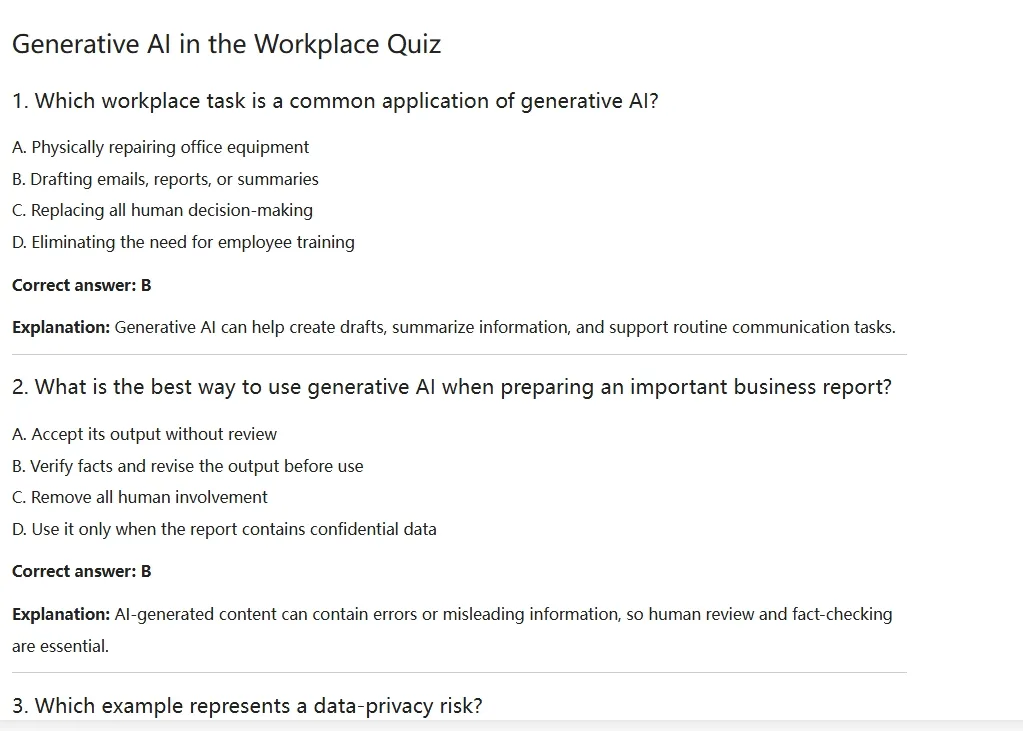
This one came with a caveat, and I want to be clear about that because I think it’s easy to misunderstand what this tool actually does based on the name alone. I asked it to generate a multiple choice quiz on a topic, and it did give me a set of questions along with correct answers and explanations for each one, formatted cleanly with each question numbered and the reasoning laid out right underneath the answer. But it’s not exactly a quiz I could sit down and actually take interactively within the tool itself, meaning there’s no clickable answer selection, no scoring at the end, none of that. It’s more like a template or a document I’d need to copy out somewhere else if I wanted to actually quiz myself properly, maybe into a separate flashcard app or even just a plain document where I cover the answers first. Still useful as a study resource generator, and the actual question quality along with the explanations behind each correct answer were genuinely well put together, just don’t go in expecting an interactive testing experience because that’s not really what this is despite what the name might suggest at first glance.
Paper Search
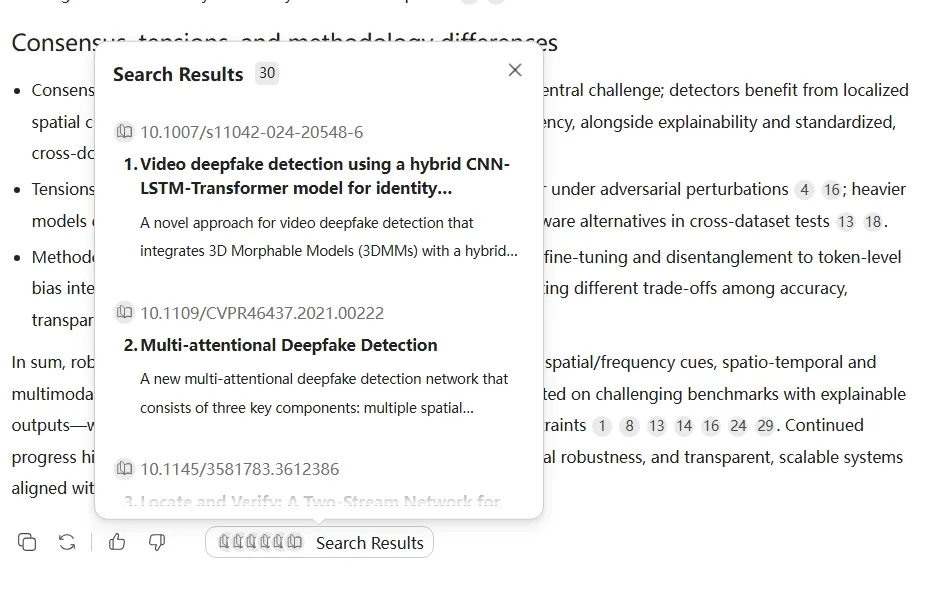
Tested this with a deepfake detection search, similar to how I tested ChatPaper on ChatDOC recently. It pulled back around 30 relevant academic papers along with a synthesized summary covering the overall topic, and every citation in that summary actually linked back to a real paper in the results list. Clicking through confirmed the citations matched up properly, no fabricated sources that I could catch. For research purposes this held up really well, and honestly felt comparable in quality to what I got from ChatPaper, just wrapped inside this much bigger, broader platform instead of being its own dedicated niche tool.
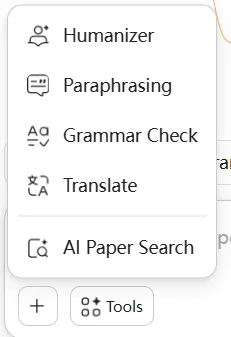
One notable gap though, there’s no AI detector anywhere in this entire suite. I went looking specifically because I wanted to test the humanizer tool against it, the same way I did with HiPDF’s detector and humanizer combo, but there’s simply no way to verify humanized output against an in house detector here. That felt like a genuine miss given how many other tools this platform crams in. Building out a humanizer tool without any detector to actually validate its own output against feels like an incomplete loop.
Performance, Reliability & Everyday Usability
It was mostly smooth, but not flawless. I did run into an internal server error a couple times specifically while uploading files, nothing that broke my whole session but enough of a hiccup that I noticed it and had to retry the upload. That felt like something on their end rather than anything I was doing wrong, since retrying the exact same upload usually just worked the second time around.
Beyond that one recurring annoyance, actual response times for the AI tools themselves were solid. No noticeable lag once a document was actually uploaded and processing had started, chat responses came back at a reasonable pace, and I didn’t experience any dropped context during longer back and forth sessions where I asked multiple follow up questions building on earlier answers.
The unified chat interface thing I mentioned earlier also held up fine performance wise, switching between different tool types within that same wrapper didn’t introduce any noticeable slowdown or weird glitches. It just worked as a consistent, if occasionally error prone during upload, experience throughout my testing session.
Pricing, Free Plan & Limitations
In the free version I could upload around 10MB worth of files, or up to five separate files, and importantly it allows multiple files to be uploaded and chatted with simultaneously, which is a genuinely useful feature for anyone working across multiple related documents at once rather than being stuck chatting with one file at a time.
But the pricing gets a little complicated here because there’s multiple separate plan structures depending on what exactly someone wants access to. Here’s the breakdown:
Plan | Price | What’s Included |
|---|---|---|
UPDF Yearly Plan | $79/year (26% off from $108) | Full PDF editing, annotating, converting tools, no AI included |
UPDF Lifetime Plan | $129 one time (18% off from $159) | Same core PDF tools as yearly, but lifetime access instead of subscription |
UPDF AI Assistant | $79/year (43% off from $139) | Unlimited AI features, summarize/translate/chat with PDF, chat with up to 100 PDFs simultaneously online, paper search and scholar research, 10 AI agents |
UPDF Pro | $79.99/lifetime (20% off from $99.99) | Full PDF tool access plus AI Assistant bundled in with a 7 day free trial, then AI portion auto renews at $69/year after that |
UPDF Productivity Suite | $42.99/month (41% off from $72.98) | Bundles UPDF Pro plus four other apps together, broader workflow suite |
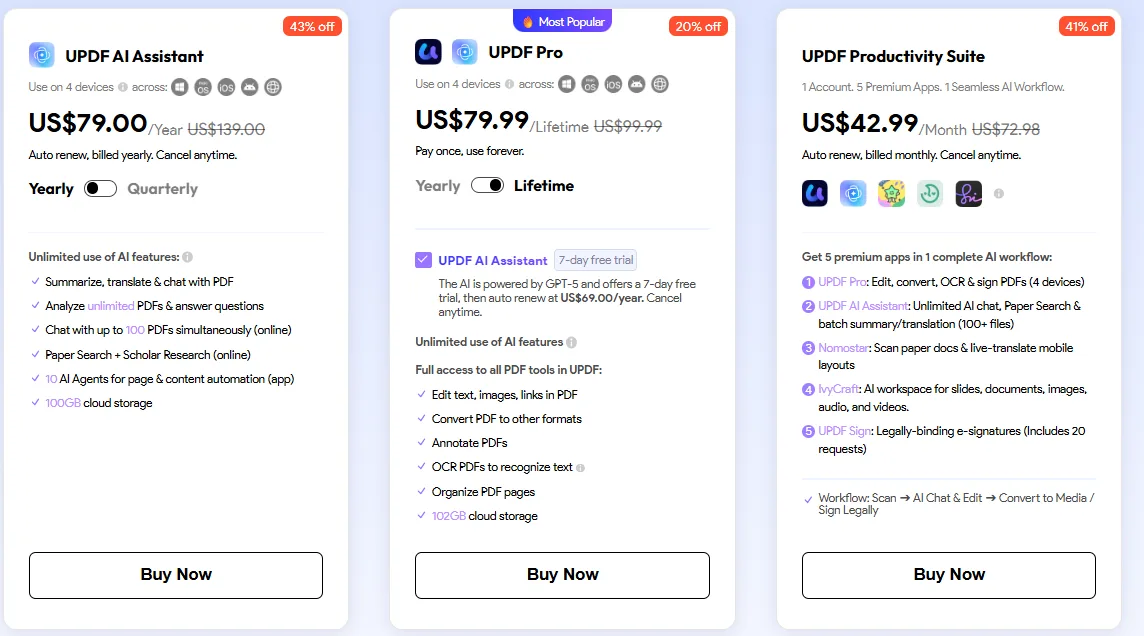
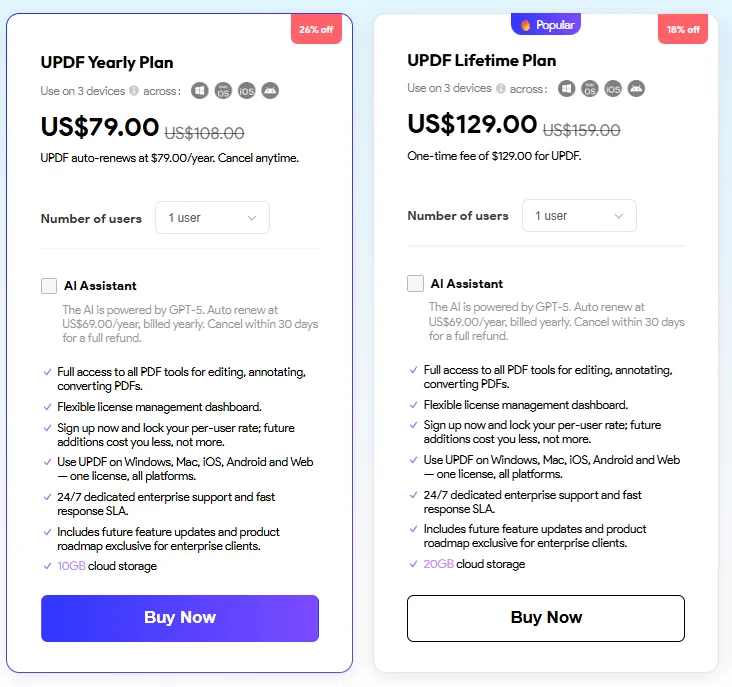
The one that actually matches what I’d realistically pay for is the UPDF Pro lifetime option at $79.99, which lines up with roughly what I’d expect to pay for a solid one time PDF tool purchase, and getting the AI assistant bundled in with a trial period on top of that honestly feels like good value. Paying once for lifetime access instead of committing to a recurring yearly fee is appealing, especially compared to competitors charging ongoing subscriptions for similar functionality.
That said, the pricing structure itself is genuinely confusing at first glance. Having separate AI only and PDF only plans, plus a combined Pro plan, plus a whole separate Productivity Suite bundle, means it takes some real digging to figure out exactly what combination actually gets someone everything they need without overpaying for redundant coverage. I had to read through the pricing page a few times myself just to make sure I understood what came bundled with what.
Privacy, Data Handling & Account Control
- UPDF explicitly states it will not collect, and does not permit any third party to use, uploaded files, documents, or personal information for training or improving general purpose AI or machine learning models, which is a meaningfully stronger commitment than what a lot of competitors offer
- User uploaded documents get stored in data centers located in the user’s own region specifically, meaning US data stays in US data centers, European data stays in European data centers, rather than being shuffled around globally
- File transfers use SSL/TLS based HTTPS encryption during the actual transmission process
- For enterprise users specifically, encrypted server side storage is available, and there’s also an option to run a version of UPDF entirely without cloud or AI functionality if a business doesn’t want those features active at all
- The AI assistant portion uses OpenAI’s underlying technology and is bound by OpenAI’s own content and usage policies on top of UPDF’s own rules
Practically speaking, the explicit no AI training commitment stood out to me as the most reassuring part of this policy. A lot of tools bury vague language about “improving our services” that could technically cover model training, but UPDF spells this out directly and unambiguously, which is exactly the kind of clarity I want to see in a document handling tool.
Comparison: UPDF vs HiPDF
Since I already reviewed HiPDF, testing this one specifically made me think of HiPDF as the closest comparison point I’ve encountered so far, here’s how they actually stack up against each other.
Feature | UPDF | HiPDF |
|---|---|---|
Chat with PDF | Yes, multi file support up to 100 online | Yes, with page citations |
Mind Map | Yes, with adjustable page range control | Yes, detailed and well branched but no page range control |
AI Detector | No | Yes, text/image/document |
Chat with Image | Yes | Not tested |
Broader AI writing/study tools | Extensive, dozens of extra tools | Not present |
Free plan usability | Generous, 10MB/5 files, multi file chat | Generous, 6 uses left after heavy testing |
Pricing | $79.99 lifetime for Pro (AI bundled) | $39.99 to $48 billed yearly |
This comparison honestly felt a bit lopsided just because of scope. HiPDF stays tightly focused on PDF specific AI work plus a full conversion and editing suite, while UPDF branches out into this massive catalog covering writing, research, study tools, image chat, and more, all wrapped around the same core PDF functionality. If someone just wants a focused PDF chat and editing experience without needing fifty other AI tools cluttering the interface, HiPDF’s more contained approach and per feature pricing might actually feel cleaner. But if someone wants one platform to just handle basically everything without needing five different subscriptions scattered across different tools, UPDF’s breadth combined with that lifetime pricing option makes a genuinely strong case for itself.
The AI detector gap is the one clear feature HiPDF has that UPDF simply doesn’t offer at all, and depending on someone’s specific workflow that could matter a lot or not at all.
Final Verdict & Overall Score
What worked really well for me was the sheer breadth of genuinely useful tools packed into one platform, the adjustable mind map scope was a standout feature I haven’t seen done this well elsewhere, the CV screener gave specific and actionable feedback rather than generic suggestions, and the tone checker’s accuracy combined with its proactive rewrite suggestion impressed me. The free plan being generous enough to actually get a real feel for the product, plus multi file chat support even on free, is a genuine strength too.
What didn’t work as well was the miss of not having an AI detector despite having a humanizer tool that arguably needs one to validate against, not having dark theme, the occasional internal server error during uploads, and a pricing structure that took more effort than it should have to fully understand.
Would I keep using it though? Yeah, honestly, especially given how the lifetime Pro pricing works out. For someone who wants one platform handling document work, writing assistance, and even some research tasks without juggling separate subscriptions everywhere, UPDF earns a strong recommendation. It’s not the leanest or most minimal tool I’ve tested, and the sheer number of features can feel like a lot to take in initially, but once I settled into how it’s organized, the actual output quality across everything I tested held up consistently well. I’d recommend this to any working professional who wants breadth over narrow specialization, just go in expecting a bit of a learning curve before everything clicks into place.
Overall Score: 8.1/10.
Frequently Asked Questions:
Yes, UPDF allows multi-file chat, enabling users to upload and query multiple documents simultaneously—supporting up to 100 files at once on the AI Assistant tier.
No, UPDF explicitly states that user-uploaded documents, files, and personal data are never used—nor permitted to be used by third parties—to train or refine general-purpose AI or machine learning models.
Yes, unlike many PDF tools that only generate full-file overviews, UPDF lets you designate specific page ranges (such as pages 1 to 5) to map out isolated chapters or sections.
Yes, UPDF offers one-time lifetime purchase options, including a standalone PDF tool license and a UPDF Pro bundle that includes core PDF tools alongside AI Assistant trial access.
Subscribe to our email newsletter to get the latest posts delivered right to your email.
Comments