Conclusion
Humata AI is a specialized tool that excels in its core function of document intelligence and research assistance. Its multi-source querying, reliable AI-generated reports, and strong privacy policies are notable strengths. However, it falls short in providing a broader toolkit, lacking features like flashcards, slides, and true visual outputs. While it performs well within its niche, the limitations are evident when compared to more versatile tools like NotebookLM.
Pros
- Multi-source querying available on the free plan
- Strong privacy policies and data handling
- Reliable AI report generation with citations
- Transparent and reasonable pricing structure
- Quick response times and consistent citation accuracy
Cons
- Lacks broader features like flashcards and slides
- Visual mode does not produce actual visuals
- No dark mode available
- YouTube integration limited to captioned videos
Table of Contents
- Initial Impressions & User Experience
- Main Features & Practical Testing
- Performance, Reliability & Everyday Usability
- Pricing, Free Plan & Limitations
- Privacy, Data Handling & Account Control
- Comparison With ChatPDF
- Final Verdict & Overall Score
Having tested NotebookLM, NoteGPT, and ChatPDF in this category of document and research tools, I can say that the bar was already quite high when I explored Humata. To be clear, Humata isn’t a poor tool; it performs its core functions well. The quality of outputs was reliable, the AIgenerated report was notably impressive, and the multi-source feature on the free plan was a pleasant surprise. However, I quickly realized there’s a ceiling to what this tool can achieve for me, and I reached that limit sooner than expected.
Humata AI functions as a document intelligence and research assistant. Its core promise is straightforward: upload files, ask questions, and receive answers. It supports PDFs, website URLs, and YouTube videos, allowing users to query multiple sources simultaneously instead of handling each separately. This multi-source capability is a significant differentiator in this space. For professionals or researchers dealing with dense documents and requiring precise, citation-rich responses from various sources at once, Humata offers genuine value. However, it’s not suitable for users seeking a broader toolkit—if you need flashcards, slide creation, audio summaries, or visual study aids, this platform does not provide those features, nor does it claim to.
Initial Impressions & User Experience
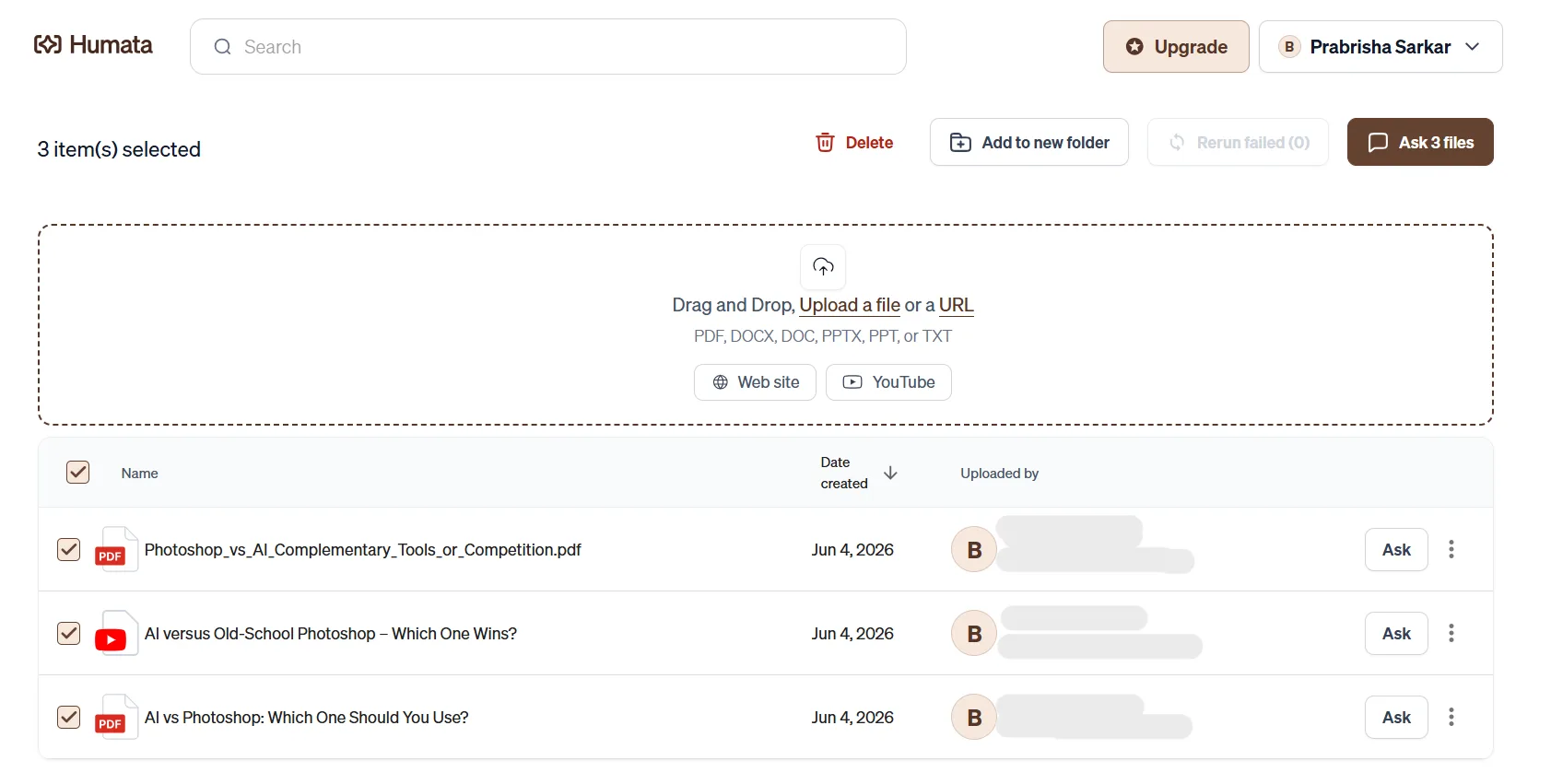
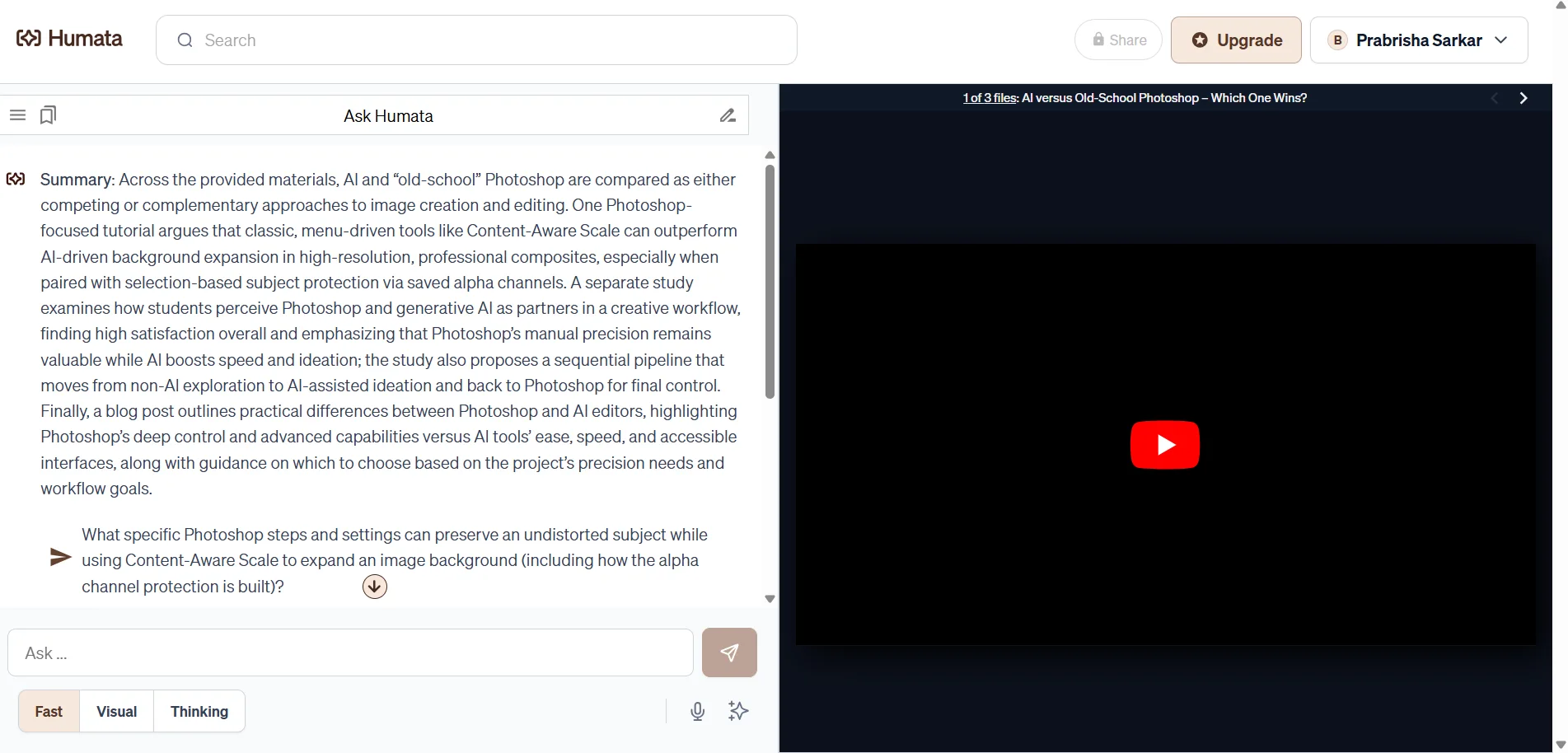
The interface is clean, lightweight, and easy to navigate right from login. There’s hardly any learning curve. The main screen acts as a file manager, with drag-and-drop uploads, URL inputs, and YouTube link options all readily available. Everything is straightforwardly organized. Files can be placed into folders, bookmarked, and queried either individually or collectively. The ‘Ask all’ button that appeared when multiple sources were selected (three in my case) was encouraging—it indicated that multi-source cross-querying functioned without needing an upgrade.
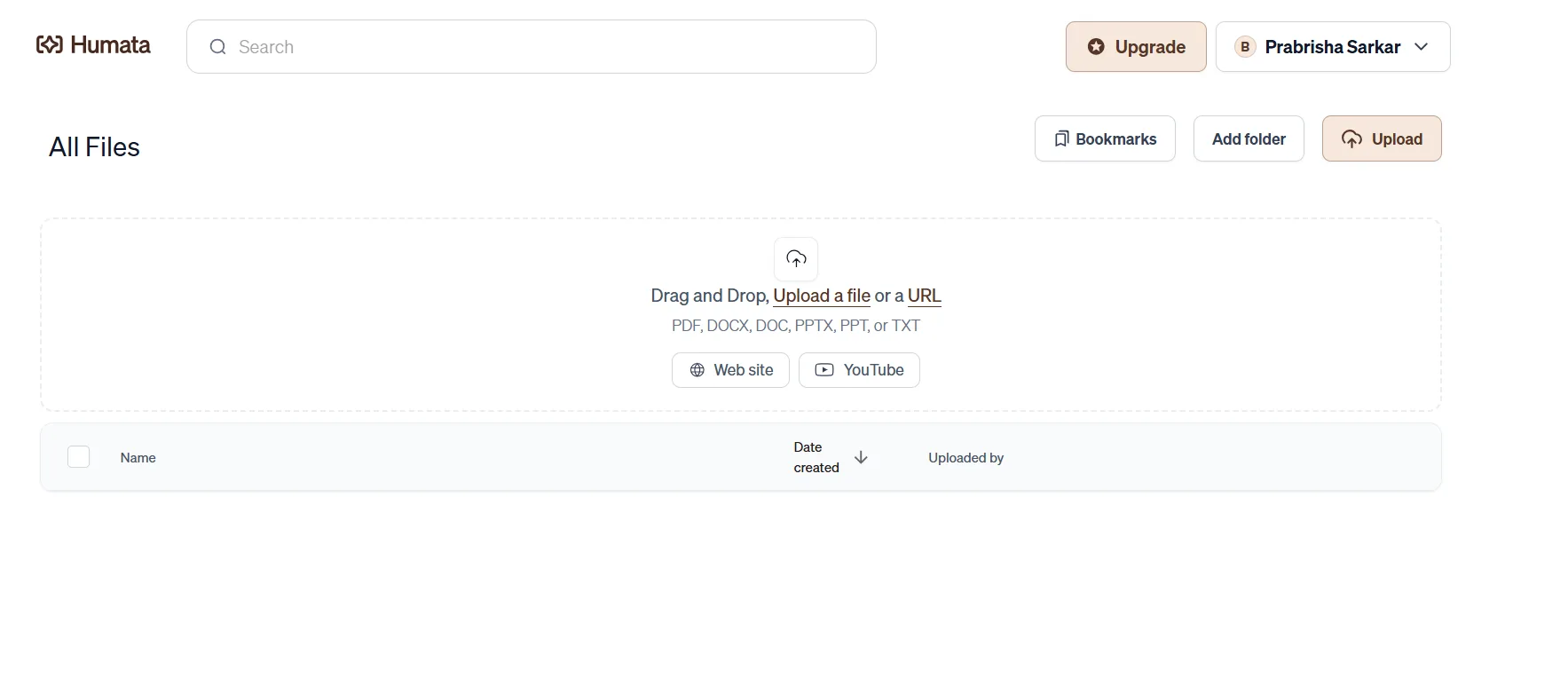
Dark mode was absent. The interface functions well—clean and uncluttered—but a dark theme would have been a welcome addition. It’s a minor feature, unlikely to be a dealbreaker for most, but worth mentioning.
- Light UI, clean layout, no onboarding friction
- File manager structure is easy to understand
- Multi-source upload and simultaneous querying available on the free plan
- No dark mode
- Search bar at the top is a nice touch for navigating across files
Main Features & Practical Testing
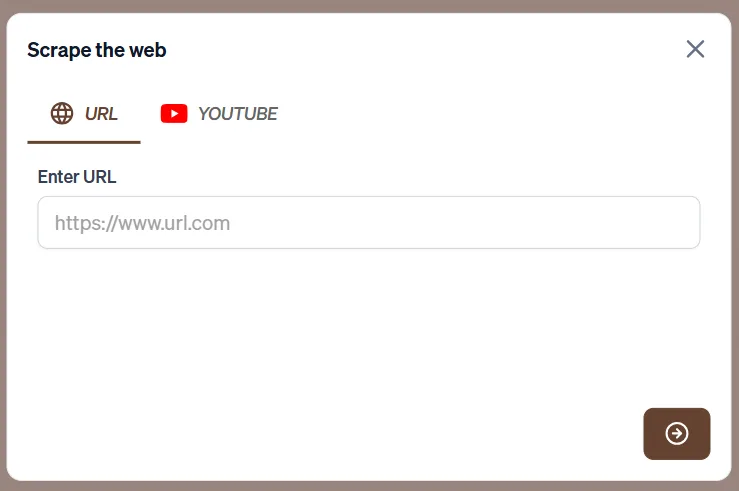
Humata’s primary function is to allow users to upload sources and converse with them. I uploaded three files simultaneously—a PDF, a website URL, and a YouTube link—and was able to select all three to ask questions across them within a single chat interface. This feature worked as promised. The answers included inline citations with numbered references pointing to the specific source and passage. Including citations in the AI responses enhances trust in the output, as they are clear and consistent.
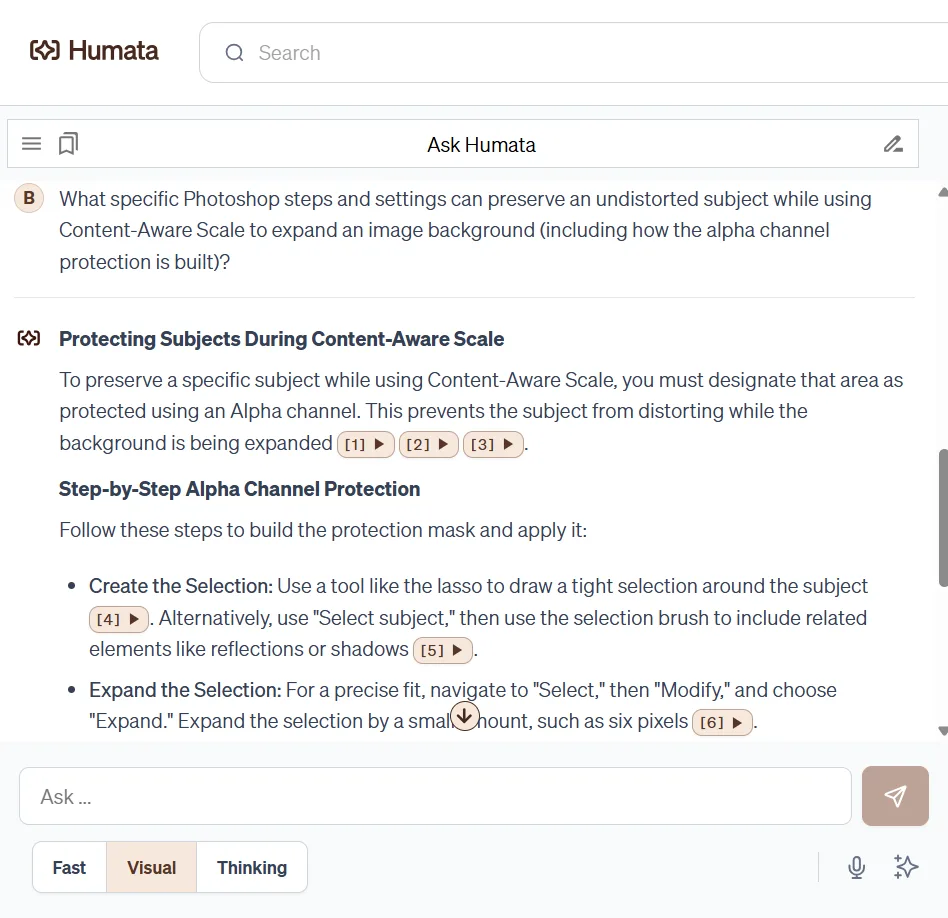
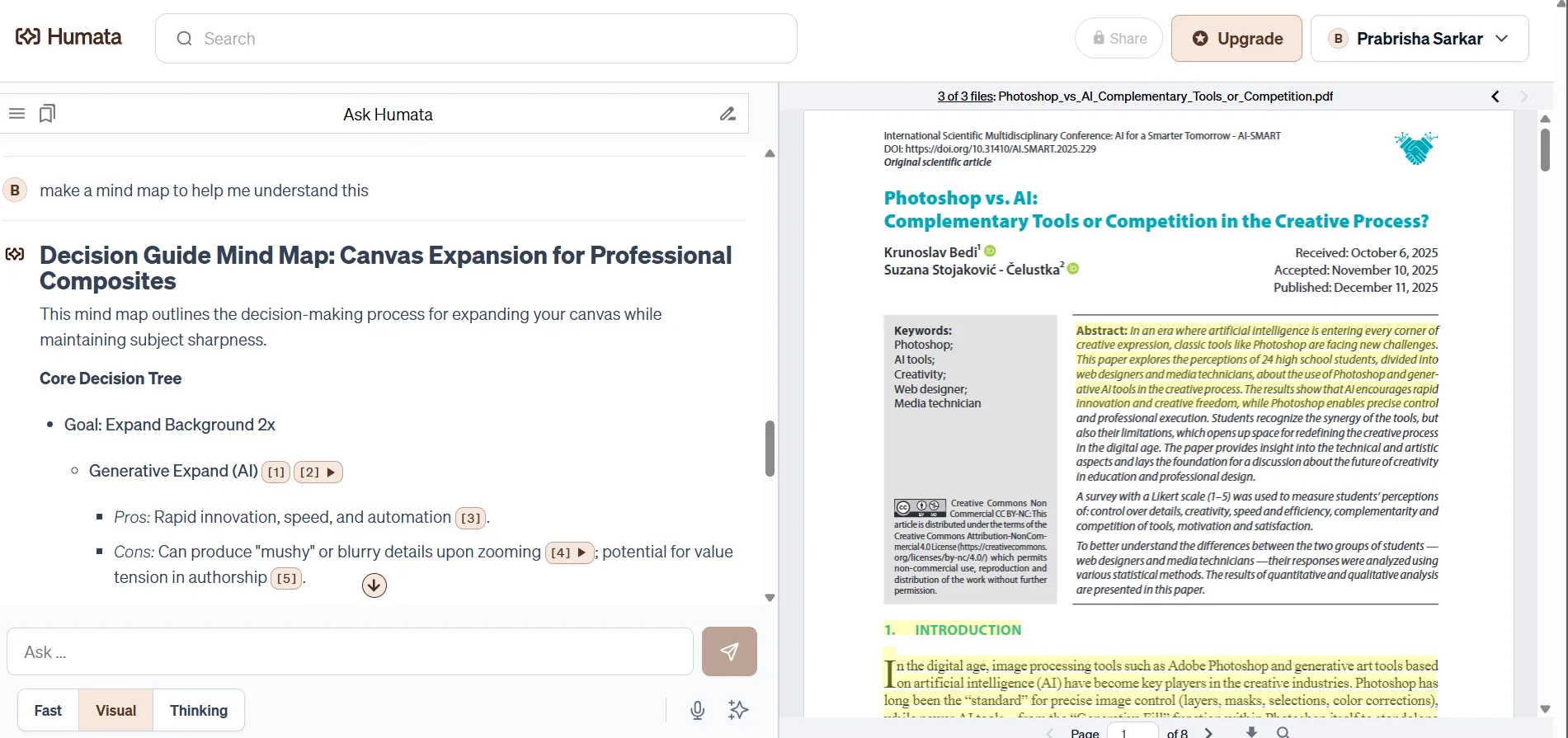
There are three chat modes: Fast, Visual, and Thinking. Fast provides quick, standard responses. Thinking is more deliberate, aiming to reason through complex questions carefully. Visual mode is marketed for more visually oriented outputs, but this is where I was most disappointed. When requesting a mind map in Visual mode, the response was not an actual visual mind map. Instead, it was instructions on how to create one—text explaining what to include and where, essentially a written guide. No diagram, no visualization—nothing actually rendered. For a mode that claims to focus on visual understanding, this was a significant shortcoming, like the feature was promising more than it could deliver.
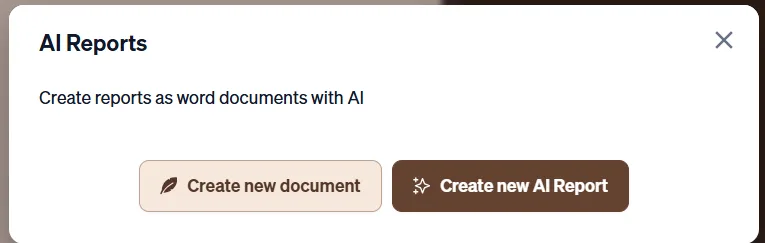
The AI Reports feature was a highlight. Accessible separately from the main chat, it allows creating a new report as a Word document—either from scratch or generated by AI based on uploaded sources. I tested the latter and found the output impressive. The report was comprehensive, well-structured, and included citations throughout, with references accurately pointing to the sources. This kind of output can genuinely save time in professional settings. For those who frequently synthesize information from multiple documents into reports, this feature performs well.
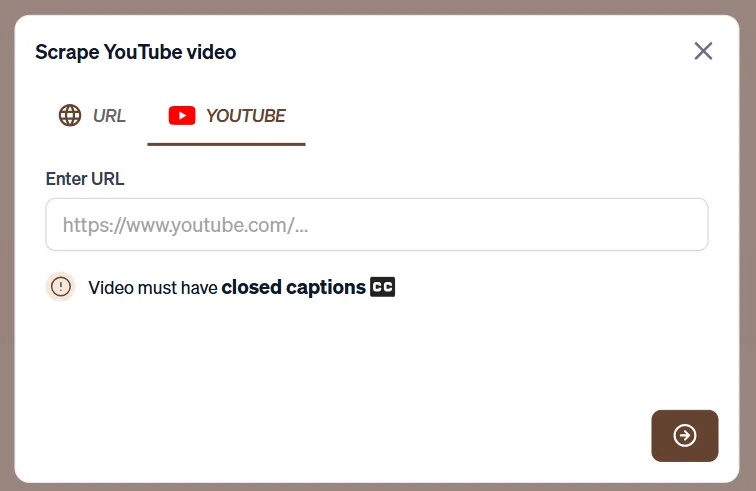
YouTube integration works by extracting the closed captions from videos and using that as the source content. When requesting a transcript, you receive the CC text with timestamps, not an AI-generated transcript. While technically accurate, this approach is limited by the quality and availability of captions on the video. Videos without captions won’t work at all. For most professional or educational content on YouTube, it’s sufficient, but users should be aware that it depends on existing captions rather than providing a true transcription.
A read-aloud option is available for chat responses, and it functions, but the voice is generic and monotone. It’s primarily a text-to-speech feature rather than a true audio overview. It doesn’t match the quality offered by NotebookLM’s audio features. While it works, it’s not a compelling reason to choose this tool.

Voice input via a microphone icon is available in the chat. It transcribes speech into text and submits it as a question—essentially dictation rather than a true voice interaction. Useful for accessibility or hands-free use, but it’s not a conversational voice mode and should not be confused with audio upload options.
Performance, Reliability & Everyday Usability
During testing, nothing malfunctioned. The tool responded quickly across all features, even when querying three sources simultaneously, with no noticeable slowdown. The citation system was consistent and accurate throughout. No crashes, errors, or failed uploads.
- Fast response times even across multiple sources
- Citation accuracy was consistent throughout
- AI report generation was solid and produced genuinely useful output
- Visual mode was a disappointment, promised more than it delivered
- Read aloud is functional but generic
- YouTube integration works only for captioned videos, which is a dependency to be aware of
- No audio uploads, no image file support, source types limited to PDFs, URLs, and YouTube
Overall, reliability was solid. Any frustrations encountered related more to feature limitations than to technical issues.
Pricing, Free Plan & Limitations
Humata’s pricing structure is simple and quite reasonable compared to other tools in this category.
- Free: $0 — up to 60 pages, 10 answers, basic features, 1 user
- Student: $1.99/month — up to 200 free pages, $0.02 per additional page, basic chat support (requires .edu email)
- Expert: $9.99/month — up to 500 free pages, $0.02 per additional page, 3 users included, premium chat support
- Team: $49/user/month — up to 5,000 free pages, $0.01 per additional page, 10 users, department and folder level permissions, OCR for images and scanned text, response personalization
- Enterprise: Custom pricing, unlimited users, custom page limits, SOC-2 certificate, uptime SLA, early access to new features
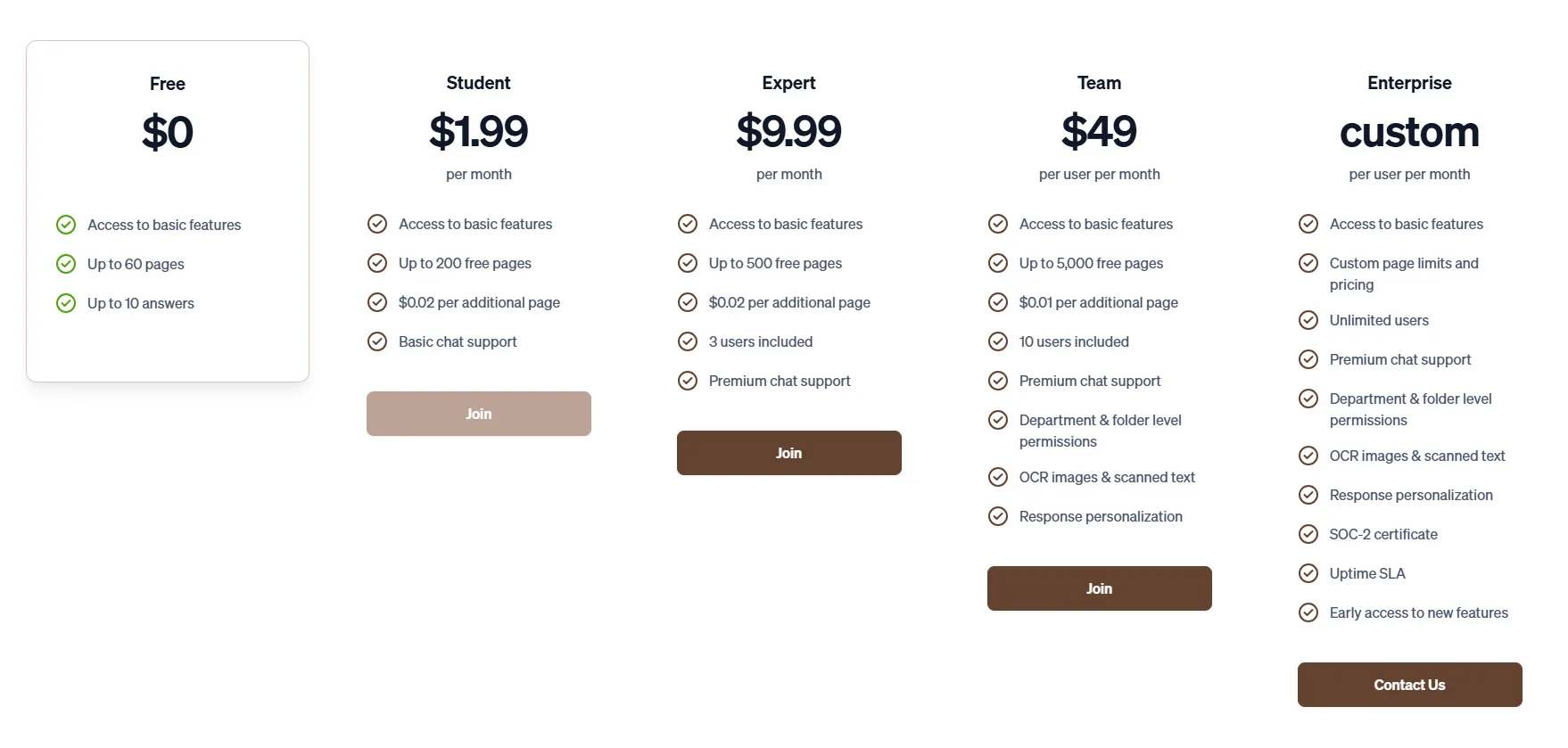
The free plan is genuinely suitable for testing and occasional use. The limit of ten answers is tight, but the 60-page cap allows for a meaningful evaluation of core features. The $9.99/month Expert plan is a sensible option for regular individual users, with transparent overage charges. The Student plan offers a good entry point for students with academic credentials.
The Team plan, at $49 per user per month, targets enterprise and team workflows, including OCR for scanned documents—something missing from lower tiers. For individual professionals and researchers, the $9.99 Expert plan generally suffices without being overly expensive.
Privacy, Data Handling & Account Control
A notable strength of Humata is its privacy stance. The platform explicitly states it does not use user data to train its AI models. All input information remains confidential and is only used to deliver the requested services. This clear commitment is reassuring and not obscured by vague language.
- Data collected: Uploaded documents, queries, and basic account information
- AI training: Humata refrains from incorporating user-generated content for model training, and any received information is erased within 30 days.
- Encryption: Files are encrypted during upload and processed in secure environments.
- Third-party sharing: No indication of data being sold or shared with advertising partners
- Account deletion: Files can be deleted manually at any time
- Enterprise-grade security: SOC-2 certification available on the Enterprise plan, OAuth and SAML SSO supported
Overall, trust is high. The 30-day data deletion policy, explicit no-training policy, and encryption during upload position Humata as one of the more privacy-conscious options in this space. For professionals handling sensitive documents, this provides valuable peace of mind.
Comparison With ChatPDF
|
Feature |
Humata AI |
ChatPDF |
|
Multi-source querying |
Yes, free plan |
No, each source is a separate chat |
|
Source types |
PDF, URL, YouTube (CC required) |
PDF, URL, YouTube |
|
Flashcards |
No |
Yes |
|
Slides |
No |
Yes |
|
Visual mode |
Yes, but doesn’t produce actual visuals |
No |
|
Read aloud |
Yes, generic TTS |
Yes, generic TTS |
|
AI Writer |
No |
Yes |
|
AI Detector |
No |
Yes, but 1 use/day free |
|
Free plan |
60 pages, 10 answers |
2 PDFs/day, 50 questions |
|
Paid plan |
$9.99/month (Expert) |
$19.99/month (Plus) |
Choosing between Humata and ChatPDF is challenging, and I found myself weighing the options more than expected. Both tools are similar in overall positioning, with neither clearly ahead. However, if I had to pick a preference, ChatPDF just edges out slightly. On the free plan, ChatPDF offers 50 questions daily compared to Humata’s 10—a significant advantage for research sessions. Although Humata’s 60-page limit is somewhat comparable to ChatPDF’s two PDFs per day, larger documents can favor ChatPDF if they exceed 60 pages each. Beyond limits, ChatPDF provides more features: flashcards, slides, an AI writer, an AI detector, and a research paper finder—features Humata does not have. Humata’s narrower focus on uploaded source querying is its strength, especially with the multi-source feature on the free plan. The $9.99/month Expert plan is also more affordable than ChatPDF’s Plus at $19.99. Nonetheless, the feature gap means Humata is better suited for cross-document research quality, while ChatPDF offers a more versatile, all-round experience for everyday use, despite less specialization.
Final Verdict & Overall Score
Humata AI is a specialized, well-implemented tool that excels at a single core function. Its multi-source document querying with inline citations, reliable AI report generation, quick responses, and strong privacy policies are notable strengths. The free plan is limited but transparent about its scope. The $9.99/month Expert plan offers good value for the features provided.
Most frustrations stem from what the tool lacks: no flashcards, no slides, no mind maps despite Visual mode suggesting otherwise, no support for audio files. The read-aloud feature is basic and generic. YouTube integration only works with captioned videos. These aren’t bugs but limitations inherent to the tool’s design. Its narrower scope makes it a specialist, not a comprehensive all-in-one solution.
Throughout the testing, the consistent impression was that Humata performs its core functions well. However, coming from NotebookLM—which offers most of these features plus many more—the gap becomes evident. For those choosing between the two, NotebookLM is generally the better option. Nonetheless, within the niche of single-purpose document tools at this price point, Humata is competitive—reliable, transparent about its limitations, and capable of producing quality output. It could expand further, but as it stands, it does what it promises effectively.
Final Score: 6.5/10
Frequently Asked Questions
Humata AI specializes in document intelligence and research assistance. Its main features include uploading and querying PDFs, website URLs, and YouTube videos, multi-source querying, and AI-generated reports with citations. It also offers different chat modes like Fast, Visual, and Thinking, although the Visual mode does not produce actual visuals.
Humata AI and ChatPDF are similar in positioning, but ChatPDF offers more features such as flashcards, slides, an AI writer, and an AI detector. Humata AI excels in multi-source querying and has a more affordable Expert plan at $9.99/month compared to ChatPDF’s Plus plan at $19.99/month. However, ChatPDF provides a more versatile experience for everyday use.
Humata AI offers several pricing plans: Free ($0) with up to 60 pages and 10 answers, Student ($1.99/month) with up to 200 pages, Expert ($9.99/month) with up to 500 pages and 3 users, Team ($49/user/month) with up to 5,000 pages and 10 users, and Enterprise with custom pricing and unlimited users.
No, Humata AI does not currently offer a dark mode. The interface is clean and lightweight but lacks this feature, which could be a minor inconvenience for some users.
Humata AI has a strong privacy stance. It does not use user data to train its AI models, and all uploaded information is encrypted during upload and processed in secure environments. Files are deleted within 30 days, and there is no third-party sharing of data.
The free plan of Humata AI is limited to 60 pages and 10 answers. It includes basic features and supports one user. While it allows for meaningful evaluation of core features, the limits are tight for extensive use.
Despite having a Visual mode, Humata AI does not generate actual visual outputs like mind maps. The Visual mode provides instructions on how to create visuals rather than producing them directly, which can be a significant shortcoming for users expecting true visual aids.
Subscribe to our email newsletter to get the latest posts delivered right to your email.
Comments